Sendoso
Sendoso is the leading Sending Platform that delivers modern direct mail, personalized gifts, eGifts, and other Physical Impressions™ at scale. Use the triggers in this connector to run a recipe when a new user is added or the send analytics are updated in Sendoso. Use the actions to manage your custom gift campaigns.
INFO
This connector is released to the community. You have to install it to your workspace before using it.
How to connect to Sendoso on Workato
Complete the following steps to set up your Sendoso connection:
Email [email protected] to request a client ID and client secret for your account.
Install the connector from the community library.
Click Release latest version to use the connector in a recipe.
Create a new recipe and select a Sendoso trigger or action.
Provide a Connection name that identifies the instance Workato is connected to.
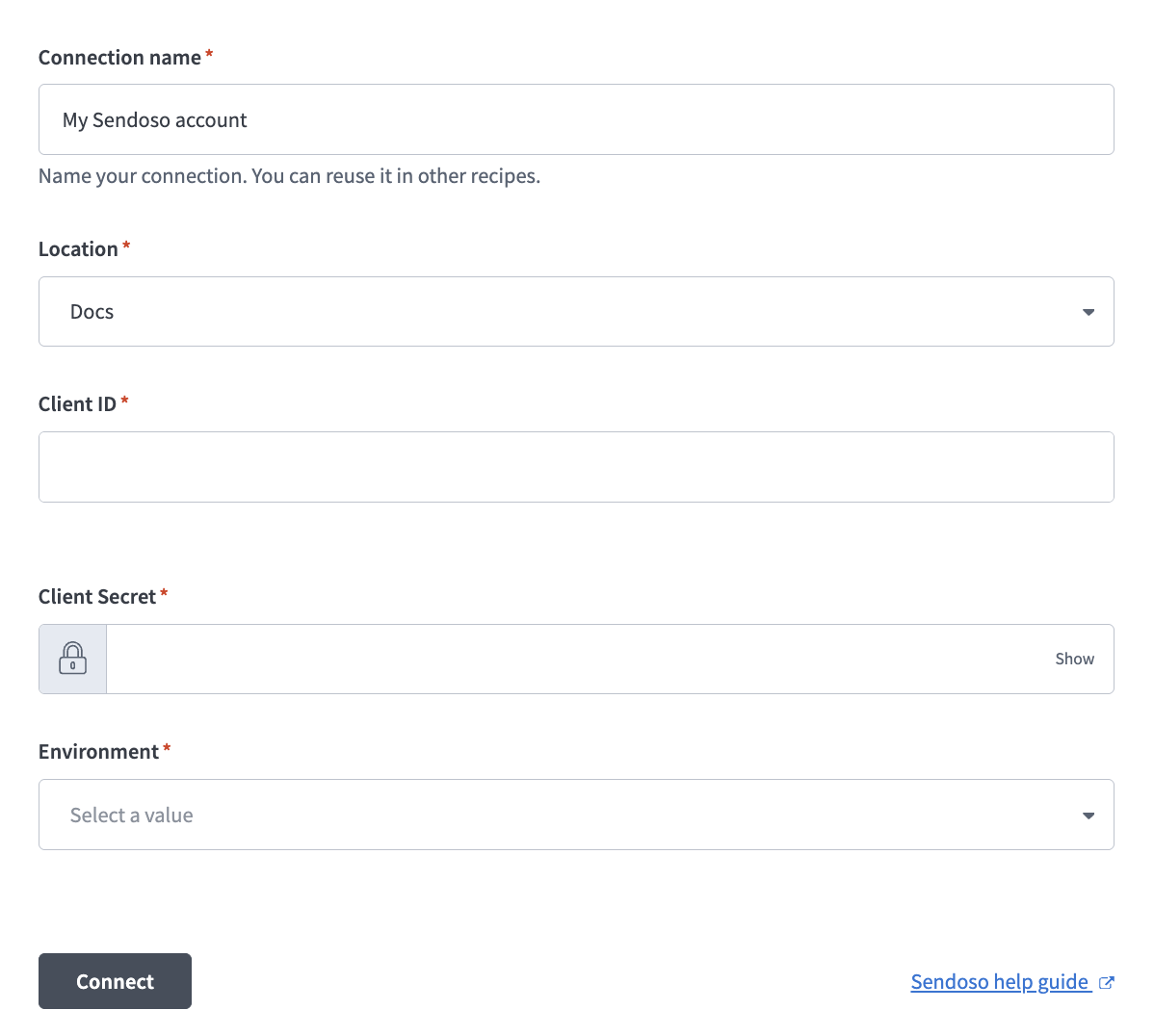 Set up your Sendoso connection
Enter your client ID in the Client ID field.
Enter your client secret in the Client Secret field.
Provide your Sendoso environment in the Environment field. You can find this in the Sendoso URL. For example: https://app.sendoso.com.
Click Connect.
Using Sendoso with other apps
Sendoso is frequently used in recipes with a CRM app, such as in the following example recipes:
- Send gift to new/updated opportunity: sends a gift to a contact from Microsoft Dynamics 365 if the opportunity is valued at $10000 or more.
- Update Microsoft Dynamics 365 with gift status: whenever a gift is sent, clicked, or delivered, creates a new contact in Microsoft Dynamics 365 or updates an existing contact and adds a note with the gift status.
TIP
The Send Analytics trigger output contains the gift recipient’s email but not their name. If Microsoft Dynamics 365 doesn't have a contact with a matching email address, a new contact will be created in Dynamics with the recipient's email as the contact name.
Last updated: