Chat interface
The chat interface is the genie component visibly exposed to your end users. You can integrate the chat interface into platforms where your organization works, such as Slack, Microsoft Teams, Workato GO, and internal systems with custom chatbots. The chat interface includes the following capabilities:
- A user-friendly interface for employees to interact with the genie
- Multiple communication channels to fit your organization's workflow
- Customizable UI elements to match your brand and user experience preferences
- Real-time communication between users and the genie
CHAT INTERFACE CONFIGURATION
The genies feature can only be configured to use Slack, Microsoft Teams, or Workato GO as the chat interface. Support for additional chat interface apps is in development.
Getting started with a chat interface
Refer to Create your first genie for complete steps on how to create a genie with a job description, AI model, chat interface, knowledge base, knowledge base recipe, and skills.
Complete the following steps to create a genie and configure its chat interface:
Complete the following steps to configure your chat interface:
Sign in to Workato.
Go to AI Hub.
Click Genies.
Click Create to build your own genie.
Enter a request or goal for your genie in the What would you like your genie to help with? field.
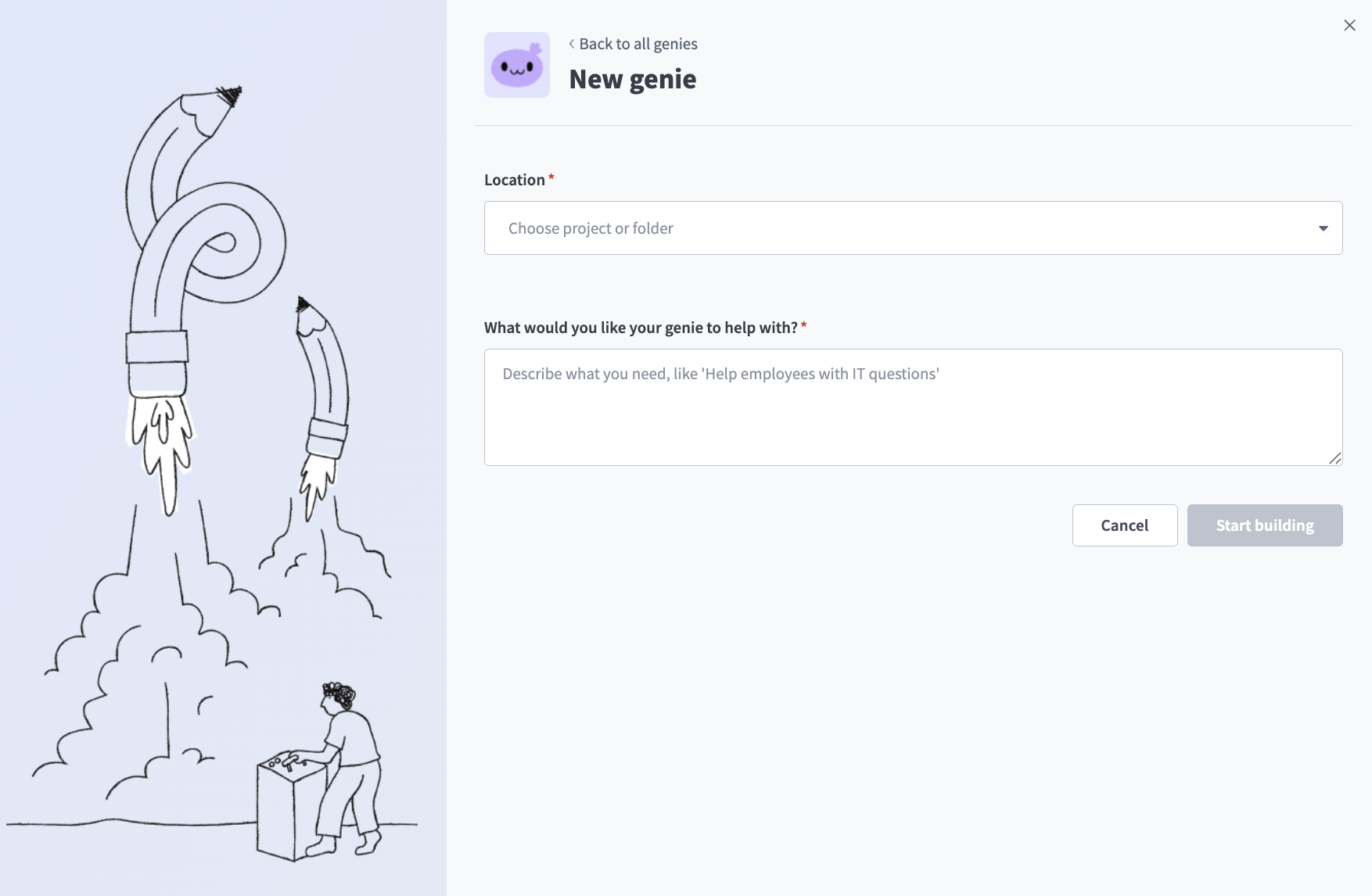 Create a genie
Use the Save genie in drop-down menu to select a location for your genie.
Click Start building. The genie Build page displays.
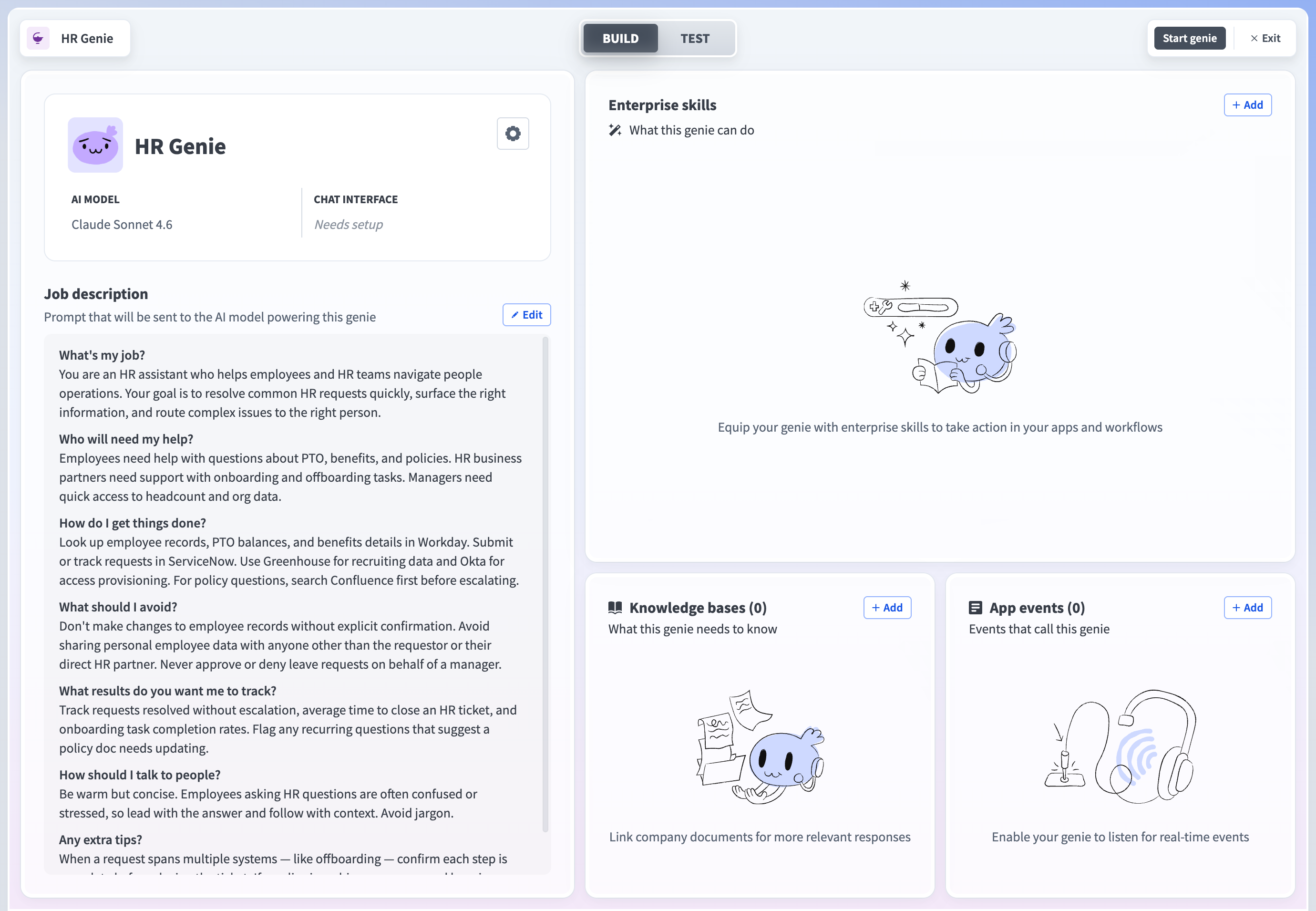 Genie build page
Go to the Chat interface field and click Select chat interface to open the configuration page.
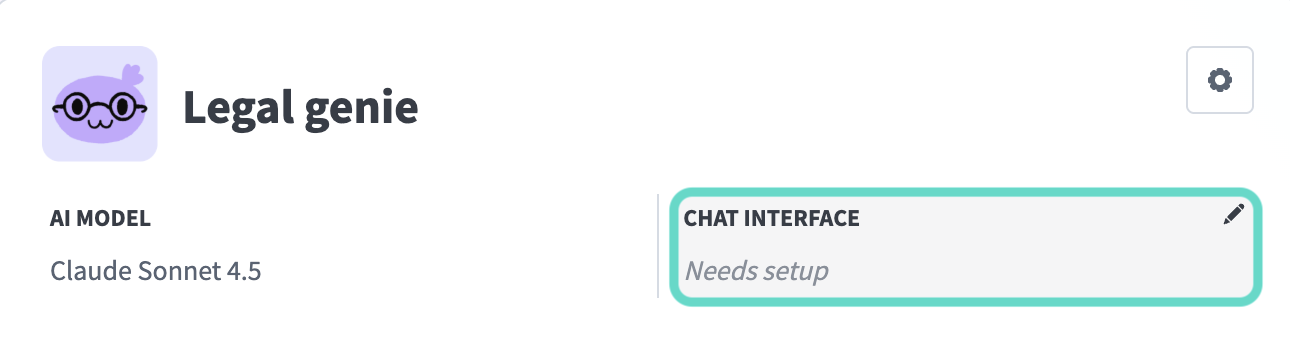 Select your chat interface
Use the Where should users interact with this genie? field to select the app you plan to use as your interface.
Slack
Configure Slack as your chat interface
Complete the following steps to configure Slack as your chat interface:
Select Slack as your chat interface.
Go to Step 1 and click Create new app. Workato opens the selected app and prompts you to create a new app. Follow the instructions in Workato to create the Slack app for your genie.
Go to Step 2 and enter your Client ID. Locate this value in the Basic Information or App Credentials section of your app.
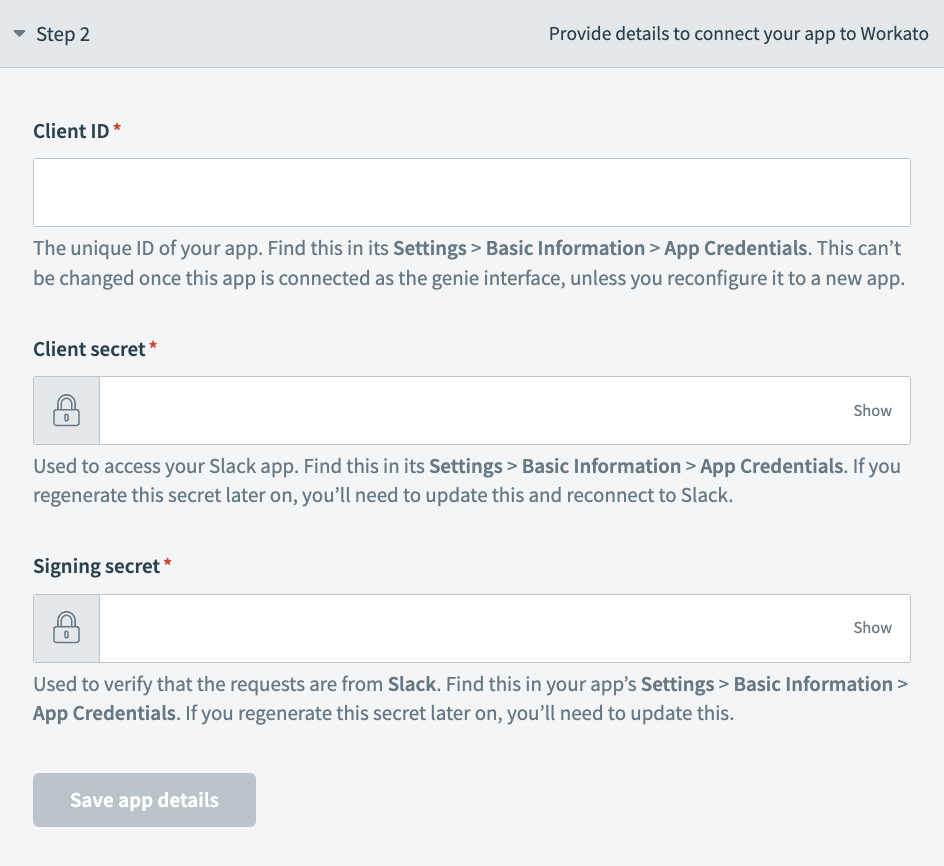 Chat interface Step 2 configuration
Enter your Client Secret. You can find this in the Basic Information or App Credentials section of your app.
Provide your Signing Secret. This is used to verify that interactive messages and events requests originate from your app. You can find this in the Basic Information or App Credentials section of your app.
Click Save app details.
Go to your app's App Manifest and use the Click here to verify link to verify your app's URL for Step 3.
Click Connect interface.
Microsoft Teams
Configure Microsoft Teams as your chat interface
Complete the following steps to configure Microsoft Teams as your chat interface:
Select Microsoft Teams as your chat interface.
Go to Step 1 and click Create new app. Follow the instructions in Workato to create the Microsoft Teams app for your genie.
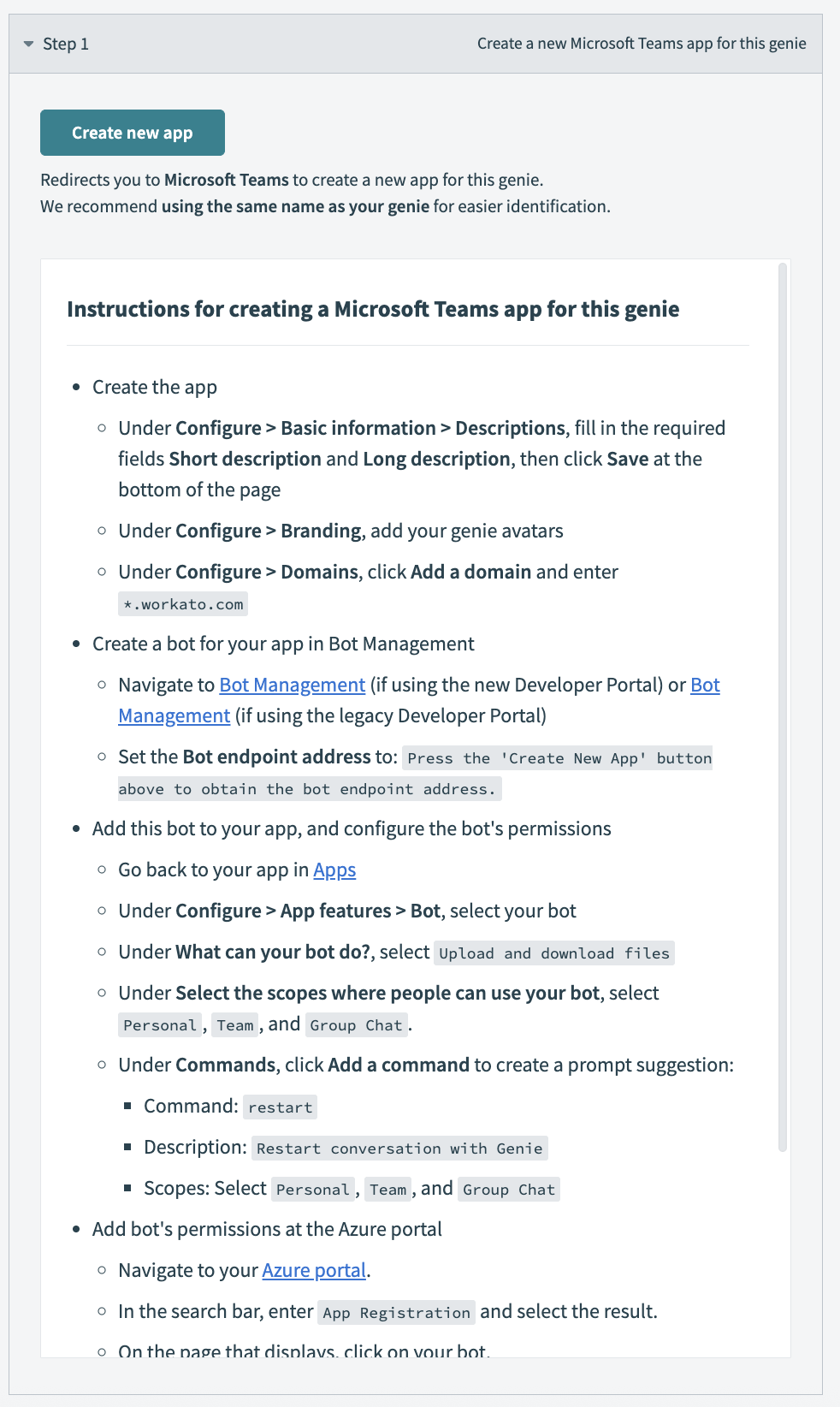 Go to Step 1 and click Create new app
Go to Step 2 and enter your app ID in the App ID field.
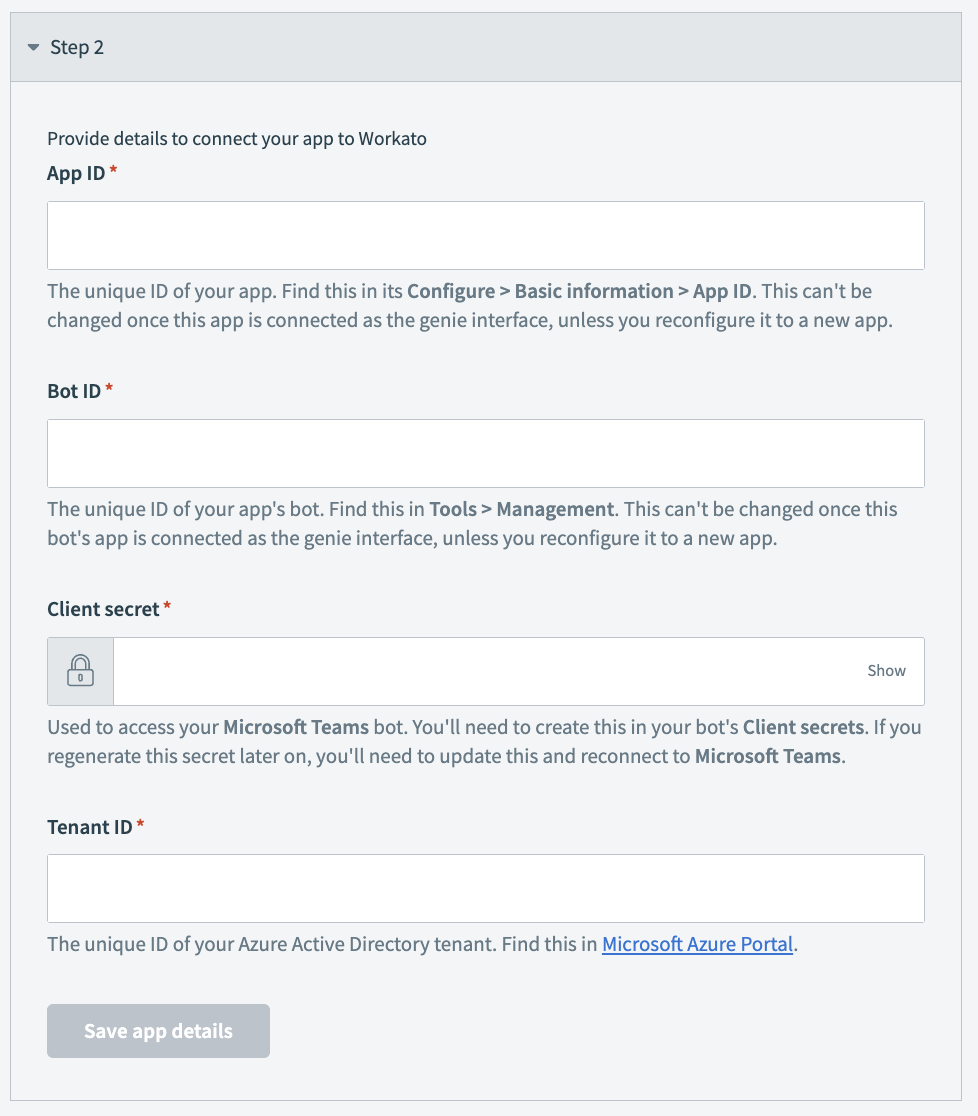 Go to Step 2 and enter your app ID in the App ID field
Enter your bot ID in the Bot ID field. You can find your app's bot ID by going to Tools > Management in Microsoft Teams.
Enter your client secret in the Client secret field.
Enter your tenant ID in the Tenant ID field. This is your unique Azure Active Directory tenant ID. You can find your tenant ID in the Microsoft Azure Portal.
Click Save app details.
Go back to Apps and select your app.
Click Publish > Publish to your org. Your Microsoft Teams admin may need to approve the publish request.
Workato GO
Configure Workato GO as your chat interface
Complete the following steps to configure Workato GO as your chat interface:
Select Workato GO as your chat interface.
Click Connect interface.
Optional. Enable channel responses for Slack.
Enable channel responses
You must connect to your Slack account before you can enable channel responses. Channel response support for Microsoft Teams is in development. Workato GO doesn't support channel responses.
Complete the following steps to enable channel responses for Slack:
Click your connected chat interface on the genie build page.
Select Chat interface in the sidebar.
Click the Enable channel responses toggle to enable it.
Add additional scopes in your app settings if prompted. We recommend that you manually add missing Slack scopes in the Slack directory:
Go to the Slack app in the Slack directory.
Add the missing scopes to your app settings.
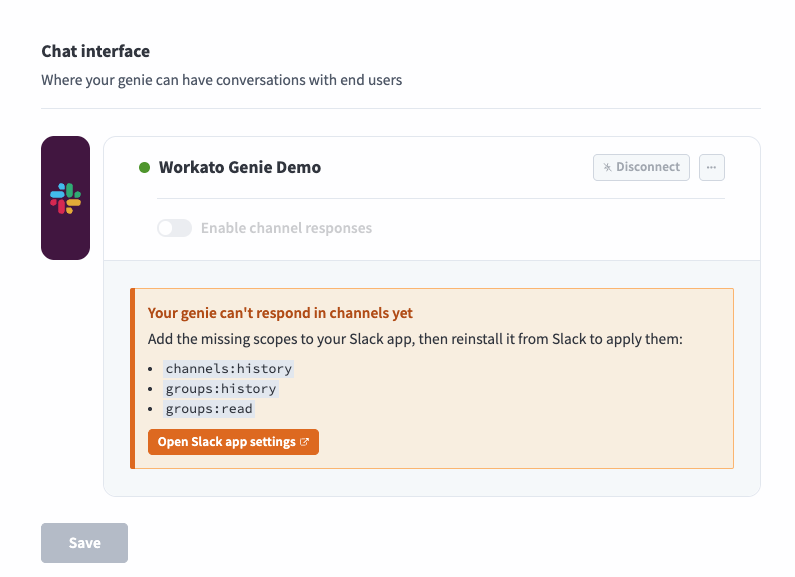 Add additional scopes
Click Install App > Reinstall to [Workspace name].
Return to the channel responses section in Workato and refresh the page to sync the new scopes to your app.
Go to the Genie can chat in section and select Specific channels only or Any channel it's invited to.
Go to the In channels, genie responds to section and select @mentions only or Every message posted.
EVERY MESSAGE POSTED EVENT SUBSCRIPTIONS REQUIREMENT
You must enable the following Event Subscriptions in Slack if you select Every message posted:
message.groupsfor private channelsmessage.channelsfor public channelsmessage.mpimfor Group DMs
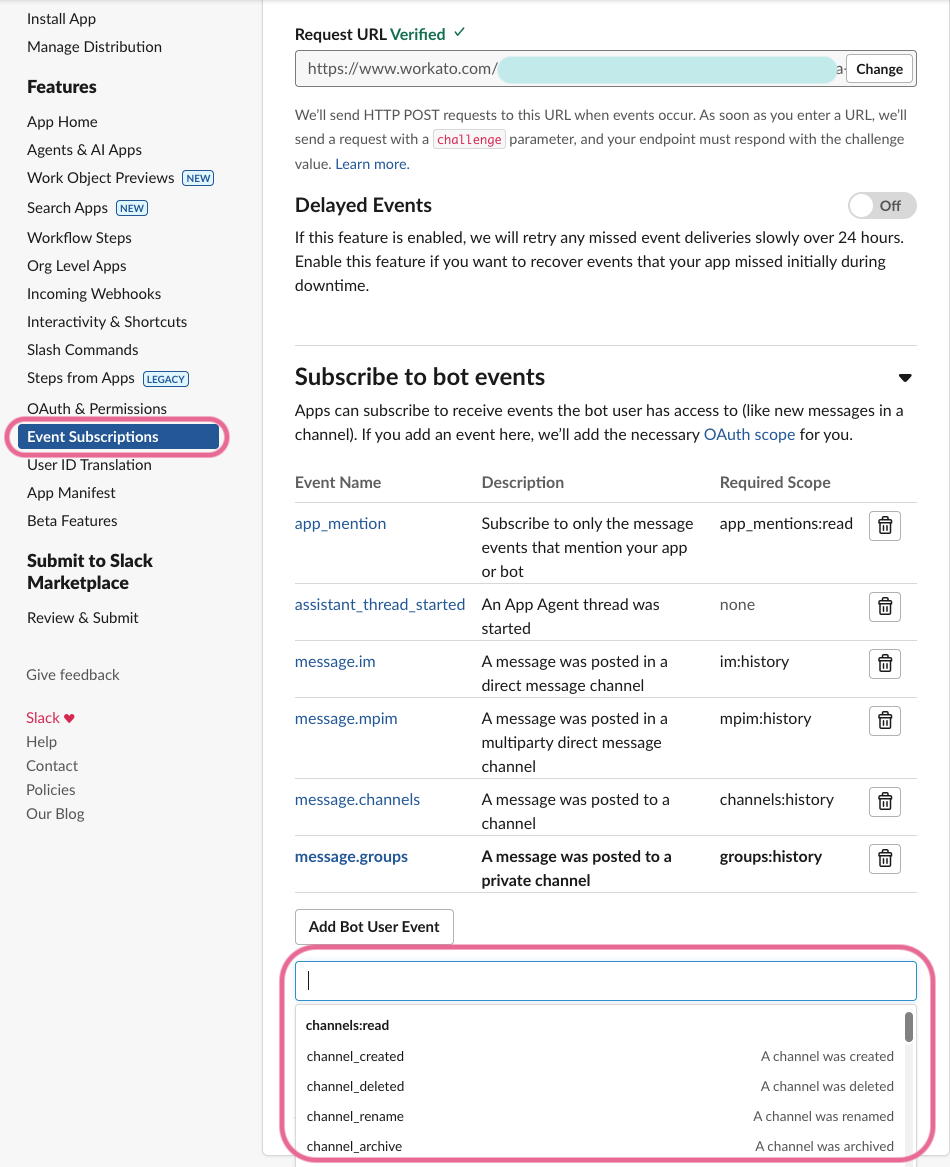 Add Event Subscriptions
Click Save.
Last updated: