Chat interface
The chat interface is the genie component visibly exposed to your end users. You can integrate the chat interface into platforms where your organization works, such as Slack, Microsoft Teams, Workato GO, and internal systems with custom chatbots. You can also add a custom chat interface with configurable authentication. The chat interface includes the following capabilities:
- A user-friendly interface for employees to interact with the genie
- Customizable UI elements to match your brand and user experience preferences
- Real-time communication between users and the genie
CHAT INTERFACE CONFIGURATION
The genies feature can only be configured to use Slack, Microsoft Teams, or Workato GO as the chat interface. Support for additional chat interface apps is in development.
The interface you select determines where users can discover and interact with the genie, which features are available, and how conversations behave. Slack chat interfaces include channel support. Channel support for Microsoft Teams is in development. Workato GO provides a dedicated enterprise AI interface with search, Action Board, and KPI dashboards.
USING AN EXTERNAL AI CLIENT?
You can expose the genie as an MCP server if your users work in an external AI client, such as Claude, ChatGPT, Cursor, or a custom-built UI. The external AI client becomes the interface with users interacting with their AI client as normal. The AI client calls the genie's capabilities through the MCP server when needed. See MCP server configuration for more information.
Direct message support
Slack, Microsoft Teams, and Workato GO support direct messaging (DMs). Genies respond to every message in DMs. DMs behave the same regardless of the channel mode you select.
Channel support
Genies support participation in Slack channels in addition to DMs. This enables use cases for IT help desks, HR support, and project assistance channels. Microsoft Teams support is in development. Workato GO doesn't provide channel support.
Channel support options
Channel behavior is configured in the genie builder as part of your Slack interface setup. Refer to Enable channel responses for more information.
| Field | Options | Default |
|---|---|---|
| Genie can chat in | Specific channels only, Any channel it's invited to | Specific channels only |
| Channels | Multi-select from available channels | None selected |
| In channels, genie responds to | @mentions only, Every message posted | @mentions only |
The Channels drop-down menu only displays public channels and private channels the genie has been added to. You must explicitly select each channel where the genie is allowed to respond. The genie displays an error message rather than ignoring messages silently if the channel hasn't been explicitly added to the genie chat interface.
DATA EXPOSURE IN CHANNELS
Information the genie retrieves from knowledge bases, skills, or external systems may be visible to all channel members when you deploy a genie to a channel. Ensure your genie's knowledge sources and skills are appropriate for the audience in the channels you select.
Channel modes
You can select Every message posted or @mentions only channel mode to control when the genie responds before deploying a genie to a channel.
| Mode | Initial trigger (channel) | Within thread |
|---|---|---|
| Every message posted | Every new message | Every message |
| @mentions only | @mention only | @mention only |
Every message posted is intended for support channels where users expect the genie to respond to every message. The genie responds to every new message in the channel and creates a thread. The genie responds to every subsequent message from any user within that thread.
@mentions only is intended for channels where the genie should participate only when explicitly invoked through an @mention. The genie responds only when @mentioned, whether in the main channel or within a thread, and ignores all other messages.
Thread history
Genies receive the full thread history as context when triggered in a channel. Each message in the history is tagged with the sender's name and email address to allow the genie to identify the sender and their message. Previous genie responses are also included in the thread history.
Older messages are summarized automatically and recent messages are included verbatim in threads where the full history exceeds the model's context window.
The genie uses only the messages added since the previous mention as context for each new response when @mentions only is selected and the genie is mentioned multiple times in a long thread.
Concurrent requests
If the genie is already processing a request in a thread and another message triggers it before the first request completes, the genie responds to the subsequent trigger with: I'm still working on something. Please give me a moment. Users can send another message after the first request completes. All previously queued messages are included in the new context.
Authentication in channels
Users who haven't authenticated are prompted to log in when they trigger the genie if your genie requires Workato Identity authentication.
- Slack: The genie sends a login prompt in the thread. Only the triggering user sees the prompt. The user can continue their interaction after authenticating.
User confirmation in channels
The genie sends a confirmation button to the thread when an action requires confirmation. Clicking the button opens a modal with the confirmation details. The modal validates the identity of the user. Users who aren't requested to confirm an action receive an error message if they click the button.
Confirmation modals support standard input types, including text, boolean, and datetime. Users can update fields before confirming.
Required scopes
Your chat interface app must have the correct scopes enabled to respond in channels.
Slack
Slack requires the following scopes when you create a new genie:
Bot scopes
Slack requires the following bot scopes:
app_mentions:readassistant:writechannels:historychannels:readchat:writefiles:readfiles:writegroups:historygroups:readim:historyim:writeusers:readusers:read.email
User scopes
Slack requires the following user scopes:
users:readusers:read.email
Event subscription scopes
Slack requires the following event subscription scopes if you plan to use Every message posted:
app_mentionmessage.imassistant_thread_startedmessage.channels
Getting started with a chat interface
Refer to Create your first genie for complete steps on how to create a genie with a job description, AI model, chat interface, knowledge base, knowledge base recipe, and skills.
Complete the following steps to create a genie and configure its chat interface:
Complete the following steps to configure your chat interface:
Sign in to Workato.
Go to AI Hub.
Click Genies.
Click Create to build your own genie.
Enter a request or goal for your genie in the What would you like your genie to help with? field.
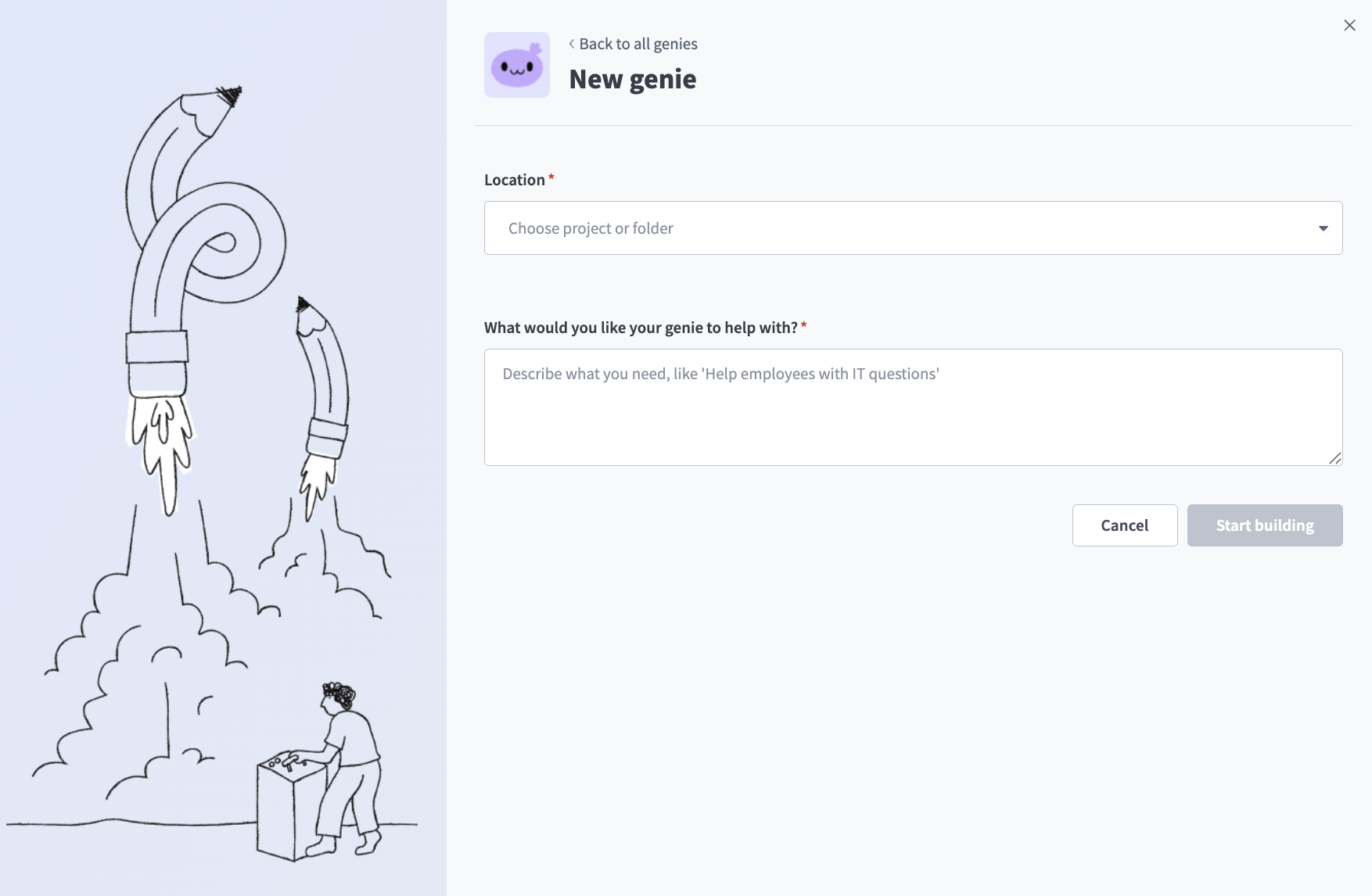 Create a genie
Use the Save genie in drop-down menu to select a location for your genie.
Click Start building. The genie Build page displays.
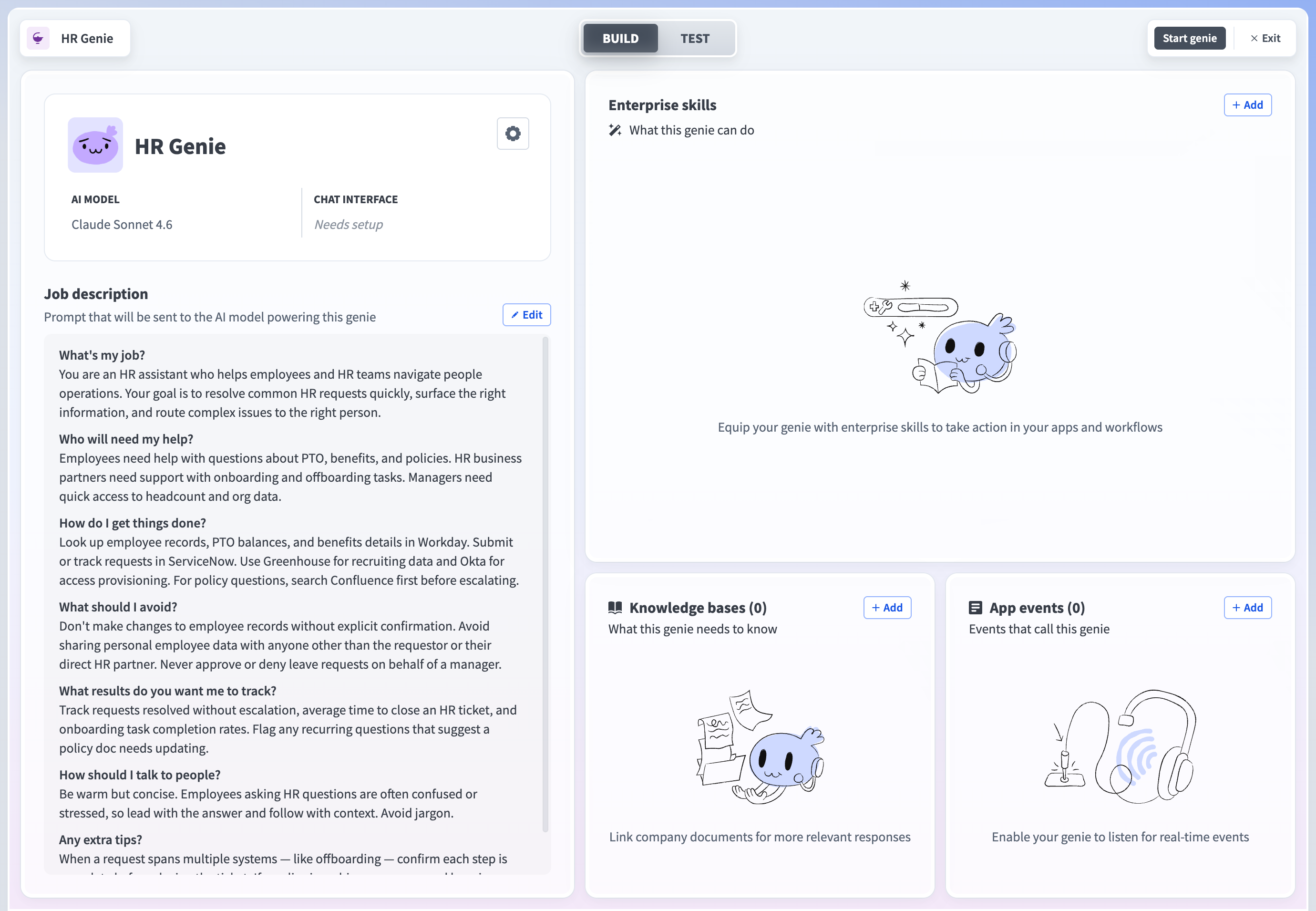 Genie build page
Go to the Chat interface field and click Select chat interface to open the configuration page.
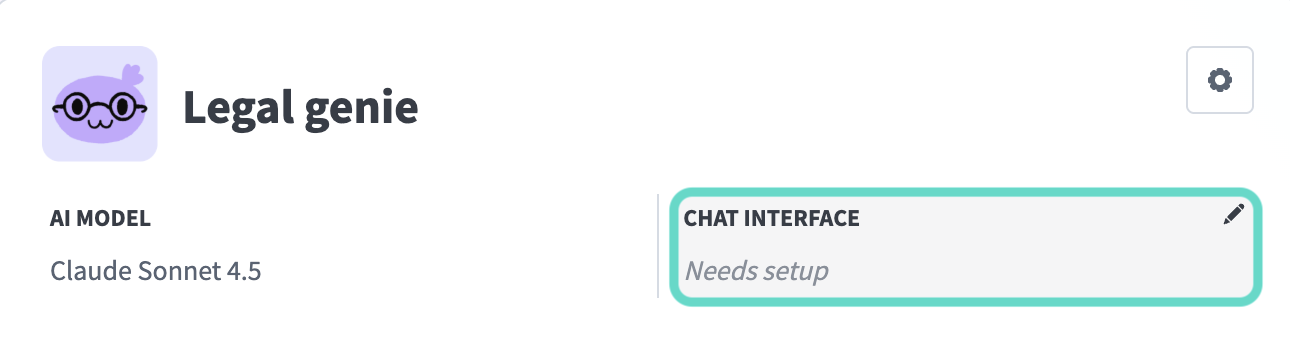 Select your chat interface
Use the Where should users interact with this genie? field to select the app you plan to use as your interface.
Slack
Configure Slack as your chat interface
Complete the following steps to configure Slack as your chat interface:
Select Slack as your chat interface.
Go to Step 1 and click Create new app. Workato opens the selected app and prompts you to create a new app. Follow the instructions in Workato to create the Slack app for your genie.
Go to Step 2 and enter your Client ID. Locate this value in the Basic Information or App Credentials section of your app.
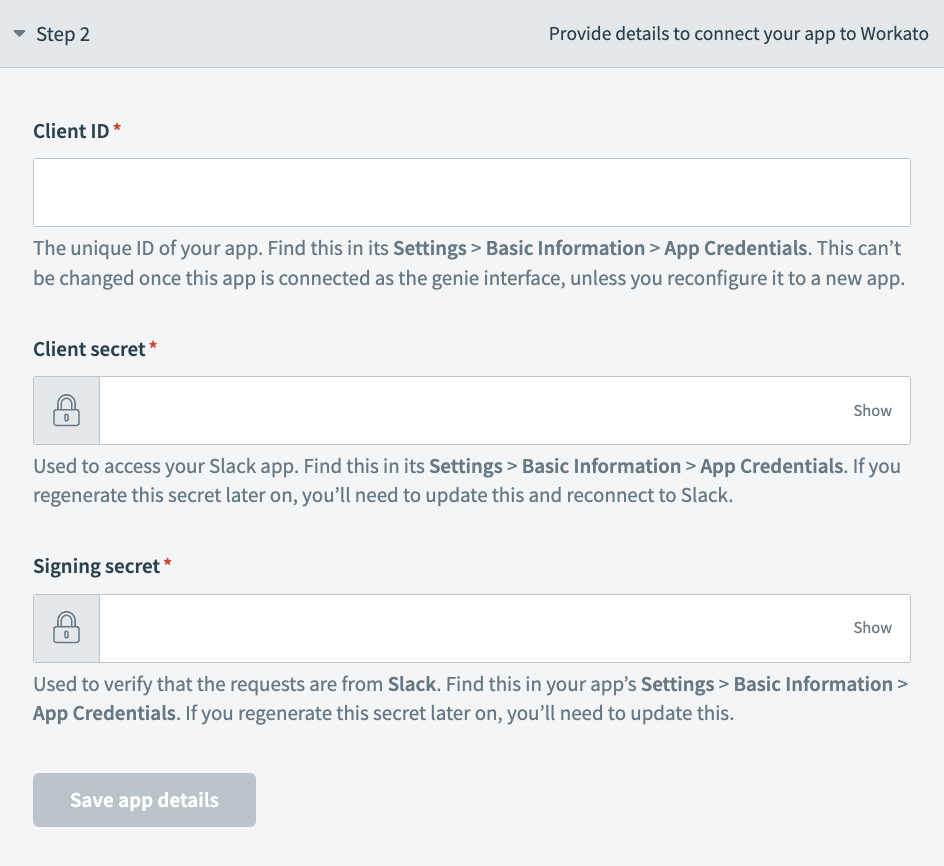 Chat interface Step 2 configuration
Enter your Client Secret. You can find this in the Basic Information or App Credentials section of your app.
Provide your Signing Secret. This is used to verify that interactive messages and events requests originate from your app. You can find this in the Basic Information or App Credentials section of your app.
Click Save app details.
Go to your app's App Manifest and use the Click here to verify link to verify your app's URL for Step 3.
Click Connect interface.
Microsoft Teams
Configure Microsoft Teams as your chat interface
Complete the following steps to configure Microsoft Teams as your chat interface:
Select Microsoft Teams as your chat interface.
Go to Step 1 and click Create new app. Follow the instructions in Workato to create the Microsoft Teams app for your genie.
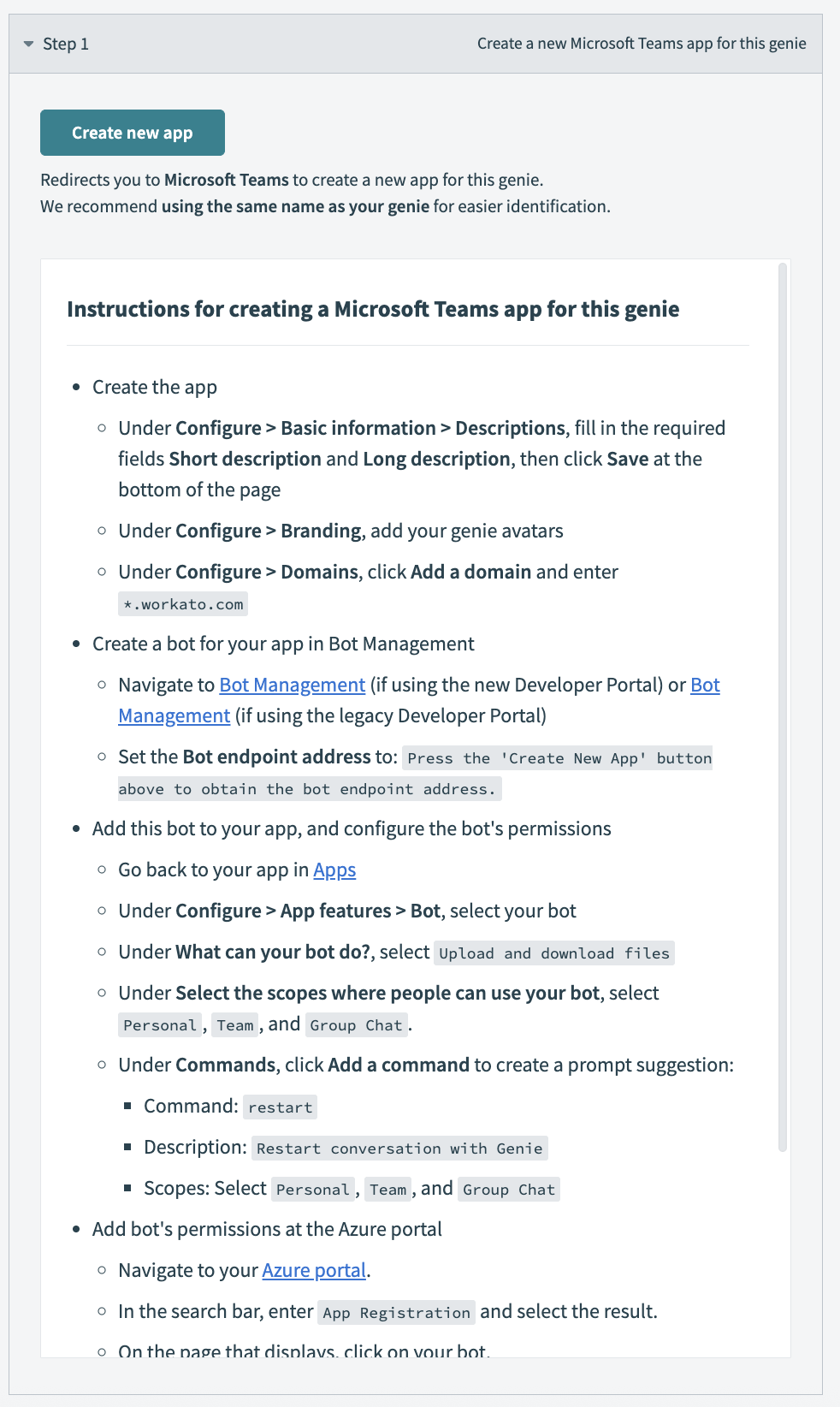 Go to Step 1 and click Create new app
Go to Step 2 and enter your app ID in the App ID field.
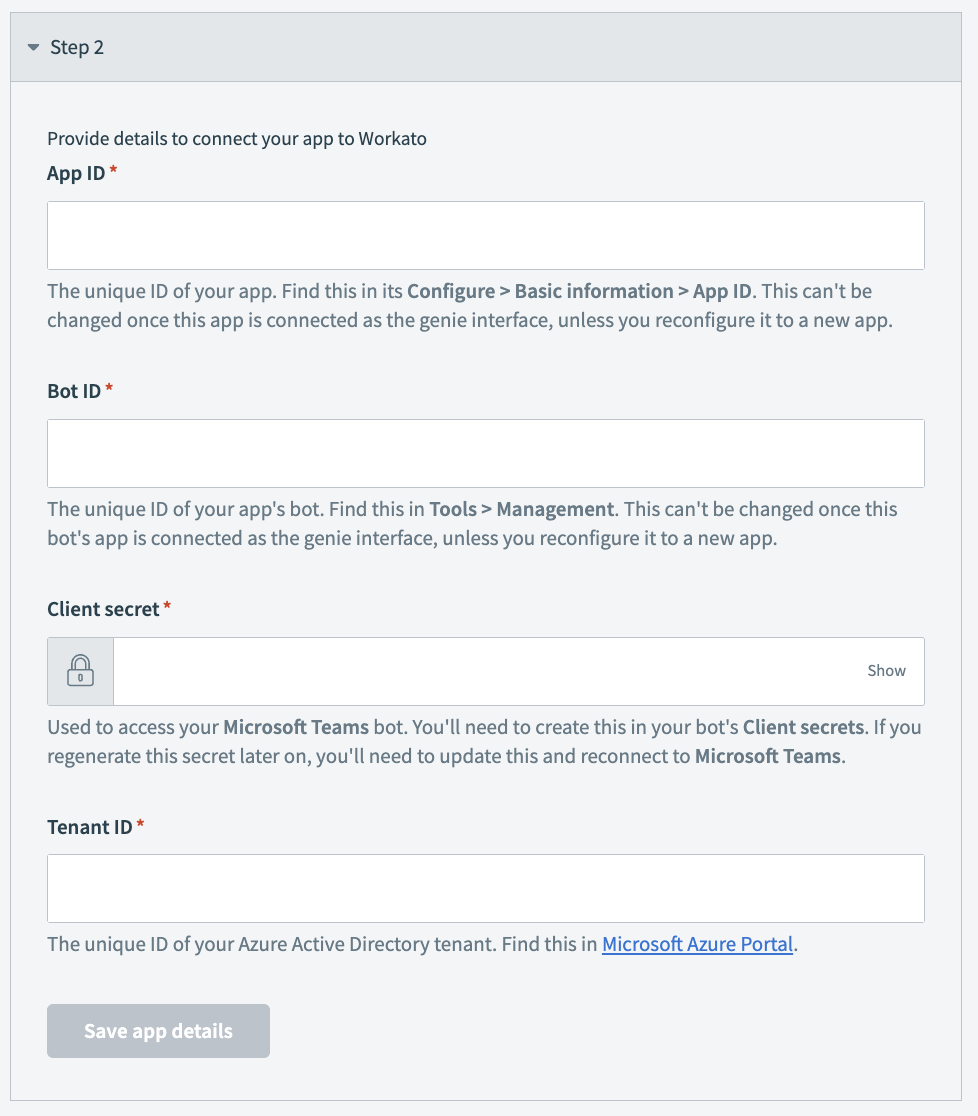 Go to Step 2 and enter your app ID in the App ID field
Enter your bot ID in the Bot ID field. You can find your app's bot ID by going to Tools > Management in Microsoft Teams.
Enter your client secret in the Client secret field.
Enter your tenant ID in the Tenant ID field. This is your unique Azure Active Directory tenant ID. You can find your tenant ID in the Microsoft Azure Portal.
Click Save app details.
Go back to Apps and select your app.
Click Publish > Publish to your org. Your Microsoft Teams admin may need to approve the publish request.
Workato GO
Configure Workato GO as your chat interface
Complete the following steps to configure Workato GO as your chat interface:
Select Workato GO as your chat interface.
Click Connect interface.
Custom chat interface
Configure a custom chat interface
Complete the following steps to configure a custom chat interface:
Select Custom interface.
Enter a name for the interface in the Interface name field.
Use the Authentication method drop-down menu to select the authentication method for the chat interface.
Your app authenticates users via API key
The API key authorizes requests to this genie. End users don't interact with Workato directly if you select this option.
Select Your app authenticates users via API key.
Click Connect interface. The API key generated modal opens.
Click Copy to copy the API key.
Store this API key securely. Don't share or embed the API key in visible code.
Click Done.
Workato authenticates users via OAuth 2.0
End users authenticate through a Workato-hosted login form. End users are redirected to a URL you choose after successful authentication.
Select Workato authenticates users via OAuth 2.0.
Enter the URLs where you plan to redirect users after they authenticate in the OAuth redirect URLs field.
Click Connect interface. The API key generated modal opens.
Copy the Client ID.
Copy the Redirect your user to the authorization URL.
Use the Client ID and Redirect your user to the authorization URL values you copied to configure the OAuth exchange between your app and this genie in your app settings.
Optional. Enable channel responses for Slack.
Enable channel responses
You must connect to your Slack account before you can enable channel responses. Channel response support for Microsoft Teams is in development. Workato GO doesn't support channel responses.
Complete the following steps to enable channel responses for Slack:
Click your connected chat interface on the genie build page.
Select Chat interface in the sidebar.
Click the Enable channel responses toggle to enable it.
Add additional scopes in your app settings if prompted. We recommend that you manually add missing Slack scopes in the Slack directory:
Go to the Slack app in the Slack directory.
Add the missing scopes to your app settings.
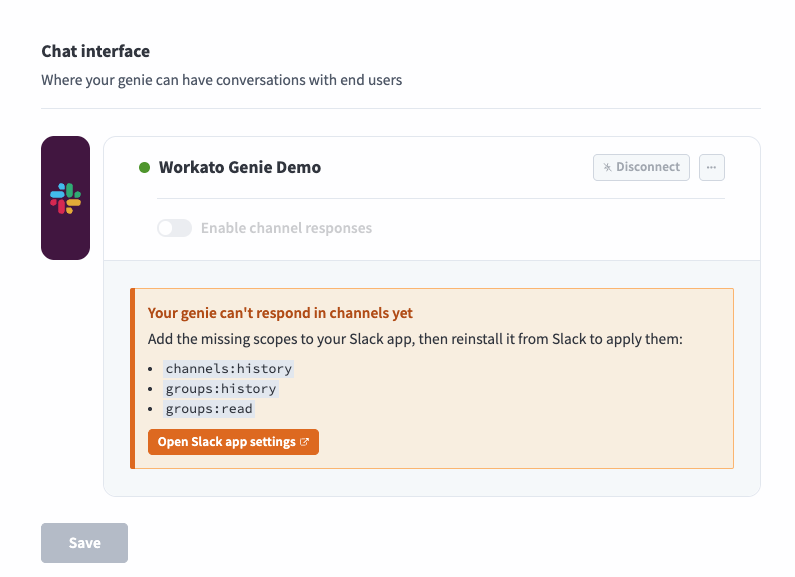 Add additional scopes
Click Install App > Reinstall to [Workspace name].
Return to the channel responses section in Workato and refresh the page to sync the new scopes to your app.
Go to the Genie can chat in section and select Specific channels only or Any channel it's invited to. Refer to Channel support options for more information.
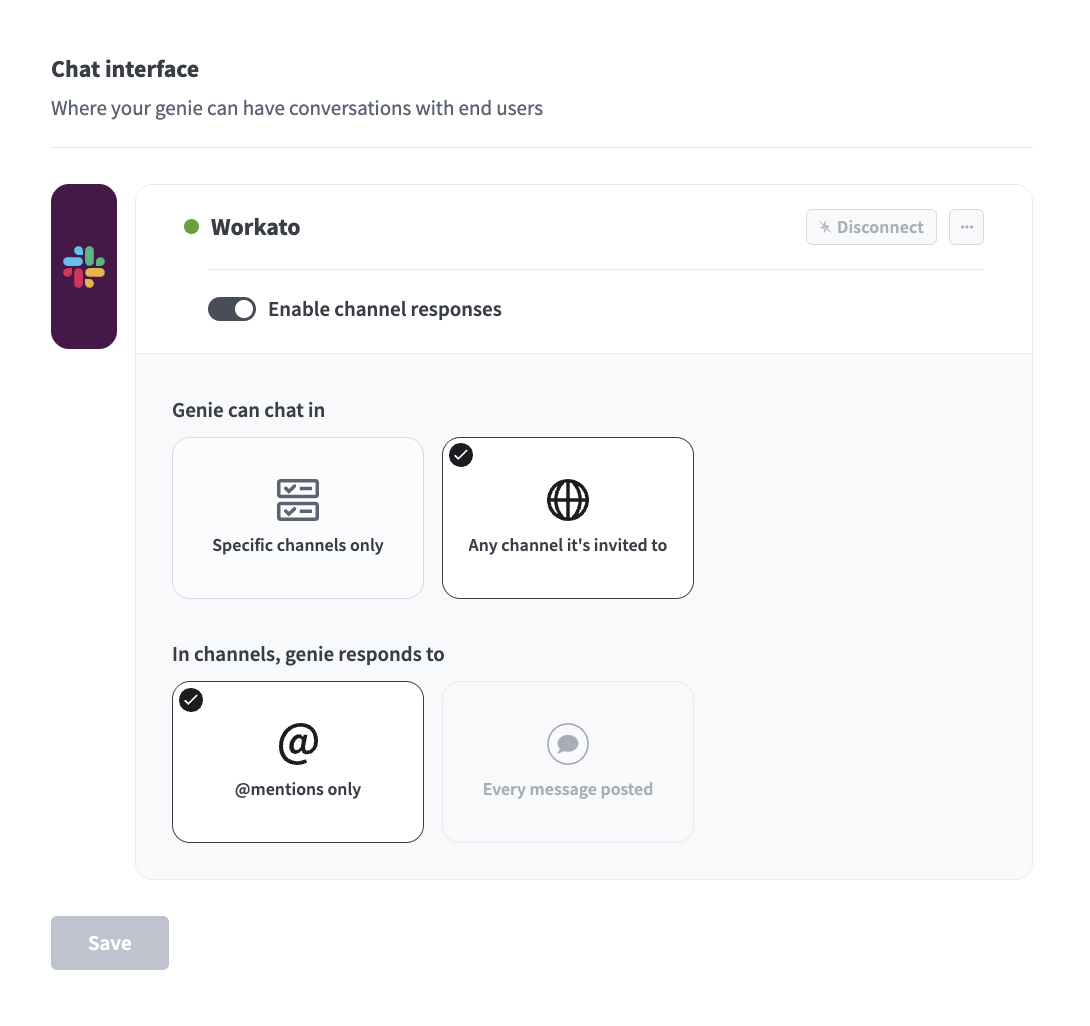 Configure channel responses
Go to the In channels, genie responds to section and select @mentions only or Every message posted. Refer to Channel modes for more information.
EVENT SUBSCRIPTIONS REQUIREMENT FOR EVERY MESSAGE POSTED
You must enable Event subscriptions scopes in Slack if you select Every message posted.
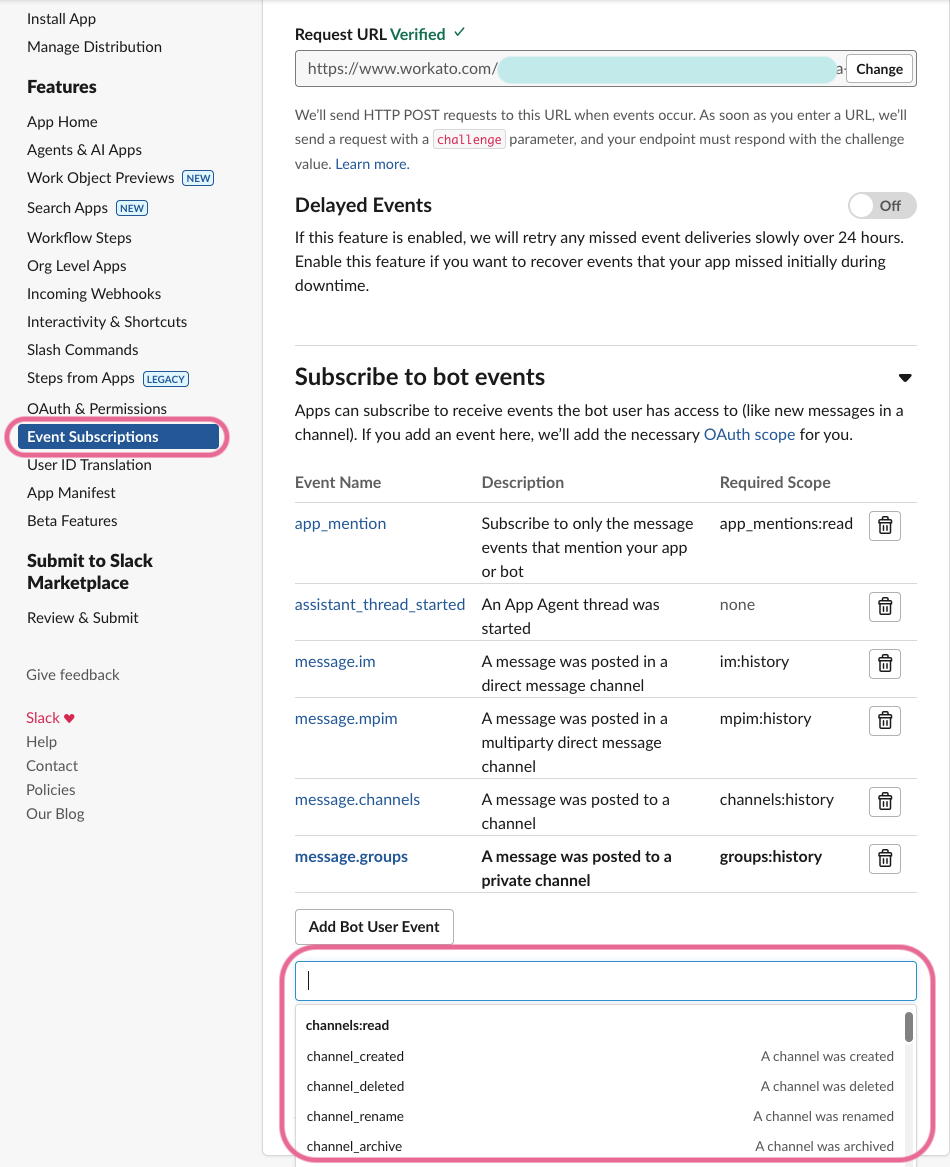 Add Event Subscriptions
Click Save.
Last updated: