MCP server skills
Agent Studio genie skill recipes can consume MCP servers. Skill recipes can call custom MCP servers and common provider MCP servers. This enables you to perform the following actions:
- Access external APIs
- Integrate with third-party tools without requiring custom skill development
- Call Workato-hosted MCP servers and external MCP servers from a genie
Add MCP server skills to a genie
The tools in your MCP server can be used as Agent Studio skills. Refer to Create skills for more information.
Complete the following steps to add MCP server skills to your genie:
1
Sign in to Workato.
2
Go to AI Hub > Genies.
3
Select the genie to edit.
4
Click Edit.
5
Go to the Enterprise skills section and click + Add.
6
Select MCP server.
7
Select a common provider MCP server or click + Custom MCP server.
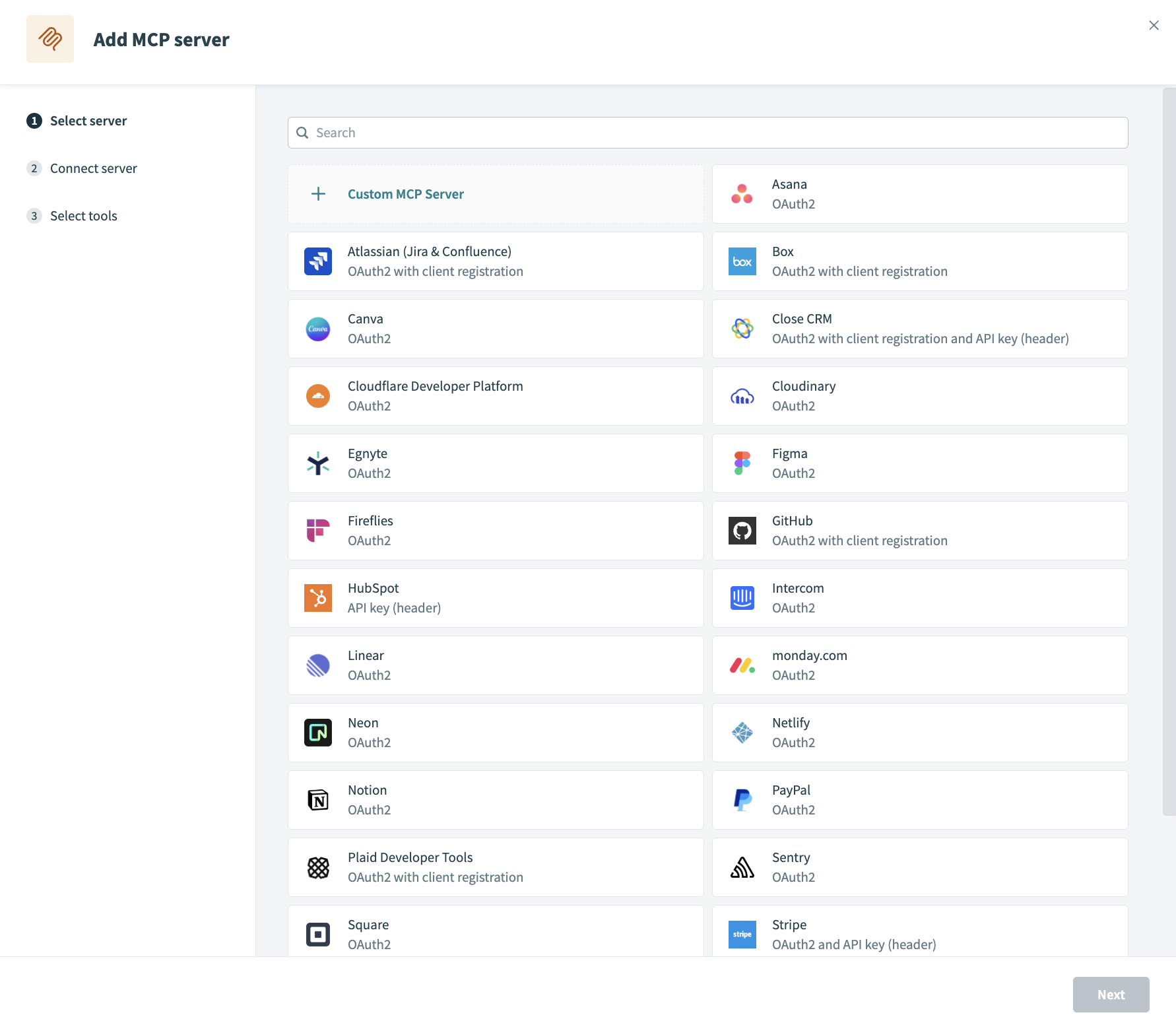 Select an MCP server option
8
Configure your MCP server:
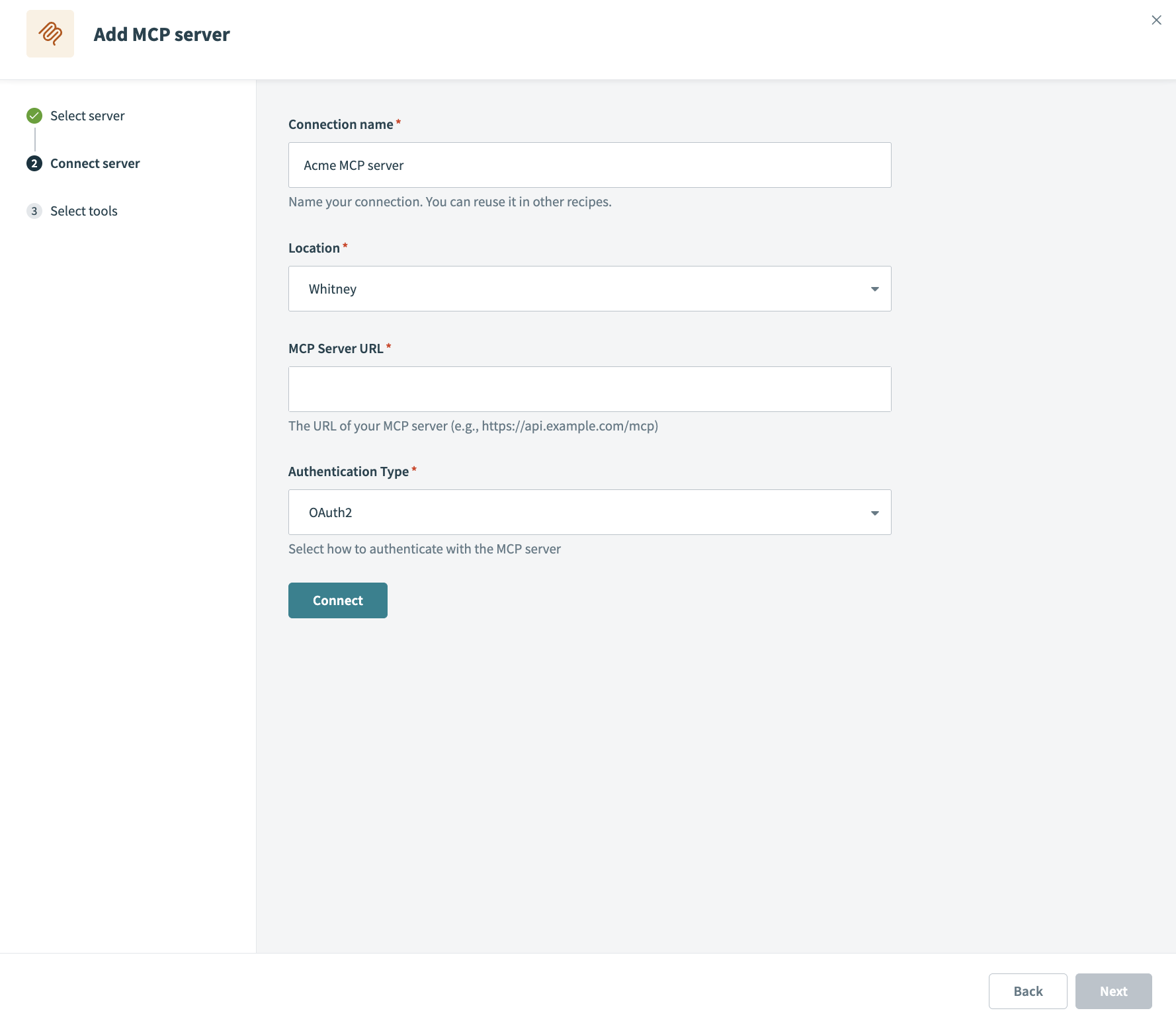 Set up your MCP server connection
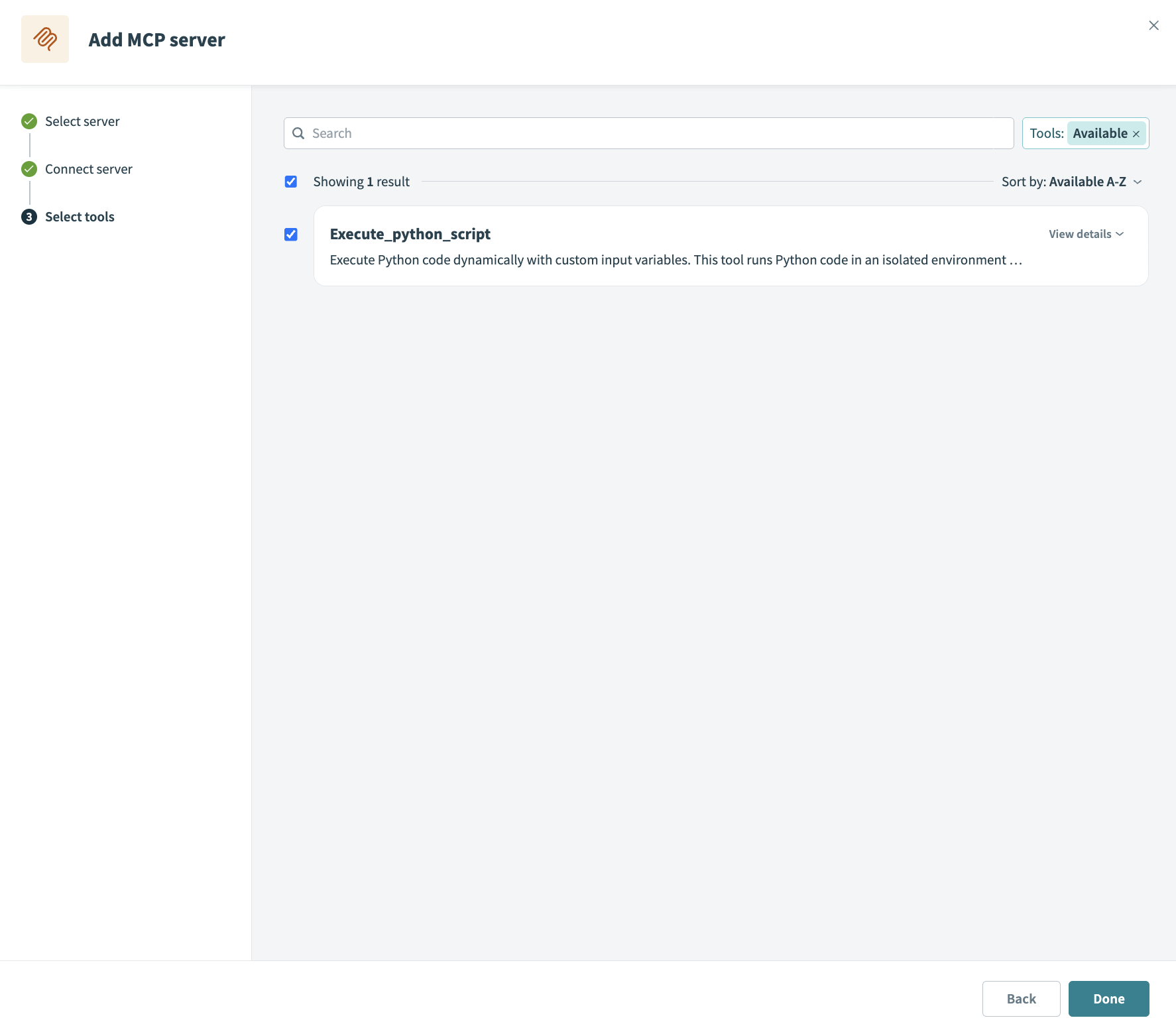 Select MCP server tools
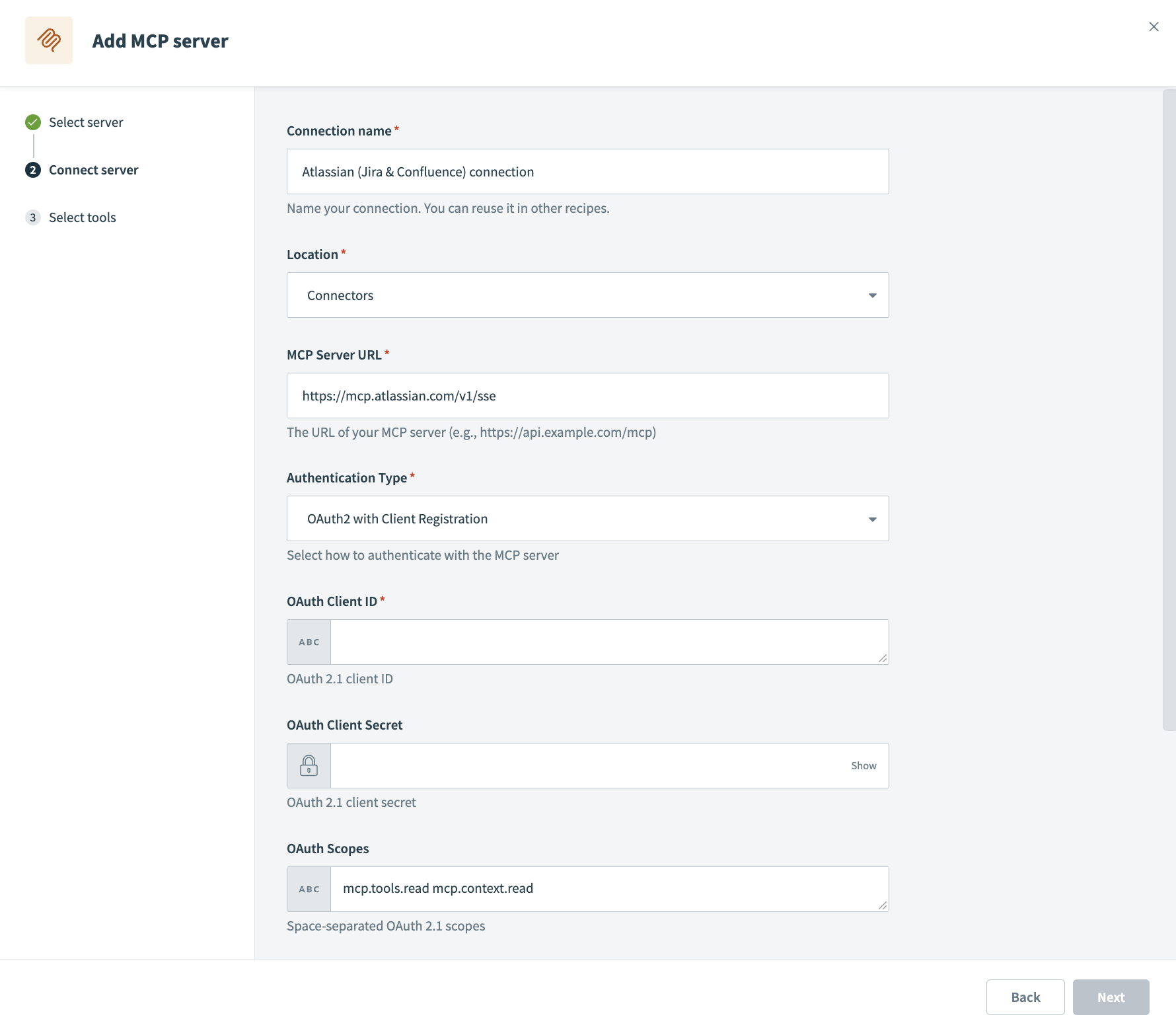 Atlassian provider MCP server
Last updated: