Anthropic
Anthropic provides large language models, including the Claude family, for tasks such as text generation, analysis, and conversation. The Anthropic connector enables you to send messages to Anthropic models, and use built-in actions to analyze, categorize, parse, summarize, and translate text, and draft emails.
Install the Anthropic connector from the community library
Complete the following steps to install the Anthropic connector from the community library:
Open the recipe editor and search for a connector. Alternatively, you can search for a connector in the community library.
 Search for community connectors in the recipe editor
Select the community connector you plan to install.
Click Install to install the connector from the community library.
 Click Install
Select Release connector. Alternatively, select Review code to review and modify the connector code before releasing it to the workspace.
 Release the connector
Summarize any changes you made to the connector, then click Release to allow workspace collaborators to use the connector in recipes.
 The Confirm release dialog
Connection setup
The Anthropic connector uses API key authentication.
Anthropic setup
Complete the following steps to create an API key to use in an Anthropic connection:
Log in to the Anthropic console.
Go to Settings > API Keys > Create Key.
Enter a name for your API key, then copy and securely store the key that's displayed.
Connect to Anthropic using API key authentication
Complete the following steps to connect to Anthropic in Workato:
Click Create > Connection or press C twice.
Search for Anthropic and select it as your connection on the New connection page.
Provide a name for your connection in the Connection name field.
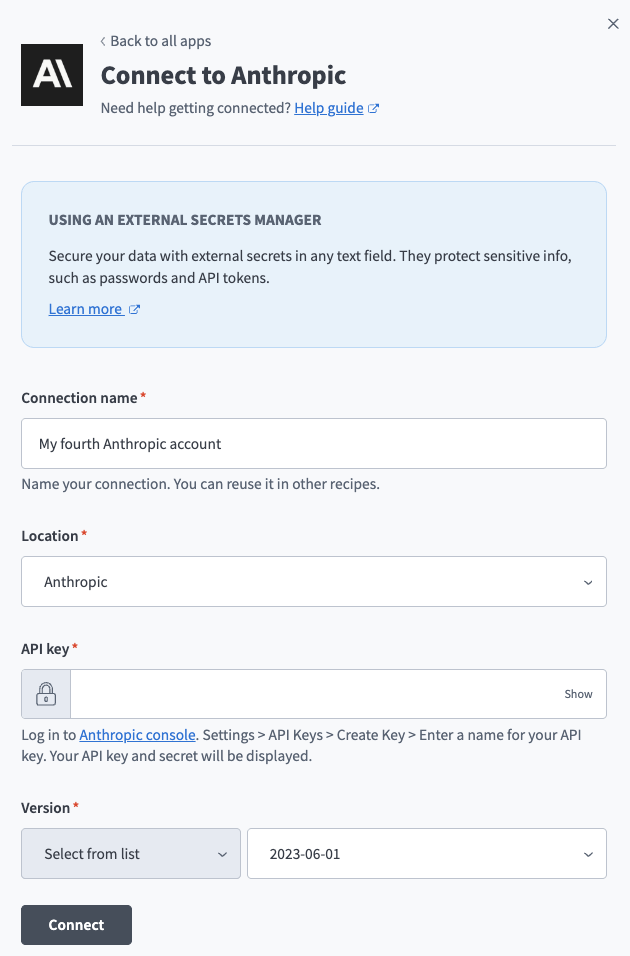 Create an Anthropic connection in Workato
Use the Location drop-down menu to select the project where you plan to store the connection.
Enter your API key in the API key field.
Use the Version field to select an Anthropic API version, or toggle to enter a custom version number. Defaults to 2023-06-01.
Click Connect.
Last updated: