Clay
Clay is a go-to-market data platform with a proprietary database of companies and people. The Clay connector looks up company and person profiles, retrieves company funding data, and searches for companies and people.
Install Clay from the community library
Complete the following steps to install the Clay connector from the community library:
Open the recipe editor and search for a connector. Alternatively, you can search for a connector in the community library.
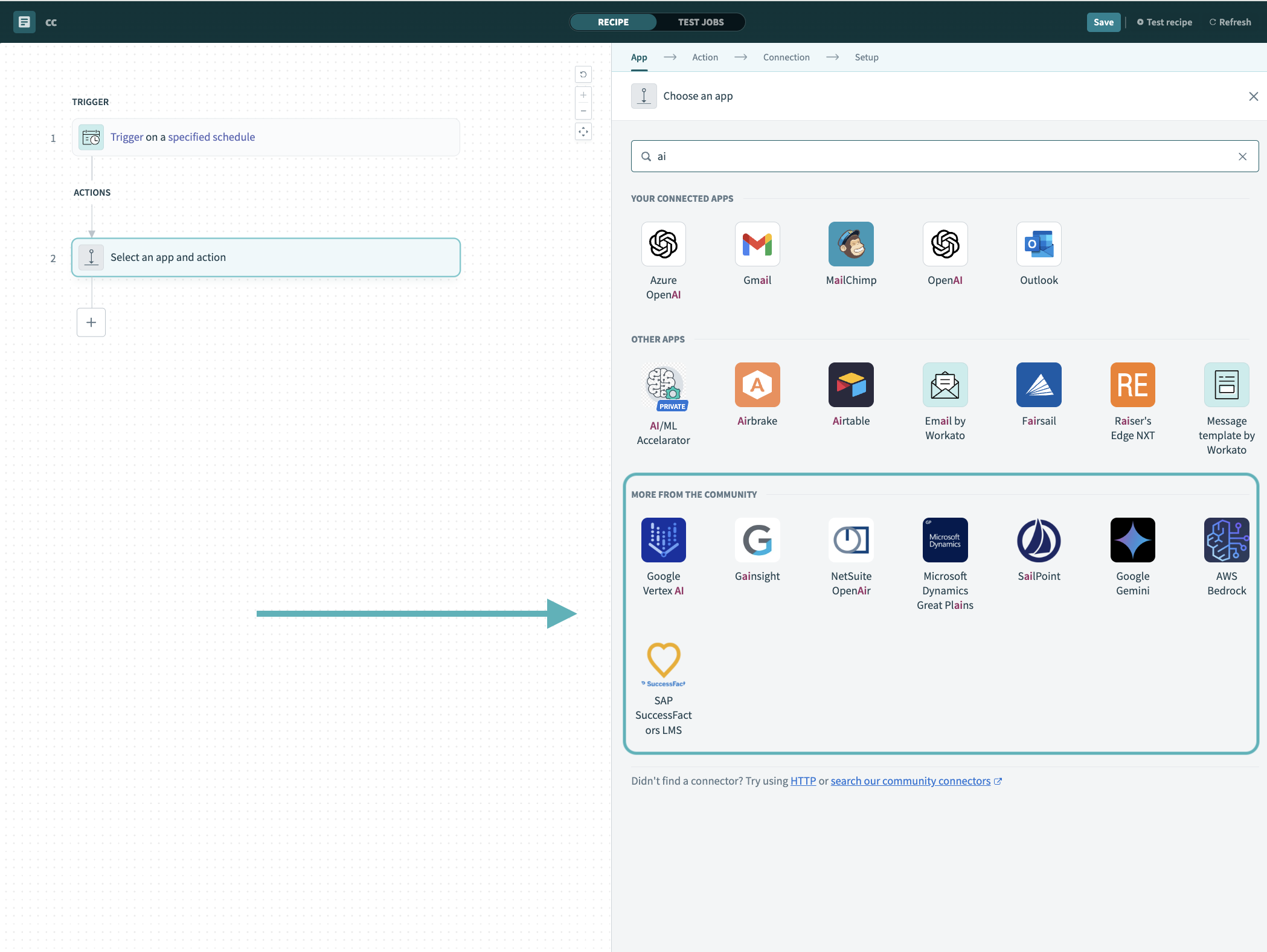 Search for community connectors in the recipe editor
Select the community connector you plan to install.
Click Install to install the connector from the community library.
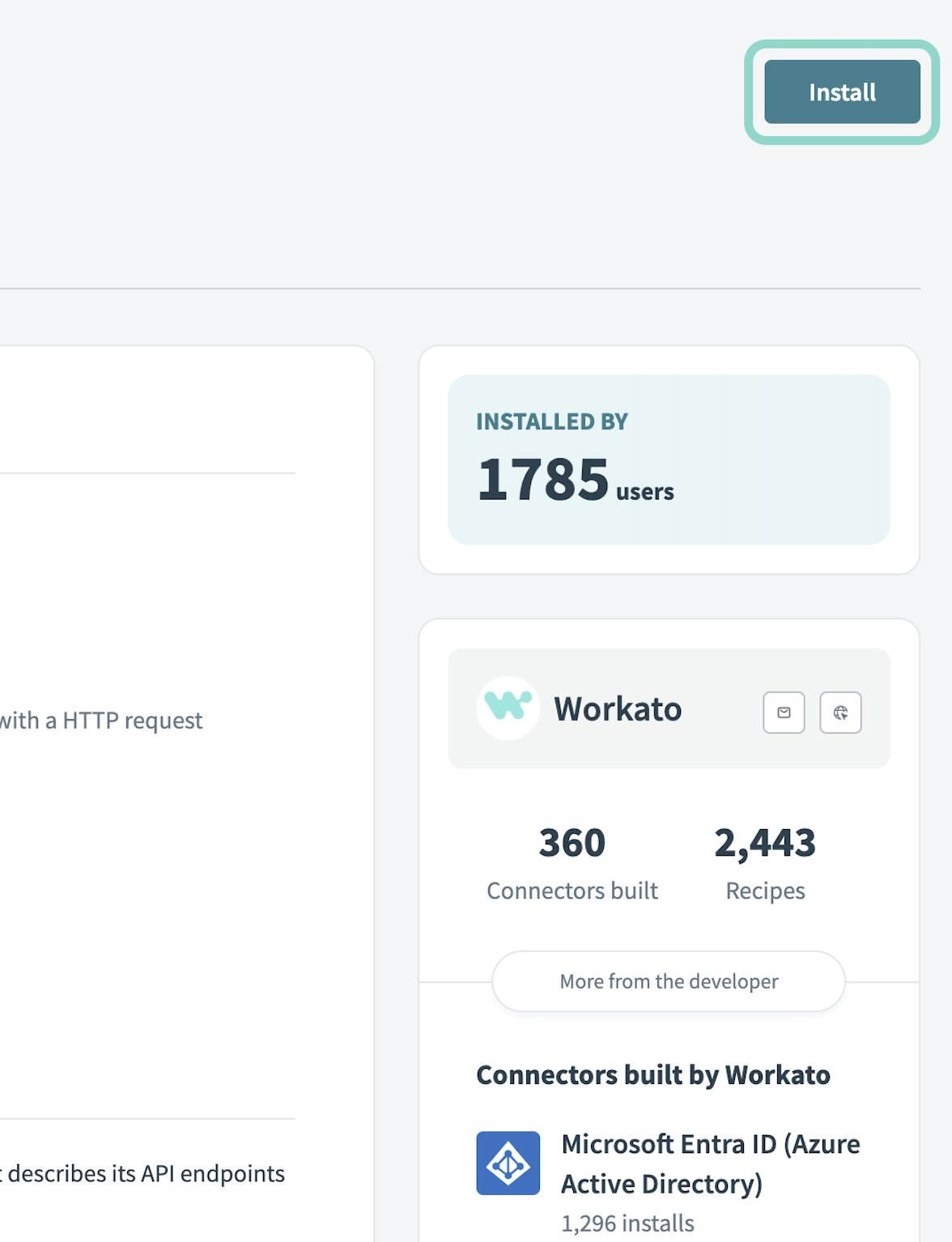 Click Install
Select Release connector. Alternatively, select Review code to review and modify the connector code before releasing it to the workspace.
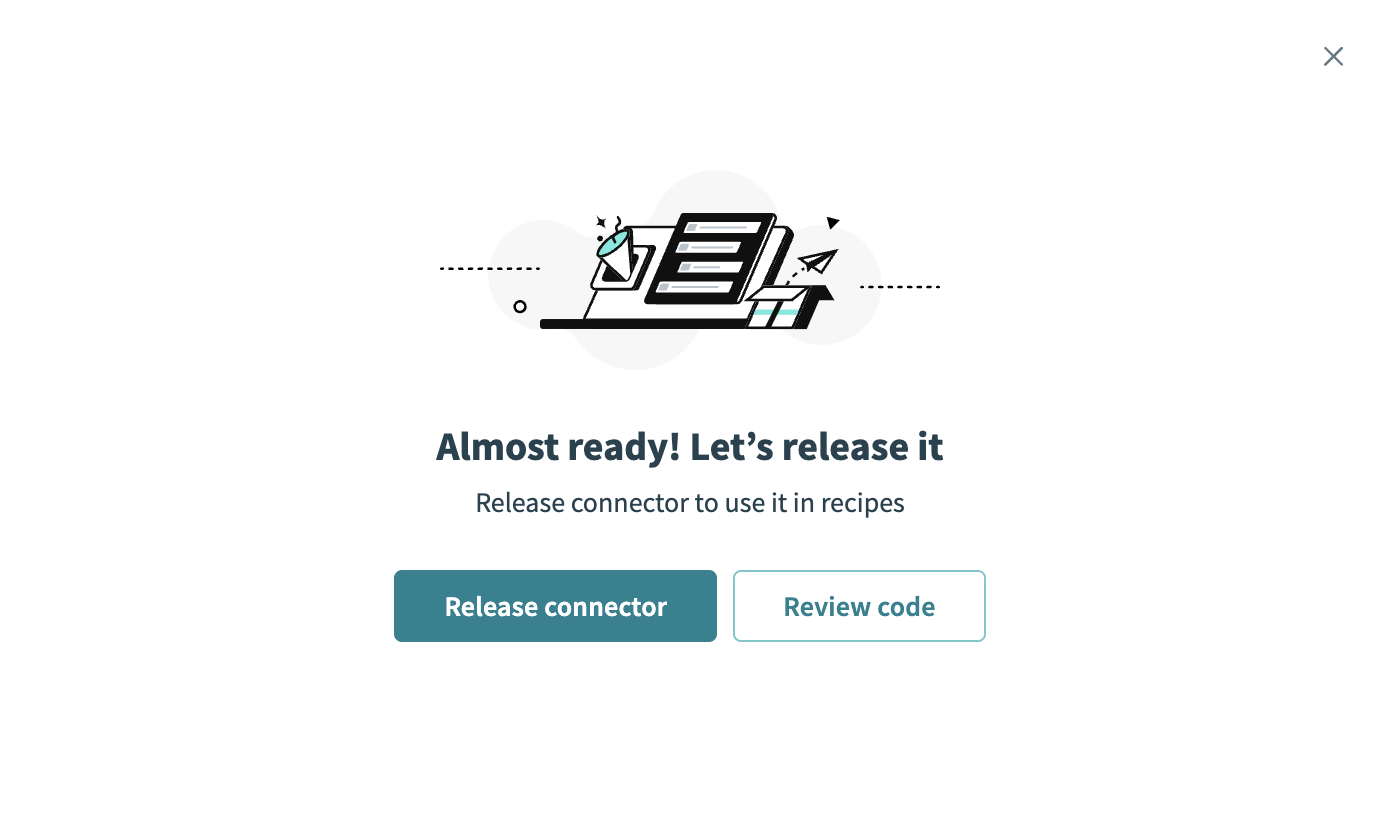 Release the connector
Summarize any changes you made to the connector, then click Release to allow workspace collaborators to use the connector in recipes.
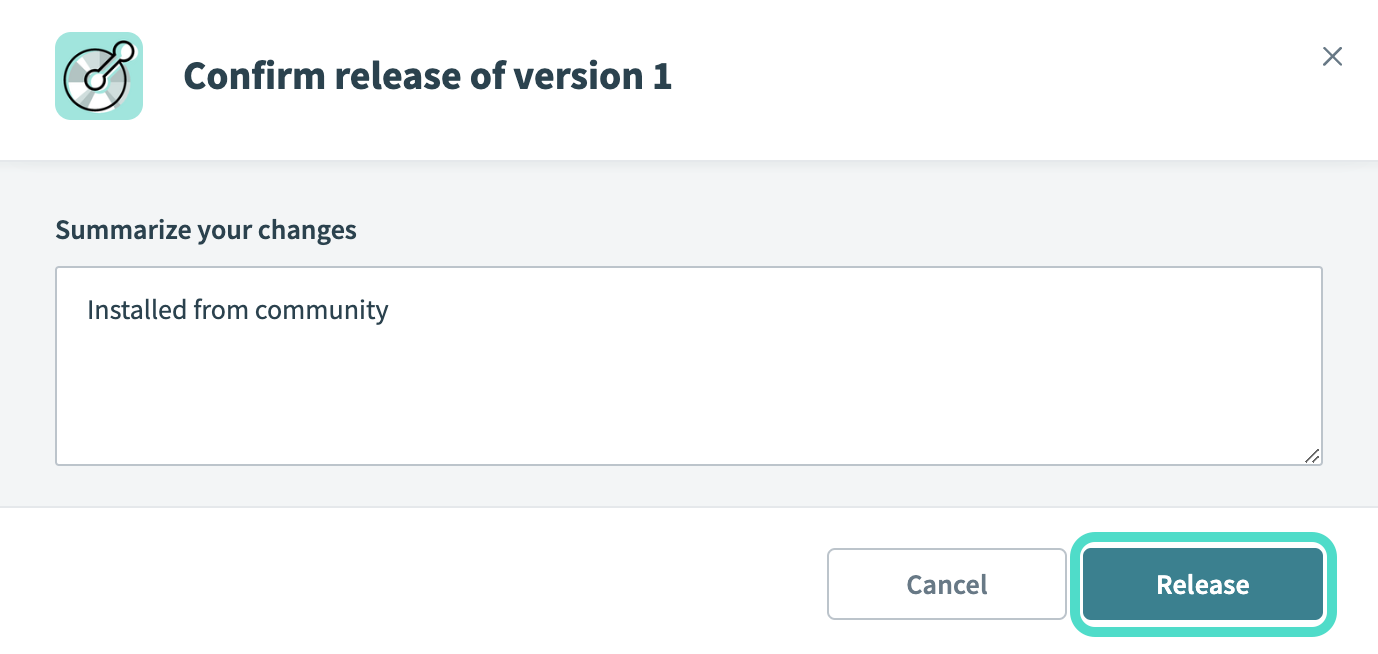 The Confirm release dialog
Connection setup
The Clay connector uses API key authentication.
Create API key in Clay
Complete the following steps to create an API key in Clay:
Sign in to your Clay workspace.
Click API and CLI > API keys.
Click Add API key.
Enter a Name.
Select Public API under Scopes.
Click Add API key.
Copy and save the API key for use in Workato.
SAVE THE API KEY
Clay only displays the API key once. You must create a new one if you lose it.
Click I've copied my API key.
Connect to Clay using an API key
Complete the following steps to connect your Clay account to Workato:
Click Create > Connection.
Search for Clay and select it as your connection on the New Connection page.
Enter a name for the connection in the Connection name field.
Use the Location drop-down menu to select the project or folder where you plan to store the connection.
Enter the Clay API key. Refer to Create API key in Clay for more information.
Click Connect.
Last updated: