Creatomate
Creatomate is a programmatic media generation service. This connector enables you to render videos, images, and GIFs from reusable templates or from RenderScript, a JSON scene description. You can also create, search, update, and delete templates.
Install Creatomate from the community library
Complete the following steps to install the Creatomate connector from the community library:
Open the recipe editor and search for a connector. Alternatively, you can search for a connector in the community library.
 Search for community connectors in the recipe editor
Select the community connector you plan to install.
Click Install to install the connector from the community library.
 Click Install
Select Release connector. Alternatively, select Review code to review and modify the connector code before releasing it to the workspace.
 Release the connector
Summarize any changes you made to the connector, then click Release to allow workspace collaborators to use the connector in recipes.
 The Confirm release dialog
Connection setup
The Creatomate connector uses API key authentication.
Creatomate setup
Sign in to your Creatomate dashboard.
Open the project you plan to use, then go to Project Settings.
Copy the project API key.
Connect to Creatomate using API key
Complete the following steps to connect to Creatomate in Workato:
Click Create > Connection.
Search for Creatomate and select it as your app.
Enter a name for your connection in the Connection name field.
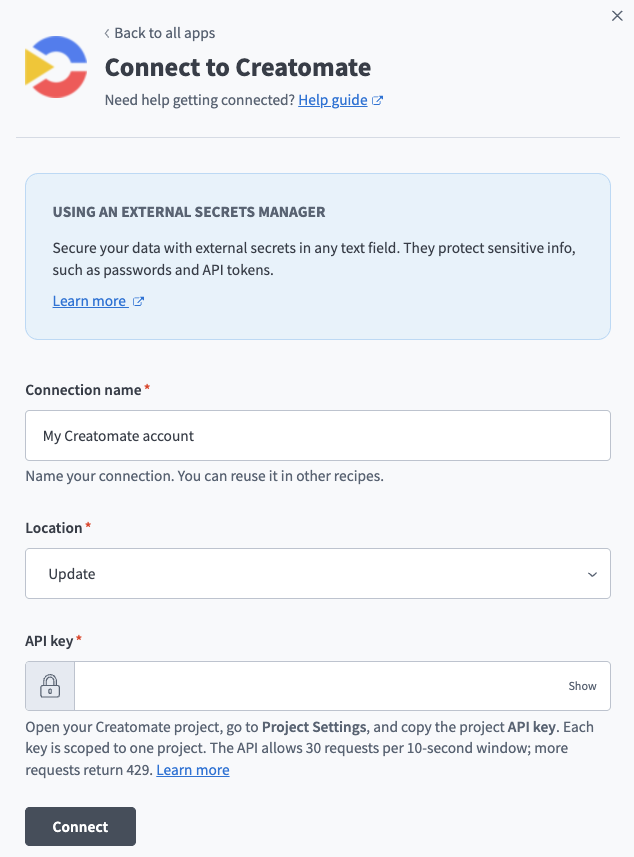 Creatomate connection setup
Use the Location drop-down menu to select the project where you plan to store the connection.
Paste the API key you copied earlier into the API key field. The key is scoped to that project, so only that project's templates and renders are available. The API allows 30 requests per 10-second window.
Click Connect.
Last updated: