Deepgram
Deepgram provides voice AI APIs for speech-to-text, text intelligence, and text-to-speech. The Deepgram connector enables you to transcribe audio, analyze text, and generate speech in Workato.
Use the Deepgram connector to:
- Transcribe call recordings, meetings, and voicemails from a URL or uploaded file.
- Identify speakers and split transcripts into paragraphs and utterances.
- Summarize audio and text, and detect topics, intents, and sentiment.
- Convert text to speech with Aura voices.
- List available speech-to-text and text-to-speech models.
You can also use custom actions to build a custom HTTP request to any Deepgram API endpoint. Refer to the Deepgram API documentation for endpoint details.
Install Deepgram from the community library
Complete the following steps to install the Deepgram connector from the community library:
Open the recipe editor and search for a connector. Alternatively, you can search for a connector in the community library.
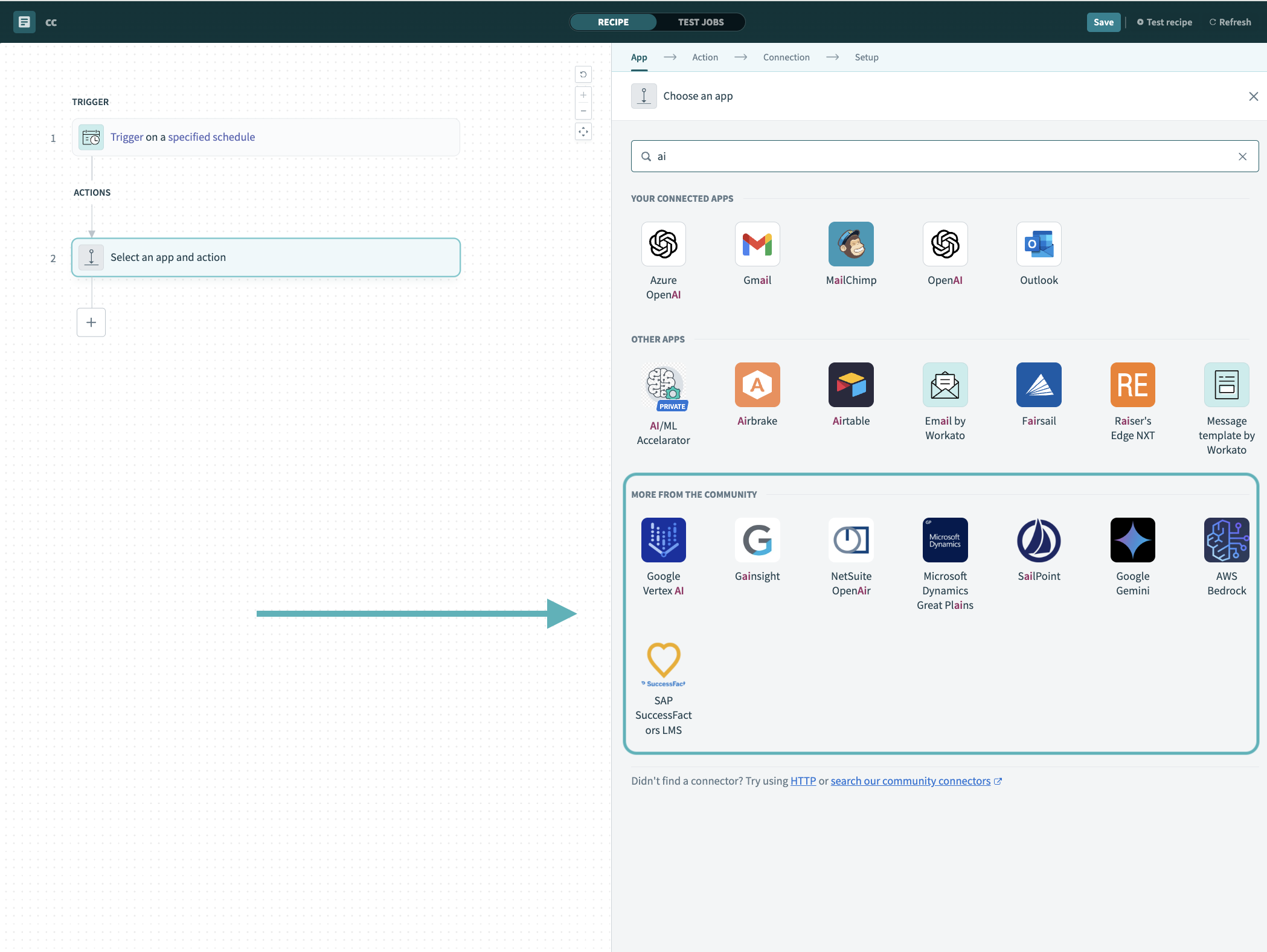 Search for community connectors in the recipe editor
Select the community connector you plan to install.
Click Install to install the connector from the community library.
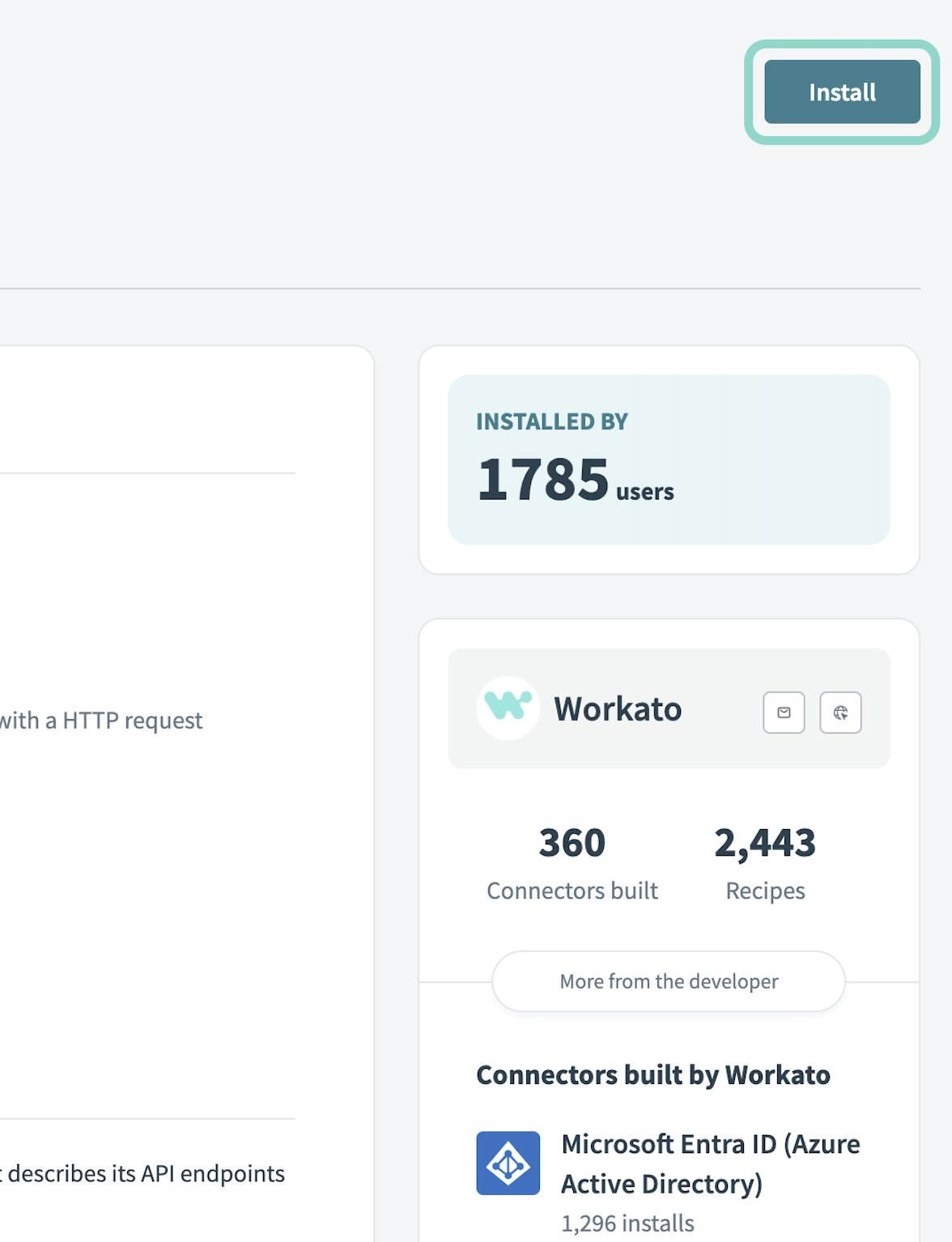 Click Install
Select Release connector. Alternatively, select Review code to review and modify the connector code before releasing it to the workspace.
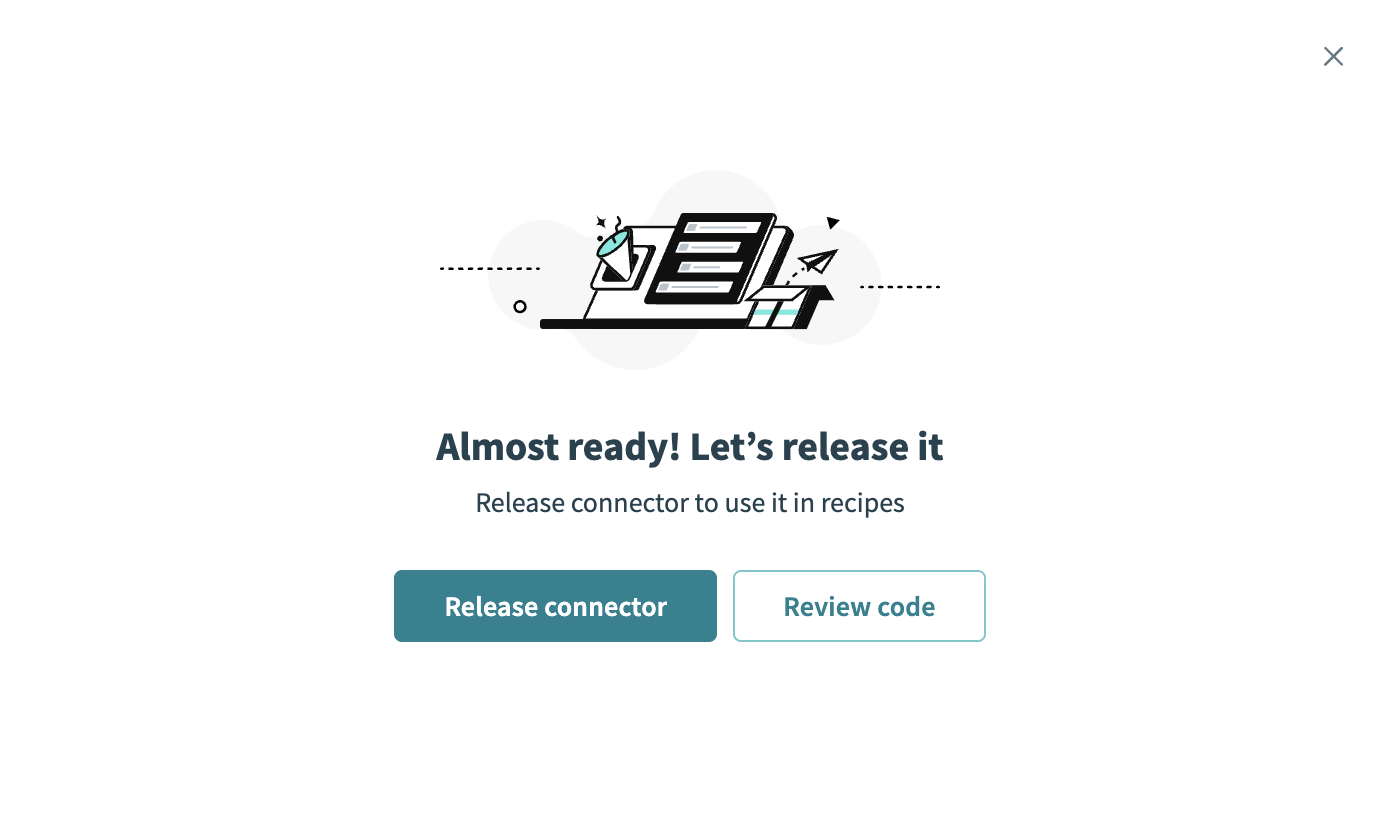 Release the connector
Summarize any changes you made to the connector, then click Release to allow workspace collaborators to use the connector in recipes.
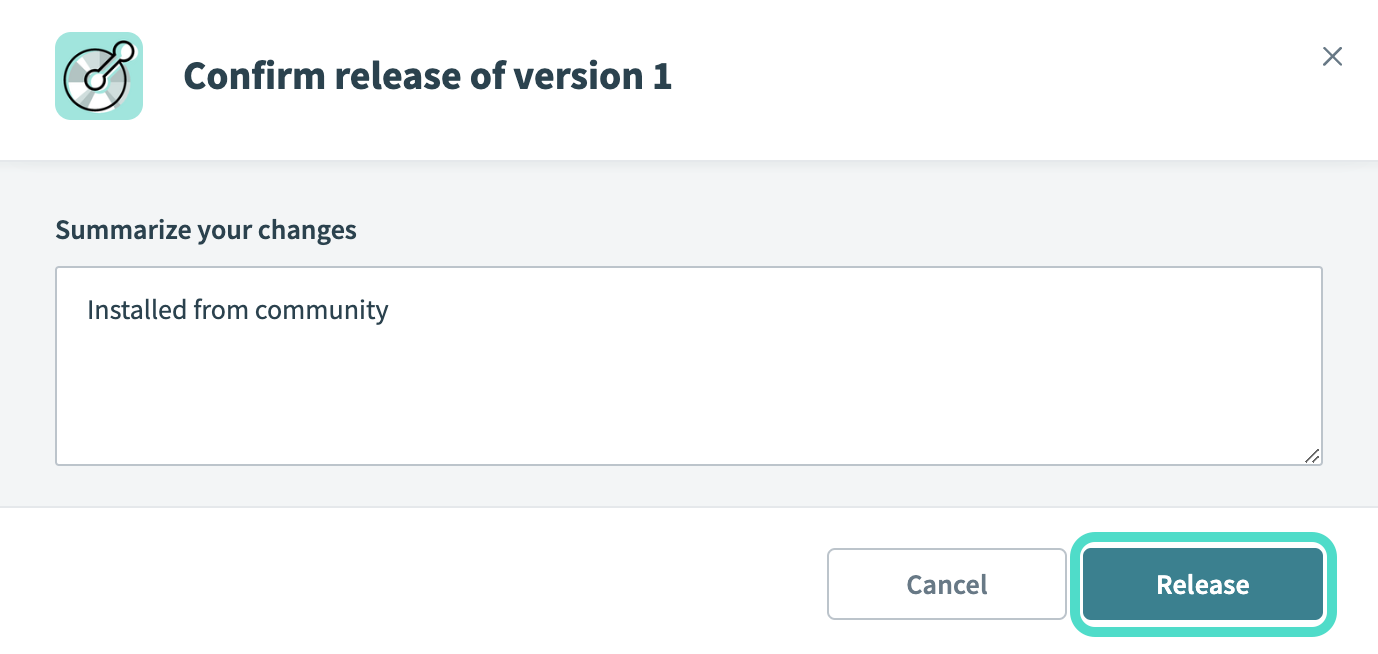 The Confirm release dialog
Connection setup
The Deepgram connector uses API key authentication. Workato sends the API key in the Authorization header.
Deepgram setup for API key authentication
Complete the following steps to create a Deepgram API key:
Sign in to the Deepgram Console.
Use the Projects drop-down menu to select the project you want to associate with the API key. Deepgram creates a default project automatically during sign-up.
Click Settings.
Click API Keys.
Click Create a New API Key.
Enter a Friendly name (Comment).
Select the expiration. Options are Never, Duration, or Date.
Optional. Expand the Advanced menu to change the role. Refer to the Deepgram Project Roles documentation for more information.
Click Create Key.
Copy and save the Secret for use in Workato.
SAVE YOUR SECRET
Deepgram displays the secret only once. You must create a new one if you lose the secret.
Click Got it.
Connect to Deepgram using API key authentication
Complete the following steps to connect to Deepgram in Workato:
Click Create > Connection.
Search for Deepgram and select it as your app.
Enter a name for your connection in the Connection name field.
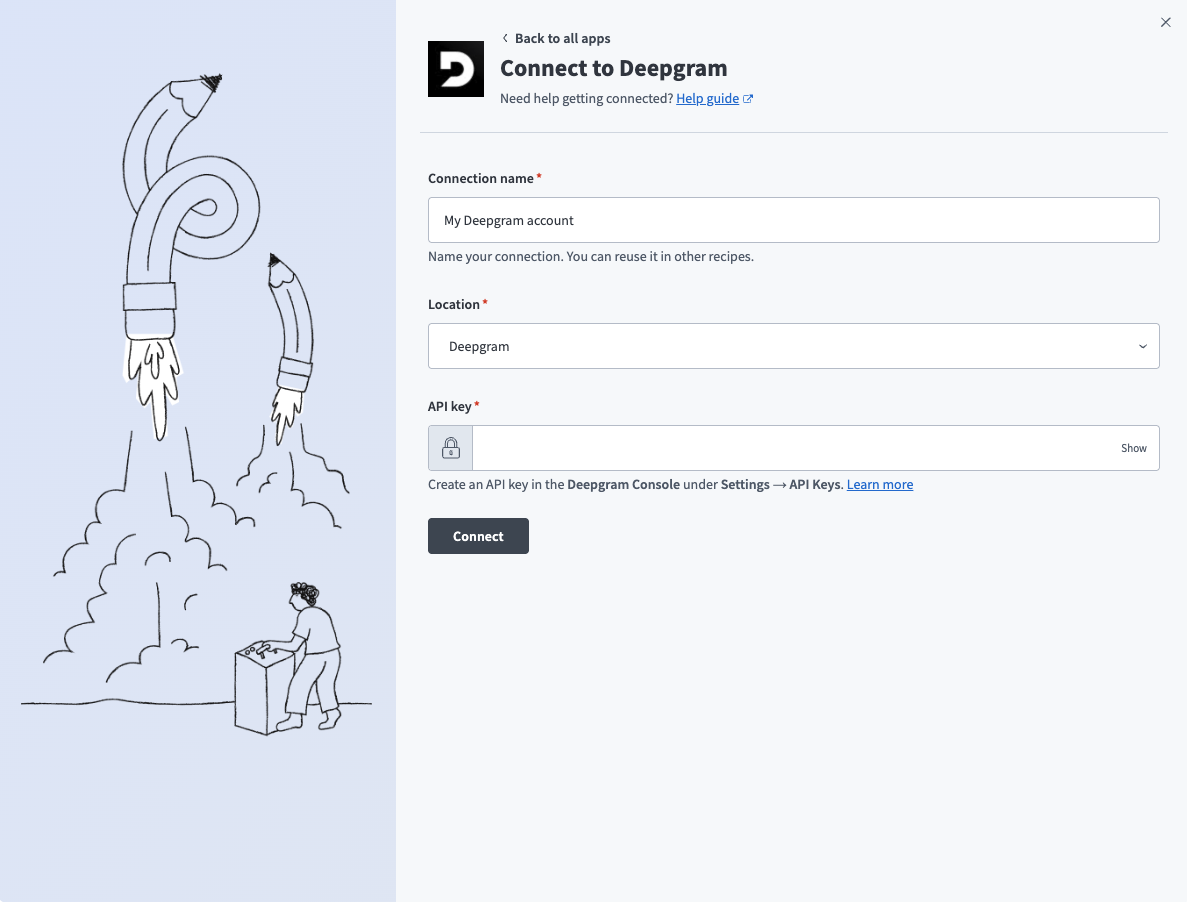 Deepgram connection setup
Use the Location drop-down menu to select the project where you plan to store the connection.
Enter the secret you saved from Deepgram in the API key field. Refer to Deepgram setup for API key authentication for more information.
Click Connect.
Last updated: