Filevine
Filevine is a legal case management platform that helps law firms manage documents, deadlines, tasks, and communication across teams.
The Filevine connector enables you to automate legal operations by integrating Filevine objects and workflows into your recipes. You can use this connector to create or update records, retrieve record details, and trigger recipes based on real-time changes in your Filevine account.
How to connect to Filevine
Workato requires a client ID, client secret, and an access token from Filevine to authorize the connection. Complete the following steps to generate credentials and create the connection in Workato:
Generate API credentials in Filevine
Complete the following steps to generate a client ID, client secret, and an access token in the Filevine developer portal:
Sign in to Filevine as an account admin.
Click your avatar or letter icon.
Select Manage My Account from the menu.
Go to the Access Tokens tab.
Click + New to create a new token.
Enter a descriptive Name.
Select the required Scopes.
Click Create, then copy the access token immediately. You can only view this value once.
Go to the Client Secrets tab.
Register your Client ID and Client secret and save the values securely.
Refer to the Filevine authentication guide for more information.
Complete the setup in Workato
Complete the following steps to create a Filevine connection:
Click Create > Connection or press C twice.
Search for and select Filevine as your connection on the New connection page.
Enter a name for your connection in the Connection name field.
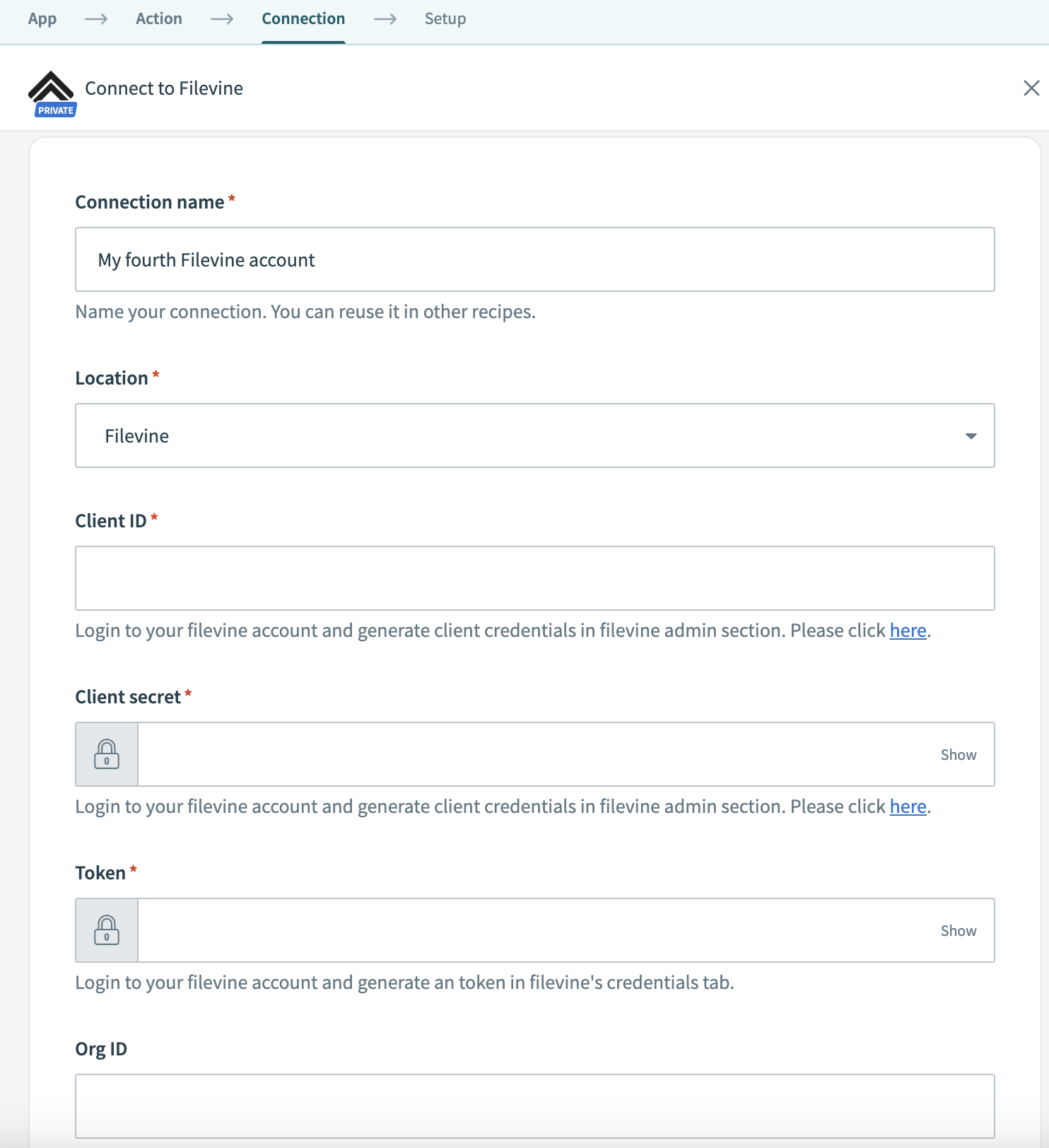 Connect to Filevine
Use the Location drop-down to select the project or folder to store this connection.
Enter your Client ID and Client secret. You can generate these credentials from the Filevine admin console.
Enter your Token. You can generate a token from the Credentials tab in Filevine.
Enter your Org ID and User ID.
You can retrieve these values using the Filevine API gateway. Refer to the Filevine API documentation for more information.
Select a Scope from the drop-down menu.
Scopes define the level of access for this connection. Refer to the Filevine API documentation for more information.
Click Connect.
Last updated: