Industrial and Financial Systems (IFS)
Industrial and Financial Systems (IFS) Cloud is an enterprise resource planning (ERP) platform that helps organizations manage complex business processes including project management, manufacturing, supply chain, and field service operations. This connector allows you to automate business workflows, synchronize data across systems, and streamline operations so your team can focus on delivering value to customers.
Prerequisites
You must complete the following to establish a connection to IFS in Workato:
- Create an IAM client ID and client secret
- Obtain your IFS realm
- Download the IFS connector from the Community library
Create an IAM client and client secret
Complete the following steps to create an IAM client and client secret in IFS:
Go to Solution Manager > Access Control > Identity and Access Manager > IAM Clients in the IFS sidebar.
Click + (plus) to create a new IAM client.
Set up your IAM Client for OAuth 2.0 authorization code grant and OAuth 2.0 client credentials authentication:
Authorization code grant
Provide a Client ID.
Ensure the Enabled toggle is enabled.
Enable Direct Access Grants.
Enable Service Accounts.
Click +(plus) and enter Workato's Redirect URI:
https://www.workato.com/oauth/callbackClick OK.
Client credentials
Provide a Client ID.
Ensure the Enabled toggle is enabled.
Enable Direct Access Grants.
Enable Service Accounts.
Click OK.
Copy the generated Client Secret and Client ID to use in your connection.
Refer to Grant Permission Sets to Users for information on to grant permissions to service account users. This is required for client credentials authentication and not necessary for authorization code grant authentication.
Obtain your IFS realm
Complete the following steps to obtain your IFS realm in IFS:
Go to Solution Manager > Integration > API explorer in the IFS sidebar.
Select any API from the list.
Select Documentation > API Doc.
Choose an endpoint and expand the AUTHORIZATIONS section.
Click the Connect URL.
Find the authorization_endpoint URL value. For example:
https://your-instance.ifs.cloud/auth/realms/abc1d234/protocol/openid-connect/authYour realm is the string between /realms/ and /protocol/. In this example, the realm is abc1d234.
Copy the realm value to use in your connection.
Download the IFS connector from the Community library
Complete the following steps to install the IFS connector from the community library:
Open the recipe editor and search for a connector. Alternatively, you can search for a connector in the community library.
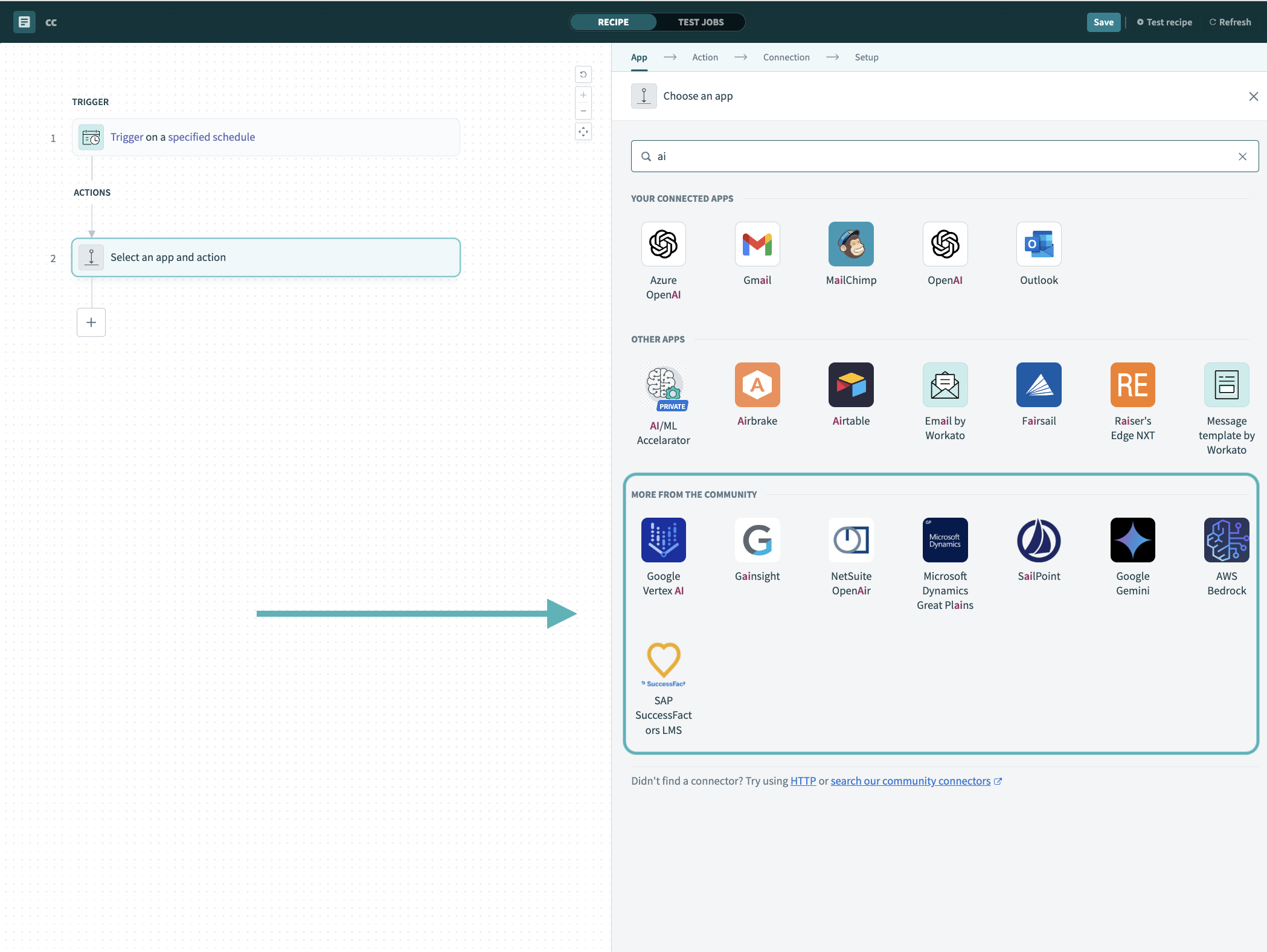 Search for community connectors in the recipe editor
Select the community connector you plan to install.
Click Install to install the connector from the community library.
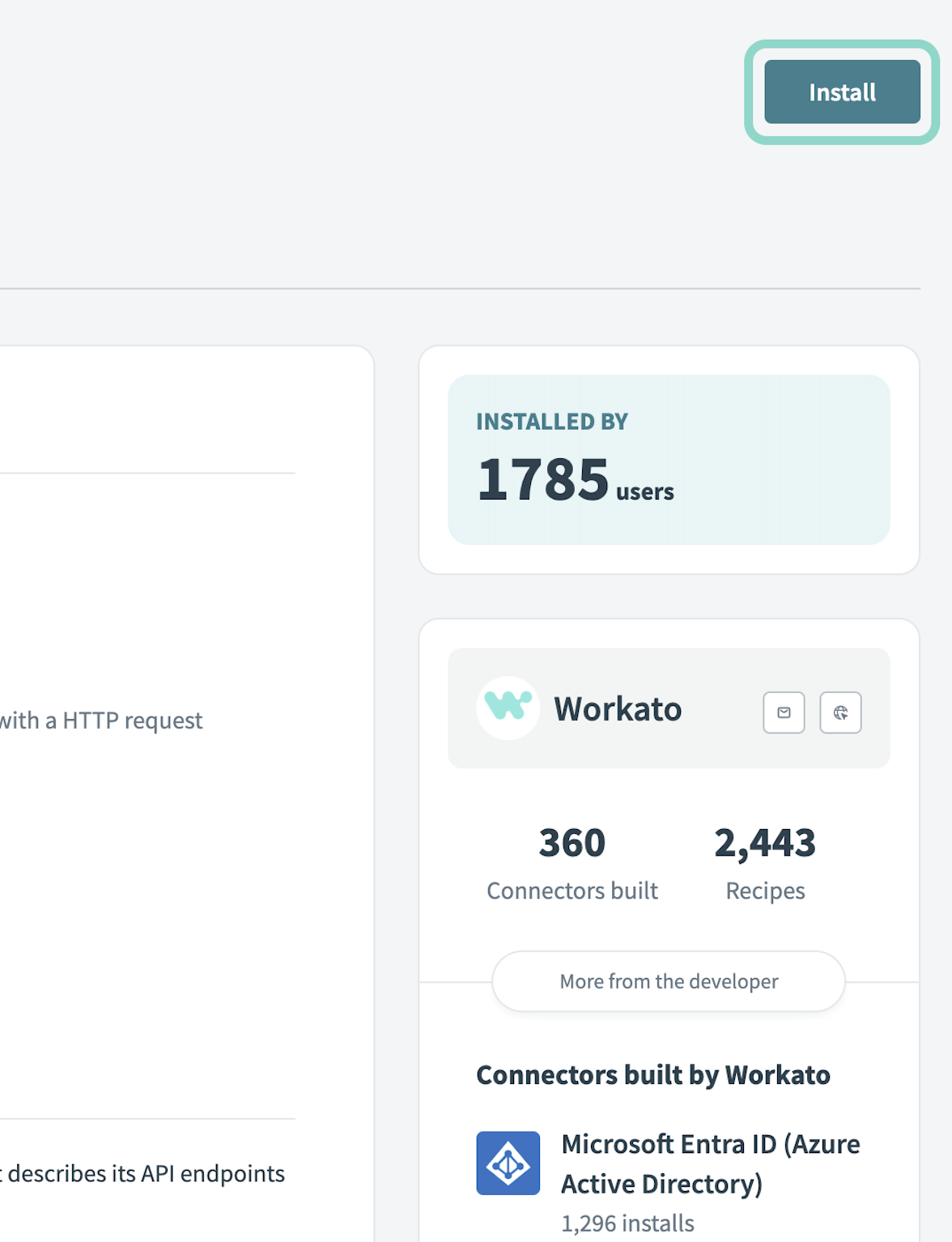 Click Install
Select Release connector. Alternatively, select Review code to review and modify the connector code before releasing it to the workspace.
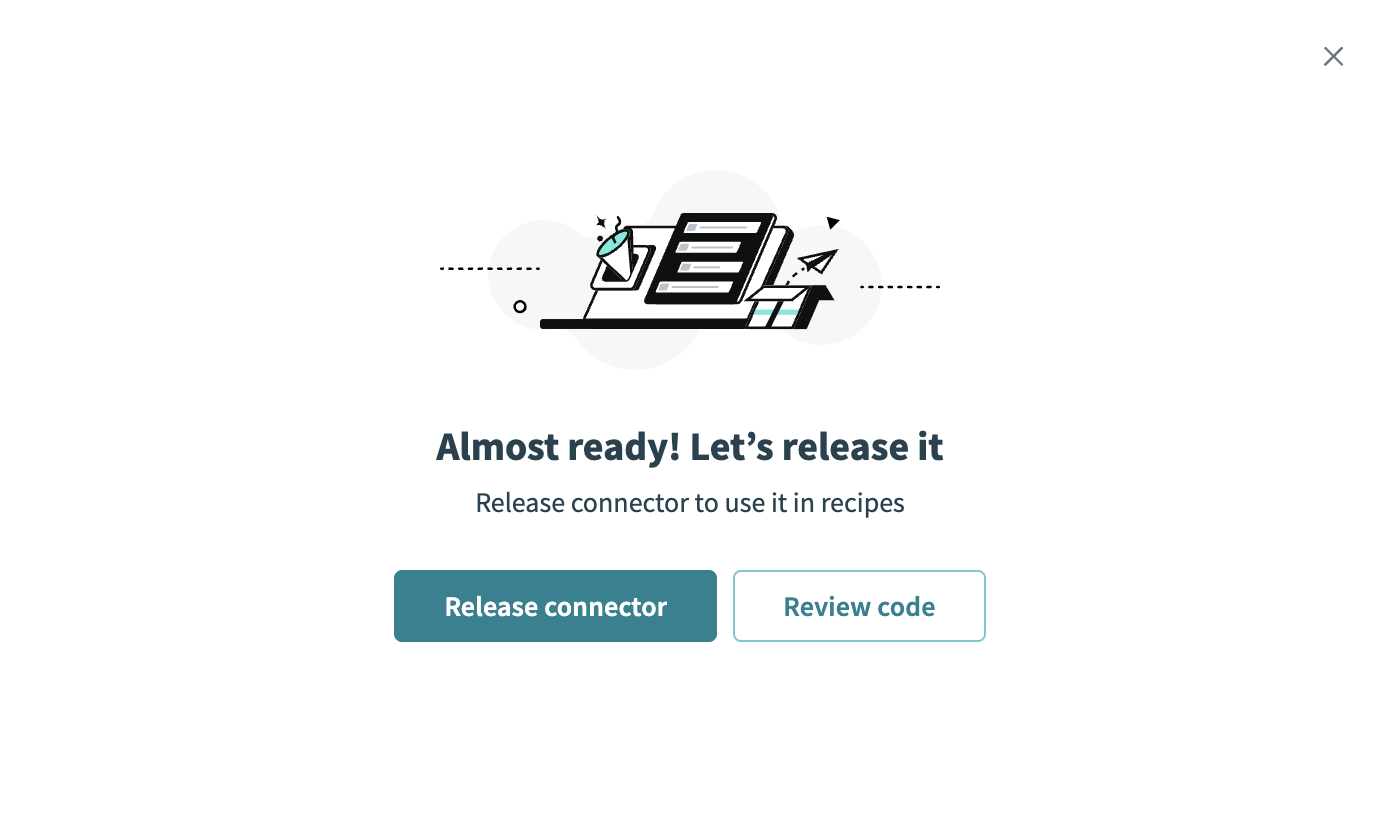 Release the connector
Summarize any changes you made to the connector, then click Release to allow workspace collaborators to use the connector in recipes.
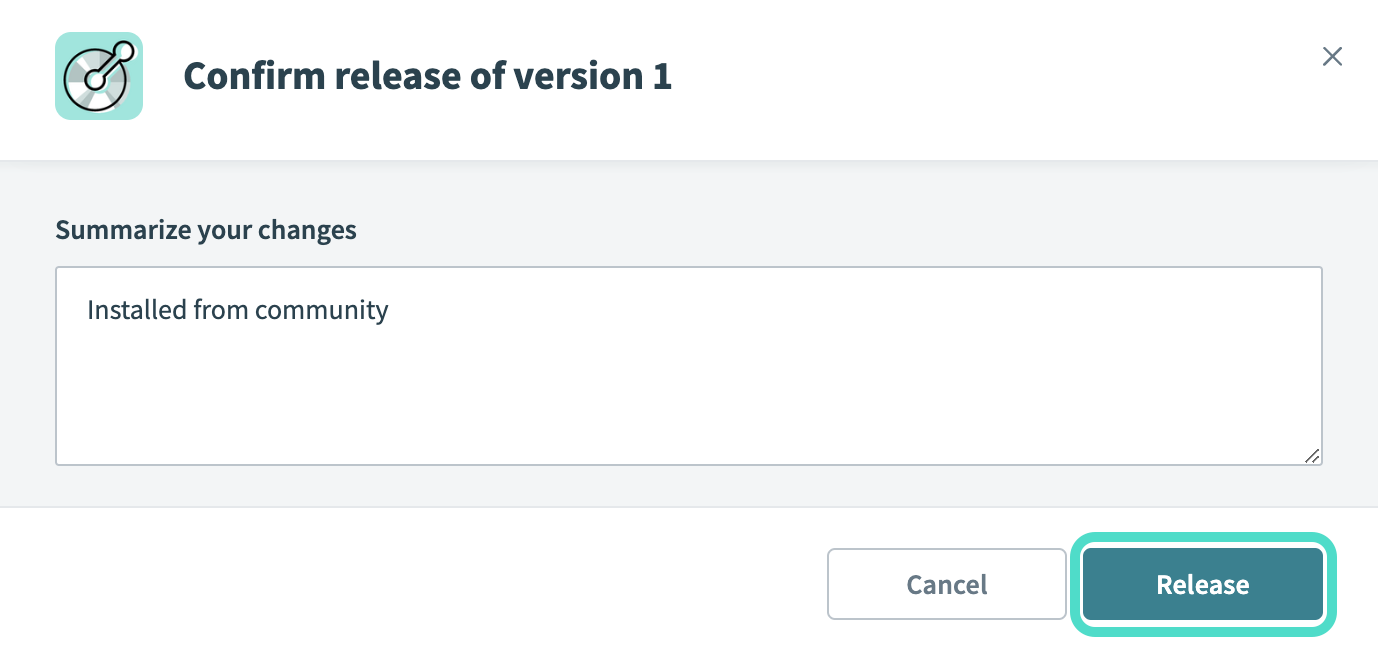 The Confirm release dialog
Connection setup
Complete the following steps to connect to IFS in Workato:
Click Create > Connection or press C twice.
Search for and select IFS as your connection on the New Connection page.
Provide a unique name for the connection in the Connection name field.
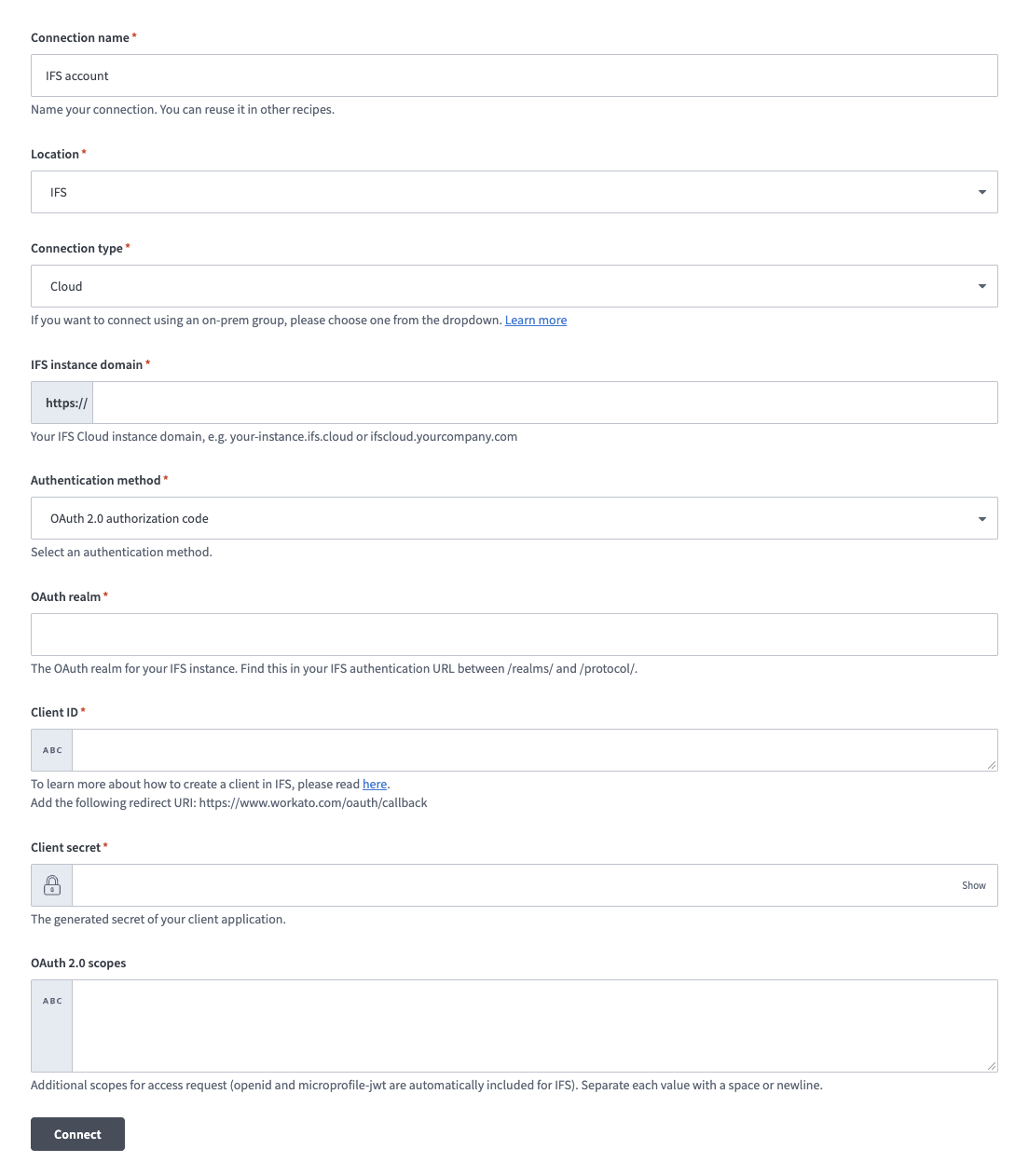 IFS connection
Use the Location drop-down menu to select the project where you plan to store the connection.
Use the Connection type drop-down to select the connection type. Workato supports Cloud and On-premise connections.
Enter your IFS instance domain, such as your-instance.ifs.cloud or ifscloud.your-company.com.
Use the Authentication method drop-down menu to select an authentication method. Workato supports OAuth 2.0 authorization code grant and OAuth 2.0 client credentials authentication.
Provide the OAuth realm for your IFS instance. You can find this in your IFS authentication URL between /realms/ and /protocol/. For example, the realm in the following endpoint URL is abc1d234: https://your-instance.ifs.cloud/auth/realms/abc1d234/protocol/openid-connect/auth.
Enter your IAM client ID in the Client ID field. Refer to the IAM Client guide for more information.
Enter your IAM client secret in the Client secret field.
Optional. Provide additional scopes for this connection. Separate each value with a space or new line. openid and microprofile are automatically included.
Click Connect.
Last updated: