Jina
Jina AI provides Search Foundation APIs for reading web pages, transforming web pages into LLM-friendly markdown, web search, text segmentation, embeddings, reranking, classification, and DeepSearch research. The Jina connector lets you read, search, and process text and web content for LLM and search workflows.
Use the Jina connector to:
- Read a URL and convert it into clean markdown or JSON.
- Search the web and return LLM-friendly results.
- Segment text into tokenized chunks.
- Generate vector embeddings for text.
- Rerank documents by relevance to a query.
- Classify text with zero-shot or few-shot labels.
- Run a DeepSearch chat completion for research tasks.
You can also use custom actions to build a custom HTTP request to any Jina API endpoint. Refer to the Jina API documentation for endpoint details.
Install Jina from the community library
Complete the following steps to install the Jina connector from the community library:
Open the recipe editor and search for a connector. Alternatively, you can search for a connector in the community library.
 Search for community connectors in the recipe editor
Select the community connector you plan to install.
Click Install to install the connector from the community library.
 Click Install
Select Release connector. Alternatively, select Review code to review and modify the connector code before releasing it to the workspace.
 Release the connector
Summarize any changes you made to the connector, then click Release to allow workspace collaborators to use the connector in recipes.
 The Confirm release dialog
Connection setup
The Jina connector uses API key authentication.
Jina setup for API key authentication
Complete the following steps to create a Jina API key:
Go to Jina AI.
Click < > API.
Click the API KEY & BILLING tab.
Select With Jina Search Foundation API and click Available tokens.
Copy and save the API key for use in Workato.
Connect to Jina using API key authentication
Complete the following steps to set up a Jina connection in Workato:
Click Create > Connection or press C twice.
Search for Jina and select it as your app.
Provide a name for your connection in the Connection name field.
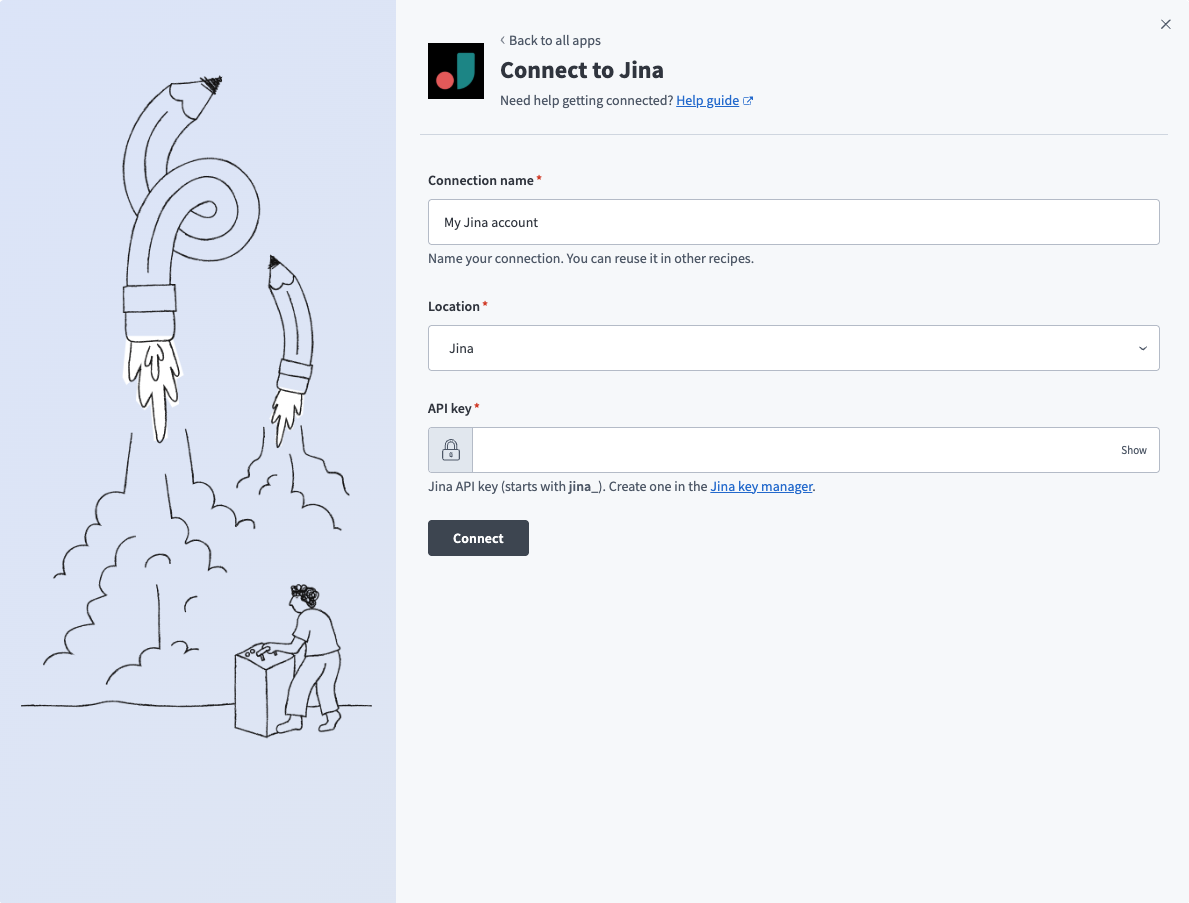 Jina connection setup
Use the Location drop-down menu to select the project where you plan to store the connection.
Enter the API key. Refer to Jina setup for API key authentication for more information.
Click Connect.
Last updated: