Notion
Notion is a project management and note-taking platform that enables you to create databases, manage projects, take notes, and leverage AI to improve your workflows.
API version
The Notion connector uses the Notion REST API.
Connection setup
The Notion connector supports the following authentication types:
Download the Notion connector from the community library
View steps to download the Notion connector from the community library
Complete the following steps to install the Notion connector from the community library:
Open the recipe editor and search for a connector. Alternatively, you can search for a connector in the community library.
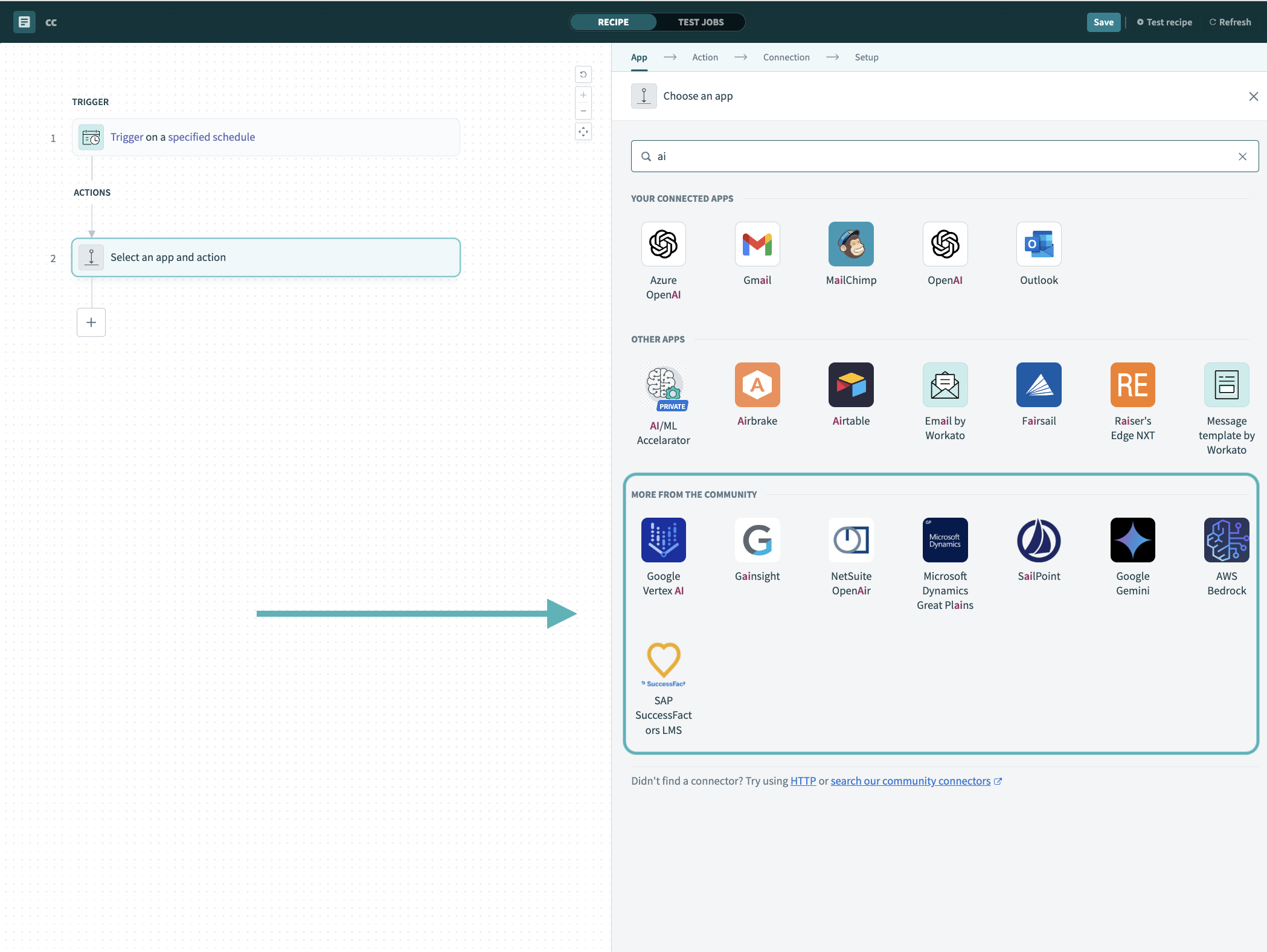 Search for community connectors in the recipe editor
Select the community connector you plan to install.
Click Install to install the connector from the community library.
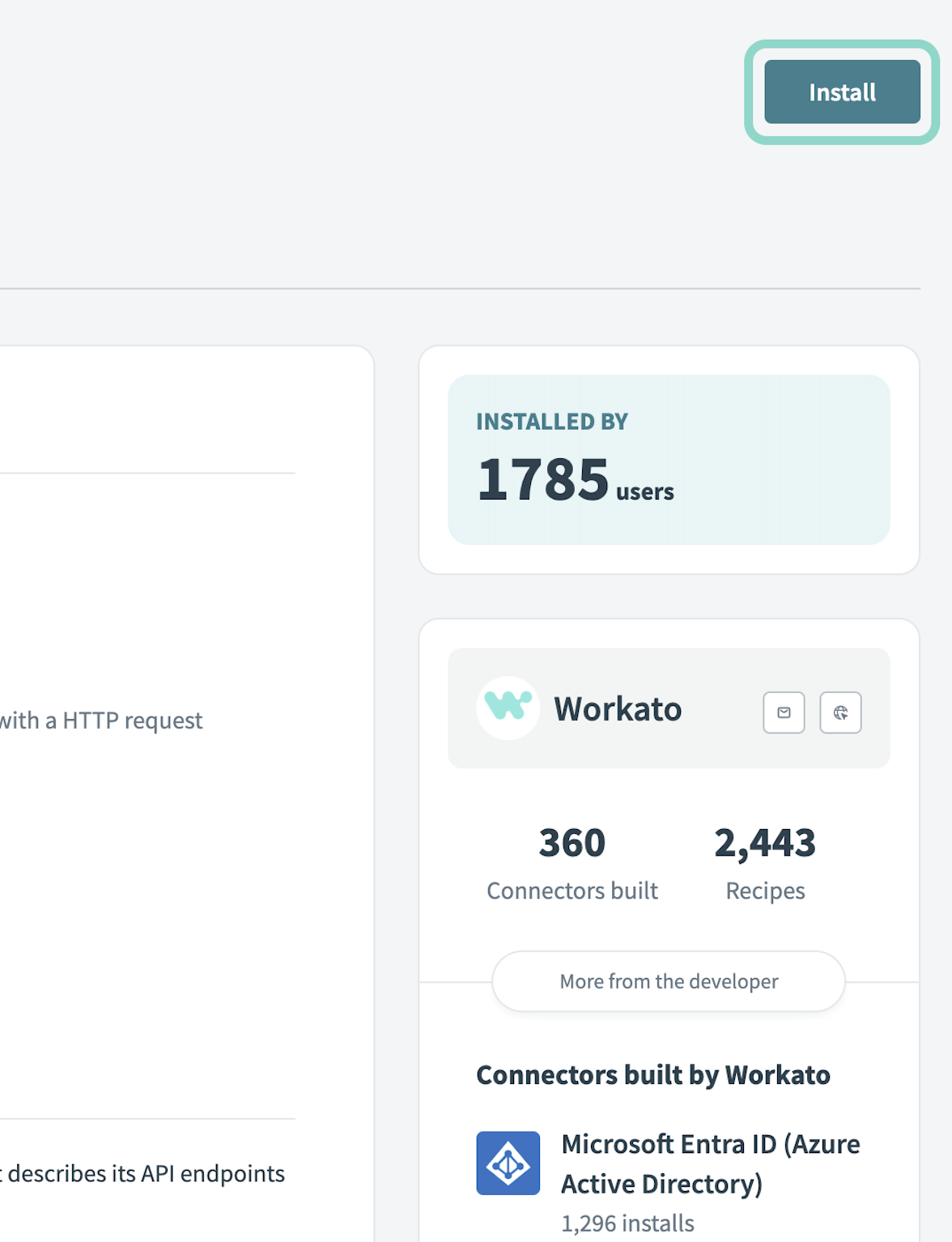 Click Install
Select Release connector. Alternatively, select Review code to review and modify the connector code before releasing it to the workspace.
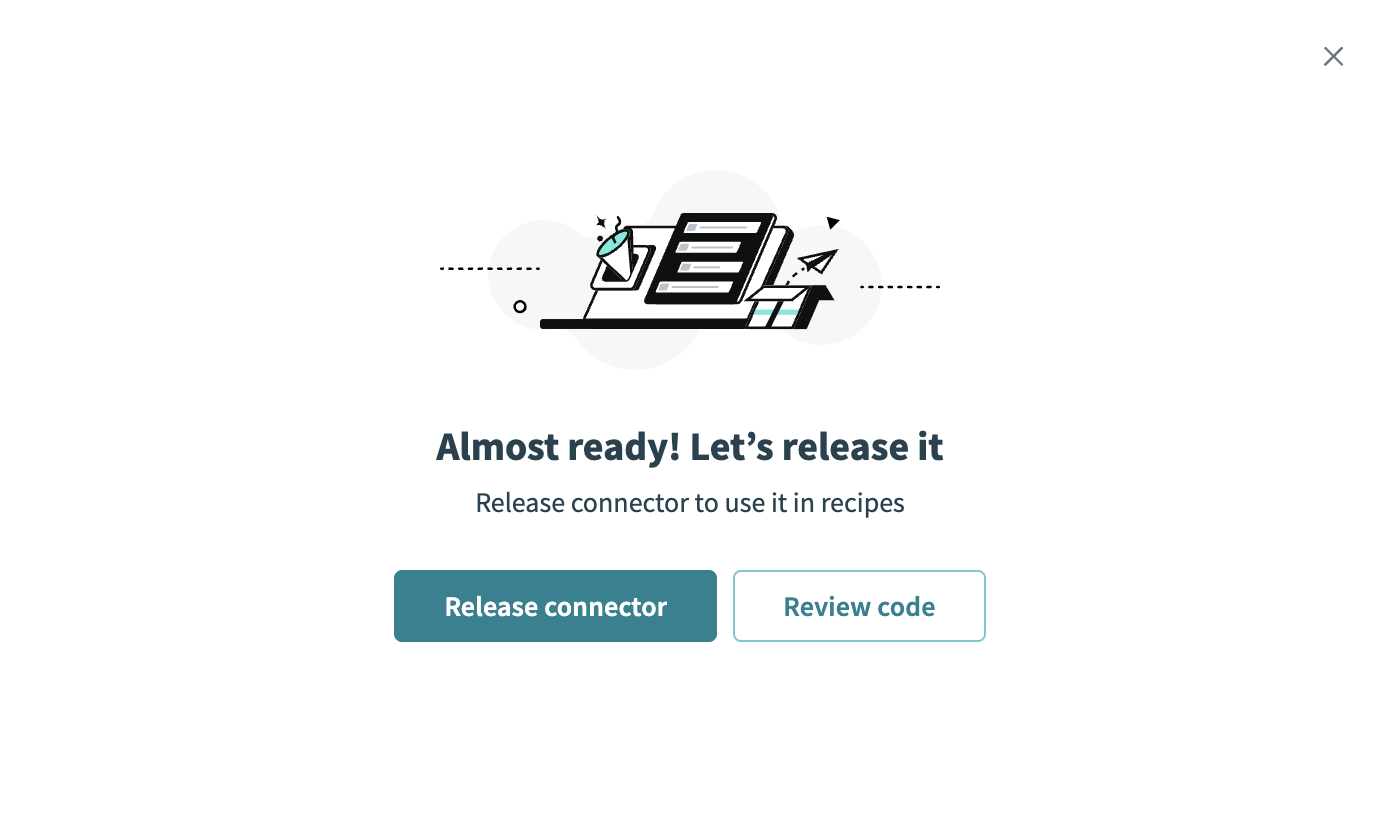 Release the connector
Summarize any changes you made to the connector, then click Release to allow workspace collaborators to use the connector in recipes.
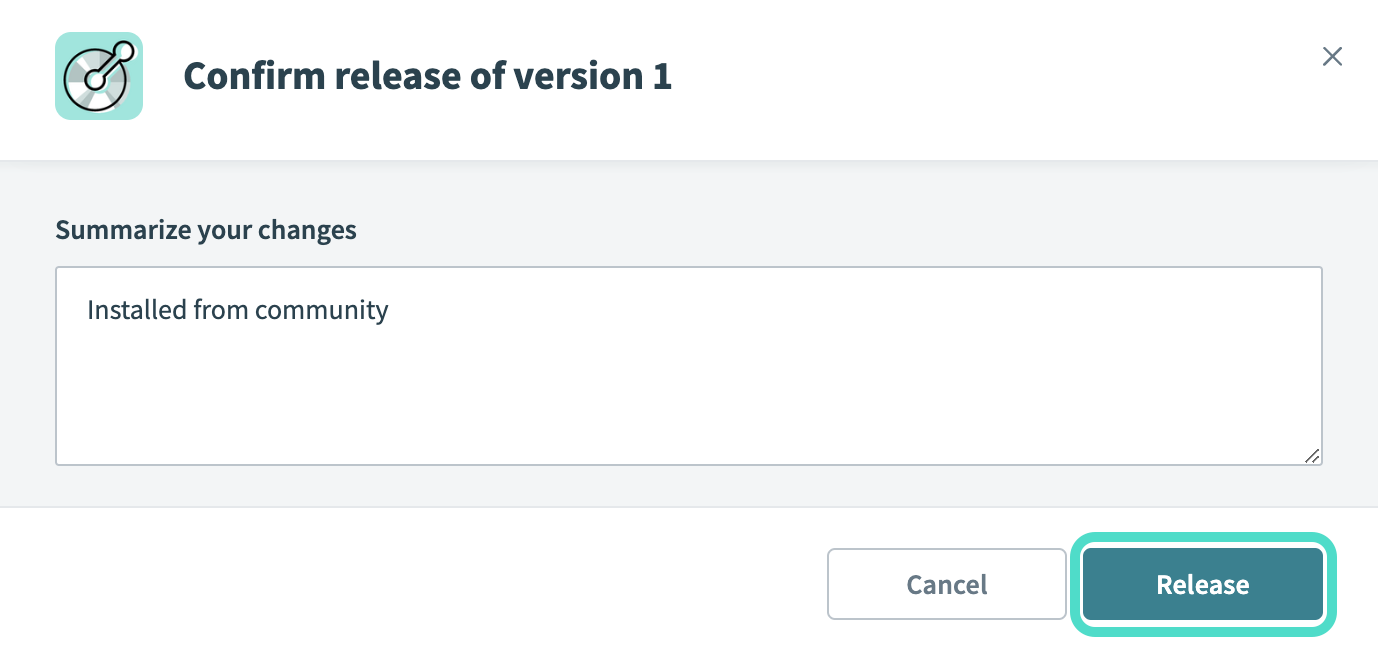 The Confirm release dialog
OAuth 2.0 authentication
Use OAuth 2.0 to create a public integration that accesses multiple Notion workspaces.
Complete the following steps to set up an OAuth 2.0 connection to Notion in Workato:
Generate a client ID and client secret
Complete the following steps to generate a client ID and client secret in Notion:
Sign in to the Notion Integrations Dashboard.
Click Integrations under Listings.
Click + Create a new integration.
Enter an Integration name.
Upload an icon to identify the integration.
Use the Associated workspace drop-down menu to scope the connection to a specific workspace.
Enter https://www.workato.com/oauth/callback in the Redirect URIs field.
Click Create.
Click Configure integration settings in the modal that appears.
Copy and save the OAuth Client ID and OAuth Client Secret for use in Workato.
SAVE YOUR CREDENTIALS
The client secret is only displayed once. If you lose it, you must refresh it or create a new integration.
Connect to Notion with OAuth 2.0 authentication
Complete the following steps to set up an OAuth 2.0 connection to Notion in Workato:
Click Create > Connection.
Search for Notion and select it as your app.
Enter a name for your connection in the Connection name field.
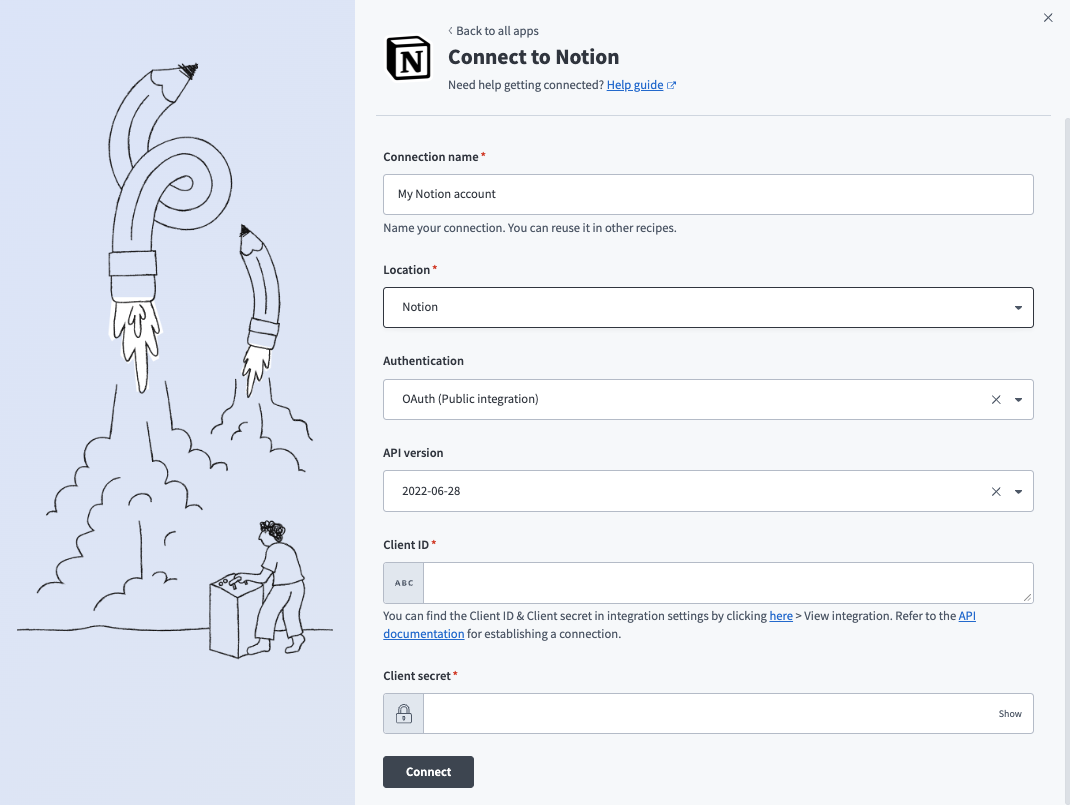 Notion Connection
Use the Location drop-down menu to select the project where you plan to store the connection.
Use the Authentication type drop-down menu to select OAuth (Public integration).
Use the API version drop-down menu to select the API version.
Enter the Client ID and Client secret for your Notion integration. Refer to Generate a client ID and client secret to obtain these values.
Click Connect.
API key authentication
Use an API key authentication to create an internal integration accessible only in a specific Notion workspace.
Complete the following steps to set up an API key connection to Notion in Workato:
Generate an integration token
Sign in to the Notion Integrations Dashboard.
Select Internal integrations.
Select Create a new integration.
Enter an Integration name.
Upload an icon to identify the integration.
Use the Associated workspace drop-down menu to scope the connection to a specific workspace.
Click Create.
Click Configure integration settings in the modal that appears.
Copy and save the Internal integration secret for use in Workato.
Connect to Notion with API key authentication
Complete the following steps to set up an API key connection to Notion in Workato:
Click Create > Connection.
Search for Notion and select it as your app.
Enter a name for your connection in the Connection name field.
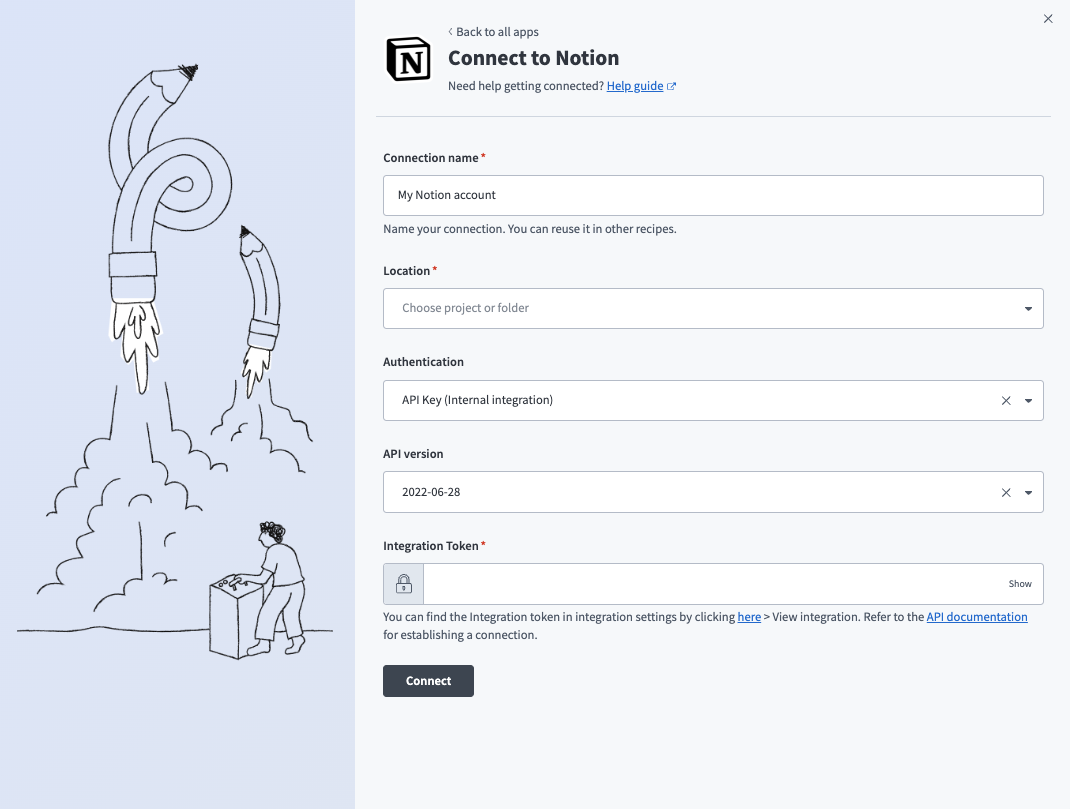 Notion Connection
Use the Location drop-down menu to select the project where you plan to store the connection.
Use the Authentication type drop-down menu to select API Key (Internal integration).
Use the API version drop-down menu to select the API version.
Enter the Integration Token for your Notion integration. Refer to Generate an integration token to obtain this value.
Click Connect.
Last updated: