Redmine
Redmine is an open-source project management and issue tracking application. The Redmine connector enables you to retrieve, search, create, and update issues in Workato using the Redmine REST API.
Install Redmine from the community library
Complete the following steps to install the Redmine connector from the community library:
Open the recipe editor and search for a connector. Alternatively, you can search for a connector in the community library.
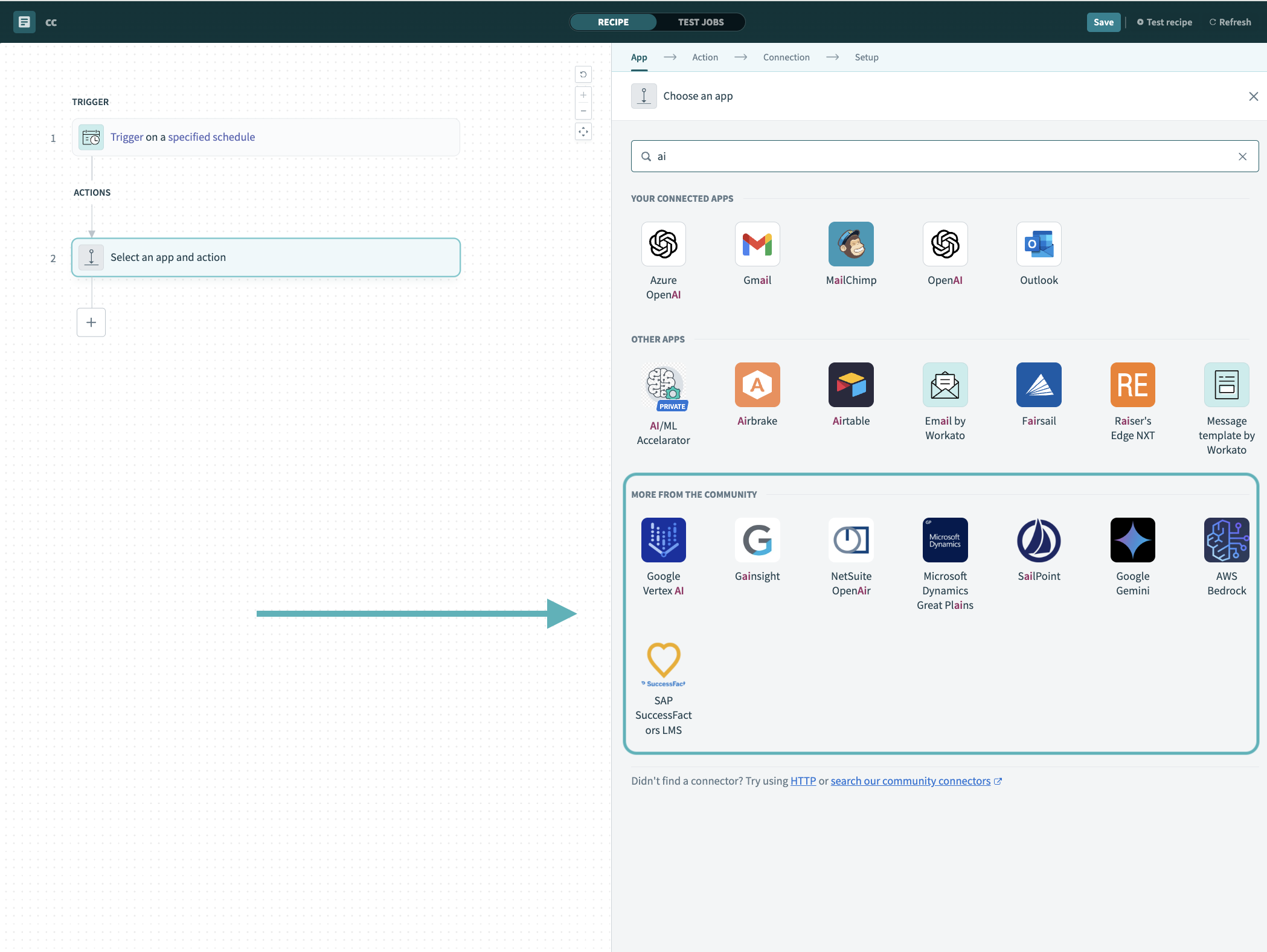 Search for community connectors in the recipe editor
Select the community connector you plan to install.
Click Install to install the connector from the community library.
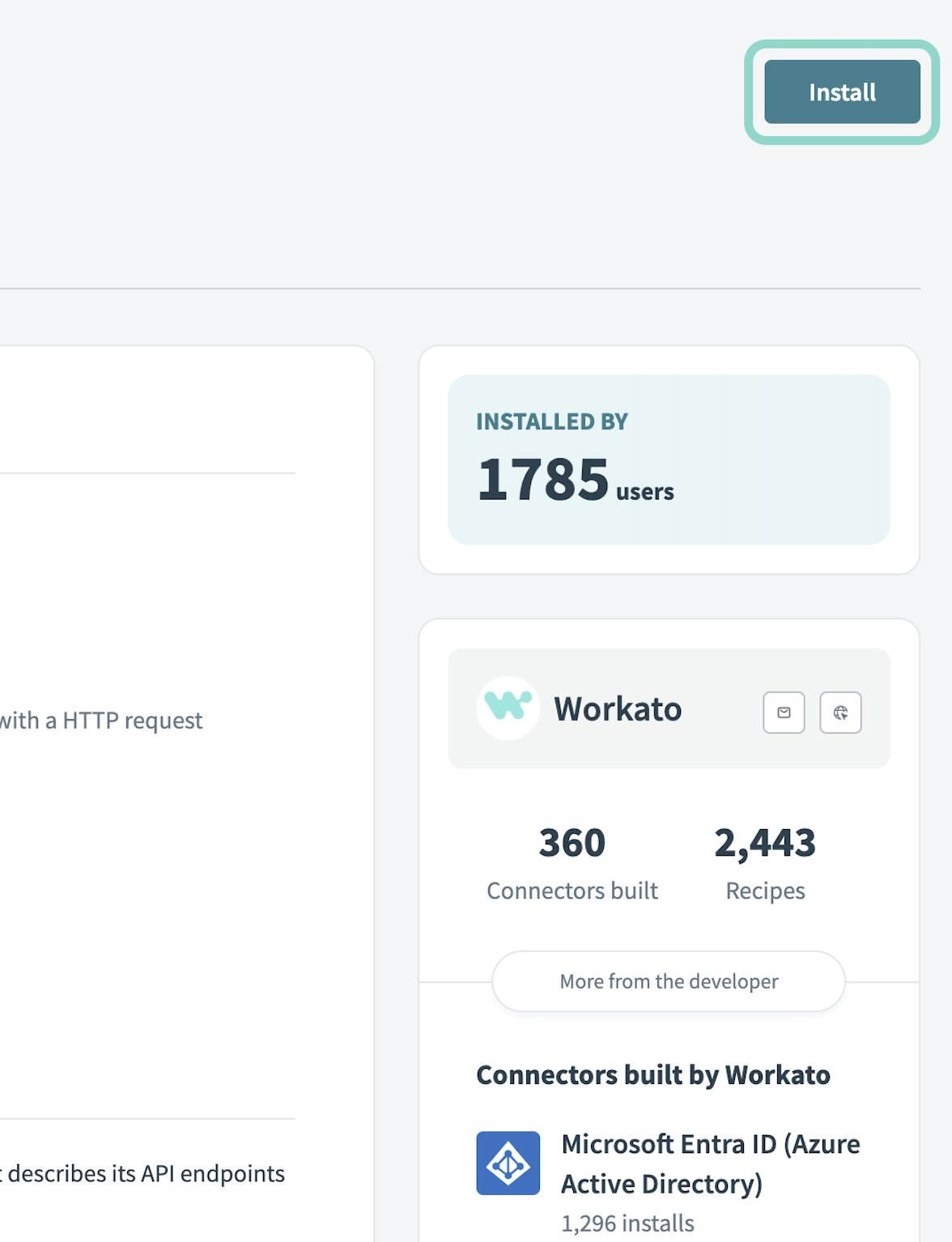 Click Install
Select Release connector. Alternatively, select Review code to review and modify the connector code before releasing it to the workspace.
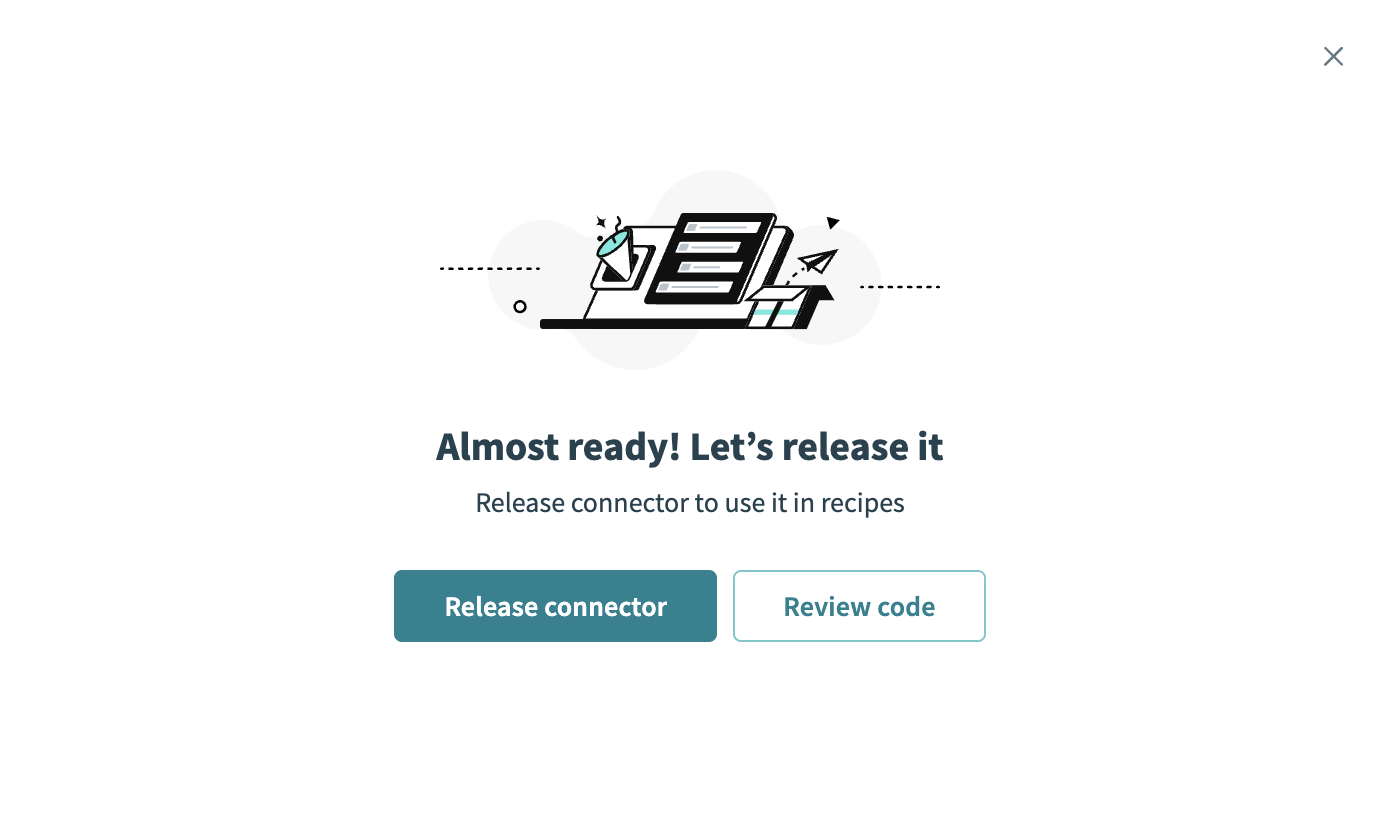 Release the connector
Summarize any changes you made to the connector, then click Release to allow workspace collaborators to use the connector in recipes.
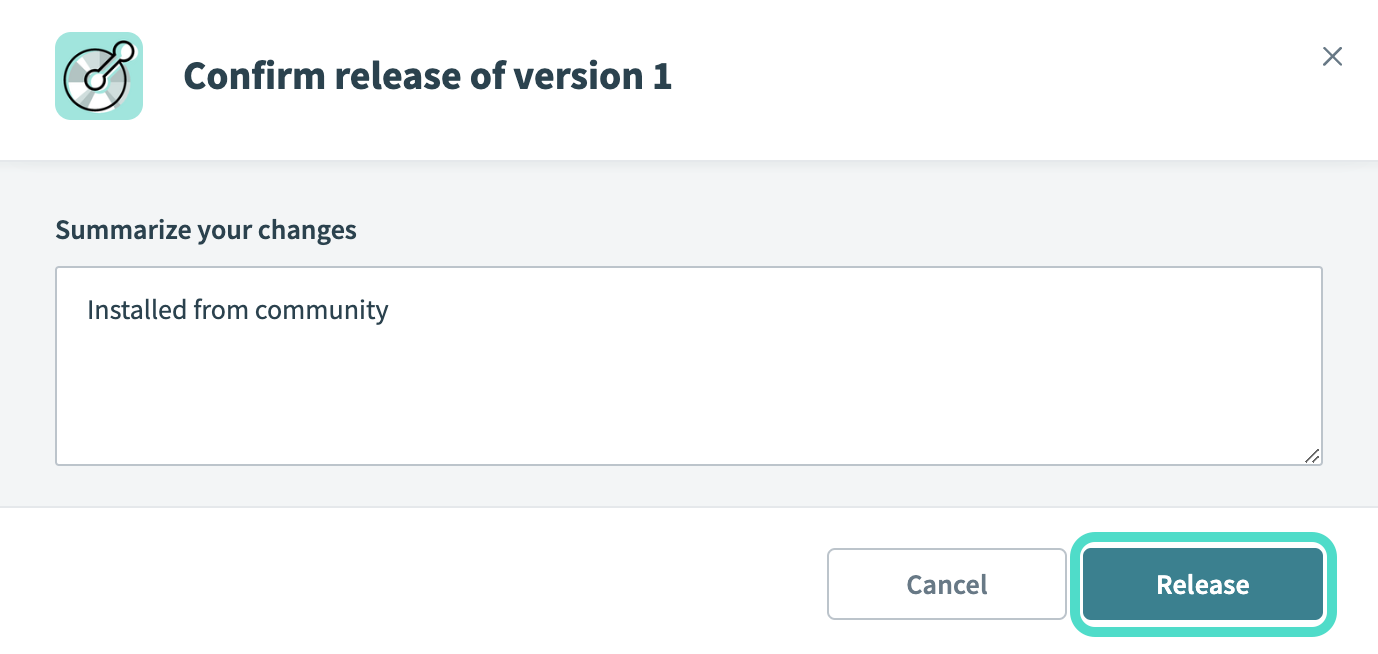 The Confirm release dialog
Connection setup
The Redmine connector uses OAuth 2.0 authentication with the authorization code grant.
Planio-hosted Redmine also supports other authentication methods, but this connector supports only OAuth 2.0.
Minimum and default scopes
Select only the scopes you selected when you registered the application in Redmine. The Scopes field is optional. The connector doesn't request any scopes from Redmine if you don't select any scopes. However, actions require specific scopes. The actions fail with a 403 Forbidden error if you don't request the scopes required for the action you plan to use.
You need the following scopes to use all Redmine actions:
| Scope | Required for |
|---|---|
| View issues | Get record and Search records actions. |
| Add issues | Create record action. |
| Edit issues | Update record action. |
| Add notes | Adding a note with the Update record action. |
Redmine setup
Complete the following steps to register Workato as an OAuth application in Redmine:
Sign in to your Redmine instance as an administrator.
Go to Administration > Settings > API and enable the REST API.
Go to Administration > Applications and click New Application.
Enter a Name for the application.
Enter https://www.workato.com/oauth/callback as the Redirect URI.
Select the required Scopes for the actions you plan to use. Refer to Minimum and default scopes for more information.
Click Save, and then copy the Application Id and Secret.
Refer to the Planio documentation for more information about using Planio with Redmine.
Connect to Redmine using OAuth 2.0
Complete the following steps to connect to Redmine in Workato:
Click Create > Connection.
Search for Redmine and select it as your app.
Enter a name for your connection in the Connection name field.
Use the Location drop-down menu to select the project where you plan to store the connection.
Enter the host of your Redmine account in the Domain field. Don't include https://. For example, acme.plan.io.
Enter the application ID you copied from Redmine in the Application ID field.
Enter the secret you copied from Redmine in the Secret field.
Optional. Use the Scopes drop-down menu to select the scopes to request. You must also select these scopes when you register the application in Redmine. Click Use custom value to enter space-separated scopes manually. For example, view_issues add_issues.
Refer to Minimum and default scopes for more information.
Click Connect.
Sign in to Redmine and authorize the application when prompted.
Last updated: