Resend
Resend is an email API that supports sending transactional email from your own domain. It also manages sending domains, schedules emails, and tracks delivery activity such as bounces and complaints. The Resend connector enables you to send and manage emails and respond to delivery events in Workato.
Use the Resend connector to:
- Send an email to one or more recipients, or send a batch of up to 100 emails.
- Schedule emails, update their scheduled time, or cancel them before delivery.
- Retrieve an email or list emails and sending domains.
- Trigger recipes when an email bounces, receives a complaint, is delayed, or fails.
You can also use custom actions to build a custom HTTP request to any Resend API endpoint. Refer to the Resend API documentation for endpoint details.
Install Resend from the community library
Complete the following steps to install the Resend connector from the community library:
Open the recipe editor and search for a connector. Alternatively, you can search for a connector in the community library.
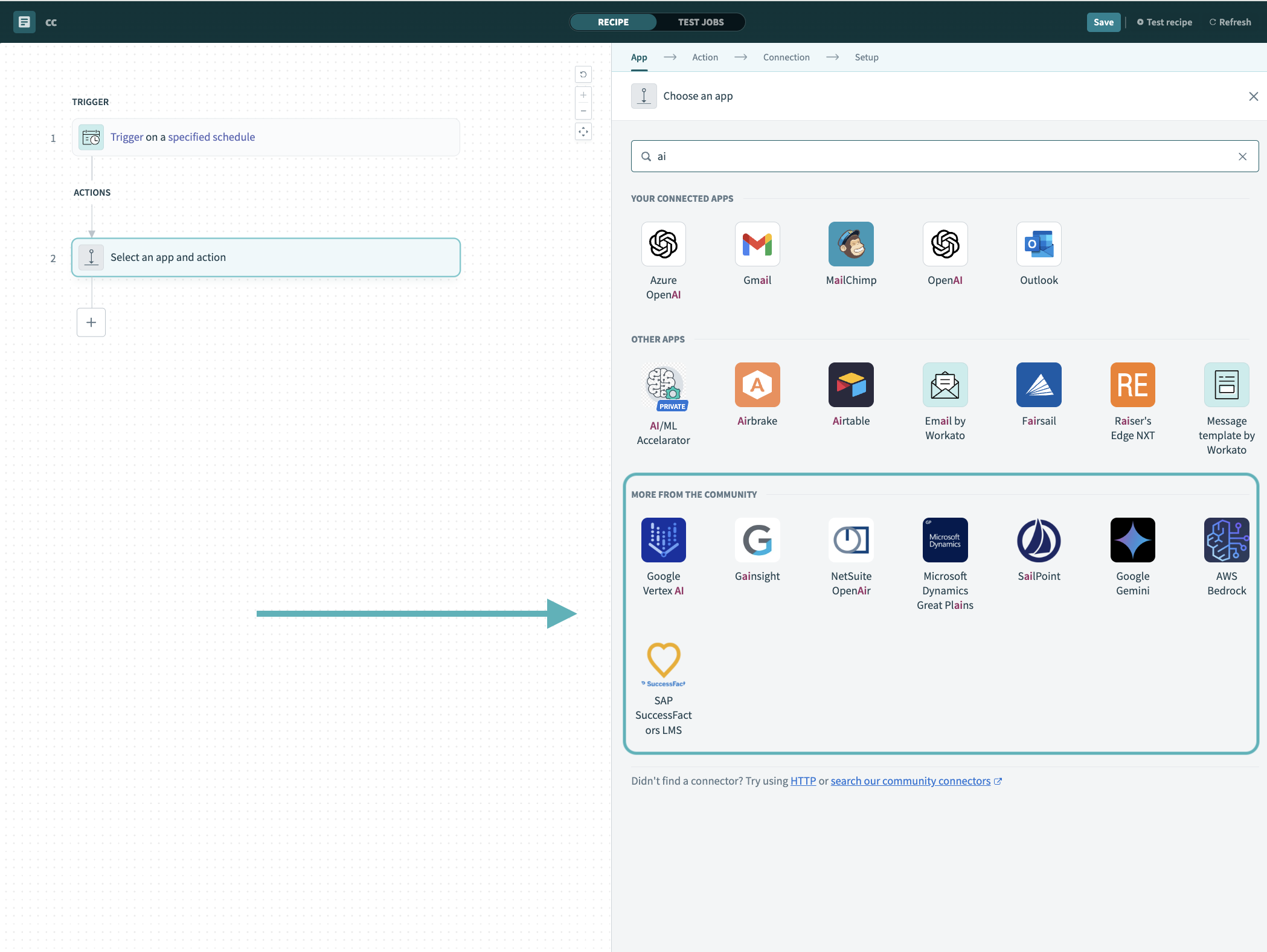 Search for community connectors in the recipe editor
Select the community connector you plan to install.
Click Install to install the connector from the community library.
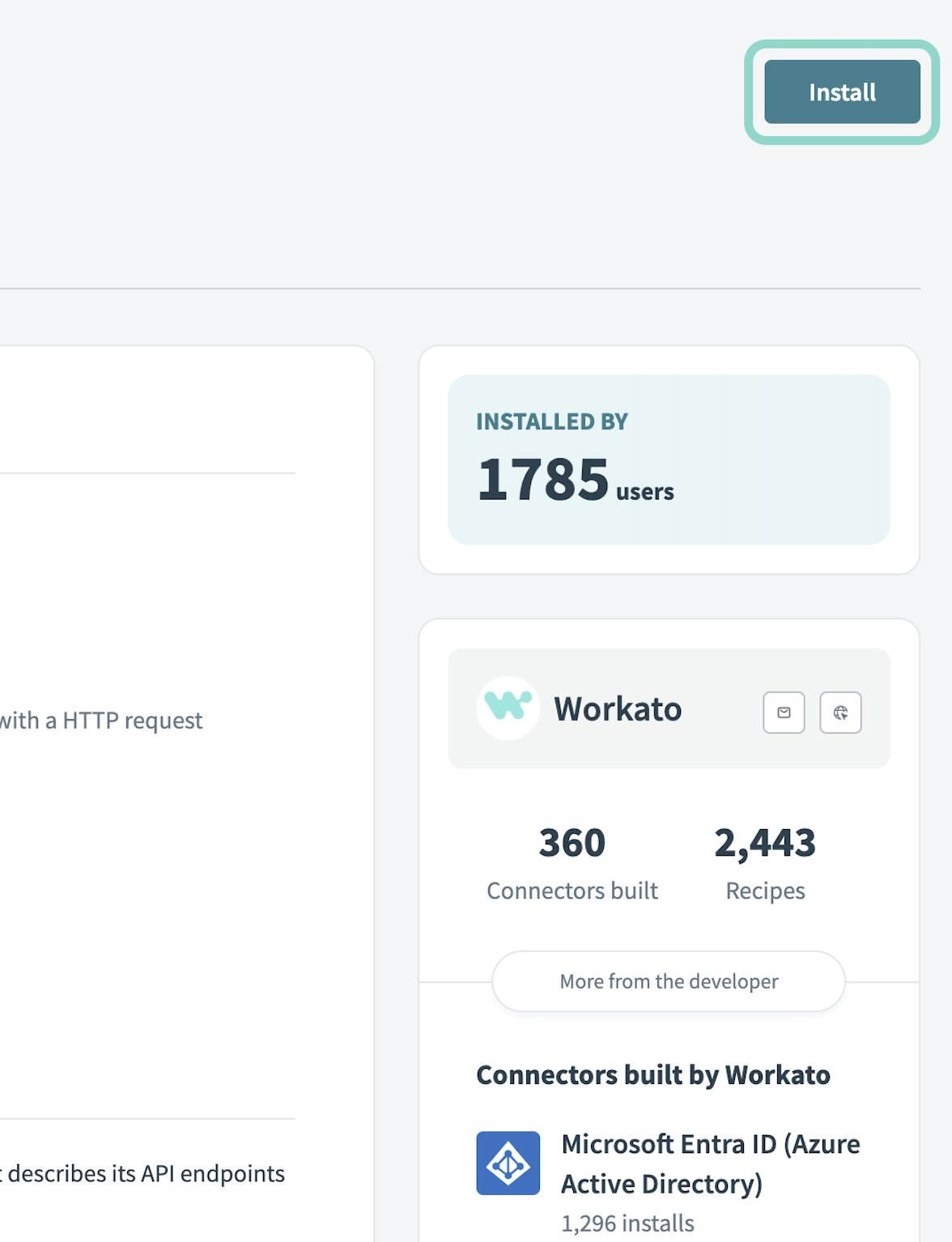 Click Install
Select Release connector. Alternatively, select Review code to review and modify the connector code before releasing it to the workspace.
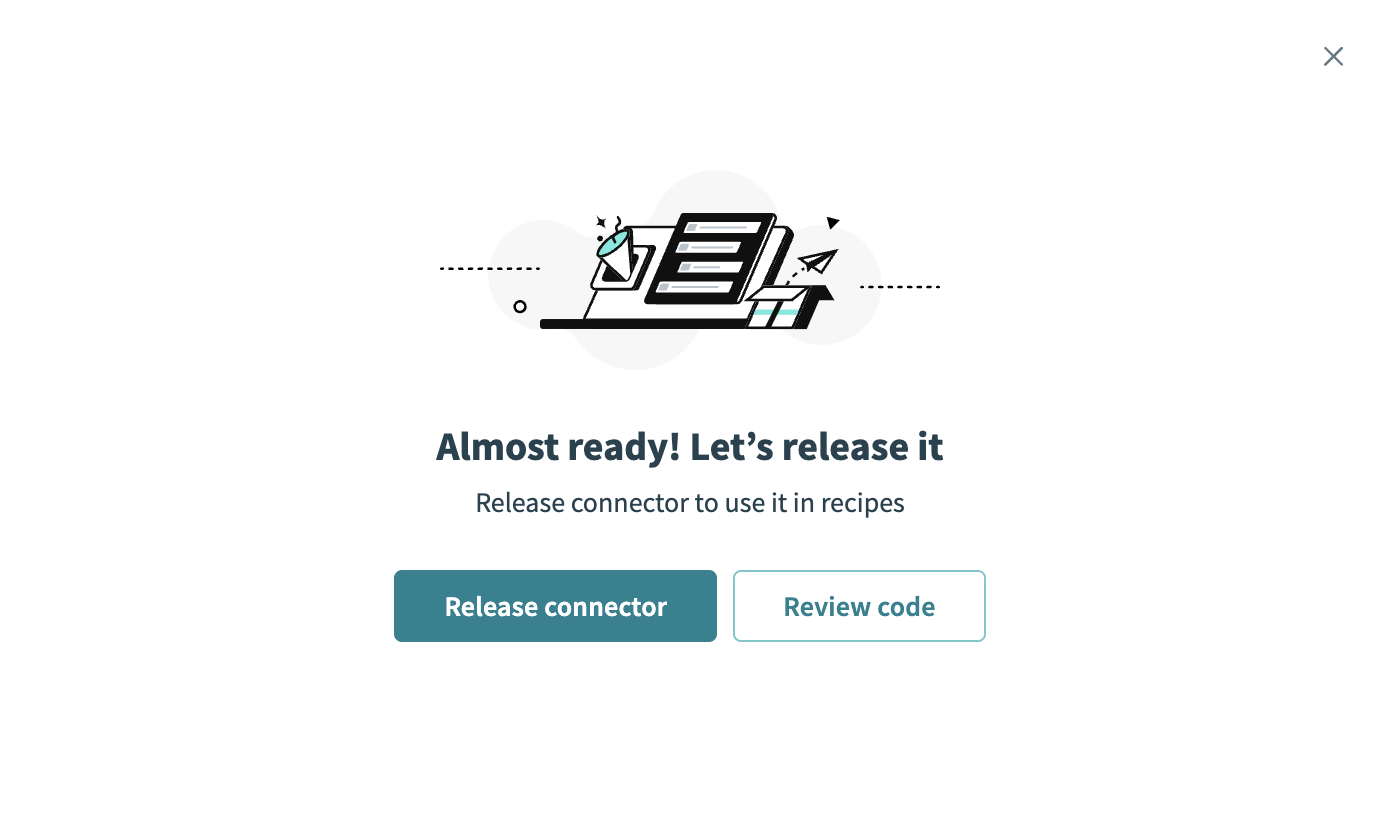 Release the connector
Summarize any changes you made to the connector, then click Release to allow workspace collaborators to use the connector in recipes.
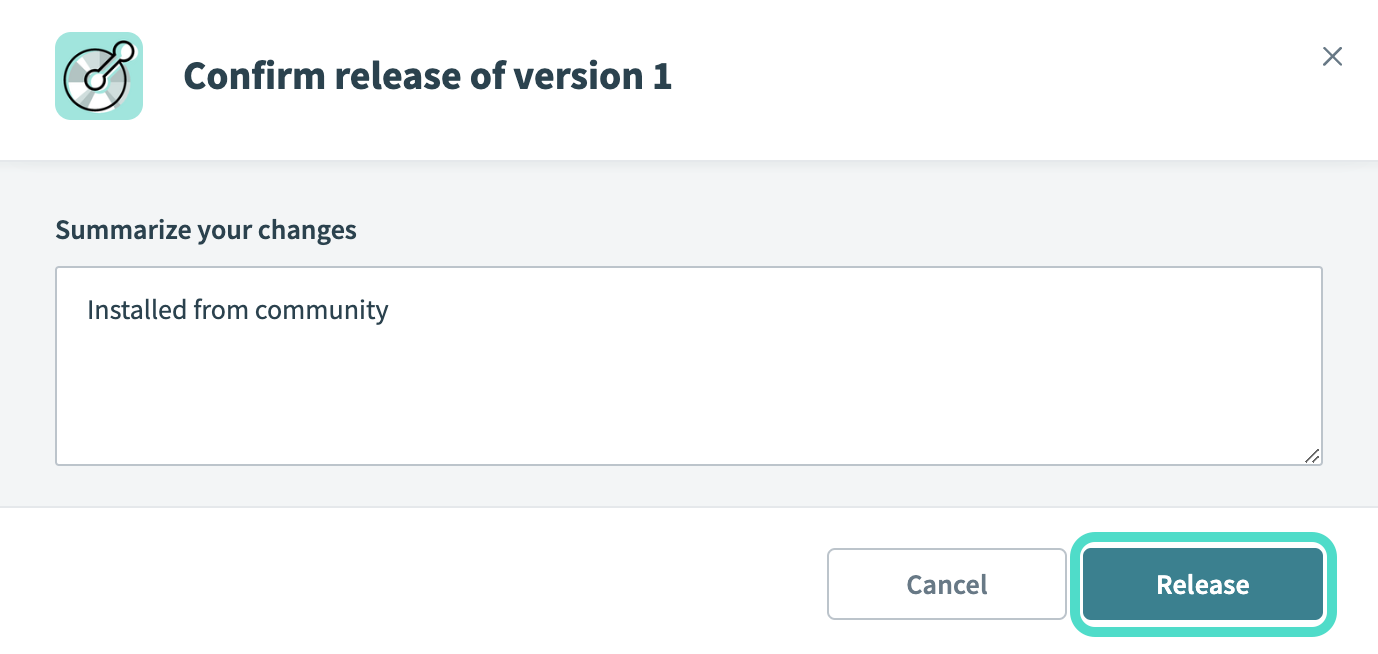 The Confirm release dialog
Connection setup
The Resend connector uses API key authentication. Workato sends the API key as a bearer token in the Authorization header.
Resend setup
Complete the following steps to generate an API key in Resend:
Sign in to your Resend account.
Click API Keys > Create API Key.
Enter a Name for the API key.
Use the Permission drop-down menu to select a permission. Full access grants access to create, delete, get, and update any resource. Sending access grants access only to send emails.
Optional. Use the Domain drop-down menu to select the domain to restrict access to if you selected Sending access in the preceding step.
Click Add.
Copy and save the API Key for use in Workato.
SAVE THE API KEY
Resend only displays the API key once. You must create a new one if you lose it.
Connect to Resend using an API key
Complete the following steps to connect to Resend in Workato:
Click Create > Connection.
Search for Resend and select it as your app.
Enter a name for your connection in the Connection name field.
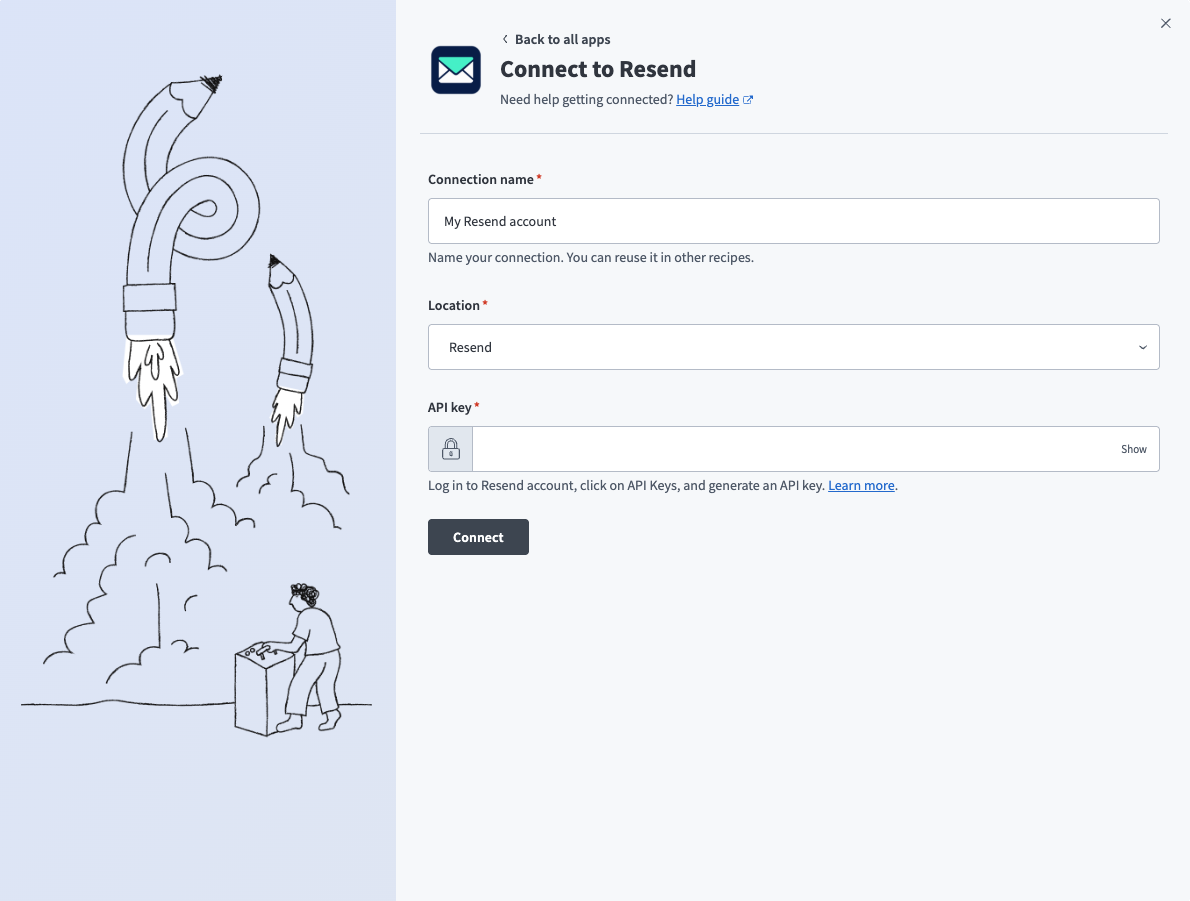 Create a Resend connection in Workato.
Use the Location drop-down menu to select the project where you plan to store the connection.
Enter the API key. Refer to Resend setup for more information.
Click Connect.
Last updated: