TikTok
TikTok is a short-form video platform. The TikTok connector uses TikTok's Content Posting API and Display API to read a creator's profile and videos and publish posts in Workato.
Use the TikTok connector to:
- Get a user's profile or creator info.
- List a user's videos, or retrieve specific videos by video ID.
- Publish a video or photo carousel.
You can also use custom actions to build a custom HTTP request to any TikTok API endpoint. Refer to the TikTok API documentation for endpoint details.
Install TikTok from the community library
Complete the following steps to install the TikTok connector from the community library:
Open the recipe editor and search for a connector. Alternatively, you can search for a connector in the community library.
 Search for community connectors in the recipe editor
Select the community connector you plan to install.
Click Install to install the connector from the community library.
 Click Install
Select Release connector. Alternatively, select Review code to review and modify the connector code before releasing it to the workspace.
 Release the connector
Summarize any changes you made to the connector, then click Release to allow workspace collaborators to use the connector in recipes.
 The Confirm release dialog
Connection setup
The TikTok connector uses OAuth 2.0 authentication.
UNAUDITED APPS CAN'T POST PUBLICLY
TikTok requires direct posts from unaudited developer apps to use the Only me privacy setting. Submit your app for a TikTok app audit to publish public posts.
Minimum and default scopes
The TikTok connector always requests the user.info.basic scope. Leave the Scopes field blank to also request the following scopes:
user.info.profileuser.info.statsvideo.listvideo.publishvideo.upload
Select one or more scopes to replace this default set. The connection then requests user.info.basic and only the scopes you select. Select the scopes your recipes need, including any extra scopes for custom actions:
user.info.profileuser.info.statsvideo.listvideo.publishvideo.uploadlocal.product.managelocal.shop.managelocal.voucher.manageportability.activity.ongoingportability.activity.singleportability.all.ongoingportability.all.singleportability.directmessages.ongoingportability.directmessages.singleportability.postsandprofile.ongoingportability.postsandprofile.singleresearch.adlib.basicresearch.data.basicresearch.data.u18euresearch.data.vra
TikTok setup
Complete the following sections to create a TikTok developer app and generate credentials for Workato:
Create the app
Complete the following steps to create the TikTok developer app and copy your credentials:
Sign in to TikTok for Developers.
Click Developer Portal > Manage apps.
Click Connect an app.
Select an Ownership option and click Confirm.
Enter a Name to display to TikTok users.
Select the App type. You can't change this value later.
Click Create app.
Copy the Client key and Client secret under Credentials. Save these credentials for use in Workato.
Add app details
Complete the following steps to add the app details TikTok requires for review:
Add or select the following required Basic information:
- App icon
- Category
- Description
- Terms of Service URL
- Privacy Policy URL
- Platforms
Add an explanation for your app submission under App review.
Upload a demo video.
Add and configure products
Complete the following steps to add the products your app uses and configure them:
Click + Add products.
Click + Add for Login Kit.
Click + Add for Content Posting API.
Click Done.
Enter https://www.workato.com/oauth/callback as the Redirect URI in the Login Kit configuration.
Enable direct posting in the Content Posting API configuration. Your app can only send drafts to the creator inbox if you skip this step. Refer to TikTok's Content Posting API documentation for more information.
Add scopes and submit
Complete the following steps to add scopes and submit your app for review:
Verify the domain or URL prefix that hosts your media files under URL properties. Refer to Verify a domain or URL prefix for more information.
Click + Add scopes to add scopes. The connector always requests the user.info.basic scope. Refer to Minimum and default scopes for more information.
Click Submit for review.
Verify a domain or URL prefix
TikTok rejects media URLs that aren't on a domain or URL prefix you verified. The Publish photo carousel action always requires verified URLs. The Publish video action requires them when Source is Pull from URL.
Add the domain or URL prefix under URL properties in your TikTok app and verify ownership before you submit the app for review. Refer to TikTok's Media Transfer Guide for verification methods and detailed steps.
Connect to TikTok using OAuth 2.0
Complete the following steps to set up a TikTok connection in Workato:
Click Create > Connection or press C twice.
Search for TikTok and select it as your app.
Provide a name for your connection in the Connection name field.
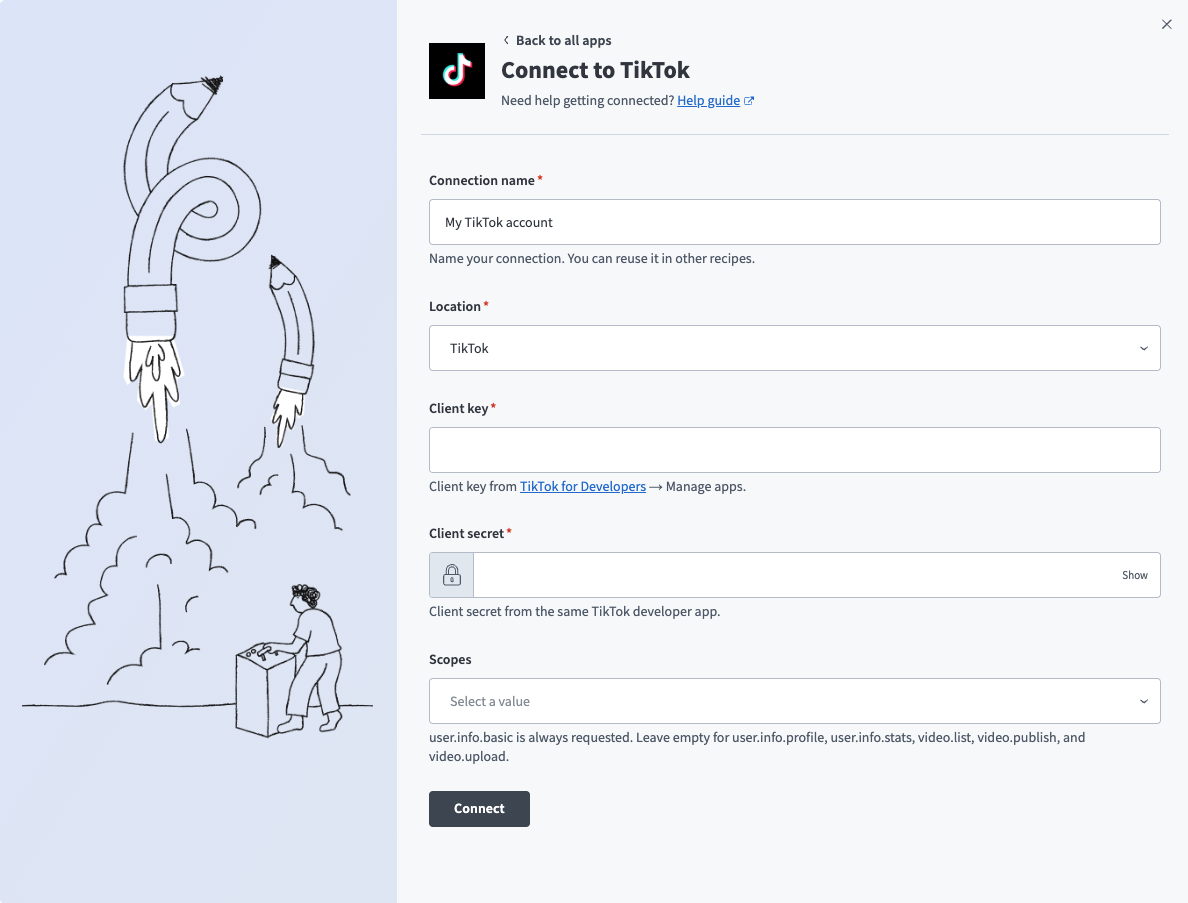 TikTok connection setup
Use the Location drop-down menu to select the project where you plan to store the connection.
Enter the Client key and Client secret.
Optional. Use the Scopes drop-down menu to select the scopes to request. Refer to Minimum and default scopes for more information.
Click Connect.
Sign in to TikTok when prompted to authorize the connection.
Last updated: