YouTube
YouTube is a video-sharing platform that lets creators upload and manage video content, engage with viewers through comments, and organize content into playlists. The YouTube connector lets you automate workflows to search videos, retrieve video and channel data, manage comments, organize playlists, and update video metadata in Workato.
API version
The YouTube connector uses the YouTube Data API v3.
Install YouTube from the community library
Complete the following steps to install the YouTube connector from the community library:
Open the recipe editor and search for a connector. Alternatively, you can search for a connector in the community library.
 Search for community connectors in the recipe editor
Select the community connector you plan to install.
Click Install to install the connector from the community library.
 Click Install
Select Release connector. Alternatively, select Review code to review and modify the connector code before releasing it to the workspace.
 Release the connector
Summarize any changes you made to the connector, then click Release to allow workspace collaborators to use the connector in recipes.
 The Confirm release dialog
Connection setup
The YouTube connector supports the following authentication types:
API key authentication
Use API key authentication to access public YouTube data, such as videos, channels, and playlists, without connecting a specific YouTube account. You must enable the YouTube Data API v3 and generate an API key.
YouTube setup for API key authentication
Complete the following steps to set up YouTube for API key authentication:
PREREQUISITES
You must have a project in the Google Cloud Console. Refer to the Google Create a Google Cloud project guide for more information.
Sign in to your Google Cloud Console.
Open the navigation menu and select APIs & Services > Library.
Search for YouTube Data API v3 and select the API.
Click Enable.
Use the project drop-down menu next to the Google Cloud logo to select the project for which you plan to create credentials.
Go to APIs & Services > Credentials.
Select + Create credentials > API key.
Enter a name for the API key.
Use the Select API restrictions drop-down menu to select YouTube Data API v3. This restriction allows the key to call only the YouTube Data API v3.
Click OK.
Optional. Select the Authenticate API calls through a service account checkbox to bind the key to a service account.
Optional. Select an application type to restrict where you can use the key.
Click Create.
Copy and save the API key for use in Workato.
Connect to YouTube with API key authentication
Complete the following steps to set up an API key connection to YouTube in Workato:
Click Create > Connection.
Search for YouTube and select it as your app.
Enter a name for your connection in the Connection name field.
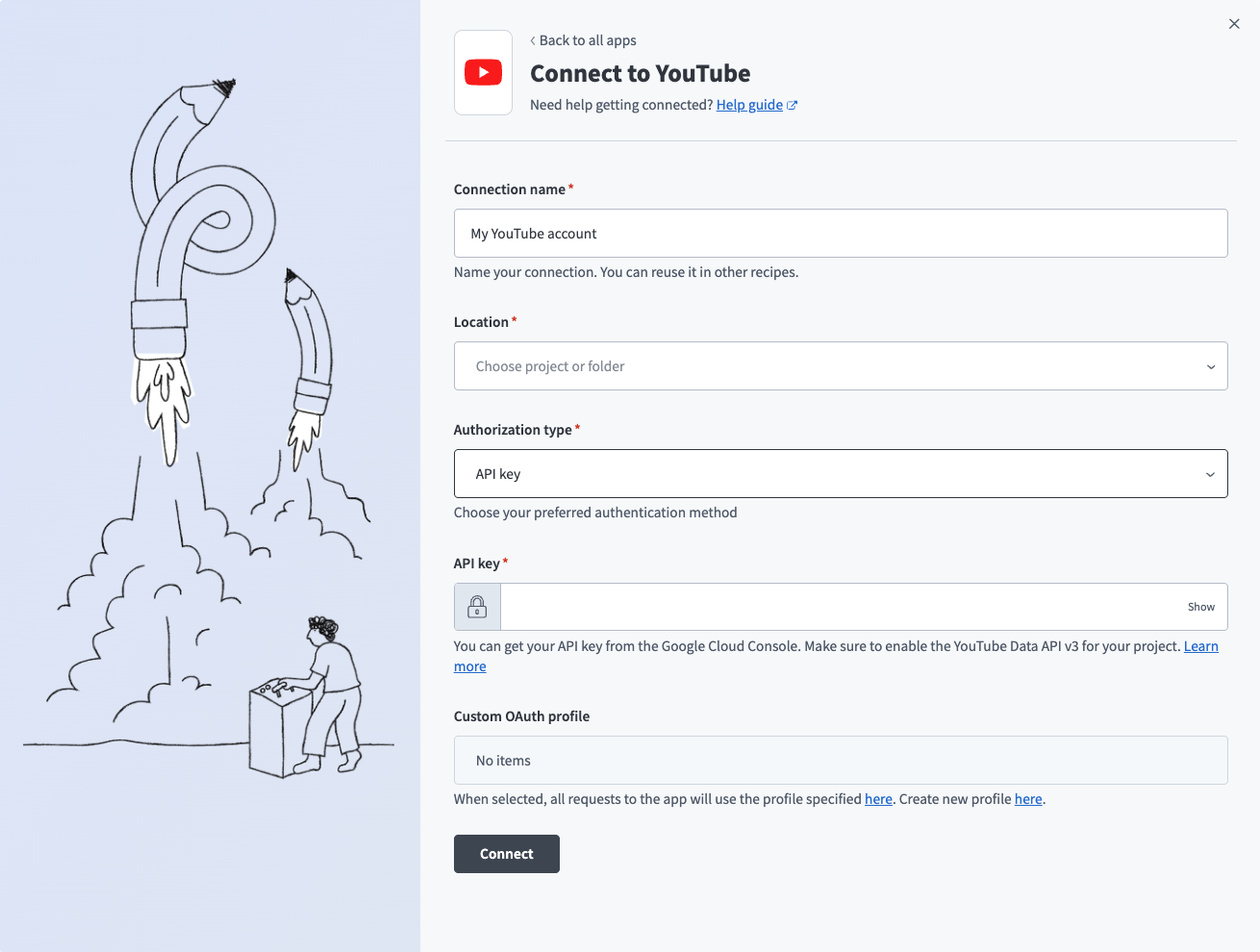 YouTube API key connection setup
Use the Location drop-down menu to select the project where you plan to store the connection.
Use the Authorization type drop-down menu to select API key.
Enter the API key. Refer to YouTube setup for API key authentication for more information.
Optional. Use the Custom OAuth profile drop-down menu to select a custom OAuth profile for your connection.
Click Connect.
OAuth 2.0 authentication
Use OAuth 2.0 authentication to manage data in your own YouTube channel, such as replying to comments, updating video metadata, and managing playlists.
Default scopes
You can customize the OAuth scope that Workato requests in the Scopes field. Workato requests read-only access by default. The following scopes are available:
Read-only access (search, comments)Force SSL (secure access)YouTube Analytics reportsYouTube Analytics monetary reportsManage YouTube accountYouTube Partner access
YouTube setup for OAuth 2.0 authentication
Complete the following steps to set up YouTube for OAuth 2.0 authentication:
PREREQUISITES
You must have a project in the Google Cloud Console. Refer to the Google Create a Google Cloud project guide for more information.
Sign in to your Google Cloud Console.
Use the project drop-down menu next to the Google Cloud logo to select the project for which you plan to create credentials.
Go to Google Auth platform > Clients.
Click Create Client.
Use the Application type drop-down menu to select Web application.
Enter a name for the OAuth 2.0 client. Google Cloud Console only displays this name internally.
Click + Add URI under Authorized redirect URIs.
Enter https://www.workato.com/oauth/callback as the authorized redirect URI.`
Click Create.
Copy and save the Client ID and Client secret for use in Workato.
SAVE YOUR SECRET
Google only displays the client secret once. You must create a new one if you lose the client secret.
Create a custom OAuth profile
You must create a custom OAuth profile with your client ID and secret before you can connect. Complete the following steps to create a custom OAuth profile for your YouTube connection:
Go to Tools > Custom OAuth profiles in Workato.
Click + New custom profile.
Search for YouTube and select it as your app.
Provide a Name for this account.
Click Create new app.
Create a new OAuth app in your Google Cloud Console account.
Enter the Client ID and Client secret in Workato. Refer to YouTube setup for OAuth 2.0 authentication for more information.
Click Save.
Click Done.
Connect to YouTube with OAuth 2.0 authentication
Complete the following steps to set up an OAuth 2.0 connection to YouTube in Workato:
Click Create > Connection.
Search for YouTube and select it as your app.
Enter a name for your connection in the Connection name field.
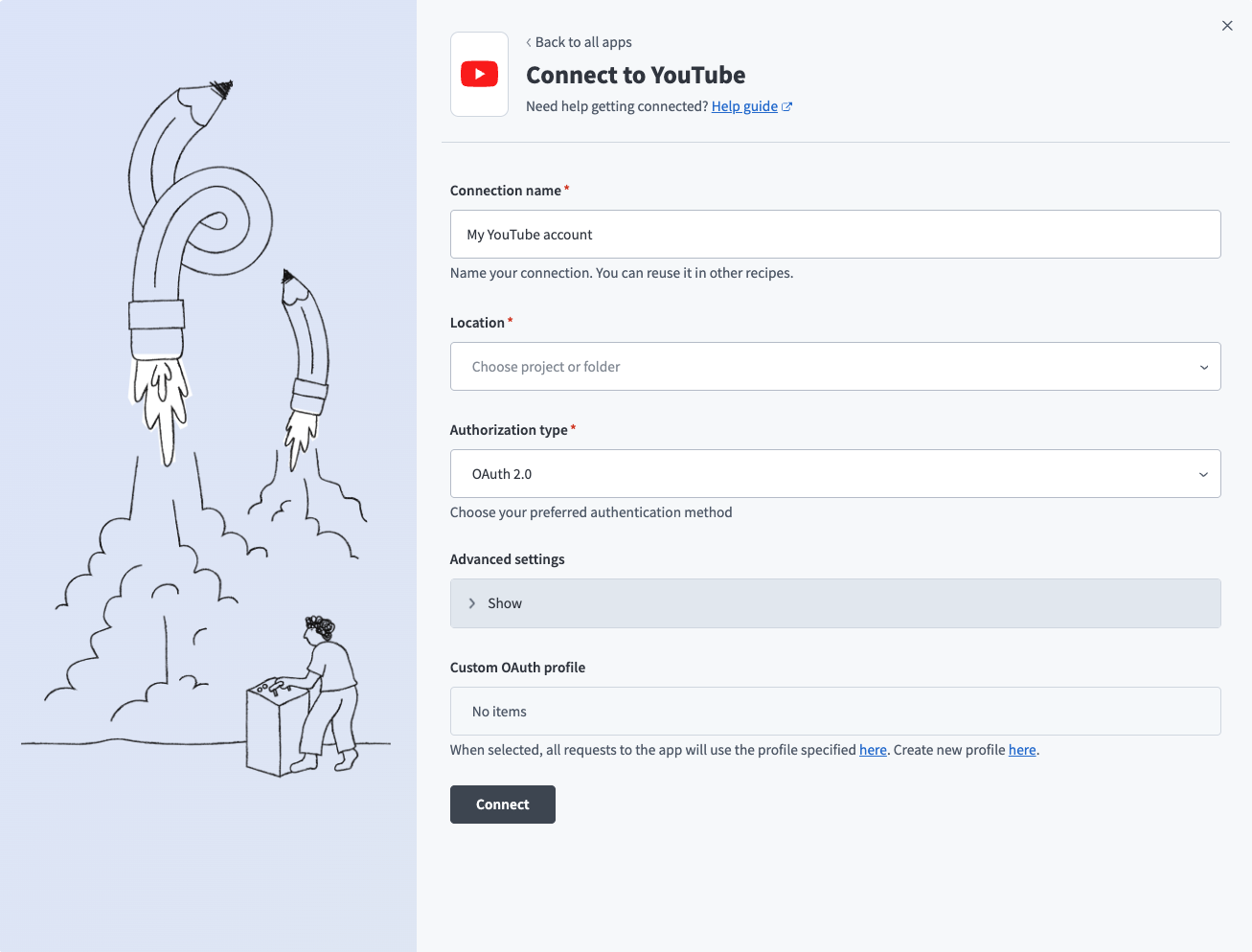 YouTube OAuth 2.0 connection setup
Use the Location drop-down menu to select the project where you plan to store the connection.
Use the Authorization type drop-down menu to select OAuth 2.0.
Optional. Expand the Advanced settings section to configure Scopes for your connection. Defaults to read-only if left empty.
Use the Custom OAuth profile drop-down menu to select a custom OAuth profile for your connection. Refer to Create a custom OAuth profile for more information.
Click Connect.
Select a Google account if prompted.
Click Allow to grant Workato access to your Google account.
Last updated: