Getting started with MCP servers
An MCP server is a collection of tools that enable large language models (LLMs) to access data and perform actions in your systems. Each server represents one or more business application and contains a curated set of tools or skills, implements authentication, and enforces access control.
MCP servers work with Agent Studio, Claude, ChatGPT, or any MCP-compatible client. You can start with individual MCP servers for each application or create composable servers that combine multiple systems into unified business-centric interfaces.
Create your first MCP server
Complete the following steps to create your first MCP server:
Watch a quick video guide: Getting started with MCP and Workato
Sign in to your Workato account.
Go to AI Hub, click the MCP Servers tab, and click + Create an MCP server. Alternatively, you can create an MCP server from the Projects page by clicking Create > MCP server or pressing C+M.
Go to the Start from scratch section and click New MCP server. Refer to Use a prebuilt MCP server if you plan to use a prebuilt MCP server template.
Enter a name for your MCP server in the Server name field.
Optional. Provide a description of the MCP server in the Describe how this MCP server will be used field.
Use the Location drop-down menu to select the project that contains the assets, such as skills or API recipes, that you plan to use for your MCP server.
MCP SERVER ASSETS MUST BE IN THE SAME PROJECT
You must store all assets in the same project folder. Error messages display if you select an unsupported asset type.
Select either Project assets or API collection as your Tool source.
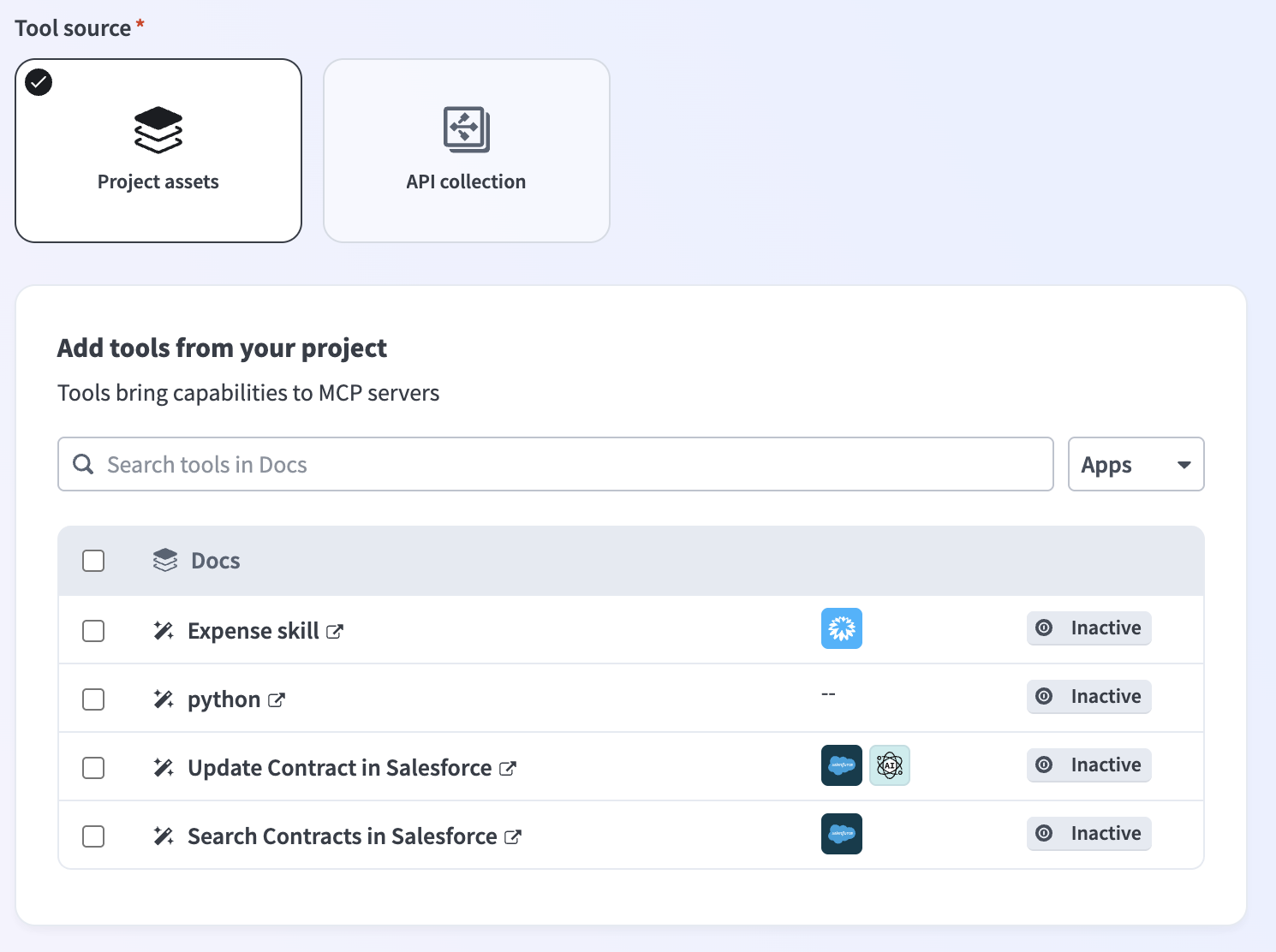 Select your Tool source
Select the tools you plan to add to your MCP server.
Click Start building. The MCP server tools, description, remote MCP URL, and additional server information displays in the Overview tab.
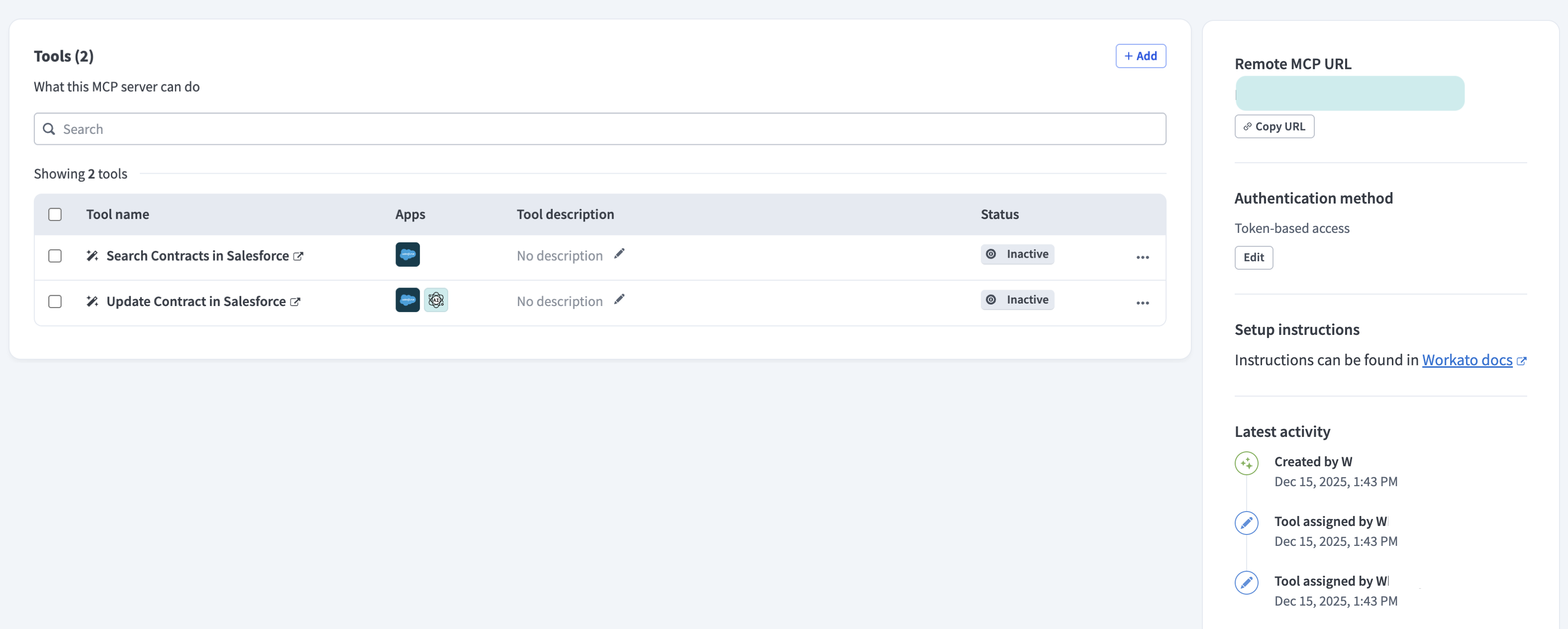 MCP server Overview tab admin view
Design MCP server tools
Learn how to design your MCP server around specific use cases. The MCP tool design principle you should use is often easy to determine after you identify your use case. Use one of the following principles when you design your tools:
- Simple: Each tool performs exactly one specific action or retrieval.
- Composable: Tools act as building blocks that work together seamlessly.
- Predictable: Tools behave consistently and return standard errors.
Learn by example
Review the LLM, GitHub, and Workato Developer API use case for steps to create an MCP server integration that lets you create GitHub issues with natural-language commands in ChatGPT, Claude, or Cursor.
You can also follow a Search for leads in Salesforce with MCP video guide to get started with MCPs:
Last updated: