ElevenLabs MCP server
The ElevenLabs MCP server enables LLMs to interact with ElevenLabs for text-to-speech audio generation through natural conversation. It provides tools to list available voices, inspect voice metadata, identify supported TTS models, and generate spoken audio from text without requiring direct interaction with the ElevenLabs interface.
Uses
Use the ElevenLabs MCP server to perform the following actions:
- Generate spoken audio from user-provided or agent-generated text
- Apply inline emotion and style tags so audio matches the tone of the source content
- Create accessibility playback for written content
- Produce product walkthrough narration
- Prototype voices and personas before committing to a final choice
- Browse the voices available to your configured account
- Inspect a specific voice's metadata and default settings
- Identify the TTS models supported by your account
Example prompts
Use the following example prompts to invoke ElevenLabs MCP server tools:
Show me the voices available in my account.Get the details and default settings for the Rachel voice.Which TTS models can I use for audio generation?Convert this daily brief into audio using a clear, professional voice.Generate an MP3 narration of this product walkthrough.Create an audio version of this article for accessibility playback.Use the latest multilingual model to generate this narration.Narrate this announcement with an excited tone using the expressive eleven_v3 model.Try a few different voices for this intro so I can compare personas.
ElevenLabs MCP server tools
The ElevenLabs MCP server provides the following tools:
| Tool | Description |
|---|---|
| list_voices | Lists the voices available to your configured account with metadata. |
| get_voice | Retrieves detailed metadata and default settings for a specific voice. |
| list_models | Lists the TTS models available to your configured account. |
| generate_audio | Generates spoken audio from text using a selected voice, model, output format, and optional voice settings. |
Install the ElevenLabs MCP server
Complete the following steps to install a prebuilt MCP server to your project:
Sign in to your Workato account.
Go to AI Hub > Enterprise MCP.
Click + Create MCP server.
Go to the Start with pre-built MCP Servers using your connected apps section and select the prebuilt MCP server you plan to use.
Click Use this server.
Provide a name for your MCP server in the Server name field.
Use the Location drop-down menu to select the project for the MCP server.
Go to the Connections section and connect to your app account.
Select the connection type you plan to use for the MCP server template.
- User's connection: MCP server tools perform actions based on the identity and permissions of the user who connects to the application. Users authenticate with their own credentials to execute the skill.
- Your connection: This option uses the connection established by the recipe builder and follows the same principles as normal app connections.
 Select your connection type
VERIFIED USER ACCESS AUTHENTICATION REQUIREMENTS
Only app connections that use OAuth 2.0 authorization code grant are available for user's connection. Refer to Verified user access for more information.
Complete the app-specific connection setup steps in the following section.
ElevenLabs connection setup
View ElevenLabs connection setup steps
The ElevenLabs connector uses API key authentication.
ElevenLabs setup for API key authentication
Refer to the ElevenLabs Create API key guide to create an API key.
Connect to ElevenLabs with an API key
View connect to ElevenLabs with an API key steps
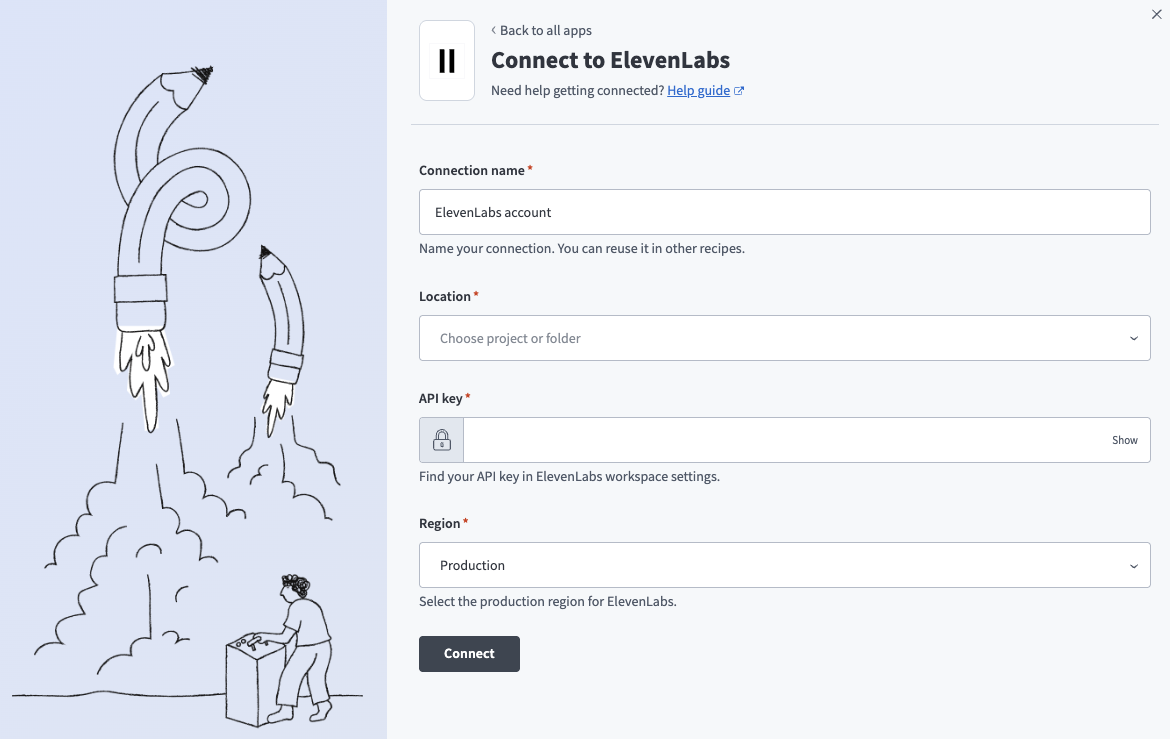
Complete the following steps to connect to ElevenLabs in Workato:
Click Create > Connection or press C twice.
Search for ElevenLabs and select it as your app.
Enter a name for your connection in the Connection name field.
 ElevenLabs connection setup
Use the Location drop-down menu to select the project where you plan to store the connection.
Enter the API key. Refer to the ElevenLabs Create API key guide to create this value.
Use the Region drop-down menu to select the production region for ElevenLabs.
Click Connect.
How to use ElevenLabs MCP server tools
Refer to the following sections for detailed information on available tools:
list_voices tool
The list_voices tool lists the voices available to your configured account and returns metadata that helps select an appropriate voice. Your LLM uses this tool to find which voices it can use and to choose one that matches a user's tone, language, or persona requirements.
Try asking:
Show me the voices available in my account.Which voices can I use for a narration?List the voices that work well for a calm, professional tone.
get_voice tool
The get_voice tool retrieves detailed metadata and default settings for a specific voice. Your LLM uses this tool to understand how a voice should be used and to confirm its default configuration.
Try asking:
Get the details for the Rachel voice.What are the default settings for this voice?Show me the configuration for the voice I selected.
list_models tool
The list_models tool lists the TTS models available to your configured account. Your LLM uses this tool to identify which models it can choose from.
Try asking:
Which TTS models can I use?List the available text-to-speech models.What model should I use for multilingual narration?
generate_audio tool
The generate_audio tool generates spoken audio from text using a selected voice, model, output format, and optional voice settings. Your LLM uses this tool to convert user-provided or agent-generated text into an audio file. The audio returns as an MP3 by default. You can use inline emotion and style tags, such as [excited] or [whispering], for expressive output when you use a compatible model like eleven_v3.
Try asking:
Convert this daily brief into audio using a professional voice.Generate an MP3 narration of this script.Read this story aloud with [whispering] and [excited] emotion tags using the eleven_v3 model.Read this article aloud for accessibility playback.
Getting started
View and manage your MCP server tools in the Overview page Tools section. Tool management provides the following capabilities:
TOOLS MUST BE STARTED
Your LLM can only access active tools in your MCP server connector.
Last updated: