Manage MCP server tools
You can manage MCP tools and tool annotation within the MCP server Details tab. The Details tab provides a list of tools in your MCP server, your Remote MCP URL, and authentication method.
Edit LLM-facing MCP server description
Your MCP server description is automatically shared with your LLM when you connect the MCP server. You can update the description for your specific use cases and to include any tool customization you perform. An accurate MCP server description helps your LLM know when to use specific tools.
Complete the following steps to edit the MCP server description shared with your LLM:
Sign in to your Workato account.
Go to AI Hub > Enterprise MCP > Custom servers.
Select the MCP server where you plan to edit the LLM-facing MCP server description.
Go to the Description section and click the edit icon.
Update the description.
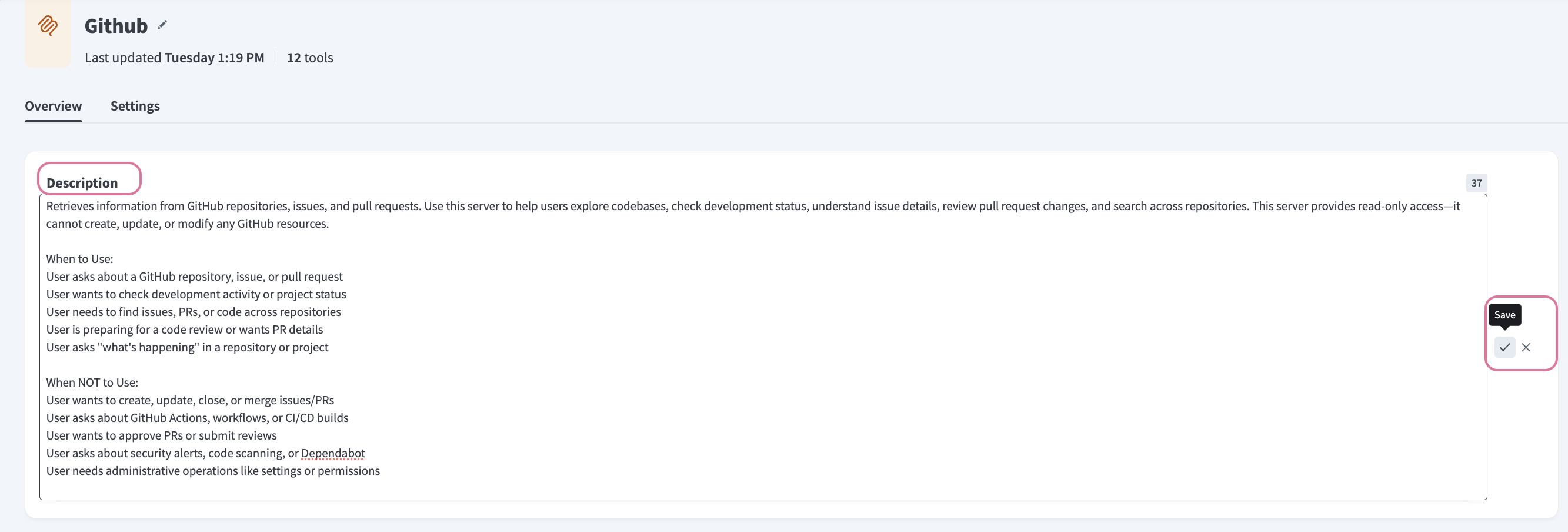 Update the LLM-facing description
Click the save icon.
Manage tools
You can start, stop, add, and remove tools in the Details tab. You can also edit the tool name, title, and recipe.
Edit tool name
The tool name is used by AI agents to distinguish between multiple tools. Changes to the Name field don't apply to the Title field.
CHANGING TOOL NAME FORCES RESET CONSENT AND PREFERENCES
LLM clients using a tool must rediscover the tool after the name changes. A re-named tool is treated as a new tool. Previous consent and user preferences are discarded.
Complete the following steps to edit the tool name:
Sign in to your Workato account.
Go to AI Hub > Enterprise MCP > Custom servers.
Select the MCP server where you plan to edit the tool name.
Go to the Tools section and click the (...) option menu.
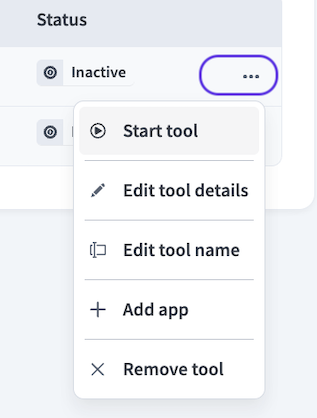 MCP tool option menu
Select Edit tool name.
Go to the Name field and make your changes.
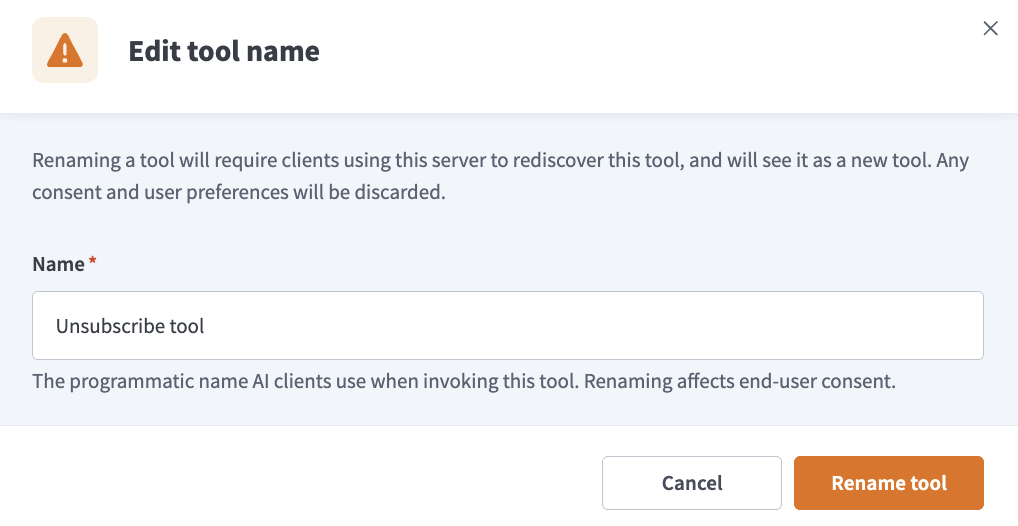 Edit the Name field
Click Rename tool.
Edit tool title
The tool title is an optional human-readable label for end users. Changes to the Title field don't apply to the Name field.
Complete the following steps to edit the tool title:
Sign in to your Workato account.
Go to AI Hub > Enterprise MCP > Custom servers.
Select the MCP server where you plan to edit the tool title.
Go to the Tools section and click the (...) option menu.
MCP tool option menu
Select Edit tool details.
Go to the Title field and make your changes.
Click Save.
Start tools
You must start MCP tools you plan to make available to AI models.
Complete the following steps to start tools:
Sign in to your Workato account.
Go to AI Hub > Enterprise MCP > Custom servers.
Select the MCP server where you plan to start tools.
Go to the Tools section and select the checkboxes for the tools you plan to start.
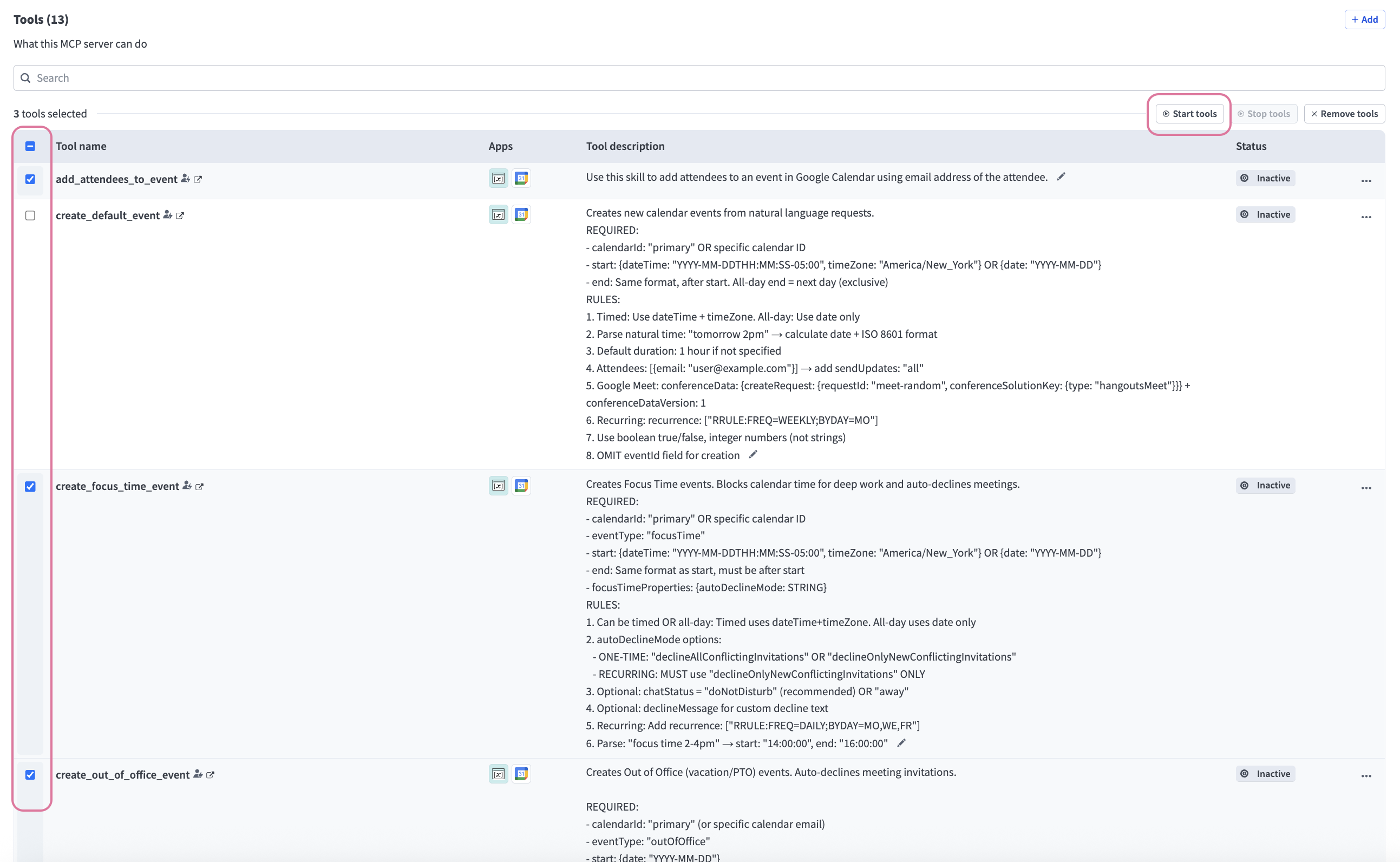 Select the checkboxes for the tools you plan to start
Click Start tools.
Remove tools
Complete the following steps to remove tools from an MCP server:
Sign in to your Workato account.
Go to AI Hub > Enterprise MCP > Custom servers.
Select the MCP server where you plan to remove tools.
Go to the Tools section and select the checkboxes for the tools you plan to remove.
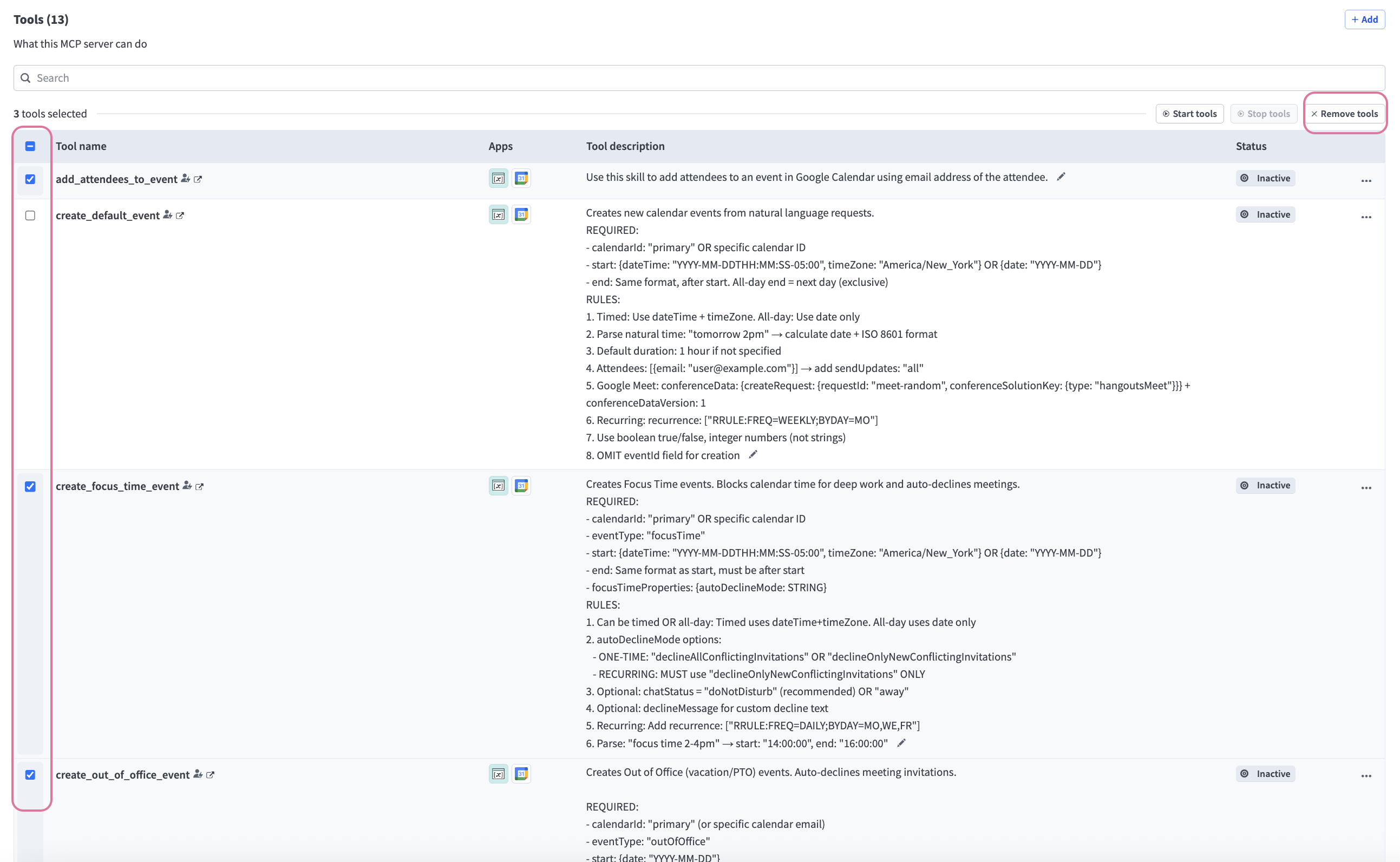 Select the checkboxes for the tools you plan to remove
Click Remove tools.
Edit tool recipe
You can customize tools in your MCP server template within the recipe editor. You can add and edit actions, inputs, result schemas, error handling logic, and more. Refer to MCP server tool design and Recipe design for more information.
Complete the following steps to edit an MCP server template tool:
Sign in to your Workato account.
Go to AI Hub > Enterprise MCP > Custom servers.
Select the MCP server where you plan to edit tools.
Go to the Tools section and click the tool name you plan to edit. The recipe editor opens with the configured recipe.
 Click the tool name you plan to edit
Click Edit.
Update the recipe and click Save.
Test the changes to your tool.
Add tools
You can add customized tools using existing skills in your project or build a new skill to add as a tool.
Add new tools
You can design and create new tools with skills.
Complete the following steps to create and add tools to the MCP server template:
Sign in to your Workato account.
Go to AI Hub > Enterprise MCP > Custom servers.
Select the MCP server where you plan to add tools.
Go to the Tools section and click + Add. The Add new tools modal displays.
Click + Create new tool > Add tools.
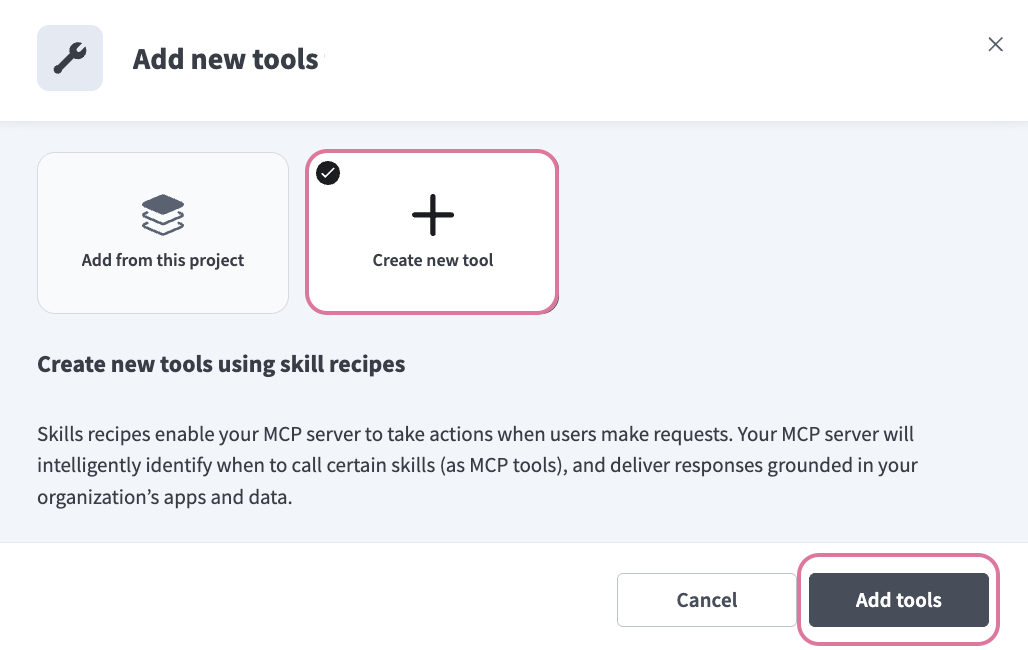 Click + Create new tool > Add tools
Provide a name for your skill in the Skill name field.
Use the Location drop-down menu to select a location for your skill.
Click Start building. The recipe editor opens with the Start workflow trigger and Return response action automatically selected.
Provide a description for your skill workflow in the When should your genie run this skill? field. The genie uses this description to decide when to trigger this workflow.
Go to the What inputs will your genie require to run this skill? section and click Use JSON or Add fields manually to provide a description of the schema recipe parameters.
Go to the Result schema section and click Use JSON or Add fields manually to provide a description for the recipe return value.
DEFINES THE RETURN RESPONSE GENIE STEP
The Result schema section defines the RETURN response for the genie step at the end of your recipe.
Click Select an app and action step in the recipe.
Search for and select the app you plan to use. A list of available actions for the app displays.
Select the action you plan to use.
Select the connection type you plan to use for the skill.
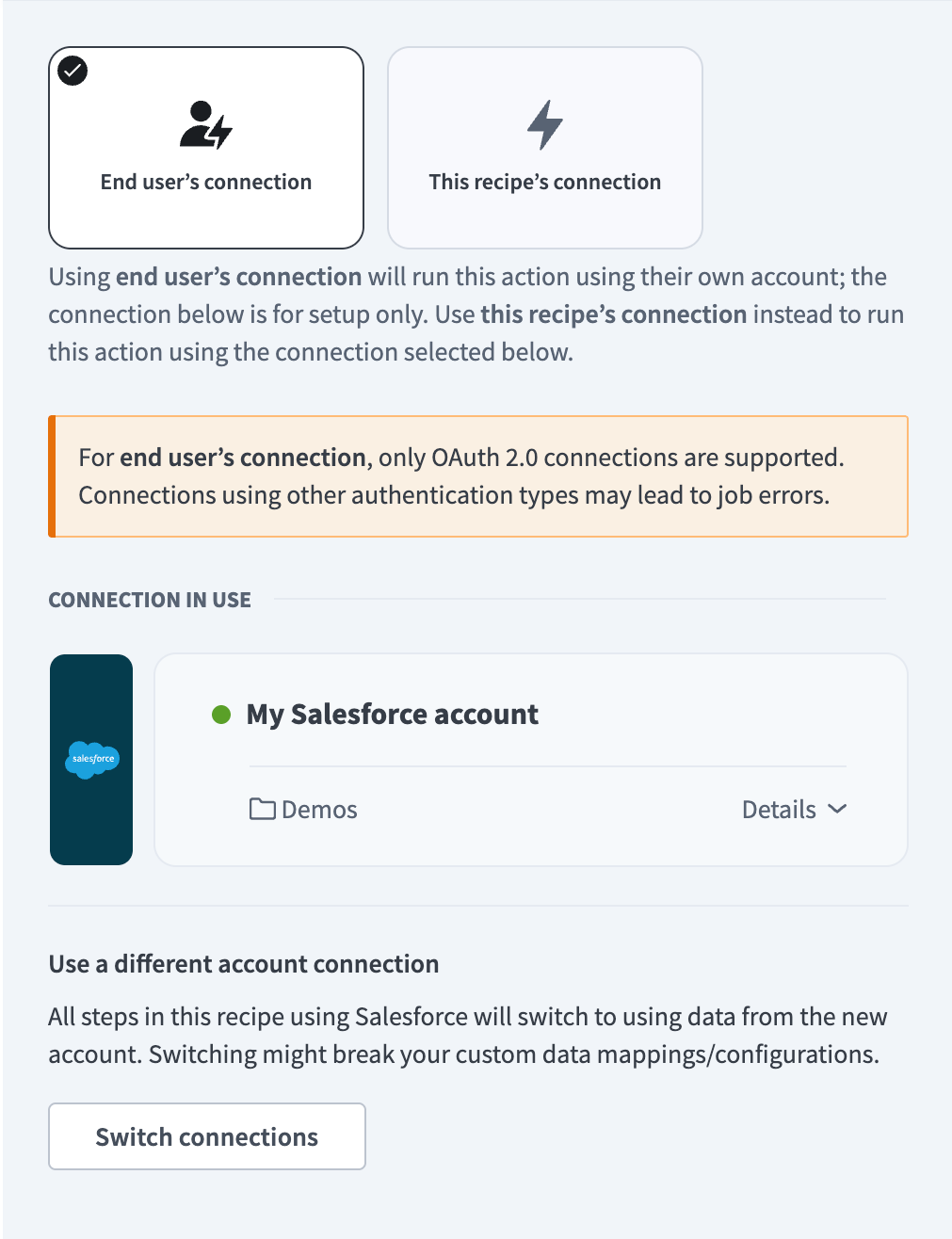 Choose a connection type
- End user's connection: Skills perform actions based on the identity and permissions of the user who connects to the application. Users authenticate with their own credentials to execute the skill.
- This recipe's connection: This option uses the connection established by the recipe builder and follows the same principles as normal app connections.
VERIFIED USER ACCESS AUTHENTICATION REQUIREMENTS
Only app connections that use OAuth 2.0 authorization code grant are available for user's connection. Refer to Verified user access for more information.
Provide a name for your connection in the Name field.
Use the Location drop-down menu to select the project where you plan to store the connection.
Provide information for all required app connection fields. Connection configuration fields vary based on the app you select.
Click Connect.
Test your recipe to ensure workflow compatibility with your genie.
Click Save.
Add existing project tools
Complete the following steps to add existing tools from your project to the MCP server template:
Sign in to your Workato account.
Go to AI Hub > Enterprise MCP > Custom servers.
Select the MCP server where you plan to add tools.
Go to the Tools section and click + Add. The Add new tools modal displays.
Click Add from this project.
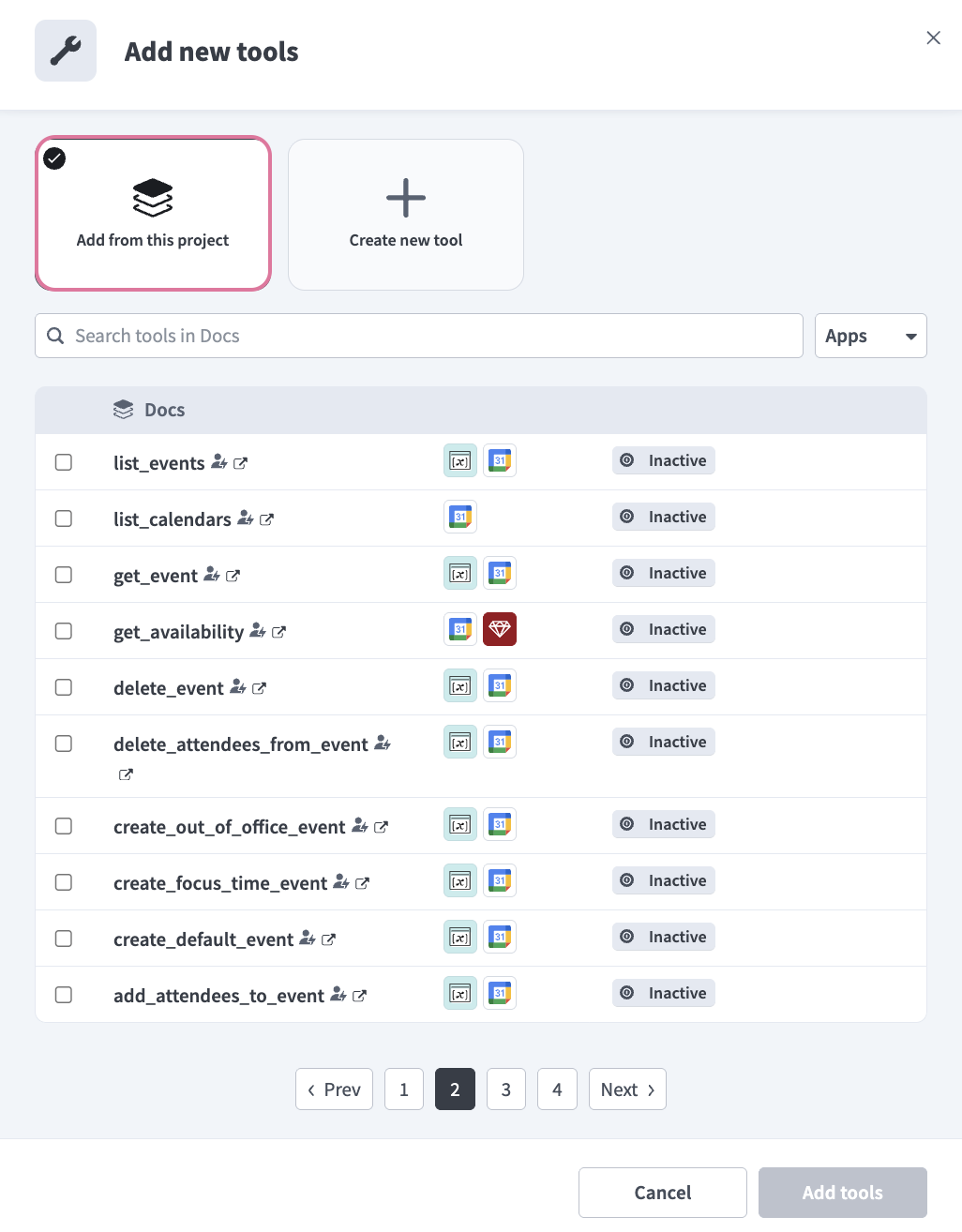 Click Add from this project
Select the checkboxes for the tools you plan to use.
Click Add tools.
Manage tool annotation
Tool annotation lets you guide how AI agents treat a tool in your MCP server. You can enable the following tool annotation settings:
- Read-only (readOnlyHint): Enable this setting to let an agent know it can run this tool without confirmation. This setting can only be used with Open world (openWorldHint).
- Destructive (destructiveHint): Enable this setting to let an agent know that the tool may delete or overwrite data. The agent shows a warning before running this tool. This setting can be used with Safe to retry (idempotentHint) and Open world (openWorldHint).
- Safe to retry (idempotentHint): Enable this setting to let the agent know it can call this tool repeatedly without side effects. This setting can be used with Destructive (destructiveHint) and Open world (openWorldHint).
- Open world (openWorldHint): Enable this setting to let the agent know that the tool uses data from outside systems. The agent treats this data as untrusted. This setting can be used with Destructive (destructiveHint) and Safe to retry (idempotentHint).
Complete the following steps to manage tool annotation:
Sign in to your Workato account.
Go to AI Hub > Enterprise MCP > Custom servers.
Select the MCP server that contains the tools you plan to edit.
Go to the Tools section and select the checkboxes for the tools where you plan to configure tool annotations.
Select Edit annotations.
Click the individual toggles to configure tool annotation settings.
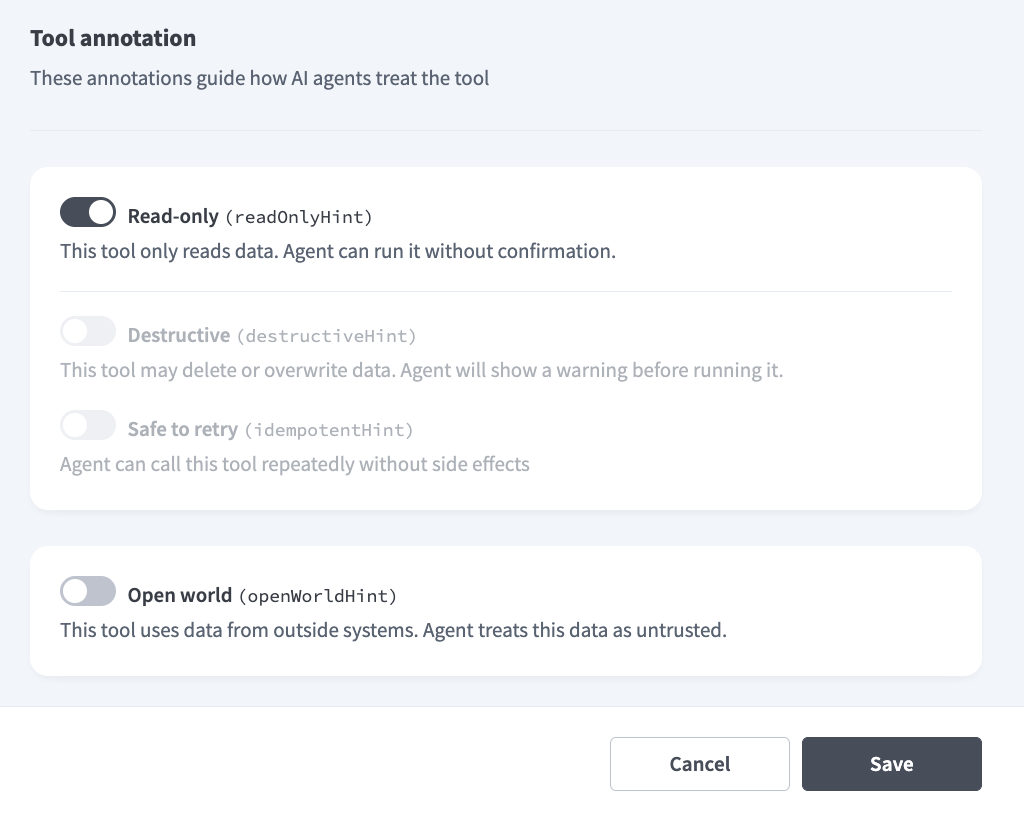 Configure tool annotations
Click Save.
Last updated: