Google Contacts MCP server
The Google Contacts MCP server enables LLMs to manage personal contacts within Google Contacts through natural conversation. It provides tools to retrieve, create, update, and delete contact records, merge and remove duplicate contacts, and promote auto-captured contacts into saved contacts without requiring direct interaction with the Google Contacts interface.
Uses
Use the Google Contacts MCP server to perform the following actions:
- Search contacts using name, email, phone, or organization
- Retrieve full details for specific contacts
- List contacts with pagination support
- Create new contacts with provided details
- Update fields on existing contacts
- Delete contacts from the user's contact list
- Merge duplicate contacts into a single contact
- List all contact groups
- Get details and members of contact groups
- Create new contact groups
- Rename existing contact groups
- Delete contact groups
- Add contacts to groups
- Remove contacts from groups
- Browse auto-captured contacts from user interactions
- Search auto-captured contacts by name or email
- Promote auto-captured contacts to saved contacts
Example prompts
Use the following example prompts to invoke Google Contacts MCP server tools:
Find Jade Anderson's email address.Show me contact details for Marco Reyes.List all my contacts.Create a new contact for Alex Miller at acme.com.Update Mei's phone number to 555-0123.Delete the outdated contact for Josh.Merge these duplicate contacts for Sarah.What contact groups do I have?Who is in my Vendors group?Create a new group called Team Leads.Add these contacts to the Clients group.Show my auto-captured contacts.Save this auto-captured contact to my contacts.
Google Contacts MCP server tools
The Google Contacts MCP server provides the following tools:
| Tool | Description |
|---|---|
| search_contacts | Searches contacts using name, email, phone, or organization. |
| get_contact | Retrieves full details for a specific contact. |
| list_contacts | Lists contacts with optional pagination. |
| create_contact | Creates a new contact with details you provide. |
| update_contact | Updates fields on an existing contact. |
| delete_contact | Deletes a contact from the user's contacts. |
| merge_contacts | Merges multiple contacts into a single contact. |
| list_contact_groups | Lists all contact groups. |
| get_contact_group | Retrieves details and members of a contact group. |
| create_contact_group | Creates a new contact group. |
| update_contact_group | Renames an existing contact group. |
| delete_contact_group | Deletes a contact group. |
| add_contacts_to_group | Adds contacts to a contact group. |
| remove_contacts_from_group | Removes contacts from a contact group. |
| list_other_contacts | Lists auto-captured contacts from user interactions. |
| search_other_contacts | Searches auto-captured contacts by name or email. |
| copy_other_contact | Creates a saved contact from an auto-captured contact. |
Install the Google Contacts MCP server
Complete the following steps to install a prebuilt MCP server to your project:
Sign in to your Workato account.
Go to AI Hub > MCP servers.
Click + Create MCP server.
Go to the Start with pre-built MCP Servers using your connected apps section and select the prebuilt MCP server you plan to use.
Click Use this server.
Provide a name for your MCP server in the Server name field.
Use the Location drop-down menu to select the project for the MCP server.
Go to the Connections section and connect to your app account.
Select the connection type you plan to use for the MCP server template.
- User's connection: MCP server tools perform actions based on the identity and permissions of the user who connects to the application. Users authenticate with their own credentials to execute the skill.
- Your connection: This option uses the connection established by the recipe builder and follows the same principles as normal app connections.
 Select your connection type
VERIFIED USER ACCESS AUTHENTICATION REQUIREMENTS
Only app connections that use OAuth 2.0 authorization code grant are available for user's connection. Refer to Verified user access for more information.
Complete the app-specific connection setup steps in the following section.
Google Contacts connection setup
View Google Contacts connection setup steps
Permissions
Google Contacts uses the Google People API. Google People API defaults to the following permissions if left blank:
https://www.googleapis.com/auth/userinfo.emailhttps://www.googleapis.com/auth/contactshttps://www.googleapis.com/auth/contacts.other.readonly
Workato always requests https://www.googleapis.com/auth/contacts.readonly with the default or selected permissions.
How to connect to Google Contacts
View Google Contacts connection setup steps
Complete the following steps to create a connection to the Google Contacts MCP server in Workato:
Click Create > Connection.
Search for Google People and select it as your connection on the New connection page.
Provide a name for your connection in the Connection name field.
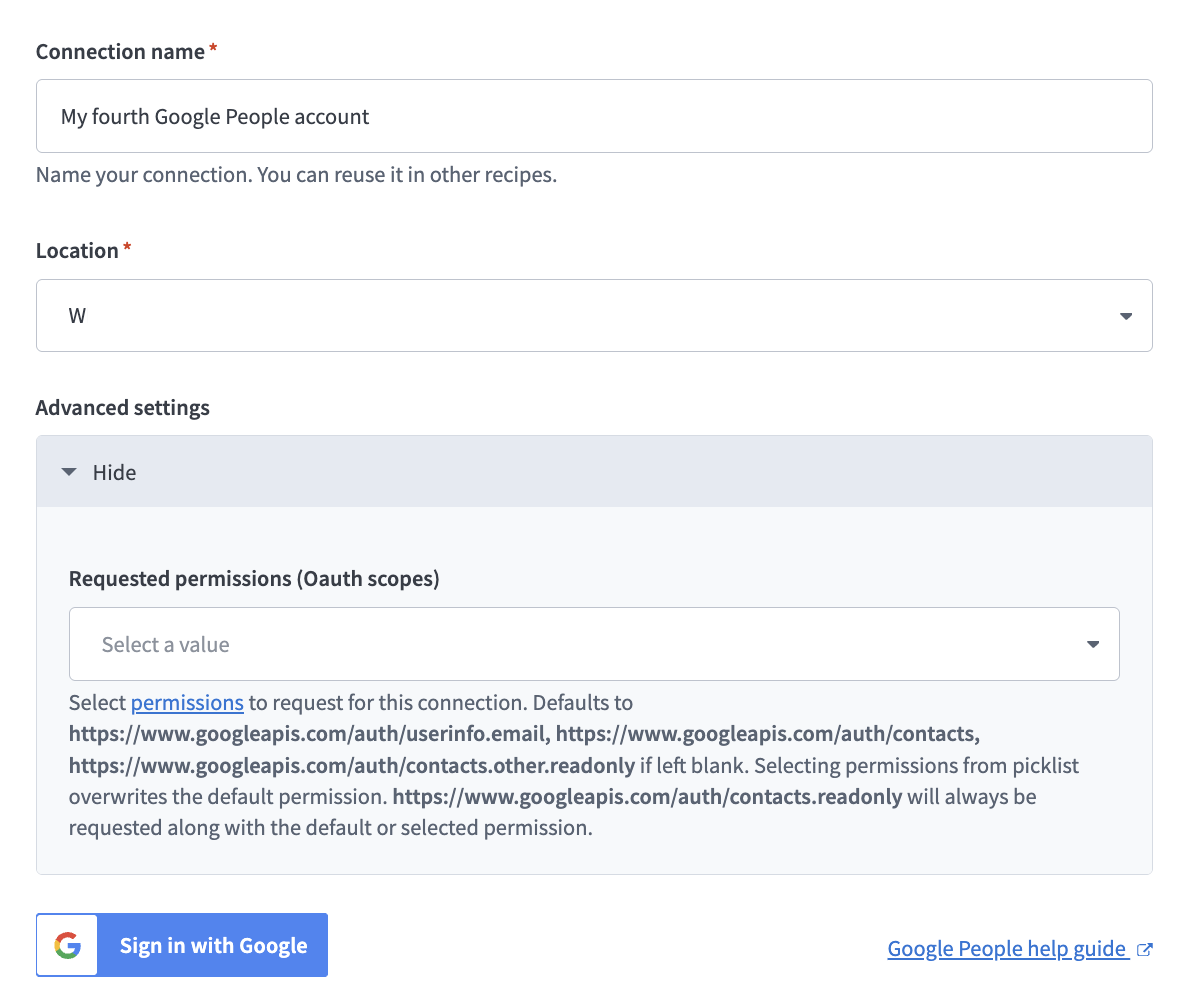 Set up your connection
Use the Location drop-down menu to select the project where you plan to store the connection.
Optional. Expand Advanced settings and use the Requested permissions (Oauth scopes) to select permissions for your connection. Selecting permissions overwrites the default permissions.
Click Sign in with Google.
How to use Google Contacts MCP server tools
Refer to the following sections for detailed information on available tools:
search_contacts tool
The search_contacts tool searches contacts using name, email, phone, or organization. Your LLM uses this tool to find a contact or resolve a person in a workflow when no contact ID exists, such as before it sends an email or schedules a meeting.
Try asking:
Find Jade Anderson's email address.Search for contacts at Acme.Look up the contact with phone number 555-0123.Find Marco's contact information.
get_contact tool
The get_contact tool retrieves full details for a specific contact. Your LLM uses this tool after it identifies a contact and needs complete details, typically after search_contacts.
Try asking:
Show me contact details for Marco Reyes.Get the complete information for this contact.What are all the details for Jade Anderson?Retrieve full contact record for Alex Miller.
list_contacts tool
The list_contacts tool lists contacts with optional pagination. Your LLM uses this tool to view contacts without a specific search query.
Try asking:
List all my contacts.Show me my contacts.Display my contact list.What contacts do I have saved?
create_contact tool
The create_contact tool creates a new contact using details you provide. Your LLM uses this tool to save a new contact or add a person to your contacts.
Try asking:
Create a new contact for Mei Chen at acme.com.Save Marco Reyes with phone 555-0123.Add Jade Anderson as a contact.Create a contact for the new vendor representative.
update_contact tool
The update_contact tool updates fields on an existing contact. Your LLM uses this tool to modify details of an existing contact after identifying the correct contact.
Try asking:
Update Mei's phone number to 555-0123.Change Alex's email to [email protected].Update this contact's job title to VP of Sales.Modify Marco's company name to Acme Corp.
delete_contact tool
The delete_contact tool deletes a contact from your contacts. Your LLM uses this tool when you explicitly request to remove a contact.
Try asking:
Delete the outdated contact for Josh.Remove this contact from my list.Delete Marco's duplicate entry.Remove the contact for [email protected].
merge_contacts tool
The merge_contacts tool merges multiple contacts into a single contact. Your LLM uses this tool to combine duplicate contacts and ensure it selects the correct records before merging.
Try asking:
Merge these duplicate contacts for Sarah.Combine the two entries for Alex Miller.Merge Marco's personal and work contacts.Consolidate these duplicate contact records.
list_contact_groups tool
The list_contact_groups tool lists all contact groups. Your LLM uses this tool to view or list your contact groups.
Try asking:
What contact groups do I have?Show me all my groups.List my contact groups.What groups have I created?
get_contact_group tool
The get_contact_group tool retrieves details and members of a contact group. Your LLM uses this tool to get details of a specific group or its members.
Try asking:
Who is in my Vendors group?Show me members of the Team Leads group.Get details for the Clients group.What contacts are in Family?
create_contact_group tool
The create_contact_group tool creates a new contact group. Your LLM uses this tool to create a new group after checking existing groups to avoid duplicate names.
Try asking:
Create a new group called Team Leads.Make a contact group for my Clients.Set up a group named Vendors.Create a Family group.
update_contact_group tool
The update_contact_group tool renames an existing contact group. Your LLM uses this tool after it identifies the correct group.
Try asking:
Rename the Vendors group to Suppliers.Change the Team Leads group name to Leadership.Update the group name from Clients to Customers.Rename this group to Active Projects.
delete_contact_group tool
The delete_contact_group tool deletes a contact group. Your LLM uses this tool when you explicitly request to delete a group after retrieving and confirming the correct group.
Try asking:
Delete the Old Vendors group.Remove the Archived Clients group.Delete this contact group.Remove the inactive group.
add_contacts_to_group tool
The add_contacts_to_group tool adds contacts to a contact group. Your LLM uses this tool to add contacts to a group.
Try asking:
Add these contacts to the Clients group.Put Jade and Marco in the Team Leads group.Add Alex Miller to the Vendors group.Include these people in the Family group.
remove_contacts_from_group tool
The remove_contacts_from_group tool removes contacts from a contact group. Your LLM uses this tool to remove contacts from a group.
Try asking:
Remove Marco from the Vendors group.Take Jade out of the Team Leads group.Remove these contacts from the Clients group.Delete Alex from the Family group.
list_other_contacts tool
The list_other_contacts tool lists auto-captured contacts from user interactions. Your LLM uses this tool to browse auto-captured contacts that aren't saved.
Try asking:
Show my auto-captured contacts.List contacts I haven't saved.What auto-captured contacts do I have?Show people from my interactions.
search_other_contacts tool
The search_other_contacts tool searches auto-captured contacts by name or email. Your LLM uses this tool to find a specific auto-captured contact.
Try asking:
Search auto-captured contacts for Jade.Find the auto-captured contact with email [email protected].Look for Alex in my unsaved contacts.Search for this person in auto-captured contacts.
copy_other_contact tool
The copy_other_contact tool creates a new saved contact by copying data from an existing Other Contact. Your LLM uses this tool to copy and save an auto-captured contact into your contacts.
Try asking:
Save this auto-captured contact to my contacts.Promote this person to a saved contact.Add this auto-captured contact to my contact list.Save this person permanently.
Getting started
View and manage your MCP server tools in the Overview page Tools section. Tool management provides the following capabilities:
TOOLS MUST BE STARTED
Your LLM can only access active tools in your MCP server connector.
Last updated: