Namely Workforce Intelligence MCP server
The Namely Workforce Intelligence MCP server enables LLMs to explore workforce structure, composition, and employee data at an organizational level. It provides tools to search employees, analyze organizational hierarchy, aggregate workforce metrics, and perform administrative updates through natural conversation.
Uses
Use the Namely Workforce Intelligence MCP server when you plan to perform the following actions:
- Search for employees by name, department, location, or other attributes
- Analyze organizational hierarchy and reporting structures
- Review comprehensive employee profiles including direct reports
- Update employee profile information such as job title, department, or location
- Change reporting relationships and reassign employees to new managers
- Retrieve lists of all job titles in the organization
- Aggregate workforce metrics and demographics
- Prepare org charts or leadership briefings
- Support people analytics and workforce planning initiatives
Example prompts
Use the following example prompts to invoke Namely Workforce Intelligence MCP server tools:
Who reports to Sarah Chen in the Engineering department?Find all employees in the San Francisco office.Show me everyone with 'Senior Manager' in their title.Who are the direct reports for the VP of Product?List all employees in the Marketing department.Get me the full reporting chain for Alex Johnson.Update Maria Rodriguez's job title to 'Director of Operations'.Change Jordan Kim's manager to Michael Torres.What job titles exist in our organization?
Namely Workforce Intelligence MCP server tools
The Namely Workforce Intelligence MCP server provides the following tools:
| Tool | Description |
|---|---|
| search_employees | Searches for employees matching the criteria you specify and returns profile information with organizational context. |
| get_employee_detail | Retrieves comprehensive profile information for a single employee, including direct reports if applicable. |
| update_employee | Updates specified fields on an employee's profile. |
| update_reporting_relationship | Changes an employee's manager to a new manager. |
| get_all_job_titles | Returns a list of all job titles in the organization. |
Install the Namely Workforce Intelligence MCP server
Complete the following steps to install a prebuilt MCP server to your project:
Sign in to your Workato account.
Go to AI Hub > MCP servers.
Click + Create MCP server.
Go to the Start with pre-built MCP Servers using your connected apps section and select the prebuilt MCP server you plan to use.
Click Use this server.
Provide a name for your MCP server in the Server name field.
Use the Location drop-down menu to select the project for the MCP server.
Go to the Connections section and connect to your app account.
Select the connection type you plan to use for the MCP server template.
- User's connection: MCP server tools perform actions based on the identity and permissions of the user who connects to the application. Users authenticate with their own credentials to execute the skill.
- Your connection: This option uses the connection established by the recipe builder and follows the same principles as normal app connections.
 Select your connection type
VERIFIED USER ACCESS AUTHENTICATION REQUIREMENTS
Only app connections that use OAuth 2.0 authorization code grant are available for user's connection. Refer to Verified user access for more information.
Complete the app-specific connection setup steps in the following section.
Namely connection setup
View Namely connection setup steps
Complete the following steps to connect to Namely in Workato:
Click Create > Connection or press C twice.
Search for Namely and select it as your app.
Enter a name for your connection in the Connection name field.
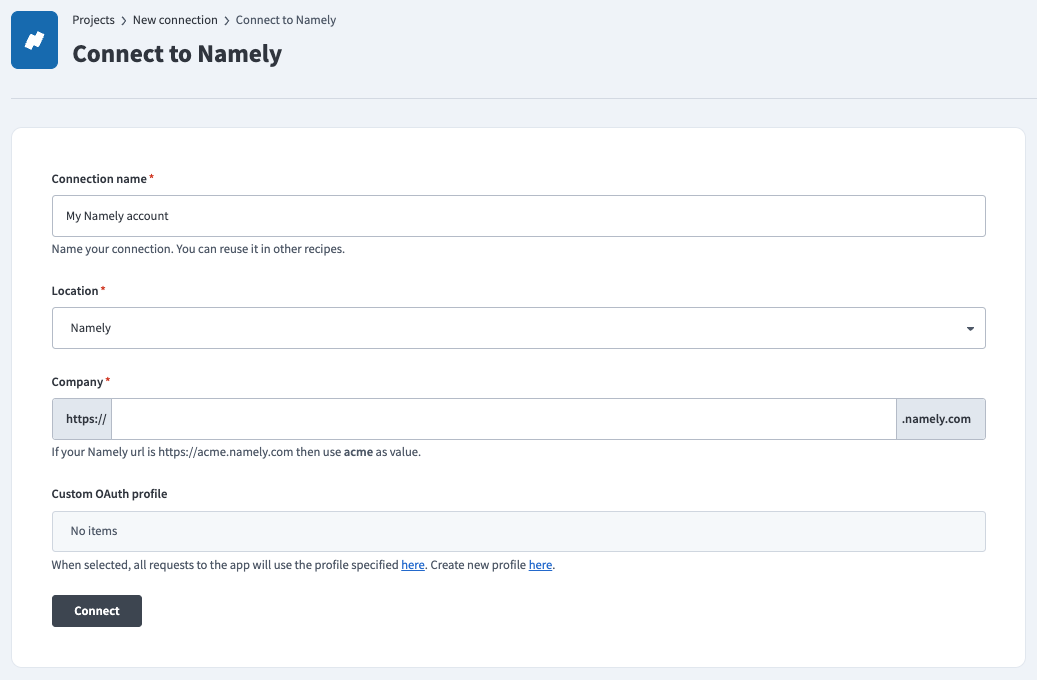 Namely connection setup
Use the Location drop-down menu to select the project where you plan to store the connection.
Enter the company account name you plan to connect to your Workato account in the Company field. You can find this name in your Namely URL. For example, if your URL is http://acme.namely.com, enter acme in this field.
Optional. Use the Custom OAuth profile drop-down menu to select a custom OAuth profile for your connection.
Click Connect.
Click Allow when prompted to authorize Workato to access your Namely account.
Project property configuration
You must configure the default timezone for your Namely Workforce Intelligence MCP server at the project level.
View Project property configuration steps
Complete the following steps to configure your timezone:
Sign in to your Workato account and go to Projects.
Go to the project that contains your MCP server.
Click the Settings tab.
 Click the Settings tab.
Select Project properties.
Go to the MCP_DEFAULT_TIMEZONE property and click the Edit (pencil) icon.
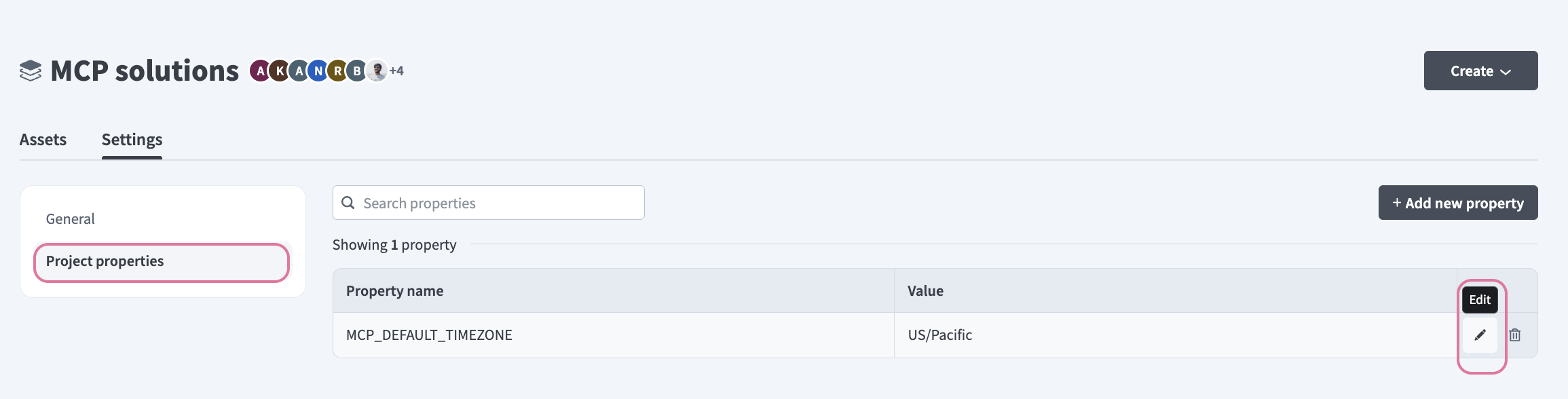 Click the Edit (pencil) icon.
Go to the Value field and enter your timezone. For example: US/Pacific, Australia/Sydney, Asia/Kolkata, or Europe/London.
How to use Namely Workforce Intelligence MCP server tools
Refer to the following sections for detailed information on available tools:
search_employees tool
The search_employees tool searches for employees matching the criteria you specify and returns profile information with organizational context. Your LLM uses this tool to find colleagues in the directory, locate employees by department or location, or build lists of employees based on specific attributes.
Try asking:
Find all employees in the Engineering department.Search for everyone with 'Manager' in their job title.Who works in the New York office?Show me all employees who report to the VP of Sales.
get_employee_detail tool
The get_employee_detail tool retrieves comprehensive profile information for a single employee. It includes the employee's full reporting chain and direct reports when applicable. Your LLM uses this tool after identifying the right person through search, or when you need detailed information about an employee's role, tenure, organizational position, and team structure.
Try asking:
Tell me everything about Sarah Chen.Who does Alex Johnson report to all the way up to the CEO?Get the full profile and reporting structure for Maria Rodriguez.
update_employee tool
The update_employee tool updates specified fields on an employee's profile, such as job title, department, or work location. Your LLM uses this tool to make administrative changes to employee records based on promotions, transfers, or organizational changes.
Try asking:
Update Jordan Kim's job title to 'Senior Software Engineer'.Change Maria Rodriguez's department to 'Product Management'.Move Alex Johnson's work location to the Austin office.Update the job title for employee ID 12345 to 'Team Lead'.
update_reporting_relationship tool
The update_reporting_relationship tool changes an employee's manager to a new manager. Your LLM uses this tool to reassign reporting relationships when employees move between teams, after reorganizations, or when backfilling manager positions.
Try asking:
Move Alex Johnson to report to Sarah Chen.Change Jordan Kim's manager to Jade Anderson.Reassign Maria Rodriguez to the new team lead.Update the reporting relationship so Chris Lee reports to the VP of Engineering.
get_all_job_titles tool
The get_all_job_titles tool returns a list of all job titles in the organization. Your LLM uses this tool to understand the full range of roles across your company, ensure consistent job title usage, or gather data for workforce planning and organizational analysis.
Try asking:
What job titles exist in our organization?Show me all the different roles we have company-wide.List every job title to see our organizational structure.What are all the engineering job titles we use?
Getting started
View and manage your MCP server tools in the Overview page Tools section. Tool management provides the following capabilities:
TOOLS MUST BE STARTED
Your LLM can only access active tools in your MCP server connector.
Last updated: