QuickBooks Online Billing and AR MCP server
The QuickBooks Online Billing and AR MCP server enables LLMs to manage QuickBooks Online billing workflows through natural conversation. This MCP server supports accounts receivable workflows so you can track billed amounts, review outstanding invoices, and generate and send invoices. It provides tools to list invoices, retrieve invoice details, and create and send invoices without requiring direct interaction with the QuickBooks Online interface.
Uses
Use the QuickBooks Online Billing and AR MCP server to perform the following actions:
- List invoices with optional filters such as date range and customer
- Retrieve detailed information for a specific invoice, including line items, totals, and payment status
- Create a new invoice for an existing customer using specified items and pricing
- Send an existing invoice to the associated customer
- Search for customers by name or partial identifier
- Search for items (products or services) by name or partial identifier
- Retrieve full details for a specific customer
- Retrieve full details for a specific item
Example prompts
Use the following example prompts to invoke QuickBooks Online Billing and AR MCP server tools:
Show me all invoices from the past 30 days.List overdue invoices for this customer.Get the details for invoice #1042.Create an invoice for Acme Corp for 10 hours of consulting.Send invoice #1042 to the customer.Find the customer record for Riverside Catering.Search for the item called Monthly Retainer.Get the full details for this customer before I create the invoice.Look up this item's pricing before I add it to the invoice.
QuickBooks Online Billing and AR MCP server tools
The QuickBooks Online Billing and AR MCP server provides the following tools:
| Tool | Description |
|---|---|
| list_invoices | Retrieves a list of invoices with optional filters, such as date range and customer. |
| get_invoice | Retrieves detailed information for an invoice you specify, including line items, totals, and payment status. |
| create_invoice | Creates a new invoice for an existing customer using specified items and pricing. |
| send_invoice | Sends an existing invoice to the associated customer. |
| search_customers | Searches for customers using a name or partial identifier. |
| search_items | Searches for items, such as products or services, using a name or partial identifier. |
| get_customer | Retrieves full details for a customer you specify. |
| get_item | Retrieves full details for an item you specify. |
Install the QuickBooks Online Billing and AR MCP server
Complete the following steps to install a prebuilt MCP server to your project:
Sign in to your Workato account.
Go to AI Hub > MCP servers.
Click + Create MCP server.
Go to the Start with pre-built MCP Servers using your connected apps section and select the prebuilt MCP server you plan to use.
Click Use this server.
Provide a name for your MCP server in the Server name field.
Use the Location drop-down menu to select the project for the MCP server.
Go to the Connections section and connect to your app account.
Select the connection type you plan to use for the MCP server template.
- User's connection: MCP server tools perform actions based on the identity and permissions of the user who connects to the application. Users authenticate with their own credentials to execute the skill.
- Your connection: This option uses the connection established by the recipe builder and follows the same principles as normal app connections.
 Select your connection type
VERIFIED USER ACCESS AUTHENTICATION REQUIREMENTS
Only app connections that use OAuth 2.0 authorization code grant are available for user's connection. Refer to Verified user access for more information.
Complete the app-specific connection setup steps in the following section.
QuickBooks Online connection setup
View QuickBooks Online connection setup steps
Supported editions and versions
View Supported editions and versions
The QuickBooks connector works with the following QuickBooks Online versions:
- QuickBooks Self-Employed
- QuickBooks Simple Start
- QuickBooks Essentials
- QuickBooks Plus
Workato doesn't support QuickBooks Desktop/Enterprise versions.
How to connect to QuickBooks on Workato
View How to connect to QuickBooks on Workato steps
Complete the following steps to establish a connection to QuickBooks Online in Workato:
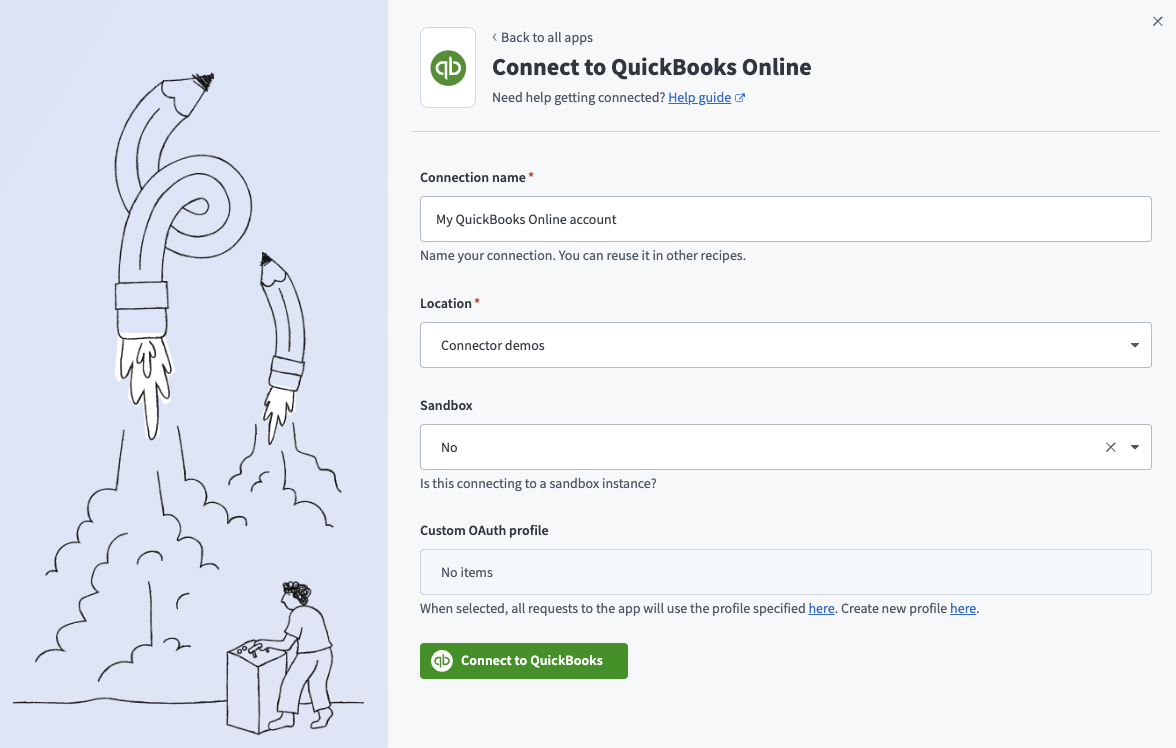
Provide a Connection name that identifies which QuickBooks instance Workato is connected to.
 QuickBooks online connection
Use the Location drop-down menu to select the project where you plan to store the connection.
Use the Sandbox drop-down menu to specify whether the QuickBooks Online account is a sandbox account.
Optional. Use the Custom OAuth profile drop-down menu to select a custom OAuth profile for your connection.
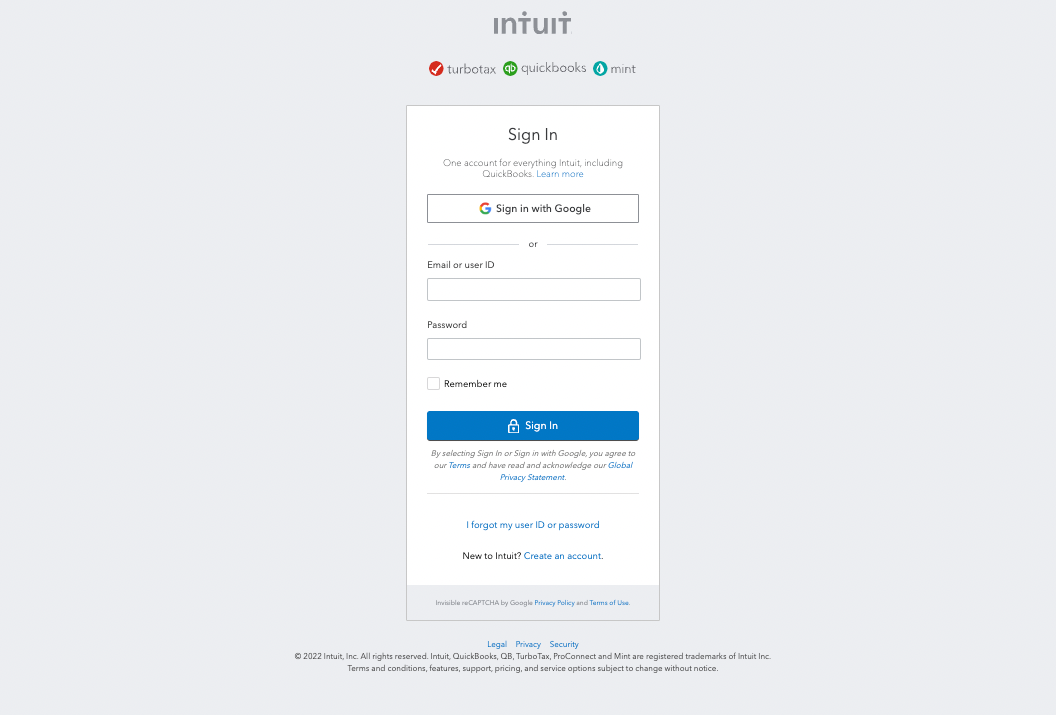
Click Connect to QuickBooks to open the QuickBooks sign in window.
 Connect to QuickBooks Online
Enter your QuickBooks Online account email address and password.
Click Sign in to complete the connection.
How to use QuickBooks Online Billing and AR MCP server tools
Refer to the following sections for detailed information on available tools:
list_invoices tool
The list_invoices tool retrieves a list of invoices with optional filters, such as date range and customer. Your LLM uses this tool to view, list, or review invoices, including requests for recent invoices, overdue invoices, or invoices within a specific date range.
Try asking:
Show me all invoices from the past 30 days.List overdue invoices for this customer.Show me all open invoices from last quarter.Which invoices are still outstanding?
get_invoice tool
The get_invoice tool retrieves detailed information for an invoice you specify, including line items, totals, and payment status. Your LLM uses this tool to retrieve the details for an invoice.
Try asking:
Get the details for invoice #1042.Show me the line items and total for this invoice.What is the payment status of this invoice?Pull up the full details for the invoice I sent last week.
create_invoice tool
The create_invoice tool creates a new invoice for an existing customer using items and pricing you specify. Your LLM resolves customer and item references before creating the invoice, and asks for missing required details, such as customer, items, quantities, or pricing.
Try asking:
Create an invoice for Acme Corp for 10 hours of consulting.Generate an invoice for the Monthly Retainer service.Bill Riverside Catering for the items from last week's order.Create a new invoice for this customer with these line items.
send_invoice tool
The send_invoice tool sends an existing invoice to the associated customer. Your LLM uses this tool to send or resend an invoice.
Try asking:
Send invoice #1042 to the customer.Resend the invoice I created for Acme Corp.Email this invoice to the customer now.Send the outstanding invoice for this account.
search_customers tool
The search_customers tool searches for customers using a name or partial identifier. Your LLM uses this tool to retrieve a customer reference for invoice workflows by name or partial identifier.
Try asking:
Find the customer record for Riverside Catering.Search for a customer named Acme.Look up this customer before I create their invoice.Find all customers matching this partial name.
search_items tool
The search_items tool searches for items, such as products or services, using a name or partial identifier. Your LLM uses this tool to find invoices for a product or service name you provide.
Try asking:
Search for the item called Monthly Retainer.Find the consulting hours product in QuickBooks.Look up this service item before I add it to the invoice.Search for items matching this product name.
get_customer tool
The get_customer tool retrieves full details for a customer you specify. Your LLM uses this tool to return a customer ID or complete customer details for invoice workflows.
Try asking:
Get the full details for this customer before I create the invoice.Show me all information for this customer record.Retrieve the billing details for this customer.Pull up this customer's full profile.
get_item tool
The get_item tool retrieves full details for an item you specify, including pricing and description. Your LLM uses this tool to retrieve item details to construct invoice line items.
Try asking:
Look up this item's pricing before I add it to the invoice.Get the full details for this product.Show me the description and rate for this service item.Retrieve this item's details before I include it on the invoice.
Getting started
View and manage your MCP server tools in the Overview page Tools section. Tool management provides the following capabilities:
TOOLS MUST BE STARTED
Your LLM can only access active tools in your MCP server connector.
Last updated: