Set up Google Secret Manager for a project
This guide explains how to set up Google Secret Manager at the project level in Workato.
SWITCHING SCOPES
Existing workspace-level secret references in this project stop working when you switch to project-level secrets management. You must reconfigure these references to use project-level secrets.
Prerequisites
Ensure you have the following before you begin:
In Workato:
- The Create/Edit connections privilege in the target project.
In Google Cloud:
- Active GCP project: You need an active Google Cloud project with billing enabled.
- Secret Manager setup: You should have secrets already created in Secret Manager. Create them before configuring the connection if they don't exist.
- Service account: You need a service account with the following roles assigned:
- Secret Manager Secret Accessor (
roles/secretmanager.secretAccessor) - Secret Manager Viewer (
roles/secretmanager.viewer)
- Secret Manager Secret Accessor (
- Service account key: You need the JSON key file for the service account.
Refer to Set up a Google Cloud service account if you haven't created a service account.
Enable project-level secrets management
Complete the following steps to enable project-level secrets management in workspace admin:
Sign in to Workato.
Go to Workspace admin > Settings > External secrets manager.
Enable the Use external secrets manager toggle.
Use the Scope drop-down menu to select Set up secrets management for each project individually.
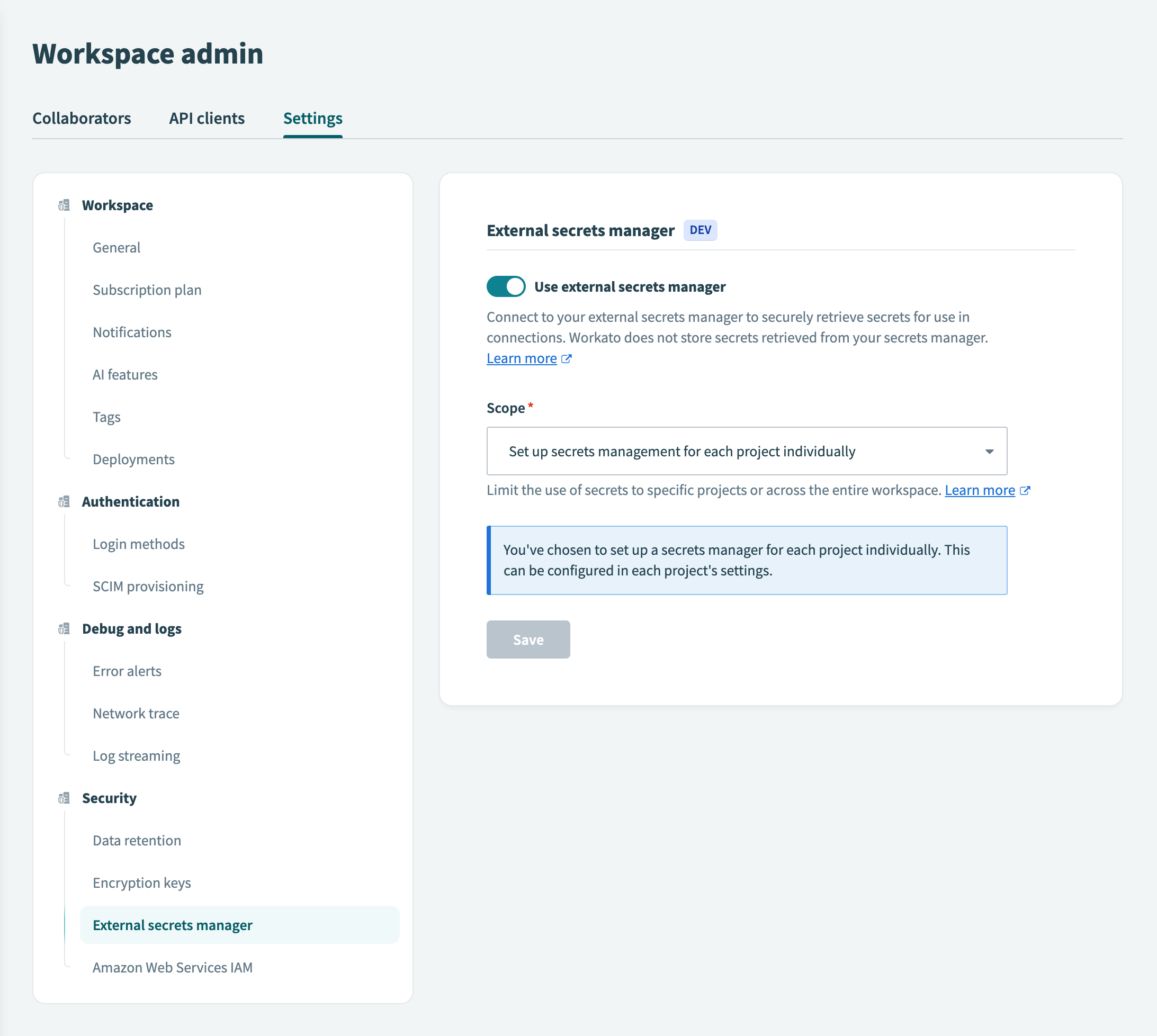
Click Save.
ABOUT SCOPES
You can configure Google Secret Manager at the workspace level or the project level. The selected scope determines how secrets apply across projects:
- Workspace level: All projects inherit the workspace secrets manager configuration. This centralizes management but applies the same Secret Manager connection across all projects.
- Project level: Each project uses its own secrets manager configuration, independent of other projects or workspace settings. This provides flexibility but requires per-project setup.
Enable Google Secret Manager for the project
Complete the following steps to enable Google Secret Manager for your project:
Select the project where you plan to configure Google Secret Manager.
Go to Settings > Secrets management.
Enable the Use external secrets manager toggle.
Use the Which secrets manager do you want to use? drop-down menu to select Google Secret Manager.
Click Set up connection.
Connect to Google Secret Manager
Complete the following steps to configure the connection between Workato and your Google Cloud project's Secret Manager:
Enter a name for this connection in the Connection name field.
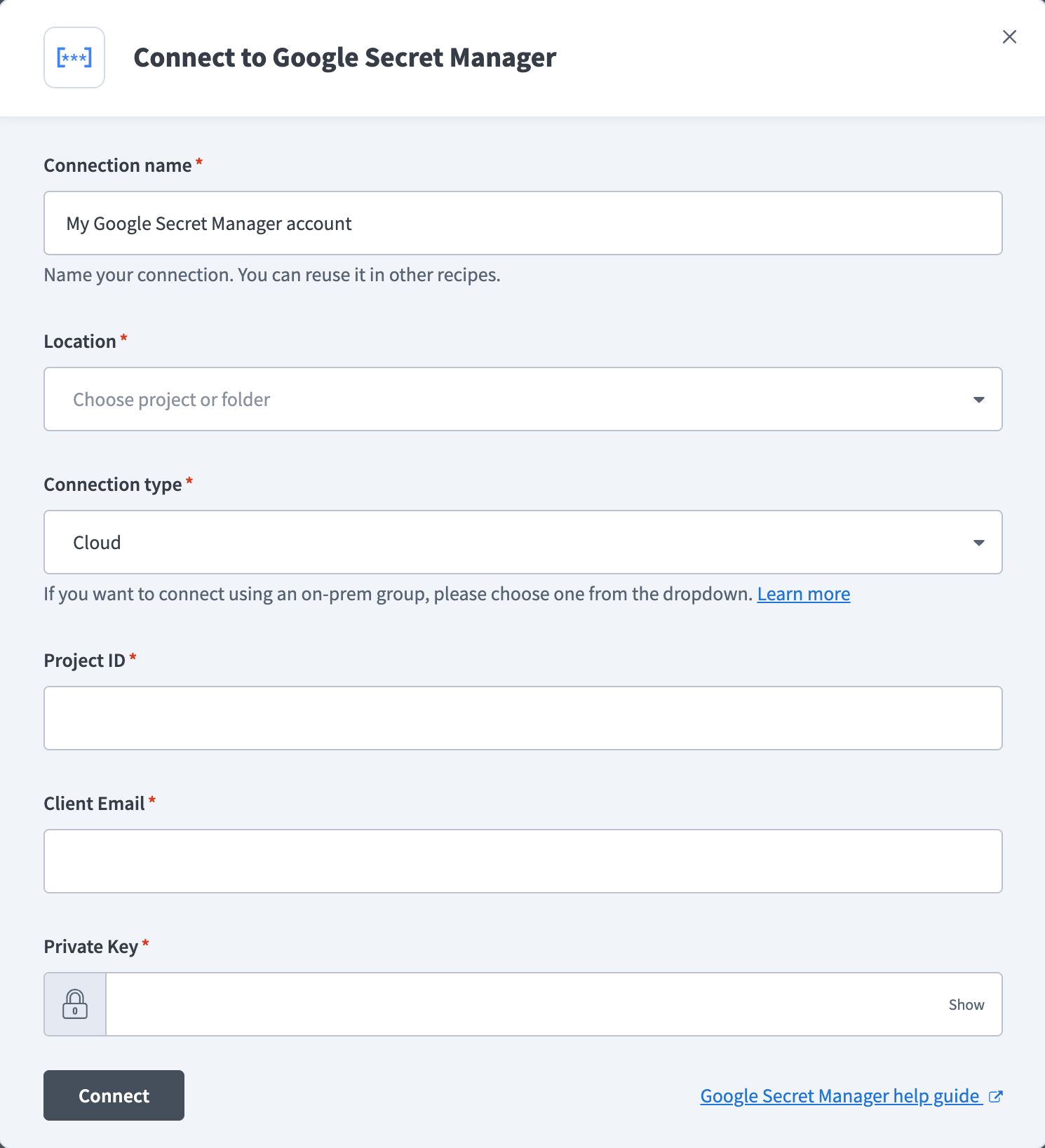 Connect to Google Secret Manager
Use the Location drop-down menu to select the project or folder where you plan to store this connection.
Use the Connection type drop-down menu to specify whether this is a cloud or on-prem connection.
Enter the ID of your project in Google Cloud in the Project ID field. You can find this in the GCP Console project selector or project dashboard.
Enter the service account email in the Client email field. The service account must have the Secret Manager Secret Accessor (roles/secretmanager.secretAccessor) and Secret Manager Viewer (roles/secretmanager.viewer) roles assigned.
Provide the Private key from your service account JSON key file.
Retrieve your private key
Open the JSON key file you downloaded when creating the service account.
Locate the private_key field in the JSON file.
Copy the entire private key value (including the -----BEGIN PRIVATE KEY----- and -----END PRIVATE KEY----- markers).
Paste it into the Private key field.
Click Connect.
CONNECTION VALIDATION
Check the following if the connection fails:
- Confirm the Project ID field contains the project ID, not the project number
- Confirm the client email matches the service account email in Google Cloud
- Confirm the private key contains no extra spaces or missing characters
- Confirm the service account has the Secret Manager Secret Accessor (
roles/secretmanager.secretAccessor) and Secret Manager Viewer (roles/secretmanager.viewer) roles - Confirm the Secret Manager API is enabled in the Google Cloud project
Next steps
You can now proceed with the following:
Further reading
Last updated: