WEL quickstart
WEL (Workato Expression Language) is Workato's transformation language. It runs alongside the rest of your recipe, on Workato's data plane, with nothing to install and nothing to connect to.
This page uses one example to showcase three methods of working with WEL:
- In a recipe: Get started quickly by creating recipe datapills with the Workato Expression Language connector.
- With an AI client: Write WEL with an external AI client.
- With the binary: Test changes to an expression quickly and without running a recipe.
FEATURE AVAILABILITY
WEL is currently available to select customers. Contact your Customer Success Representative to confirm whether it is available in your workspace.
Example
A webhook delivers an order. The destination system expects a flat record with a normalized name and email, a calendar date, and an exact total.
Input
{
  "order_id": "so-1001",
  "placed_at": "2026-03-15T09:30:00Z",
  "customer": {
    "first_name": "kalani",
    "last_name": "park",
    "email": " [email protected] "
  },
  "line_items": [
    {"sku": "WID-1", "qty": 3, "unit_price": "12.50"},
    {"sku": "GAD-7", "qty": 1, "unit_price": "99.00"}
  ]
}
Formula
{
  order_id: upper(_.order_id),
  customer_name: f"{capitalize(_.customer.first_name)} {capitalize(_.customer.last_name)}",
  email: lower(trim(_.customer.email)),
  order_date: PlainDate(DateTime(_.placed_at)),
  item_count: count(_.line_items),
  total: _.line_items >> map_by(li ~> Decimal(li.unit_price) * li.qty) >> sum
}
This example uses the following components:
_is the input variable, which contains the preceding payload._.order_idreads theorder_idfield from it. Refer to Input variables for details.>>pipes a value into a function, so the total reads left to right. The pipeline takes the line items, turns each into a price, and adds them up.Decimal(li.unit_price)keeps the money exact. The total is136.50, not136.5. The scale survives becauseDecimalis an exact type rather than a display format.PlainDate(...)produces a calendar date with no time zone, so it can't shift a day on its way to the destination.
Output
{
  "order_id": "SO-1001",
  "customer_name": "Kalani Park",
  "email": "[email protected]",
  "order_date": "2026-03-15",
  "item_count": 2,
  "total": 136.50
}
Start in a recipe
Recipes are the most common way to work with WEL. This connector doesn't require connection setup. Create a recipe or open an existing one, then complete the following steps to run the preceding example:
Open the recipe where you plan to work with WEL.
Click + Add step and select Action in app.
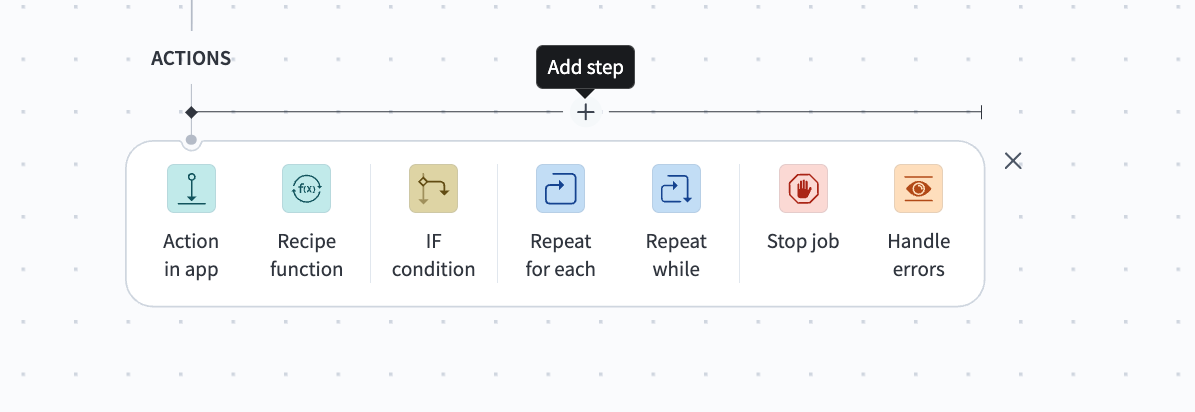 Click Add step > Add action in app
Search and select the Workato Expression Language connector. The Transform data (code) action loads automatically.
Enter a name for the WEL expression in the Name field. This label only shows in the recipe editor.
Go to the Input fields section and click generate from JSON sample.
Paste the following sample JSON:
{
  "order_id": "so-1001",
  "placed_at": "2026-03-15T09:30:00Z",
  "customer": {
    "first_name": "kalani",
    "last_name": "park",
    "email": " [email protected] "
  },
  "line_items": [
    {"sku": "WID-1", "qty": 3, "unit_price": "12.50"},
    {"sku": "GAD-7", "qty": 1, "unit_price": "99.00"}
  ]
}Optionally select Set all fields as required to mark every detected field as required. You can adjust individual field requirements afterward.
Click Next to generate the field list automatically.
Review the inferred field types and correct any the designer got wrong.
CHECK SCHEMA INFERENCES
Schema inference reads a sample, so it can only see what the sample shows. Always check for the following cases:
- Numeric precision: A sampled
12.50infers as a floating-point number, not aDecimal. Set the type yourself if the field is a currency amount. - Dates and datetimes: A sampled
2026-03-15T09:30:00Zinfers as a plain string, not a temporal type.
Refer to the Transform data action for the full field list and more information about inference.
Click Generate schema. New input fields become available based on the schema.
Map data into the new fields, such as datapills from earlier steps or static values.
Go to the Output schema section and click Use JSON. This section configures the datapills the expression produces. A field that isn't in the output schema doesn't appear downstream, regardless of the expression's final values.
Paste the following sample output JSON:
{
  "order_id": "SO-1001",
  "customer_name": "Kalani Park",
  "email": "[email protected]",
  "order_date": "2026-03-15",
  "item_count": 2,
  "total": 136.50
}Optionally select Set all fields as required to mark every detected field as required. You can adjust individual field requirements afterward.
Click Next to generate the field list automatically.
Review the inferred field types and correct any the designer got wrong, using the same checks as the input fields step.
Click Generate schema. The order_id, customer_name, email, order_date, item_count, and total datapills defined in the output schema become available in downstream recipe steps, but don't have assigned values until you define the WEL Code.
Paste the following expression into the Code field to define the transformations to perform on input values to create output datapills:
{
  order_id: upper(_.order_id),
  customer_name: f"{capitalize(_.customer.first_name)} {capitalize(_.customer.last_name)}",
  email: lower(trim(_.customer.email)),
  order_date: PlainDate(DateTime(_.placed_at)),
  item_count: count(_.line_items),
  total: _.line_items >> map_by(li ~> Decimal(li.unit_price) * li.qty) >> sum
}
Start with an external AI client
An external AI client that hasn't seen WEL will write something that looks plausible and doesn't run, usually by borrowing lambda syntax from another language. WEL uses ~> for a lambda, and -> or => are parse errors.
The WEL kit fixes that by providing the AI client a language reference and platform binary. This allows the AI to check generated code against the real engine and create an expression that reliably works.
DISTRIBUTION
Distribution for the WEL kit and the wel binary isn't published here. Contact your Customer Success Representative for the current build or location for your platform.
An AI client with the WEL kit can create a transformation from your plain language description. Include the sample payload and what the destination needs. Ask it to verify the expression against the engine and return the sample output and formula that you can paste directly into the action.
VERIFY AI CODE
Always read AI generated code yourself. You can quickly check the generated code by verifying that the output matches what your destination expects.
Start with the binary
A recipe run takes minutes to test an expression. The wel binary runs the engine locally instead, and answers in under a second. This is a better workflow for quickly iterating while you're still writing the expression.
DISTRIBUTION
Distribution for the WEL kit and the wel binary isn't published here. Contact your Customer Success Representative for the current build or location for your platform.
Complete the following steps to work with the wel binary for the provided example:
Save the following files locally:
Expression
Save the following expression as order.wel:
{
  order_id: upper(_.order_id),
  customer_name: f"{capitalize(_.customer.first_name)} {capitalize(_.customer.last_name)}",
  email: lower(trim(_.customer.email)),
  order_date: PlainDate(DateTime(_.placed_at)),
  item_count: count(_.line_items),
  total: _.line_items >> map_by(li ~> Decimal(li.unit_price) * li.qty) >> sum
}
Sample input
Save the following sample input as order.json:
{
  "order_id": "so-1001",
  "placed_at": "2026-03-15T09:30:00Z",
  "customer": {
    "first_name": "kalani",
    "last_name": "park",
    "email": " [email protected] "
  },
  "line_items": [
    {"sku": "WID-1", "qty": 3, "unit_price": "12.50"},
    {"sku": "GAD-7", "qty": 1, "unit_price": "99.00"}
  ]
}Run the following command:
wel eval -f order.wel -I order.jsonThe expression outputs the following:
{order_id: "SO-1001", customer_name: "Kalani Park", email: "[email protected]", order_date: 2026-03-15, item_count: 2, total: 136.50}Iterate by editing the order.json input file or order.wel expression file and running the command again until the expression produces the output your destination expects. The WEL engine runs identically in the binary and in your recipe, so an expression that works here works there too.
Useful flags
The wel binary accepts additional flags for testing and validation:
| Flag | Purpose | Example |
|---|---|---|
--now | Fixes now() to a specific instant, so results are reproducible. | wel eval 'now()' --now '2026-03-15T09:30:00Z' |
validate | Checks that an expression parses, without running it. | wel validate -f order.wel |
The wel binary has other flags and subcommands beyond these two, but they target developers building the host application that embeds the WEL engine, not recipe builders testing an expression.
Next steps
- Transform data: The WEL connector integration and what schema inference doesn't catch.
- Standard library: Information about every WEL function.
- Data types: Why
DecimalandPlainDatewere the right choices in the preceding example. - Cookbook: Examples of common integration problems.
- Error codes: Troubleshoot job failures.
Last updated: