Manual provisioning
You manually configure user provisioning. This option doesn't enable you to sync users or groups from your IdP. You must define the user's environment access and user group membership when you manually add a user.
Complete the following steps to configure manual provisioning:
Sign in to your Workato account and go to Workspace admin.
Click Authentication & Groups in the sidebar.
Select the environment you plan to configure. The environment End-user group page displays by default.
ENVIRONMENT AVAILABILITY
Workspaces without Environments provisioned only have one environment available.
Select the Authentication tab.
Ensure that the SAML-based SSO authentication toggle is enabled.
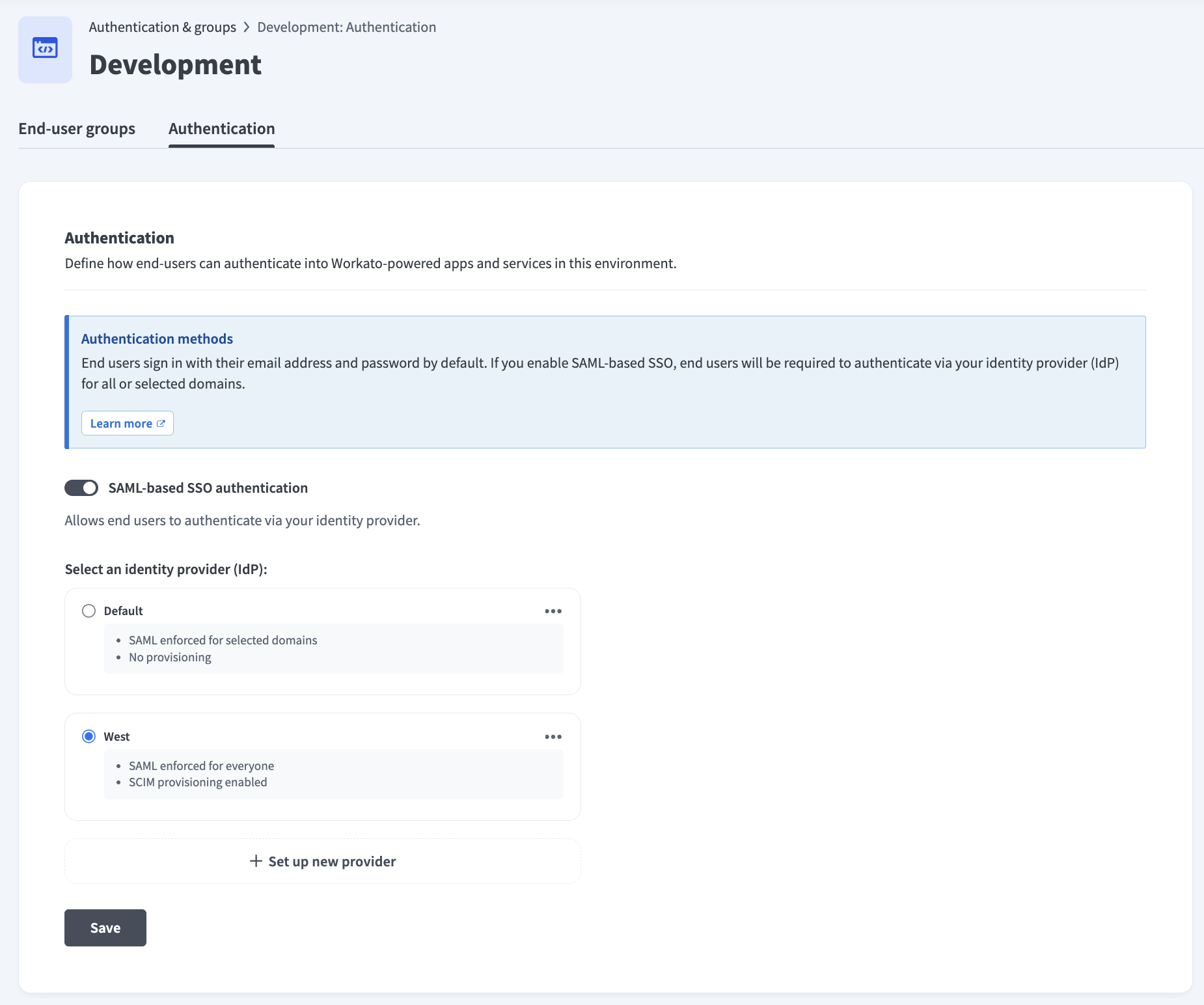 Ensure the SAML-based SSO authentication toggle is enabled
Go to the Select an identity provider (IdP) section and click + Set up new provider.
Provide a name for your IdP in the Identity provider (IdP) name field. For example: Okta Dev.
Go to the Enforce SAML authentication for section and select All domains or Selected domains.
Click Next.
Copy the Specify Single sign-on URL and Service provider (SP) entity ID values and paste each value into your IdP to enable access to Workato-powered apps and services.
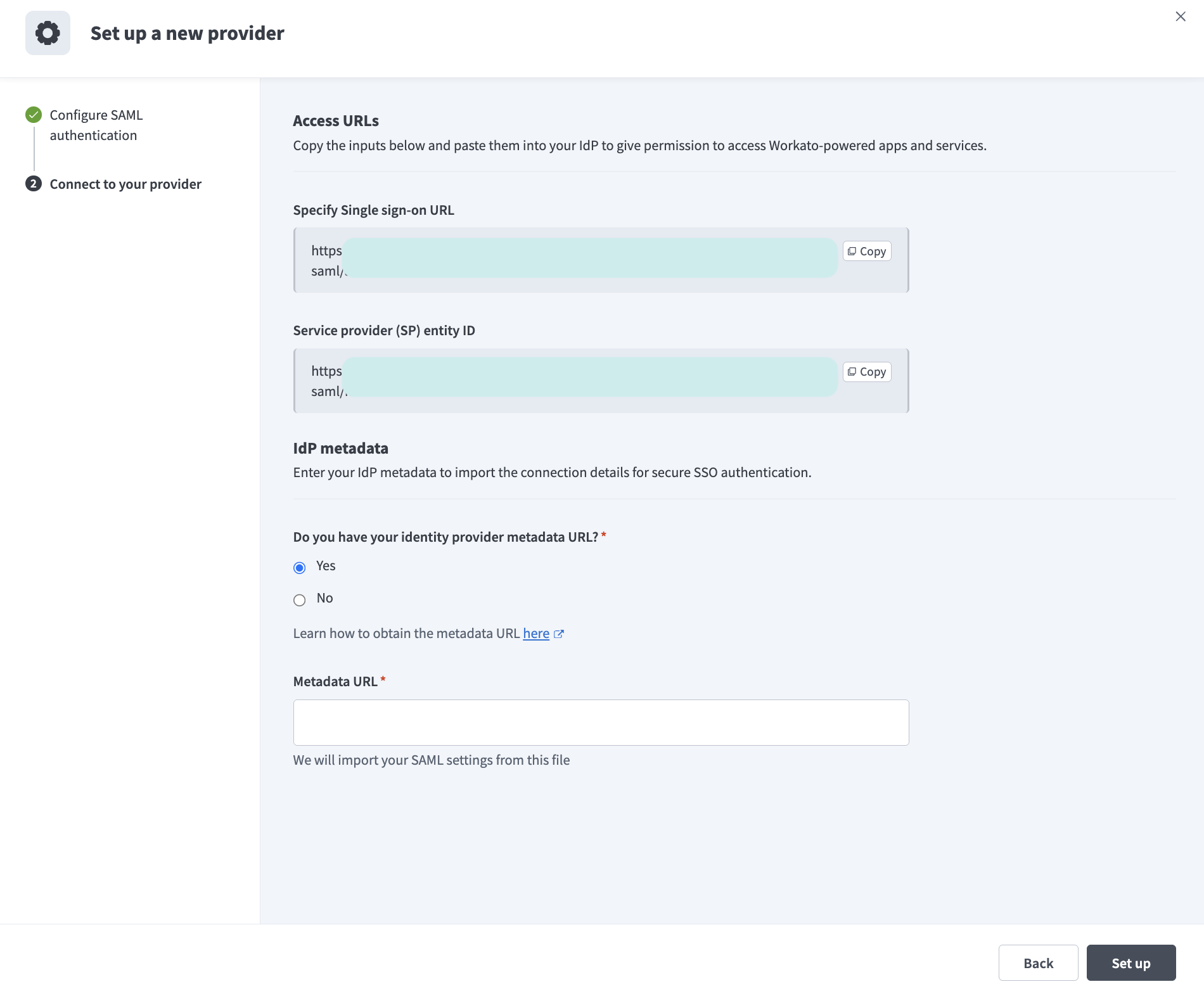 Copy the Specify Single sign-on URL and Service provider (SP) entity ID values
Locate the Do you have your identity provider metadata URL? field and select Yes or No depending on whether you have access to your IdP metadata URL.
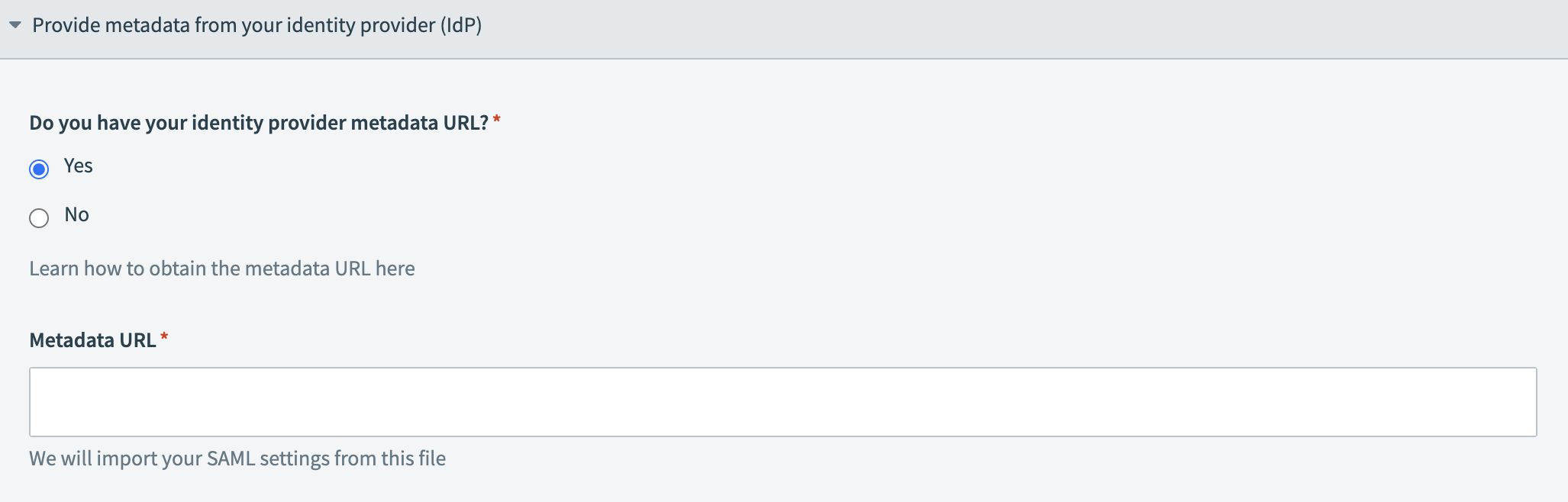 Provide your metadata URL
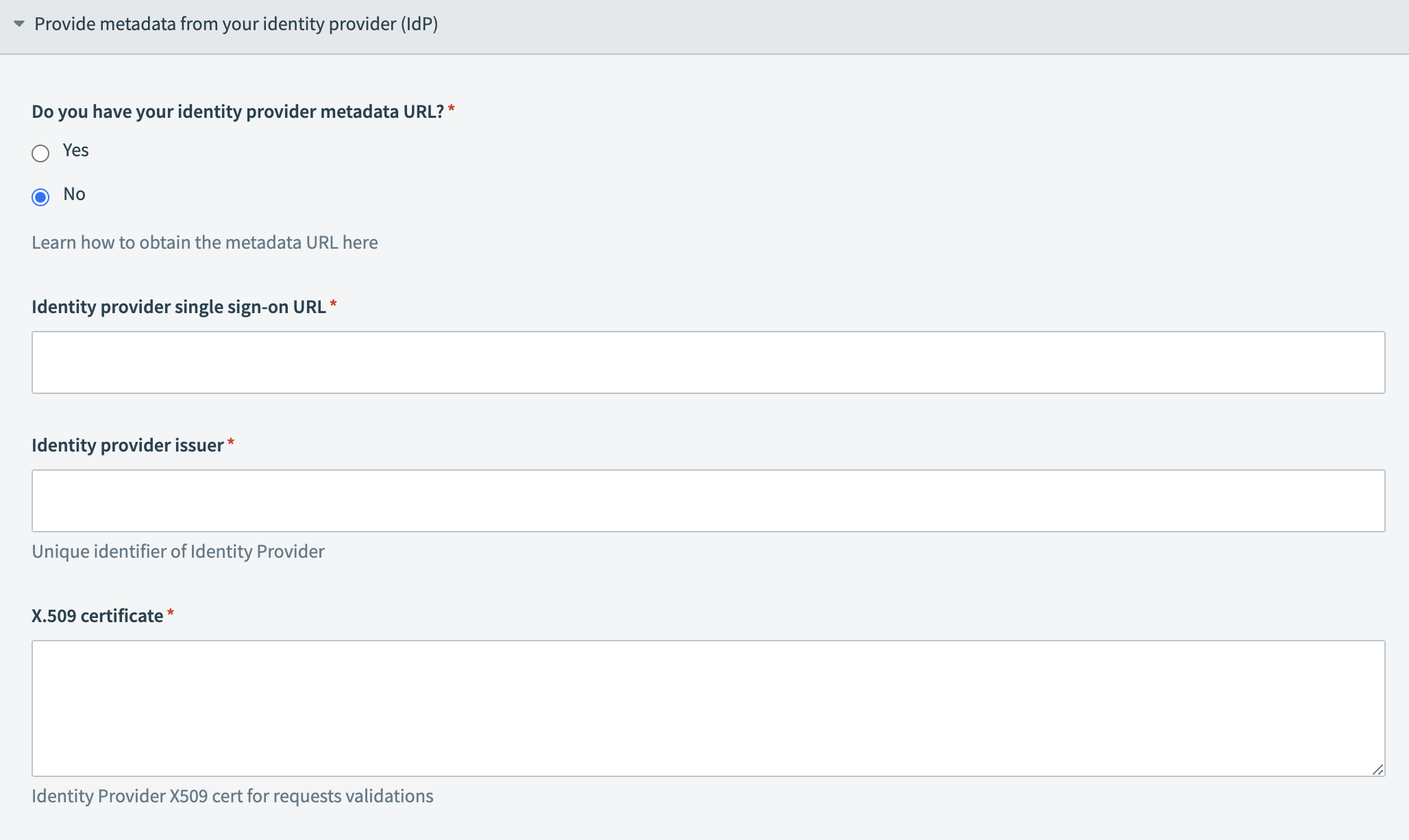 Provide your IdP information
Click Set up. You are redirected to the Authentication tab where your configured IdP displays.
Go to the IdP you configured in the preceding steps and click Set up.
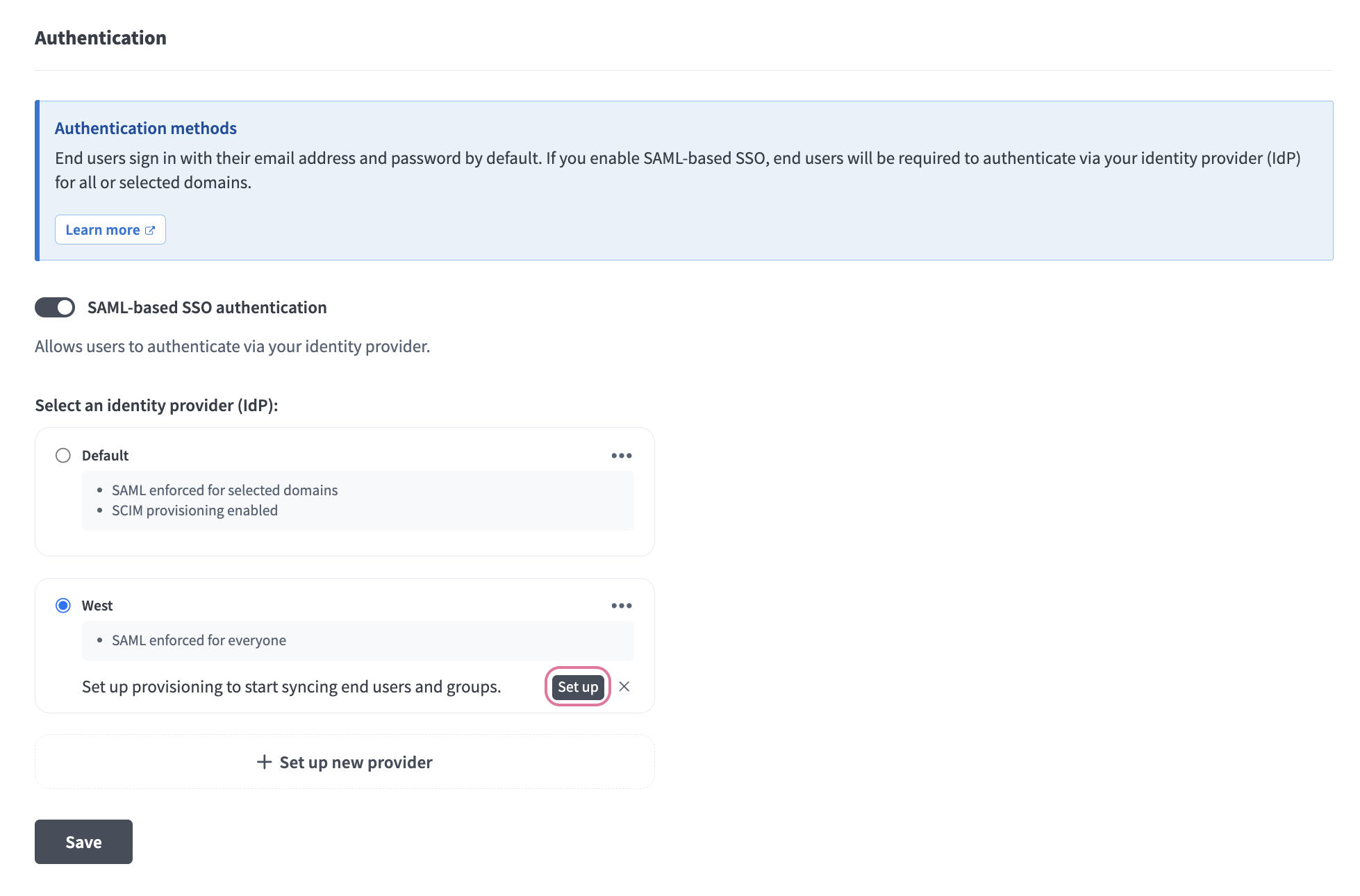 Click Set up.
Click Manual provisioning in the Provisioning modal.
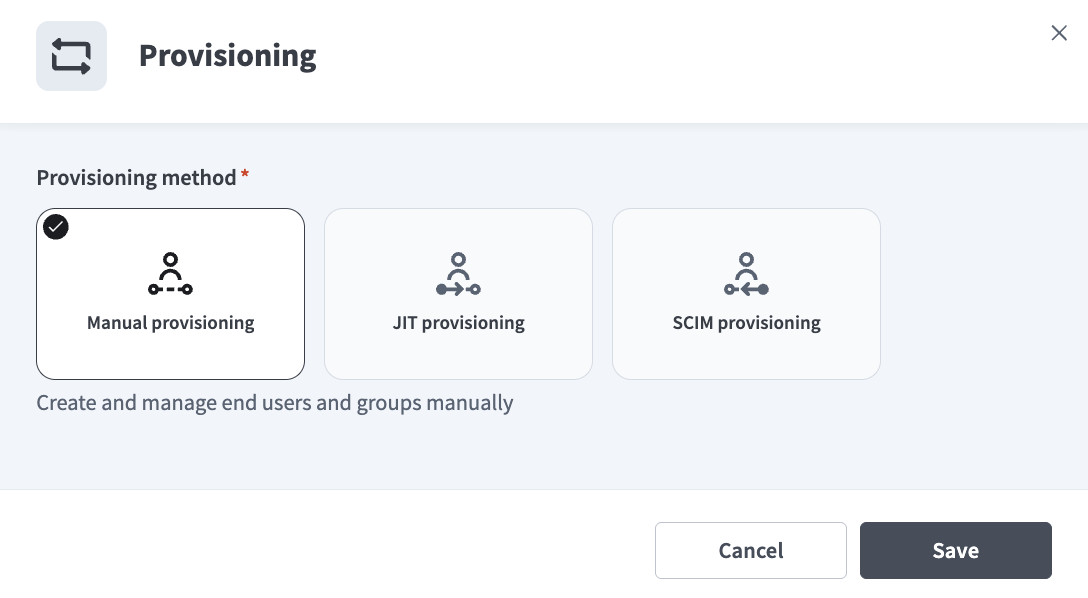 Select Manual provisioning.
Click Save.
Refer to Add an end user manually for next steps.
Last updated: