SCIM provisioning
SCIM (System for Cross-domain Identity Management) provisioning automatically synchronizes user accounts and groups between your identity provider and Workato. This eliminates the need for administrators to manually create or update accounts, and allows you to manage Workato users and groups entirely from your existing identity provider.
SCIM provisioning behavior scenarios
Workato behaves differently depending on whether the user already exists in the workspace:
An administrator creates a new user in your identity provider:
- A new user account is created automatically in Workato
- User name and email fields are populated from SCIM attributes
- User is assigned to groups and environments based on SCIM mappings
An administrator updates an existing user in your identity provider:
- Workato updates the user profile from SCIM attributes
- Permissions and group memberships are updated to match the identity provider
- Changes are synced immediately without requiring user login
GROUP OVERWRITES CAN CAUSE LOSS OF MEMBERSHIP CONTROL
Custom group IDs are preserved when group changes are pushed from your IdP through SCIM. Changes that overwrite a local group can result in immediate loss of membership control over that group in Workato Identity. Ensure your groups are configured correctly in your IdP before pushing changes to prevent unintended loss of membership control over local groups in Workato Identity.
Enable SCIM provisioning
You can configure SCIM provisioning and select which environments require SAML-based authentication. You can customize authentication methods for each environment. For example:
Dev: Password authTest: SSOProd: SSO
NOT FOR WORKFLOW APPS SAML-BASED SSO
This documentation is specific to Workato Identity. Refer to SAML-based single sign-on authentication to configure SAML authentication for Workflow apps.
Complete the following steps to configure SCIM provisioning and SAML settings for your environment authentication:
Sign in to your Workato account and go to Workspace admin.
Click Authentication & Groups in the sidebar.
Select the environment you plan to configure. The environment End-user group page displays by default.
ENVIRONMENT AVAILABILITY
Workspaces without Environments provisioned only have one environment available.
Select the Authentication tab.
Ensure that the SAML-based SSO authentication toggle is enabled.
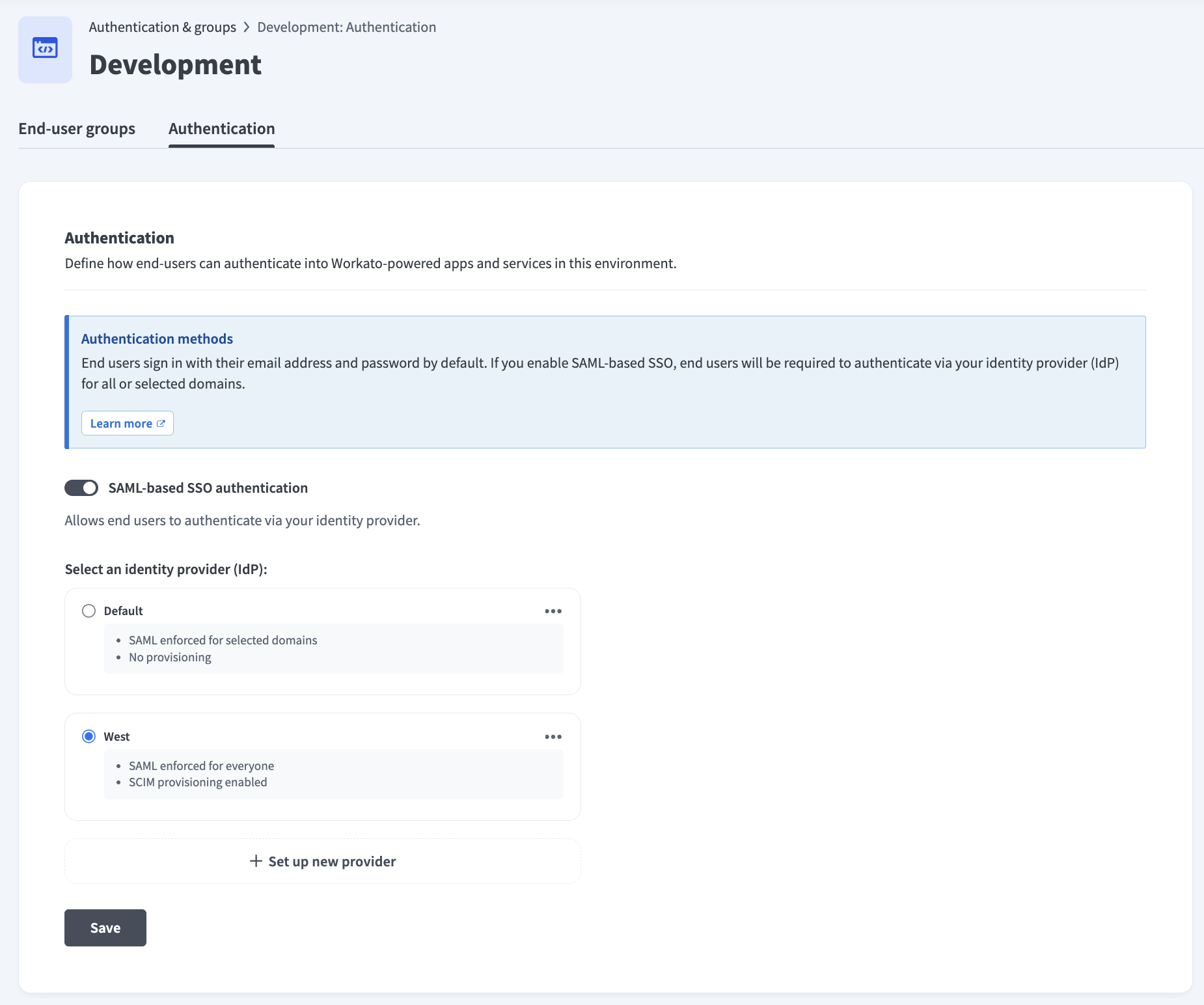 Ensure the SAML-based SSO authentication toggle is enabled
Go to the Select an identity provider (IdP) section and click + Set up new provider.
Provide a name for your IdP in the Identity provider (IdP) name field. For example: Okta Dev.
Go to the Enforce SAML authentication for section and select All domains or Selected domains.
Click Next.
Copy the Specify Single sign-on URL and Service provider (SP) entity ID values and paste each value into your IdP to enable access to Workato-powered apps and services.
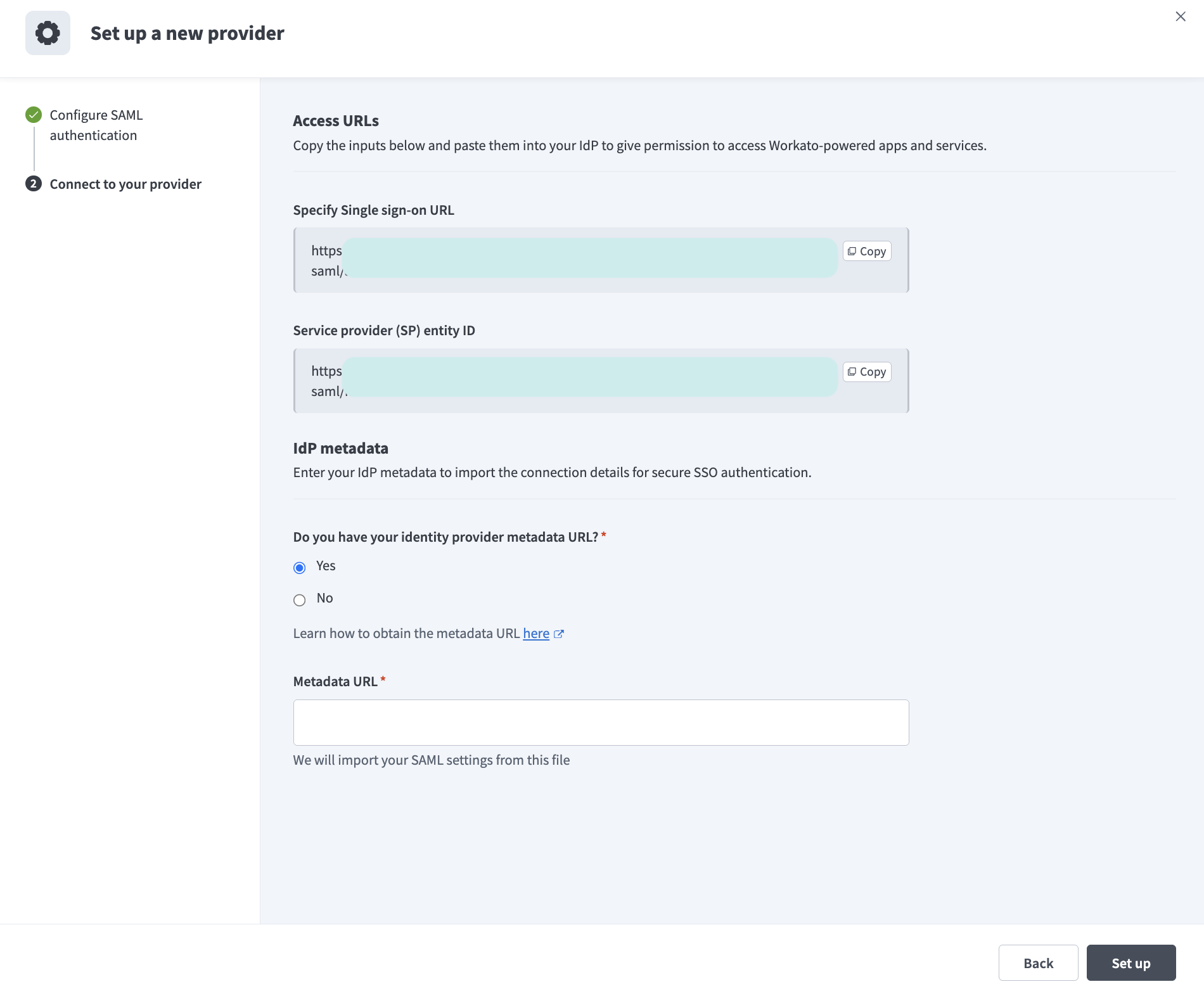 Copy the Specify Single sign-on URL and Service provider (SP) entity ID values
Locate the Do you have your identity provider metadata URL? field and select Yes or No depending on whether you have access to your IdP metadata URL.
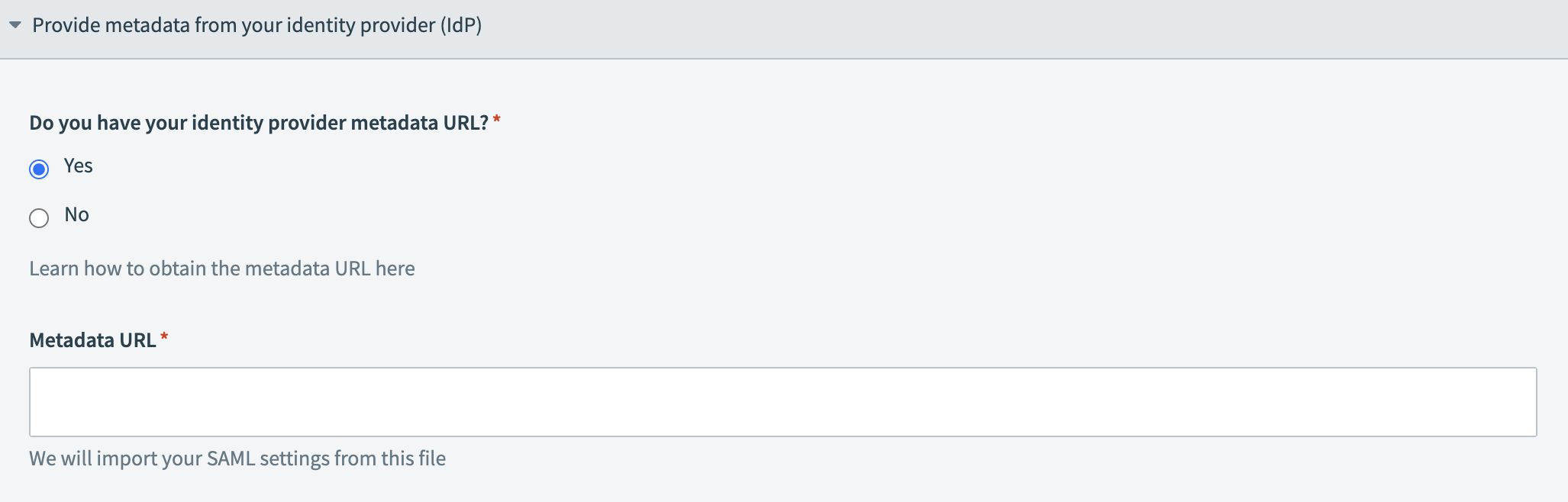 Provide your metadata URL
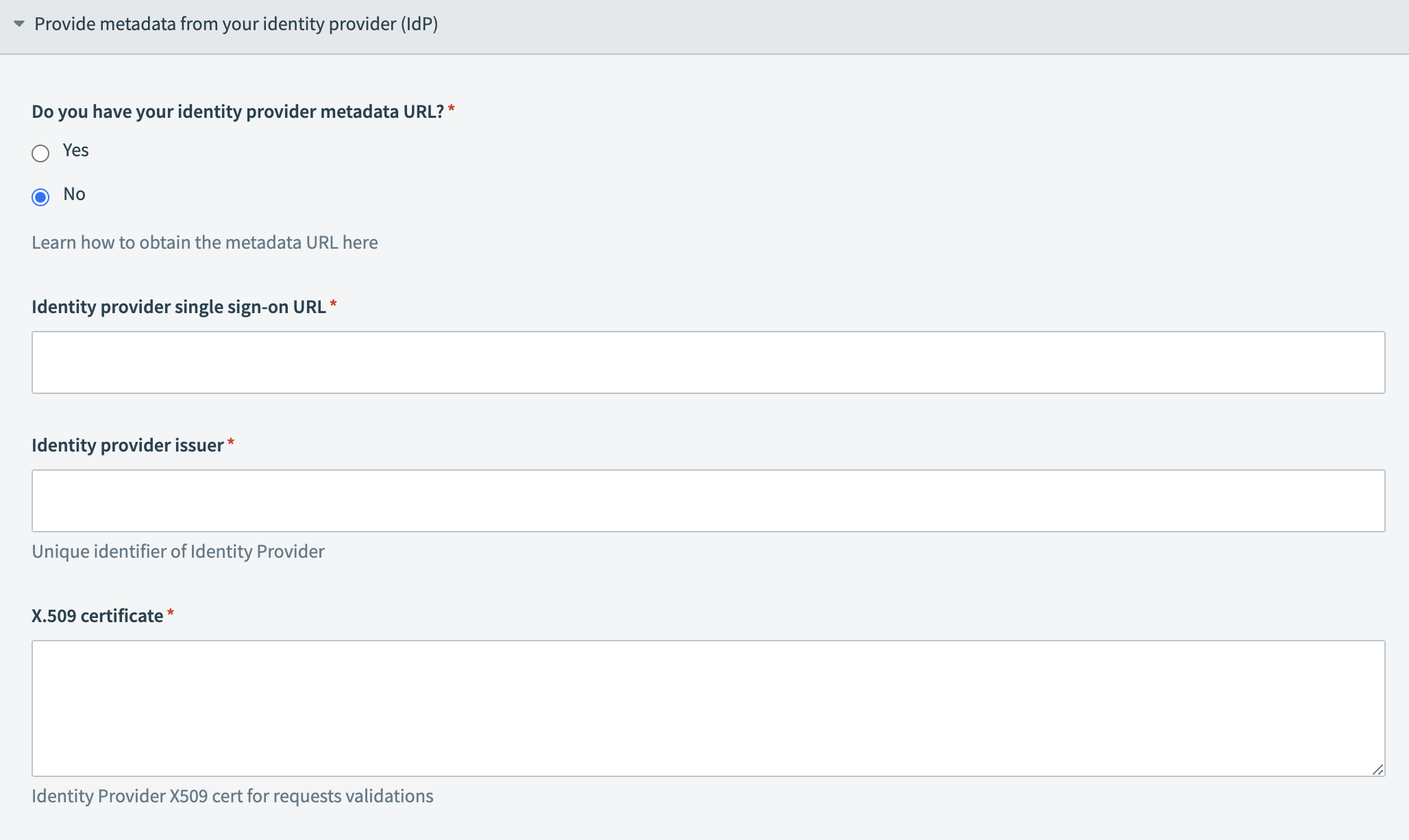 Provide your IdP information
Click Set up. You are redirected to the Authentication tab where your configured IdP displays.
Go to the IdP you configured in the preceding steps and click Set up.
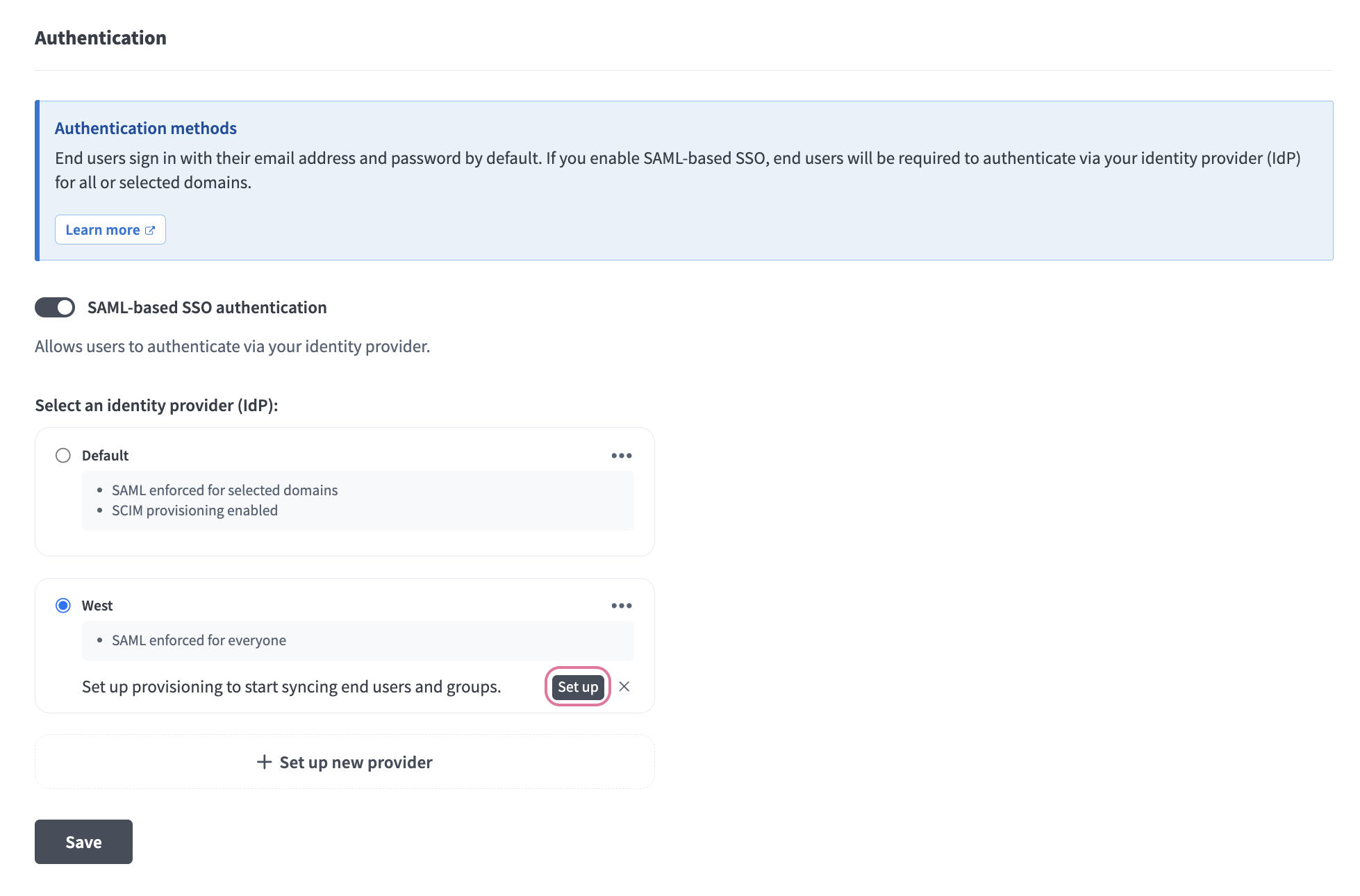 Click Set up.
Click SCIM provisioning in the Provisioning modal.
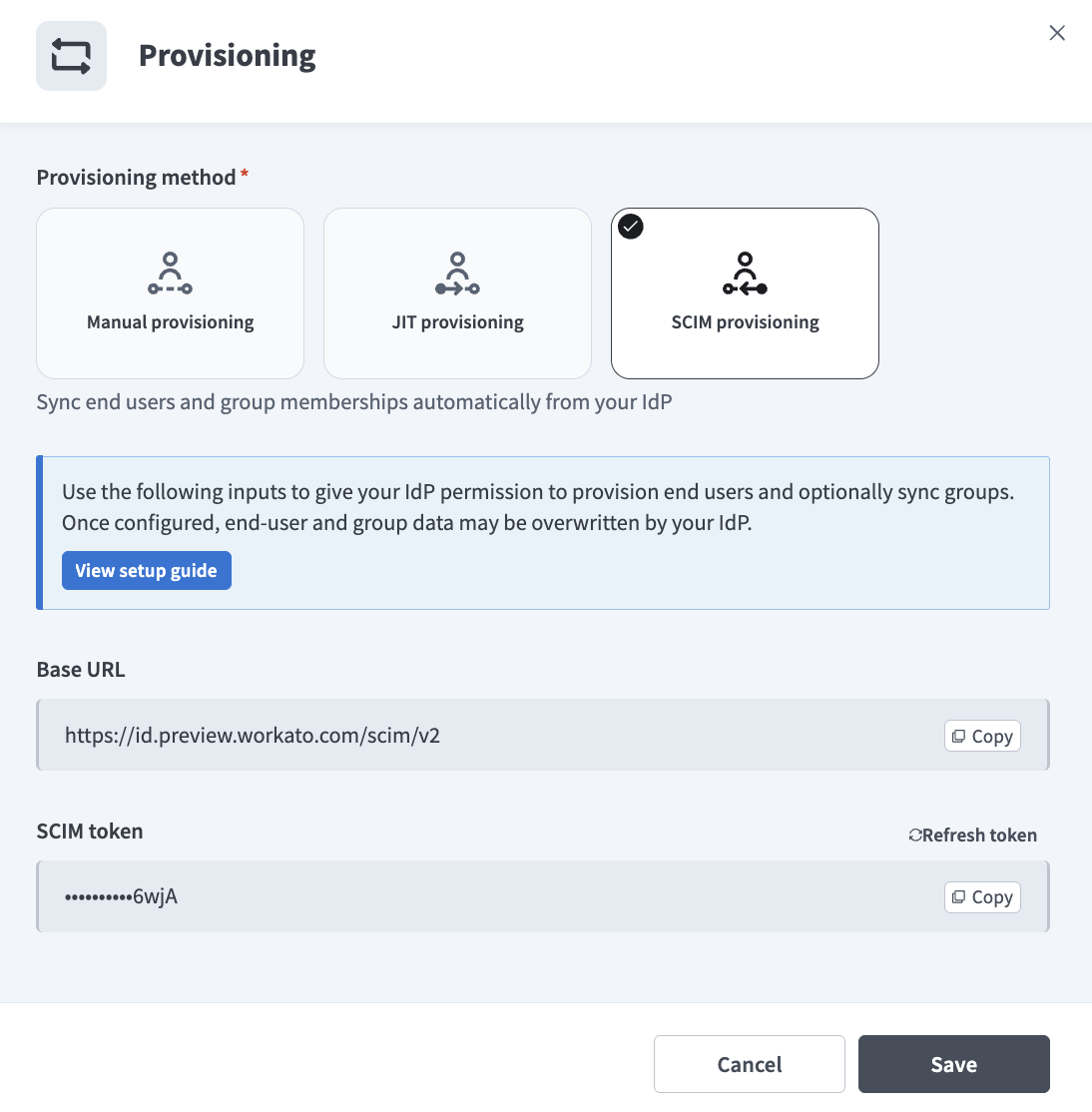 Select SCIM provisioning.
Copy the Base URL and SCIM token. Use these values to give your IdP permission to provision end users and optionally sync groups. End-user and group data may be overwritten by your IdP with this configuration.
GROUP OVERWRITES CAN CAUSE LOSS OF MEMBERSHIP CONTROL
Custom group IDs are preserved when group changes are pushed from your IdP through SCIM. Changes that overwrite a local group can result in immediate loss of membership control over that group in Workato Identity. Ensure your groups are configured correctly in your IdP before pushing changes to prevent unintended loss of membership control over local groups in Workato Identity.
Click Save.
Set up SCIM in your IdP
You must configure your IdP to use SCIM with the Base URL and SCIM token provided in the End user and group provisioning configuration.
SCIM TOKENS
SCIM tokens must be sent in the header with Authorization: Bearer [TOKEN].
Complete the following steps to obtain your Base URL and SCIM token:
Go to the Authentication tab in Workato Identity.
Click the ellipsis menu for the IdP you plan to use.
Select End user & group provisioning.
Copy the Base URL and SCIM token values.
Refer to the following IdP resources for IdP-specific SCIM provisioning configuration information and examples:
- SCIM provisioning in Okta
- You must have the Create Users setting enabled in Okta. Refer to the Matching user not found section for more information.
- SCIM provisioning in Microsoft Entra ID (Azure Active Directory)
- SCIM provisioning in OneLogin
SCIM quotas
| Description | Quota | Notes |
|---|---|---|
| Maximum users per add-to-group or remove-from-group API request | 100 users per request | SCIM provisioning has no request rate limit. The batch quota applies only to the number of users you can include in a single group-membership API request. |
Troubleshoot errors
Unable to update Group Push mapping target App group
You may receive the following error in your Okta SCIM account if you attempt to sync a group from your IdP that already exists within Workato Identity:
Unable to update Group Push mapping target App group
Rename either the Okta group or the existing Workato Identity group to resolve this error.
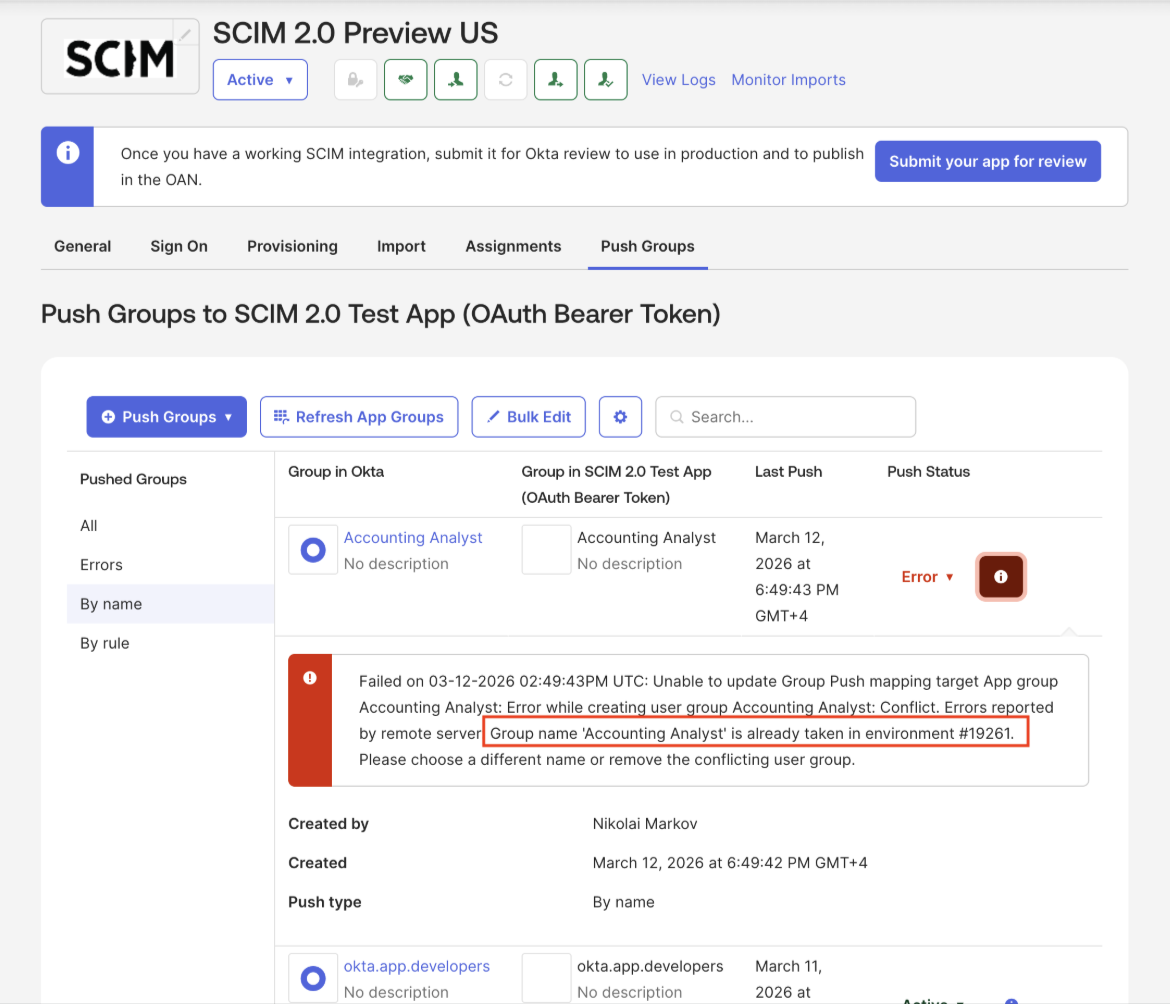 Existing group error
Matching user not found
You may receive this error if the Create Users setting is not enabled.
Complete the following steps to resolve this error:
Go to your Okta SCIM account.
Click Settings.
Select To App > Provisioning.
Go to the Create Users section and select the Enable checkbox.
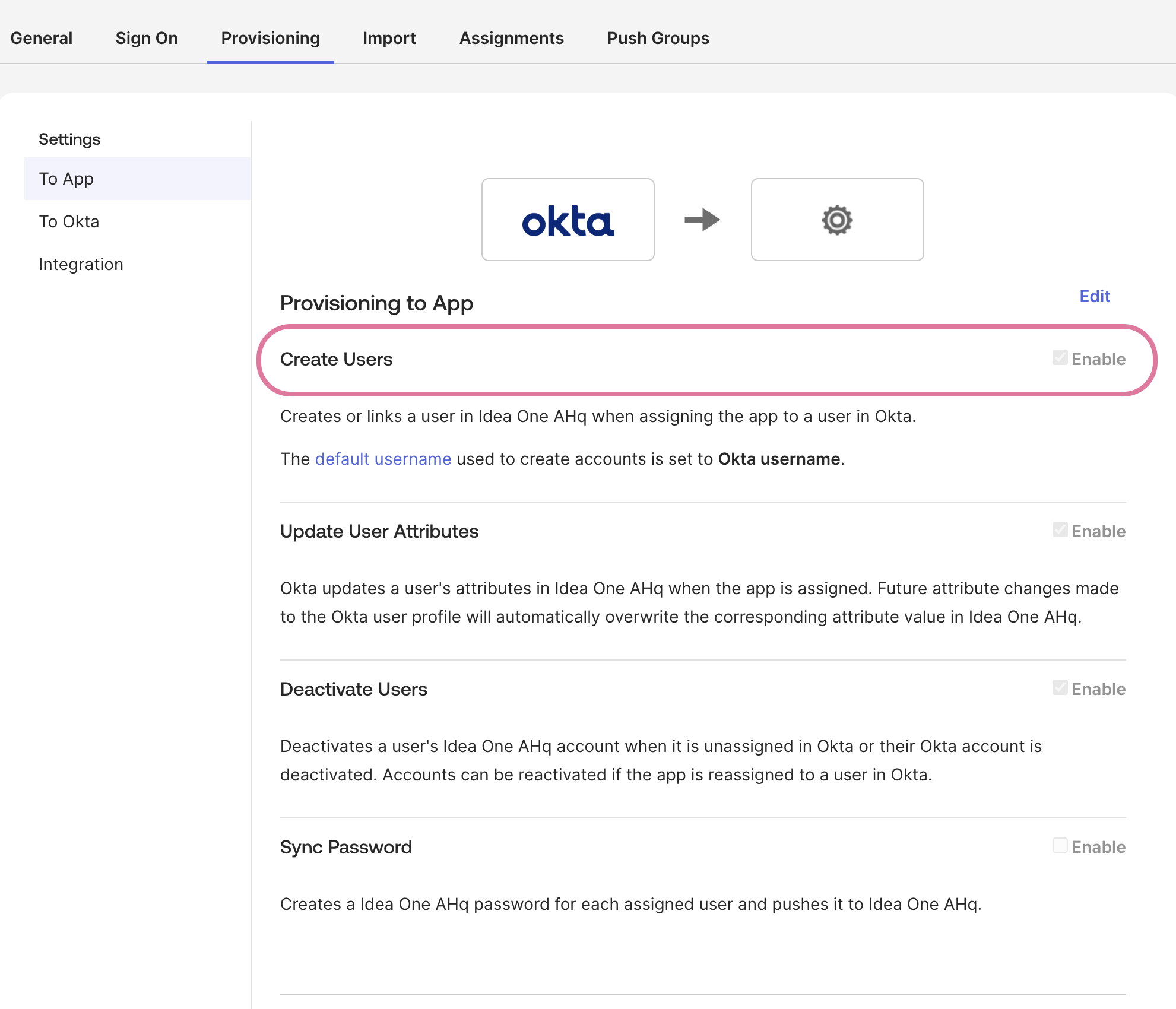 Enable Create Users
Unique identifier field
Okta requires a unique identifier field during SCIM configuration. Workato recommends that you use email as the value for the Unique identifier field for users field.
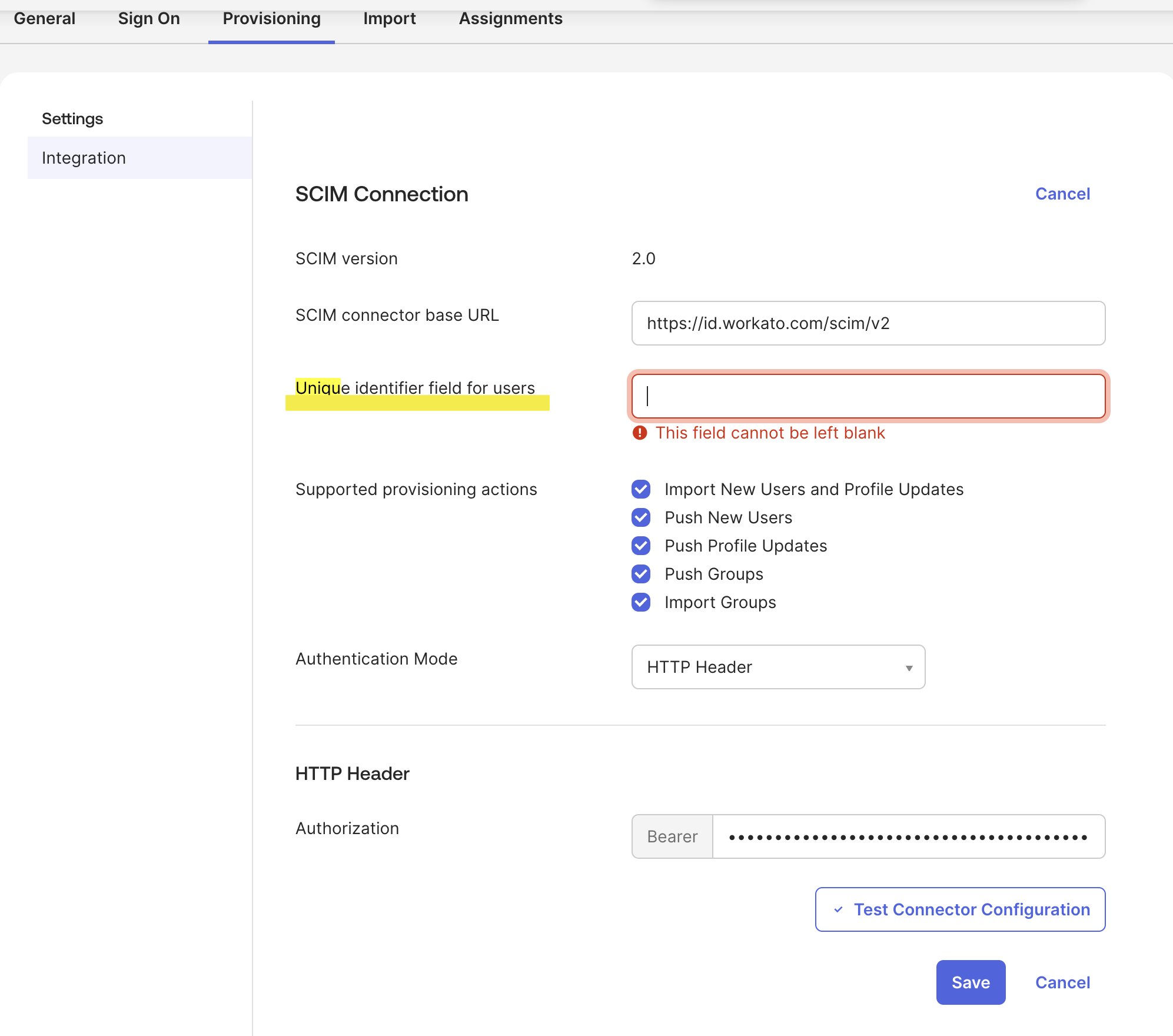 Use email as the value for the Unique identifier field for users field
HTTP header authorization failure
Ensure that you set the authentication method for the HTTP Header when configuring SCIM in Okta. Workato's SCIM endpoint authenticates requests using the SCIM token generated during provisioning setup. You must provide this Workato token as the bearer token value in Okta.
Last updated: