Modify page components
Follow these instructions to modify, duplicate, or delete components. You can also undo or redo actions that modify the page layout. Refer to the properties page for more information on component properties.
Resize components
Complete the following steps to resize a component:
Click the component you plan to resize to select it.
Drag the left or right border of the component.
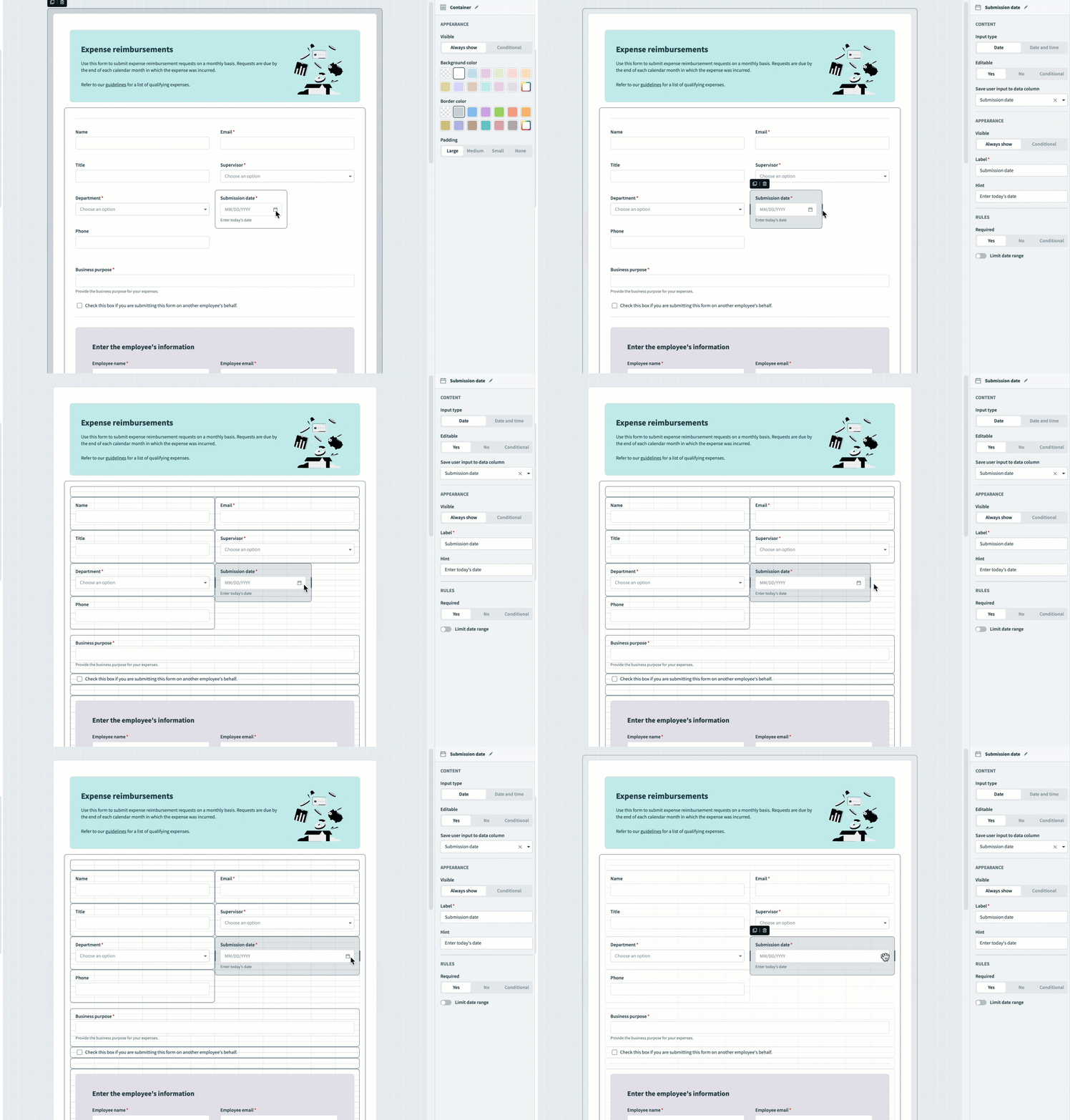 Resize a component
Duplicate components
You can duplicate (copy and paste) existing individual page components or containers that have multiple smaller components within them for reuse within the same Workflow apps page. Duplicated components retain the same configuration settings as the original component. For example, when you duplicate a button component, the new button retains the same action as the original. Additional modification of duplicated components may be required depending on how you plan to use them.
Complete the following steps to duplicate a page component:
Click the component you plan to duplicate to select it.
Click the duplicate icon on the component's top-left corner.
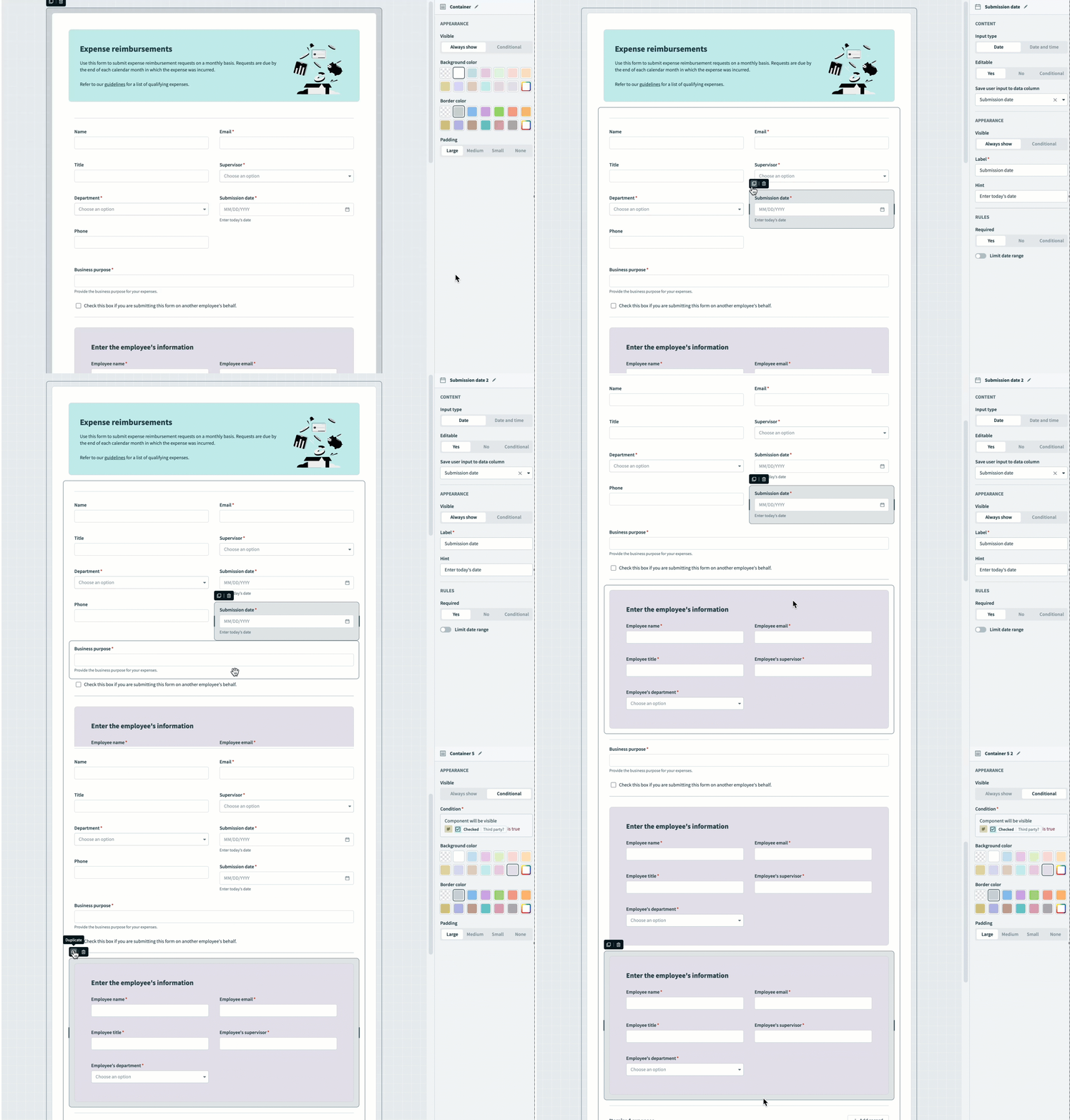 Duplicate a component
Modify, resize, and move the component as needed.
Delete components
Complete the following steps to delete a component:
Click the component you plan to delete to select it.
Click Delete (trash icon) in the component's top-left corner.
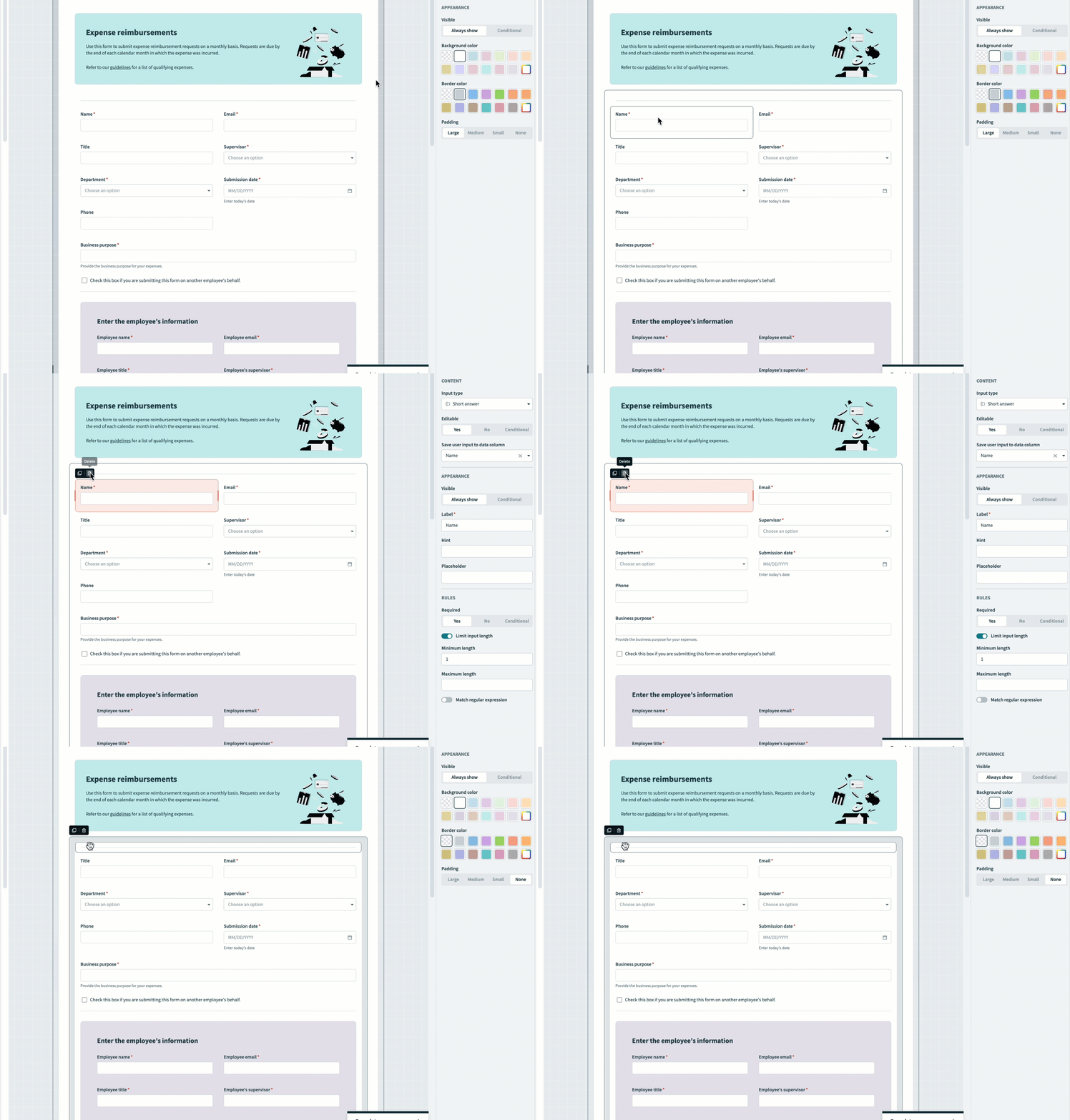 Delete a component
Undo or redo actions
You can undo or redo actions that modify your page layout, including:
- Add, delete, or clone a component
- Move or resize a component
Complete the following steps to undo or redo an action:
Sign in to Workato and select a Workflow app.
Open a Workflow apps page in the page editor.
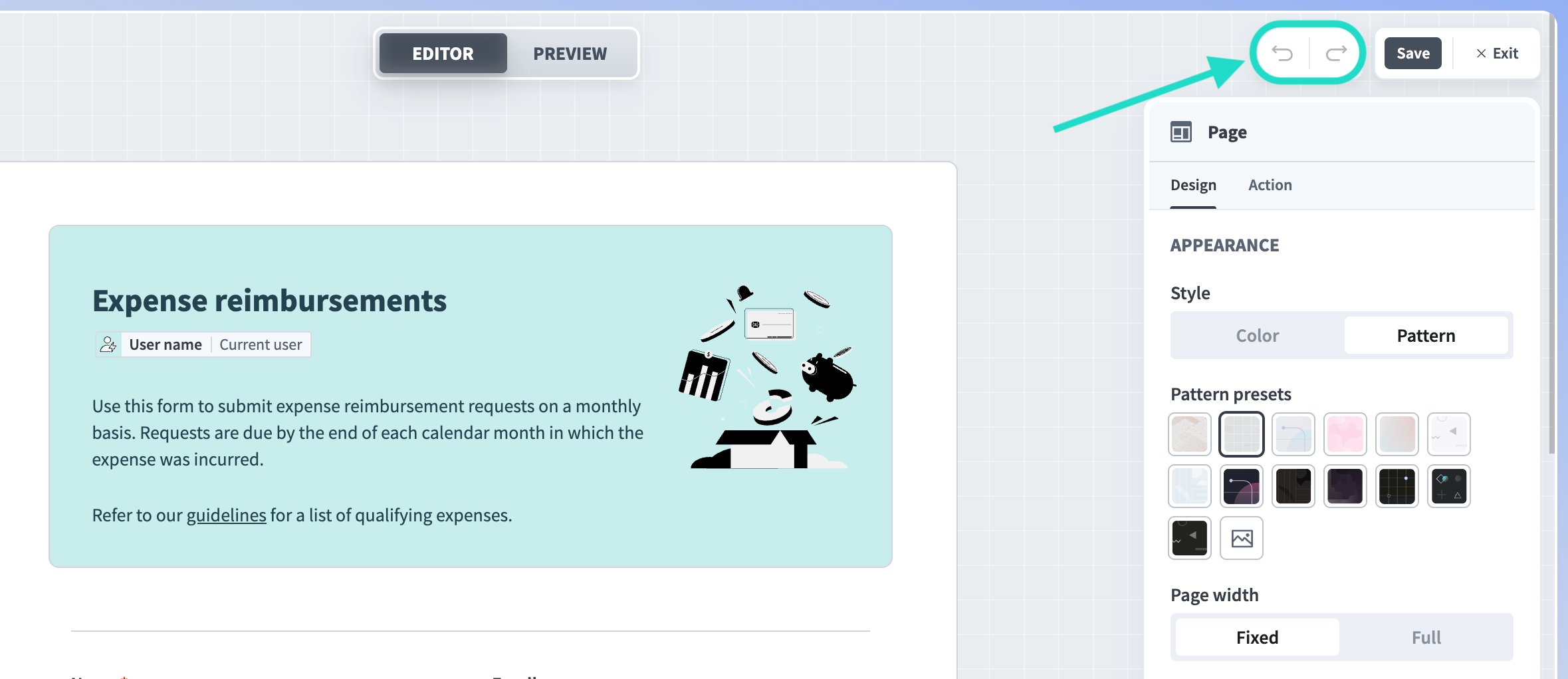 Undo or redo an action in the page editor
Last updated: