Add a Slack data source to Workato GO
Slack federated search enables users to search Slack workspace messages in real time alongside other data sources in a unified search experience. Unlike indexed data sources, Slack search queries the Slack API with end-user OAuth credentials when a user performs a search, which prevents data leakage. Slack only permits federated search.
This data source configuration and search experience integrates Workato connector actions and runtime connections.
Prerequisites
You must have the following to use the Slack data source connector:
- An existing parent connection in Workato to add Slack as a data source in Workato GO.
- A custom OAuth profile for Slack. Refer to Custom OAuth profiles for Slack for more information.
Create a custom OAuth profile
Complete the following steps to create a custom OAuth profile for Slack:
Sign in to your Workato account.
Go to Tools > Custom OAuth profiles.
Click + New custom profile.
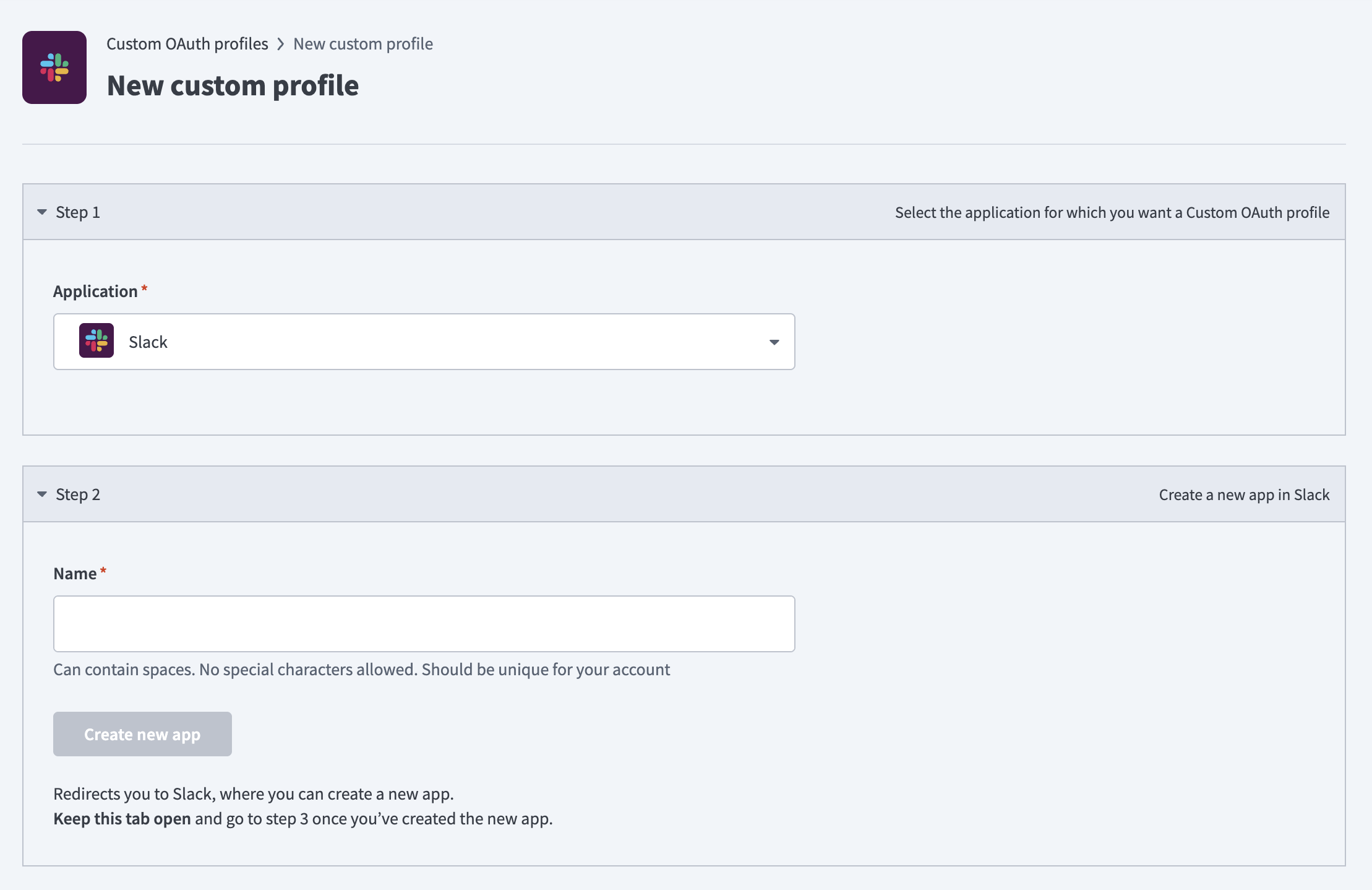 Create a new custom profile
Use the Application drop-down menu to select Slack.
Provide a name for your custom profile in the Name field.
Click Create an app. This opens the Slack API page in a new window. Keep Workato and Slack open, as you need both to complete the following steps.
Sign in to your Slack workspace if prompted, then select Create an App.
Choose how to configure your app's scopes and settings:
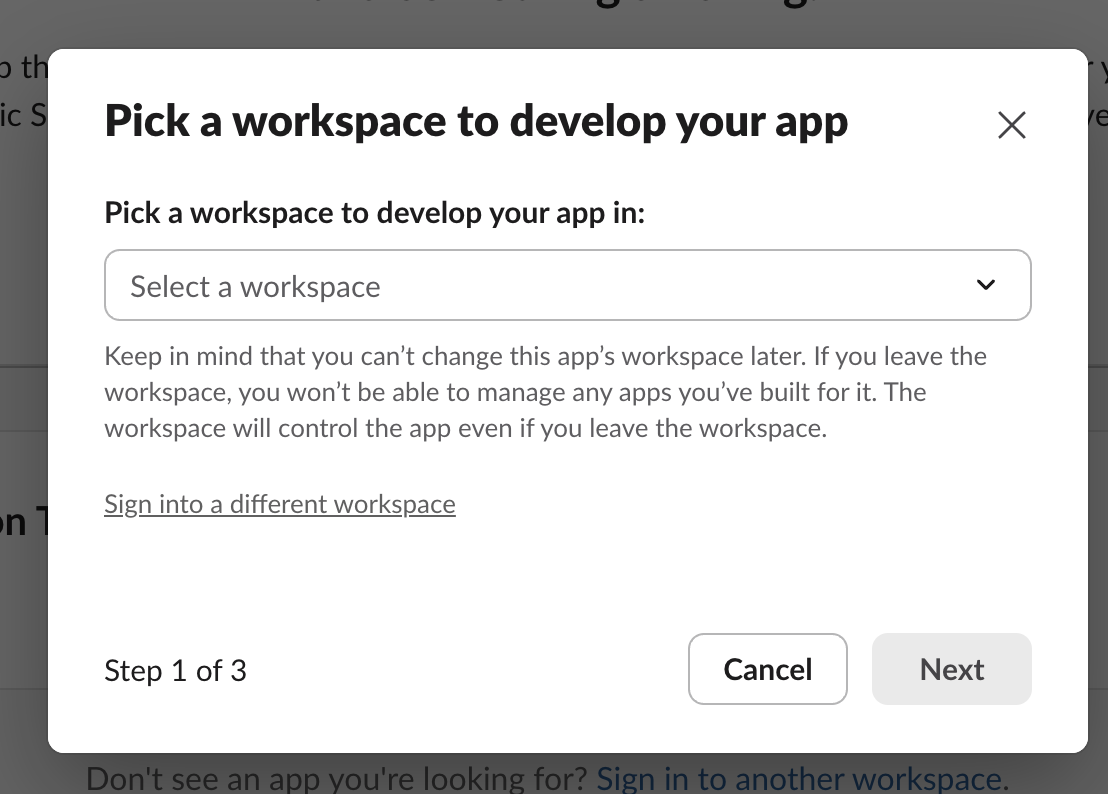 Pick a workspace to develop your app in
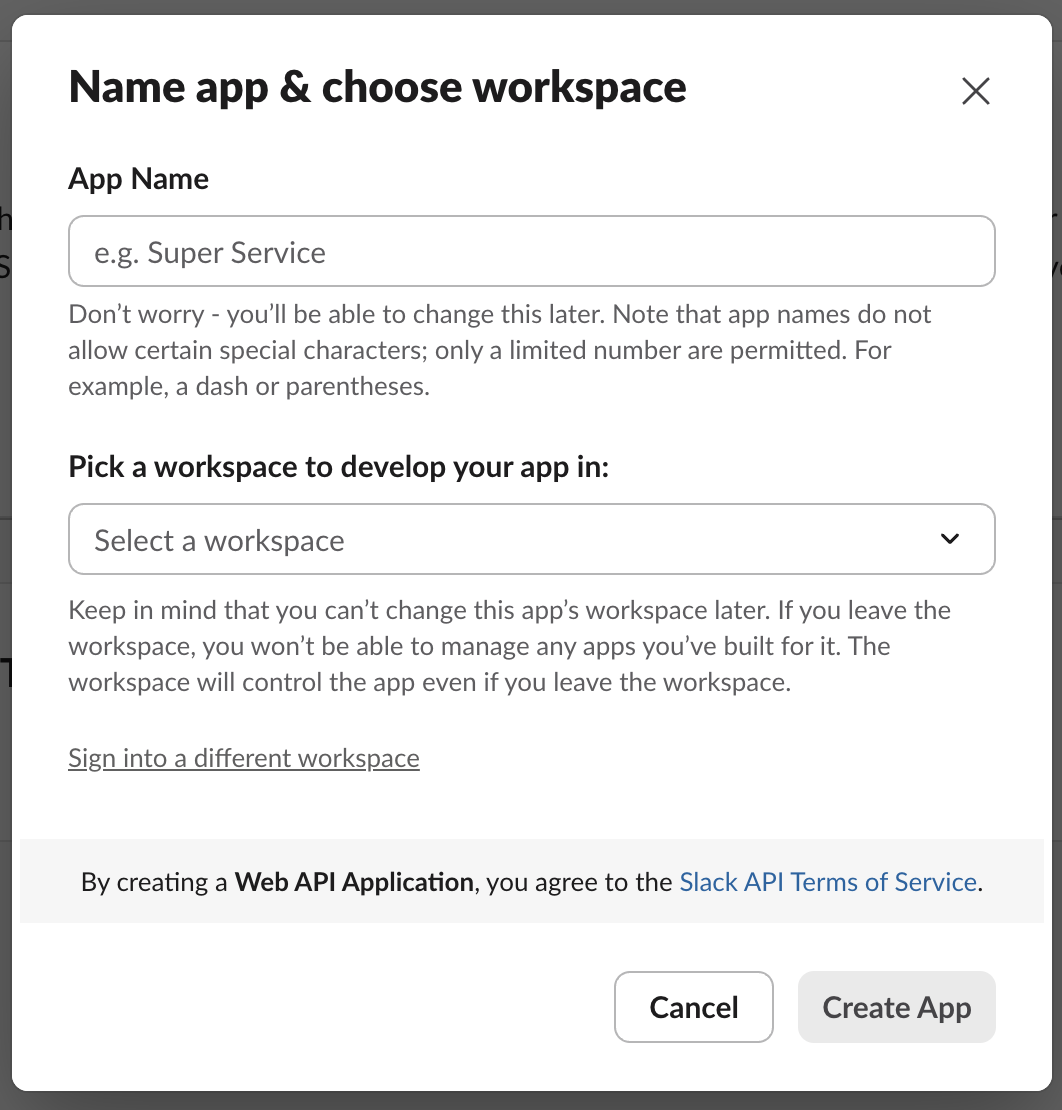 Name app and choose workspace
Go to the App Credentials section of the Slack Basic Information page, copy the following credentials and enter the values in the corresponding fields in Workato:
- Client ID
- Client secret
- Signing Secret
Click Save.
Configure your Slack app
You must configure redirect URLs, interactivity, and user token scopes in the Slack API platform after you create your custom OAuth profile.
Configure redirect URLs
Go to OAuth & Permissions > Redirect URLs in the Slack API platform.
Add the following redirect URL:
https://www.workato.com/oauth/callbackClick Save URLs.
Configure interactivity and shortcuts
Complete the following steps to configure interactivity and shortcuts:
Go to Interactivity & Shortcuts > Interactivity and turn it on in the Slack API platform.
Paste the following URL into the Request URL field:
https://www.workato.com/slack_webhooks/actions?sa_scope=adapter&coak_id=38630Click Save Changes.
Configure user token scopes
Complete the following steps to configure your user token scopes:
Go to OAuth & Permissions > Scopes > User Token Scopes in the Slack API platform.
Add the following scopes:
| Scope | Access |
|---|---|
channels:read | View basic channel information |
channels:write | Manage channels |
chat:write | Send messages |
groups:read | View private channel information |
groups:write | Manage private channels |
im:read | View direct message information |
im:write | Manage direct messages |
mpim:read | View group DM information |
mpim:write | Manage group DMs |
search:read | Search workspace messages and files |
users:read | View user information |
users:read.email | View user email addresses |
Return to the Workato platform and click Done.
Create a Slack connection
Create a Slack connection in Workato before you add Slack as a data source in Workato GO. End users establish their own runtime connections after the data source is configured.
Complete the following steps to create a Slack connection:
Go to Connections > Create > Connection in the Workato platform.
Search for Slack and select it as your app.
Enter a descriptive name in the Connection name field.
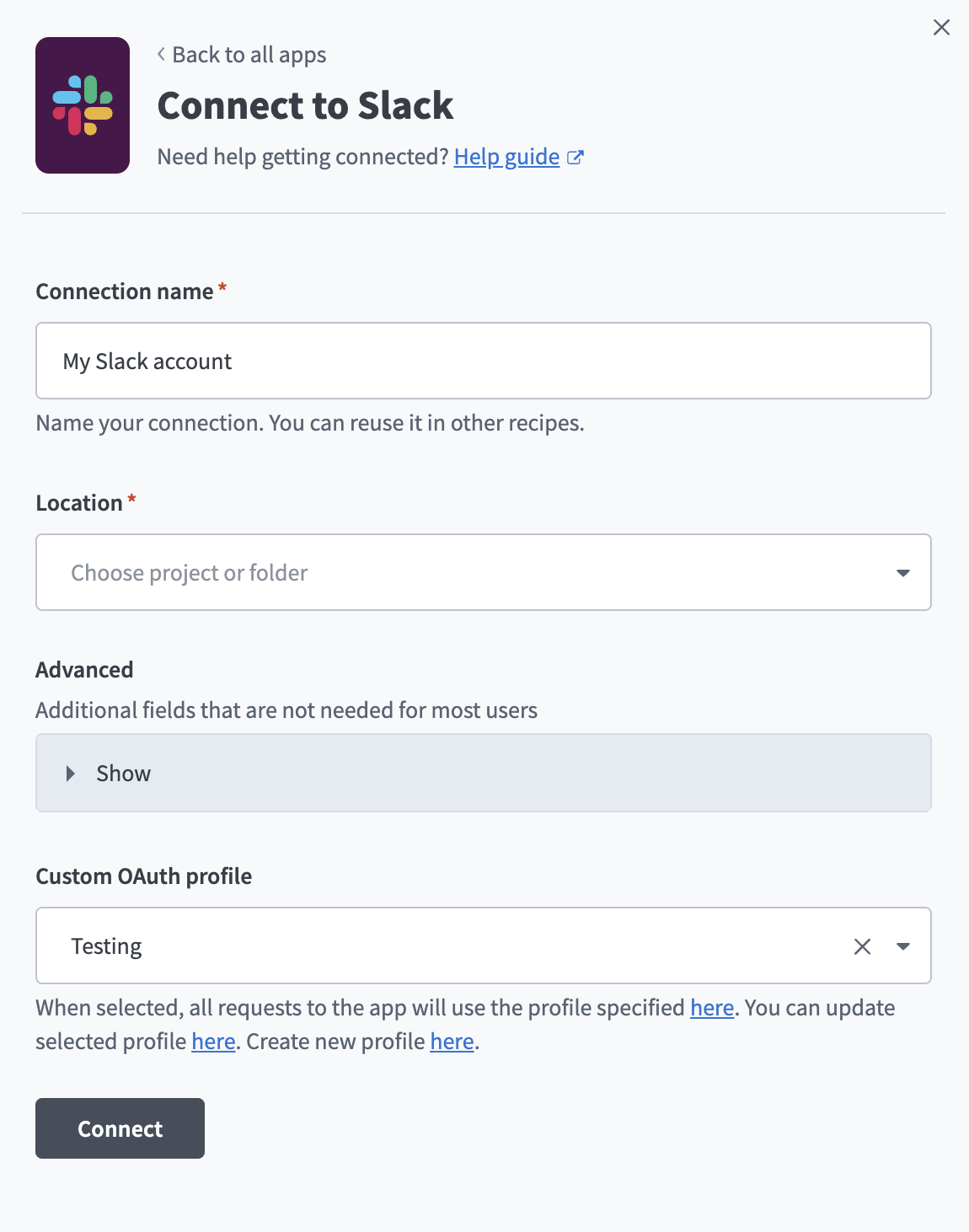 Connect to Slack
Use the Location drop-down menu to select the appropriate project folder.
Optional. Expand Advanced to configure additional settings.
Use the Custom OAuth profile drop-down menu to select the OAuth profile you created in the preceding steps.
Click Connect and authorize the app in Slack when prompted.
Add Slack as a data source
Complete the following steps to add Slack as a data source in Workato GO:
Sign in to your Workato GO account.
Expand the Admin menu in the sidebar and click Data sources.
Click Add Data Source. The Add Data Source page displays.
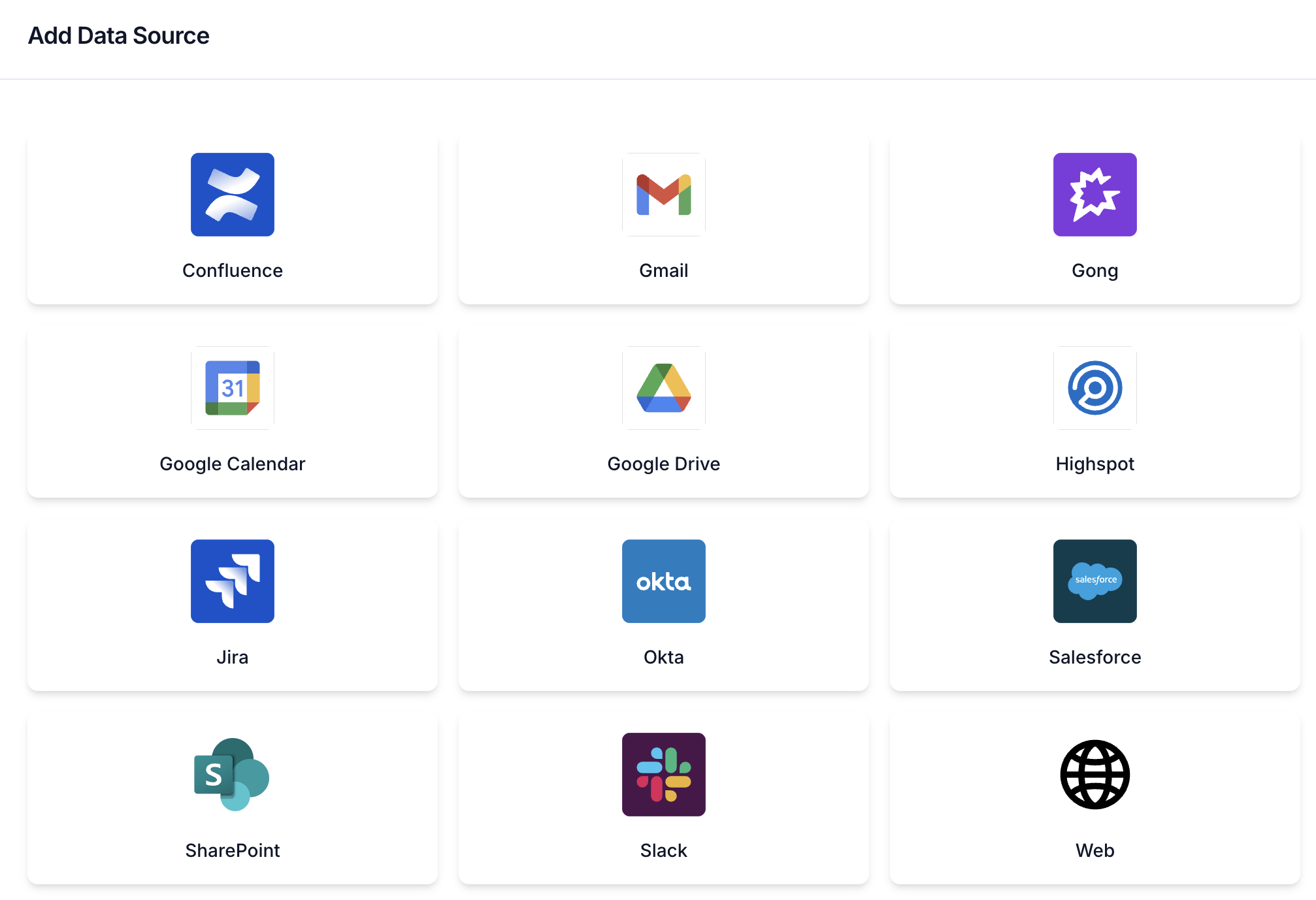 Add data source
Select the Slack app.
Enter a descriptive name in the Name field.
Use the Select a Slack connection drop-down menu to select the connection you created in the preceding steps.
Click Use connection > Next. Slack now appears on the Data Sources page.
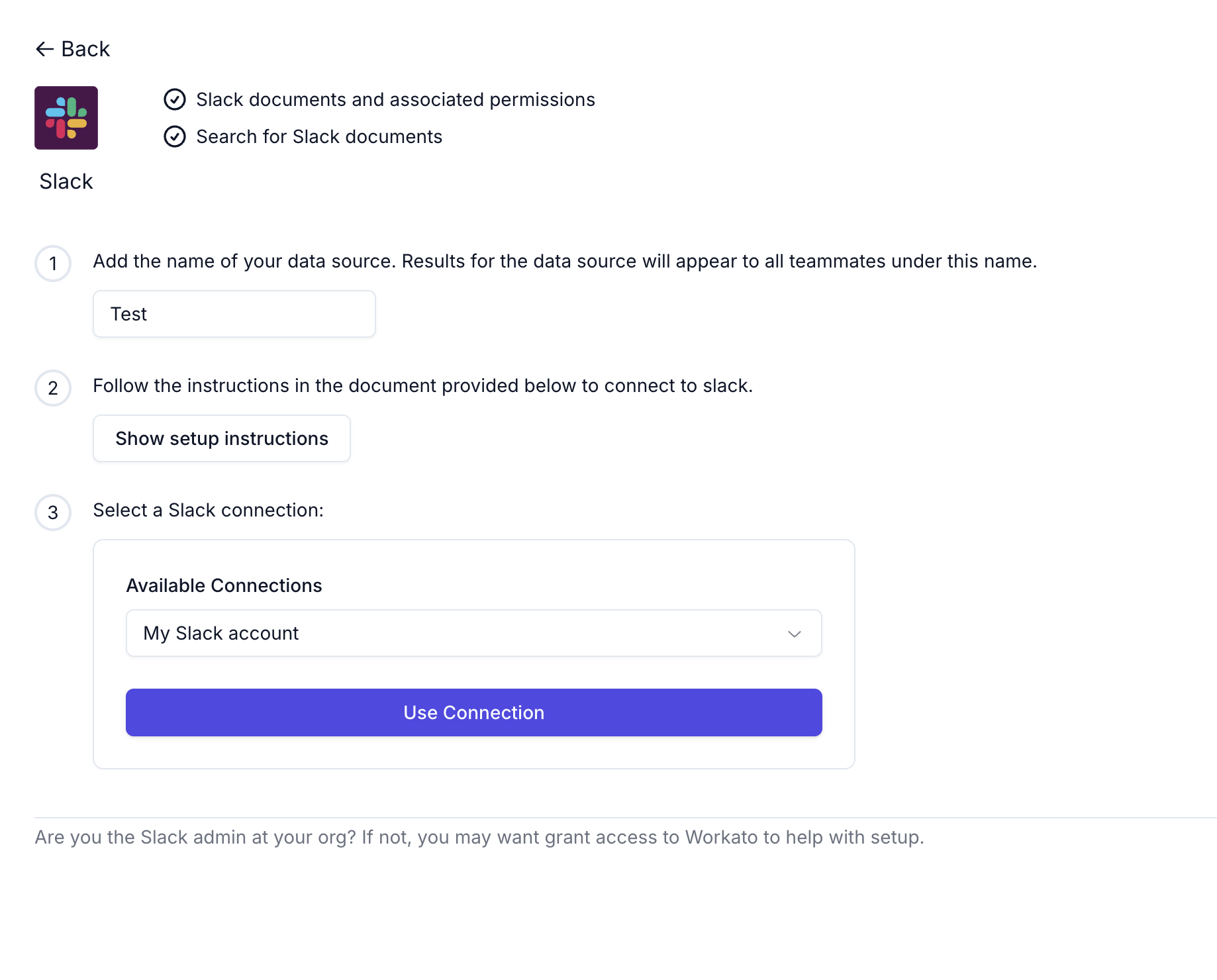 Use Slack connection
Click your email in the bottom-left corner to open the selection menu.
Click Connections in the menu.
Go to Discover new connections and click Connect next to your Slack connection.
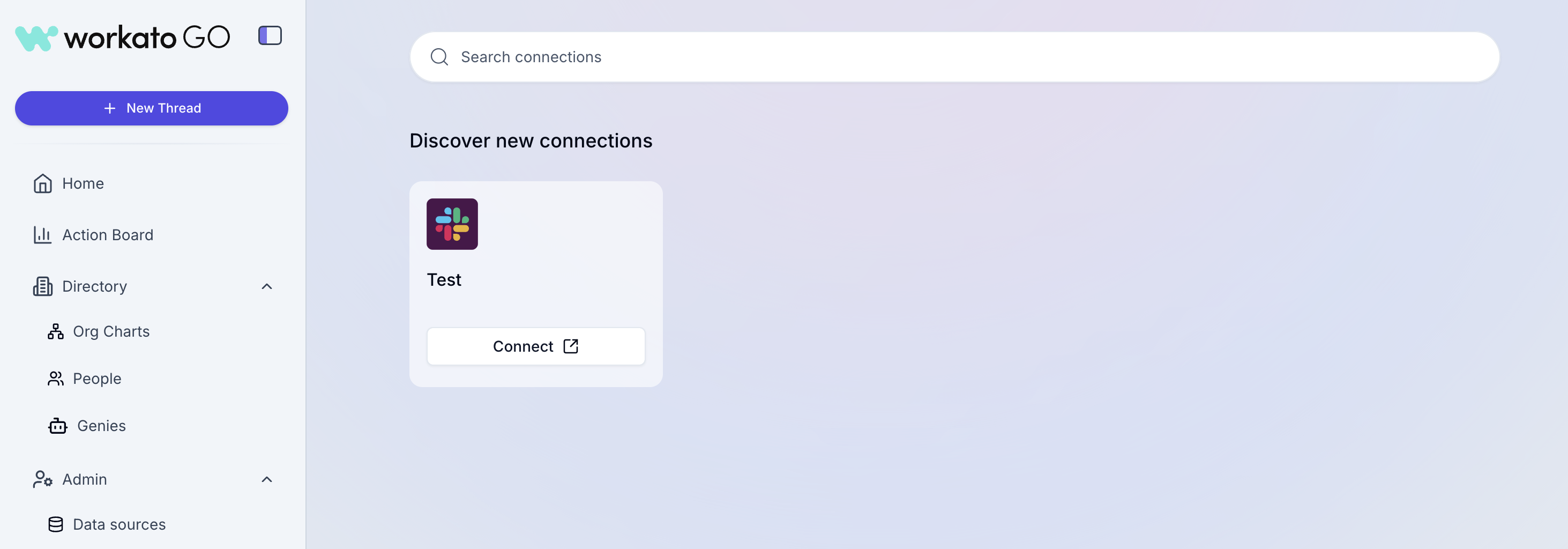 Discover new connections
Click Create Connection in the Create Runtime Connection modal.
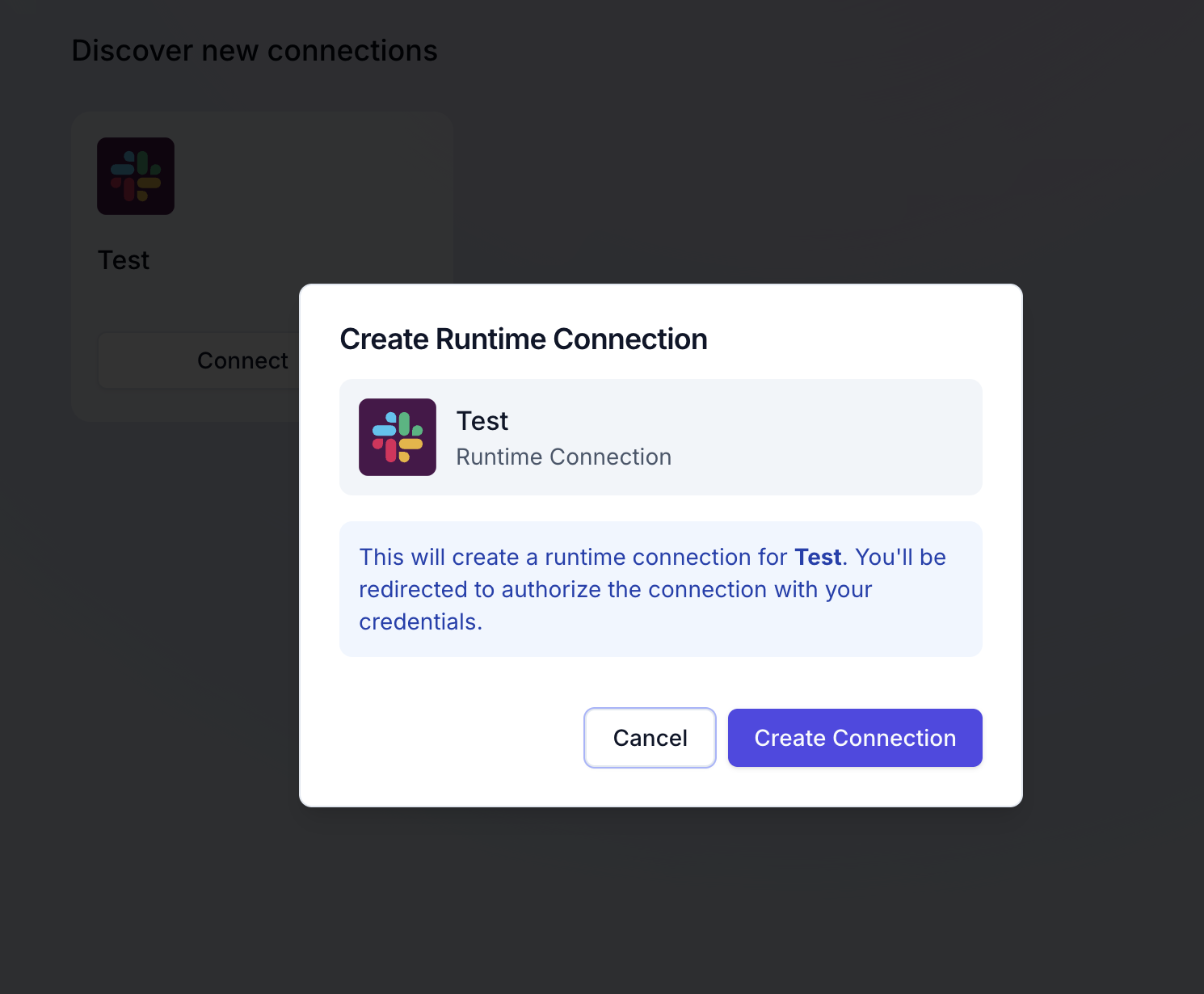 Create runtime connection
Complete the authorization for the app in Slack when prompted. You can now use Slack as a data source in Workato GO.
Last updated: