Add a Salesforce data source to Workato GO
The Salesforce data source enables Workato GO to index Salesforce objects and associated permissions, sync updates multiple times per hour after the initial crawl, and support search across Salesforce records.
Prerequisites
Ensure you meet the following requirements before you begin:
- You have a Workato GO admin account
- You configured a Salesforce connection in Workato using OAuth 2.0 or JWT bearer authentication
- Your Salesforce connection has the permissions required to access the objects you plan to crawl
Supported objects
The Salesforce data source supports standard and custom Salesforce objects. Ensure your Salesforce connection has read access to the objects you plan to index.
Connection permissions
The Salesforce data source inherits the permissions of the Salesforce account used to authenticate the connection. The crawler can only index objects and fields that the connected account has permission to access. Records or fields hidden by object-level or field-level security settings in Salesforce don't appear in Workato GO search results.
Workato recommends using a dedicated integration user for the Salesforce connection. A dedicated user isolates crawler access from individual user accounts and ensures consistent permissions. Refer to Required roles and permissions for details on configuring permissions for your Salesforce connection.
Configure the data source in Workato GO
Workato GO uses your existing Salesforce connection to crawl and index records. You must configure a Salesforce connection in Workato before you add the data source. Existing Salesforce connections configured in Workato appear in the Workato GO data source setup for selection.
Complete the following steps to add Salesforce as a data source in Workato GO:
Sign in to Workato GO and go to Data sources.
Click Add Data Source.
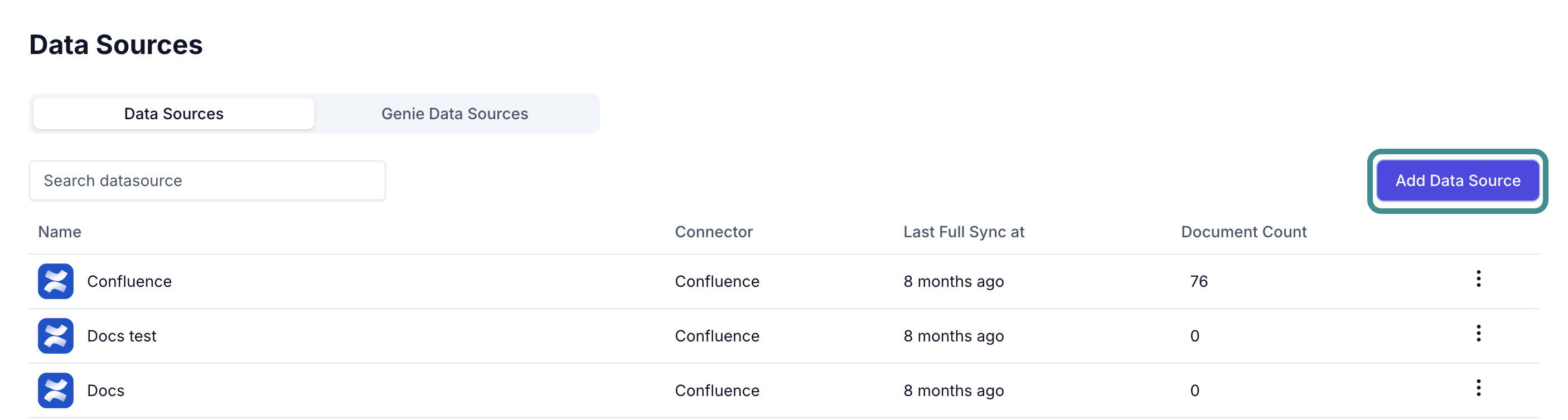 Add data source
Select Salesforce.
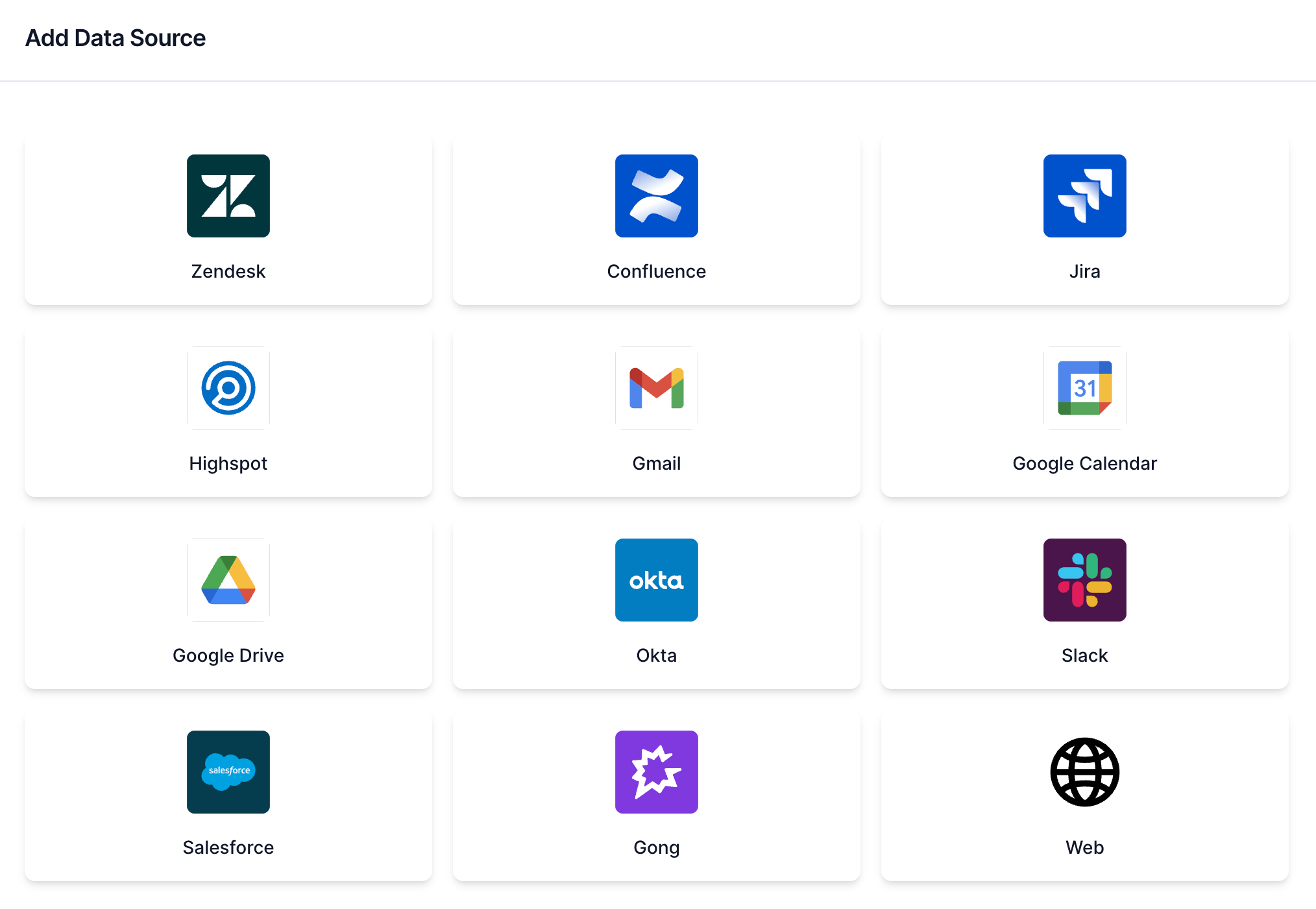 Salesforce data source
Enter a name for the data source. Results for this data source appear to all teammates under this name.
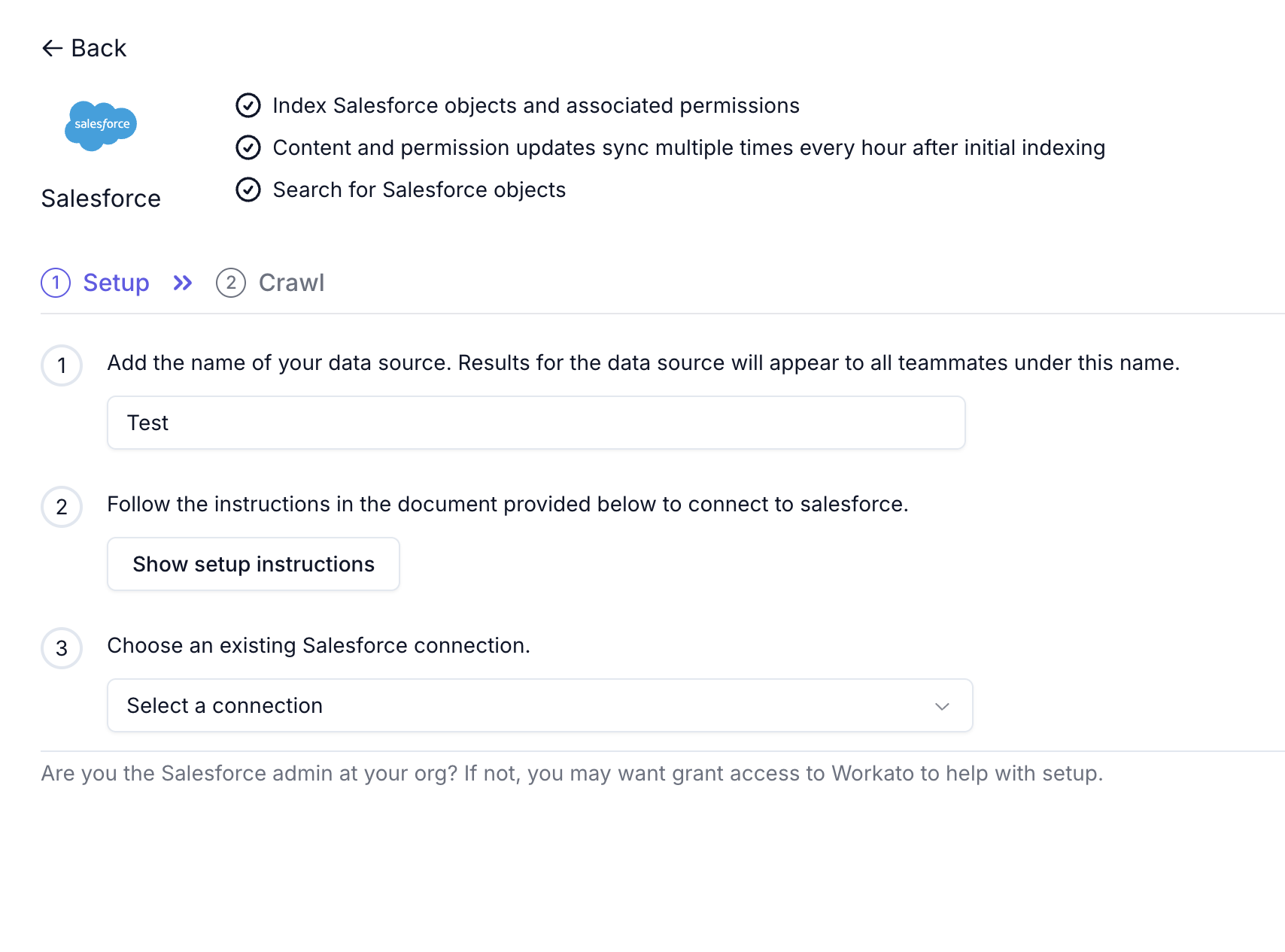 Configure your data source
Optional. Click Show setup instructions to view the Salesforce connection setup guide if you haven't configured a connection.
Use the Choose an existing Salesforce connection drop-down menu to select your Salesforce connection.
Select the Salesforce objects to sync.
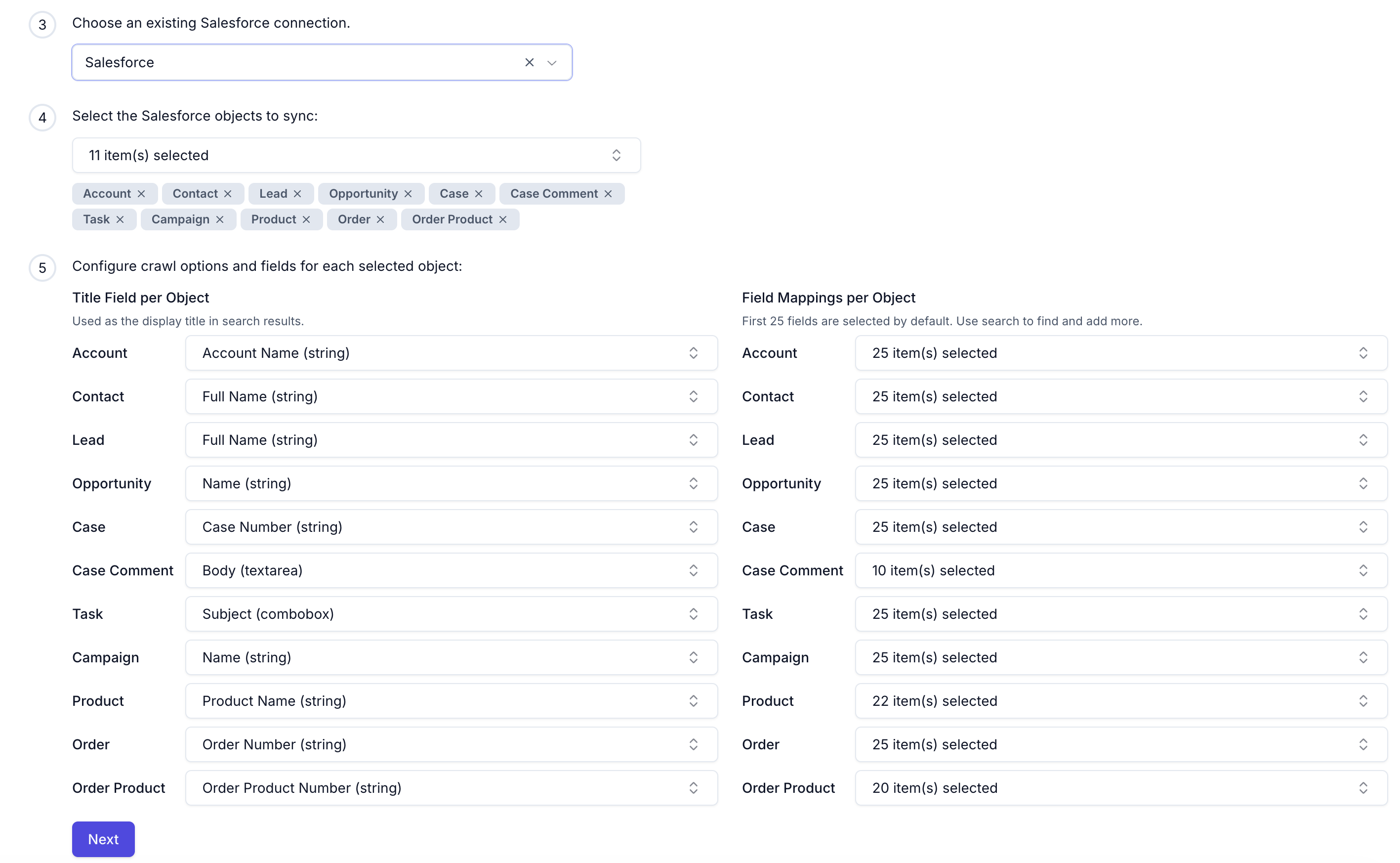 Select Salesforce objects to sync
Configure crawl options and fields for each selected object:
- Use the Title Field per Object drop-down menu to select the field displayed as the title in search results for each object.
- Use the Field Mappings per Object drop-down menu to review or update the fields indexed for each object. The first 25 fields are selected by default.
Click Next.
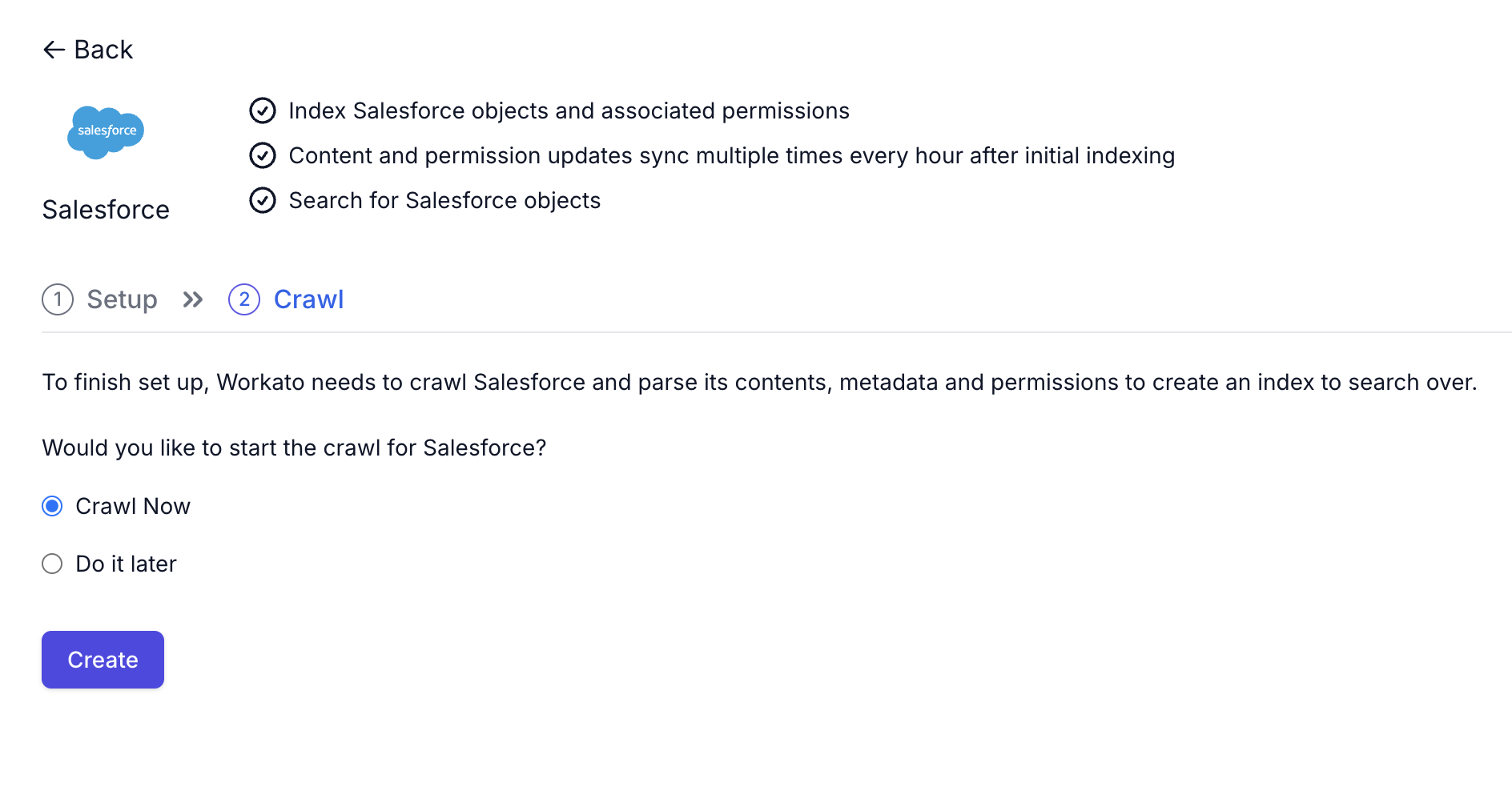
Choose when to start the crawl:
- Select Crawl Now to start immediately
- Select Do it later to delay the crawl
Click Create.
 Finish set up
Last updated: