Google Drive
Google Drive is a popular file storage and collaboration environment. The Google Drive connector enables you to build powerful automations around Google Drive and connect with other applications.
FEATURE AVAILABILITY
The Google Drive connector isn't available to workspaces in the CN data center. This reflects local regulatory requirements and applies to our multi-tenant and Virtual Private Workato (VPW) offerings.
API version
The Google Drive connector uses the Google Drive API v3.
Connection setup
The Google Drive connector supports the following authentication types:
OAuth 2.0 authentication
Minimum and default scopes
Workato requests the following scopes by default in addition to the scopes you select:
drive: See, edit, create, and delete all your Google Drive filesdrive.readonly: See and download all your Google Drive files
Additionally, your Google account must have the Edit permission for all files and folders that you plan to use in Workato recipes.
Connect to Google Drive using OAuth 2.0
Complete the following steps to set up an OAuth 2.0 connection to Google Drive in Workato:
Click Create > Connection or press C twice.
Search for and select Google Drive as your connection on the New Connection page.
Enter a name for your connection in the Connection name field.
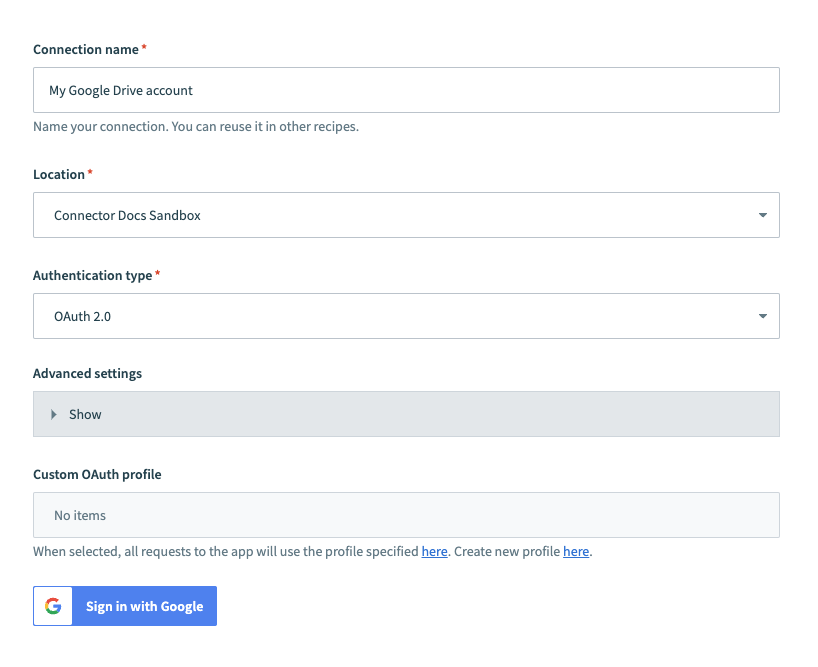 Google Drive connection setup
Use the Location drop-down menu to select the project where you plan to store the connection.
Use the Authentication type drop-down menu to select OAuth 2.0.
Optional. Expand the Advanced settings section and use the Requested permissions drop-down menu to specify OAuth scopes to request for your connection.
Optional. Use the Custom OAuth profile drop-down menu to select a custom OAuth profile to use for the connection.
Click Sign in with Google.
Click Allow to authorize Workato to access your Google Drive.
Service account authentication
A Google service account is a specialized Google account associated with a Google Cloud Project (GCP) that can run API requests on your behalf.
Service accounts provide the following benefits:
- Continuous operation: Service accounts ensure that operations continue even if individual user permissions change.
- Dedicated permissions: Service accounts can only access projects that you share with them.
- Dedicated API quotas: You can manage a service account's API quotas through GCP and request quota increases directly from Google.
Refer to the Google service account documentation to learn more about service accounts.
Set up a Google service account
Complete the following steps to set up a Google service account:
Create a service account in your GCP project.
Go to IAM & Admin > Service accounts. Ensure your dashboard is scoped to the project that contains your service account.
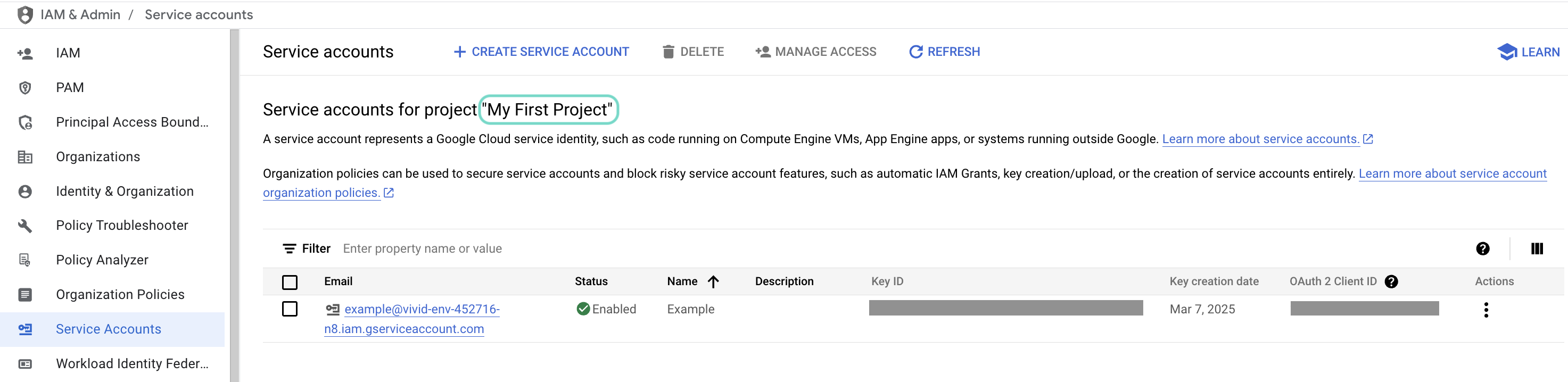 Check the scope of your dashboard.
Click the Email of the service account you intend to use.
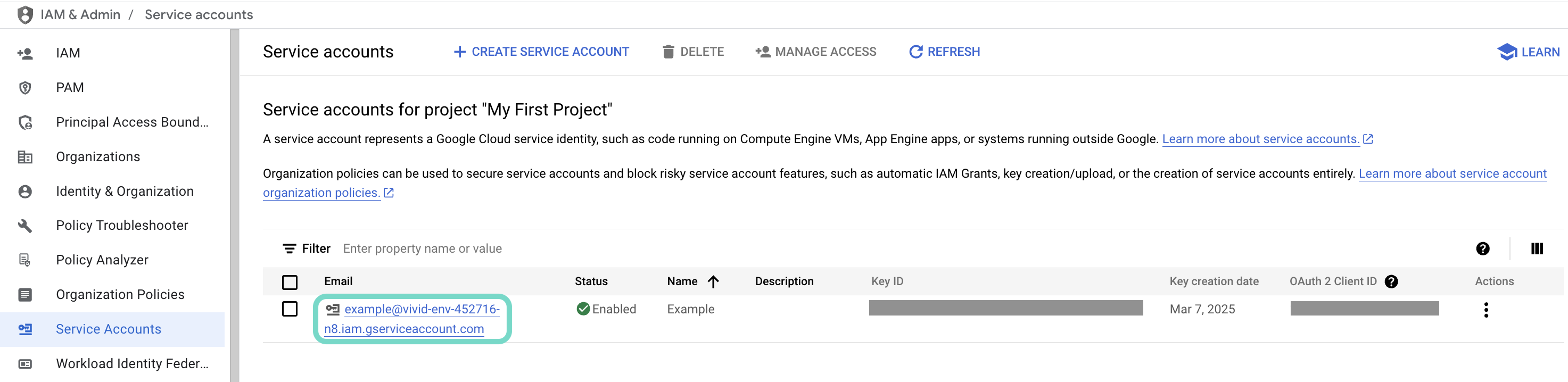 Click the Email of the service account you intend to use.
Copy the service account's Email and save it to configure your connection later.
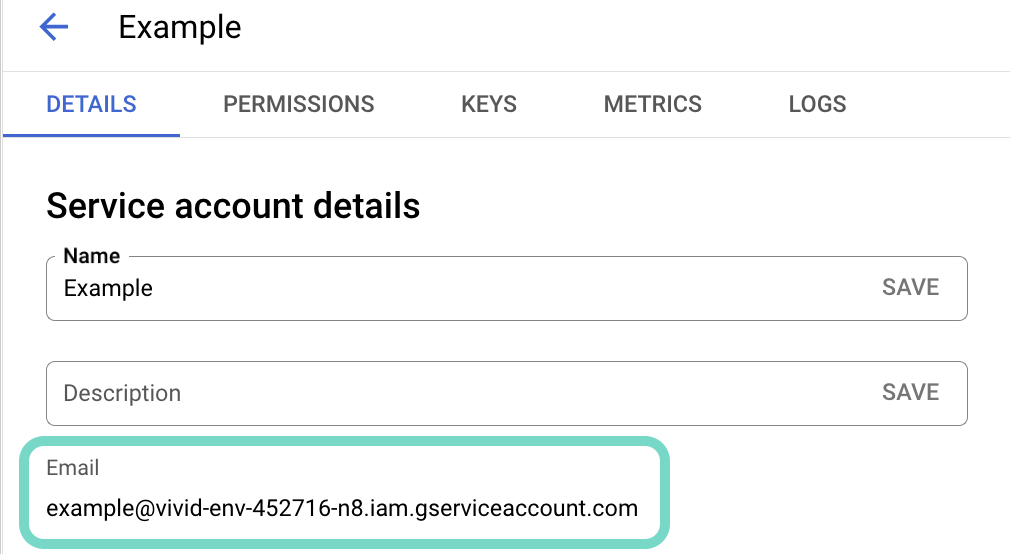 Copy the account's Email.
Go to the KEYS tab.
Generate a private key and download it in JSON format. You can only download the key once.
Open the JSON file, then copy the entire private key from -----BEGIN PRIVATE KEY----- to -----END PRIVATE KEY-----\n (inclusive) and save it to configure your connection later.
Connect to Google Drive using service account authentication
Service account authentication requires the following prerequisites:
Complete the following steps to set up a service account connection to Google Drive in Workato:
Click Create > Connection or press C twice.
Search for Google Drive and select it as your app.
Enter a name for your connection in the Connection name field.
Use the Location drop-down menu to select the project where you plan to store the connection.
Use the Authentication type drop-down menu to select Service account.
Enter the service account's email address in the GCP project service account email field.
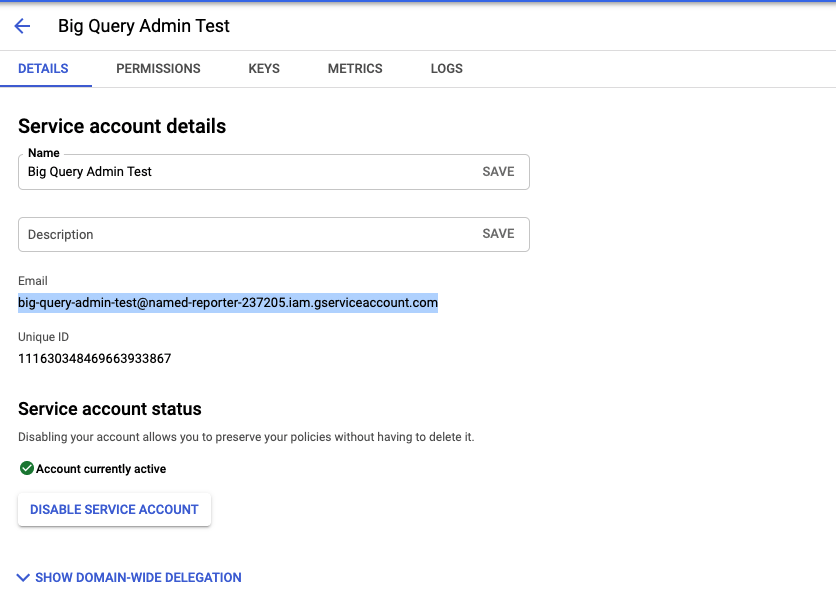 Retrieve your GCP Project service account email
Enter the Private key. Retrieve the private key from the downloadable JSON. Include both -----BEGIN PRIVATE KEY----- and -----END PRIVATE KEY-----\n.
Optional. Enter the User email of the account to impersonate. If left blank, Workato accesses the service account's Drive.
User impersonation lets the service account act on behalf of a designated user, accessing and managing events in their Google Drive. Impersonating a user ensures data accuracy and enforces the permissions and access controls set for that user in Google Drive. Refer to Google's Service account impersonation guide for more information.
Optional. Expand the Advanced settings section and use the Requested permissions drop-down menu to specify OAuth scopes to request for your connection.
Click Sign in with Google.
Last updated: