Guardrails
Guardrails are built-in security and safety controls that ensure your genies behave reliably and appropriately. Guardrails are configured on your genie's Build page. The panel is organized into the following sections:
- Content safety: Set the sensitivity of the read-only always-on Prompt Attack and Harmful Content guardrails. This protects against spam, phishing, prompt attacks, and harmful content.
- Data Protection: Toggle PII detection on or off, configure handling modes per entity type, and define custom regex patterns.
- Topic & word filters: Toggle the profanity filter and custom word filter on or off, and manage your word and phrase list. You can use Denied Topics to add, edit, and remove denied topics.
You can configure content safety guardrails to low, medium, or high sensitivity. Sensitivity settings can't be applied to PII detection or topic and word filters.
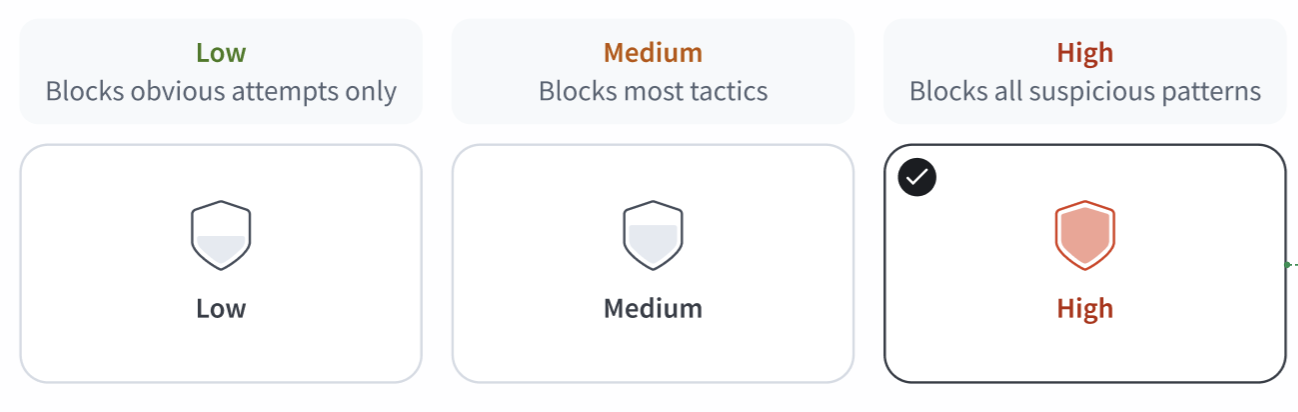 Block sensitivity levels
BETA FEATURE
This feature is in beta. Workato may update its functionality or change its availability without notice during beta. Reach out to your account manager for more information about this feature.
Content safety
Content safety guardrails are automatically active for all genies and can't be disabled. Content safety consist of:
Prompt Attack detection blocks attempts to manipulate genie behavior or extract system configuration.
Harmful Content filtering prevents dangerous material from being processed or generated.
Prompt Attack
Prompt Attack detection blocks attempts to manipulate genie behavior, bypass safety guidelines, or extract system configuration. This includes:
- Prompt injection: Crafted inputs designed to override genie instructions, such as messages beginning with
Ignore all previous instructions. - Jailbreak attempts: Role-play scenarios or multi-turn manipulation designed to bypass safety guidelines.
- Prompt leakage: Requests attempting to surface the genie's job description or system prompt.
The genie run stops immediately when a prompt attack is detected, and you receive the following message: I'm not able to process this request. Please try rephrasing your question.
Harmful Content
Harmful Content filtering prevents dangerous material from being processed or generated. Detection applies to both user input and genie output across the following categories:
| Category | Description | Examples |
|---|---|---|
| Hate speech | Content that demeans people based on race, religion, gender, nationality, or other protected attributes. | Slurs or discriminatory statements. |
| Insults | Demeaning or derogatory language directed at individuals or groups, including bullying, shaming, or verbal aggression. | Personal attacks or bullying. |
| Sexual content | Explicit or suggestive sexual material. Use Low for genies where professional health or safety topics are expected in normal use. | Adult content or sexual solicitation. |
| Violence | Descriptions of physical harm, threats, or graphic content. This setting doesn't affect factual safety information, such as first aid or workplace hazard reporting. | Weapon instructions or graphic violence. |
| Misconduct | Content promoting fraud, criminal activity, unauthorized system access, or other harmful behaviors targeting individuals or organizations. | Drug instructions or fraud schemes. |
- Harmful content detected in user input: Users receive the following message:
Your message contains content that I'm not able to respond to. Please rephrase your request. - Harmful content detected in genie output: Users receive the following message:
I'm not able to provide a response to this request.
Optional guardrails
You can configure optional guardrails per genie in the Build page Guardrails panel. Optional guardrails are turned off by default.
PII detection
PII detection identifies personally identifiable information in conversations and handles it according to the mode you configure. Detection applies to the following checkpoints:
- User input
- Tool input and output
- Genie output
The following high-risk entity types are on by default:
- Social Security numbers
- Credit card numbers
- Bank account numbers
- Passwords
- API keys
Lower-risk entity types are set to off by default. You can toggle detection on or off for the following lower-risk entity types:
- Email addresses
- Phone numbers
- Names
- Addresses
Handling modes
You can configure how detected PII is handled for each entity type:
| Mode | Description |
|---|---|
| Block | Refuses to pass PII to the LLM. The genie receives error context to generate a user-friendly refusal. |
| Redact | Permanently replaces PII with masked placeholders before passing to the LLM, for example [SSN:***-**-6789]. The genie output is also scanned and redacted before it's returned to the user. |
| Tokenize | Replaces PII with reversible tokens before passing to the LLM, for example [EMAIL_TOKEN_1]. Tokens are converted back to original values in the genie output before returning to the user. Token mappings are stored securely and never sent to the LLM. |
| Log Only | Detects and flags PII in the debug trace only. Content passes through unchanged. Useful for monitoring before enforcing a stricter mode. |
Tokenization behavior
Tokenization allows the genie to reason about content containing PII without exposing raw values. The following rules apply:
- The same PII value always maps to the same token within a conversation to ensure references remain consistent.
- Token mappings are scoped to the conversation and are never exposed in debug traces, logs, or API responses.
- Tool responses containing PII are tokenized before being sent to the LLM.
- Genie output and skill inputs that contain tokens are de-tokenized.
- Each nested genie maintains independent token mappings.
Custom regex patterns
You can define up to 10 custom regex patterns to detect organization-specific sensitive data, such as employee IDs. Each pattern requires a name and a valid regex string and supports the same handling modes as built-in entity types. Patterns are validated before saving.
When a PII block is triggered, the user receives: Your message contains sensitive personal information. Please remove personal details and try again.
Profanity filter
The profanity filter uses a managed word list maintained by AWS Bedrock to block profane content in both user input and genie output. The genie run stops and the user receives the following message if the profanity filter is triggered: Your message contains content that is not allowed.
Custom word filter
The custom word filter allows you to block specific words or phrases from conversations. Matching is case-insensitive and exact, not substring-based. You can add up to 100 words or phrases and configure whether the filter applies to user input, genie output, or both.
The genie run stops and the user receives the following message if the custom word filter is triggered: Your message contains content that is not allowed.
Denied topics
Denied topics allow you to define subjects the genie shouldn't discuss. Detection uses semantic understanding rather than keyword matching to catch rephrased or indirect references to a denied topic. You can define up to 30 denied topics per genie.
Each topic requires a name and a natural language definition. You can also add up to five example queries per topic to improve detection accuracy.
| Topic name | Definition | Example blocked query |
|---|---|---|
| Competitor products | Discussion of competitor products, pricing, or features | How does this compare to ServiceNow? |
| Legal advice | Providing specific legal recommendations | Should I dispute this contract? |
| Medical diagnosis | Providing specific medical diagnoses or treatment plans | What medication should I take? |
The genie run stops and users receive the following message when a denied topic is detected: I'm not able to discuss this topic.
Debug traces
Every guardrail evaluation appears in the conversation debug trace under the step name Input Guardrails or Output Guardrails. Each entry shows the guardrail type, pass or fail status, rejection reason, and evaluation time.
Detected PII values are never stored in plain text. Masked values appear in debug traces and conversation history in the following formats:
| PII type | Masked display |
|---|---|
| SSN | [SSN:***-**-6789] |
| Credit card | [CARD:****-****-****-1111] |
| Bank account | [BANK_ACCT:*****8901] |
| API key | [API_KEY:sk-***] |
[EMAIL:j***@***.com] | |
| Phone | [PHONE:***-4639] |
| Name | [NAME:J*** S***] |
| Custom regex | [CUSTOM_PII:***] |
Getting started with guardrails
You can add guardrails to any genie in Agent Studio. The steps in this section assume that you're signed in to Workato and have already created the genie where you plan to add guardrails.
Complete the following steps to add guardrails to your genie:
Go to the Guardrails field and click the cog (edit) icon to open the configuration page.
Go to Guardrails in the sidebar and click Content safety.
Configure your content safety guardrails.
Review the Prompt attack setting and optionally set the sensitivity to low or medium. Prompt attack is set to high sensitivity by default.
Go to the Harmful content section and optionally set the sensitivity to low or medium for the following categories:
| Category | Description |
|---|---|
| Hate speech | Content that demeans people based on race, religion, gender, nationality, or other protected attributes. |
| Insults | Demeaning or derogatory language directed at individuals or groups, including bullying, shaming, or verbal aggression. |
| Sexual content | Explicit or suggestive sexual material. Use Low for genies where professional health or safety topics are expected in normal use. |
| Violence | Descriptions of physical harm, threats, or graphic content. This setting doesn't affect factual safety information, such as first aid or workplace hazard reporting. |
| Misconduct | Content promoting fraud, criminal activity, unauthorized system access, or other harmful behaviors targeting individuals or organizations. |
Click Save.
Configure your data protection guardrails.
Click Data protection in the sidebar.
Click the Detect PII toggle to enable Personally Identifiable Information (PII) guardrails.
Use the PII types to detect drop-down menu to select the PII types you plan to apply guardrails to.
Optional. Expand the Hide custom PII types section and add custom regex patterns.
Go to the When PII is detected section and select the method your genie should use to respond to PII data.
 Refuse
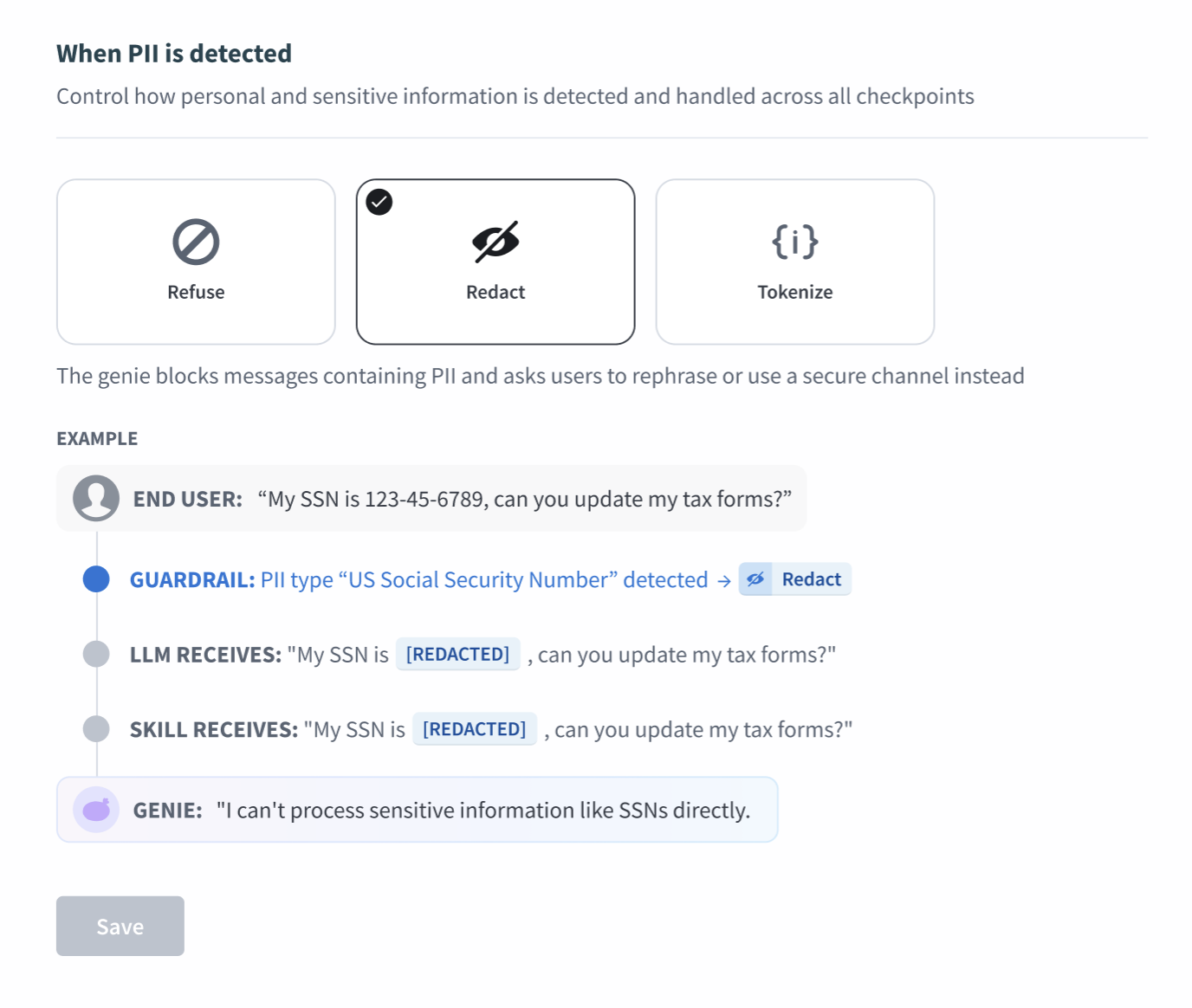 Redact
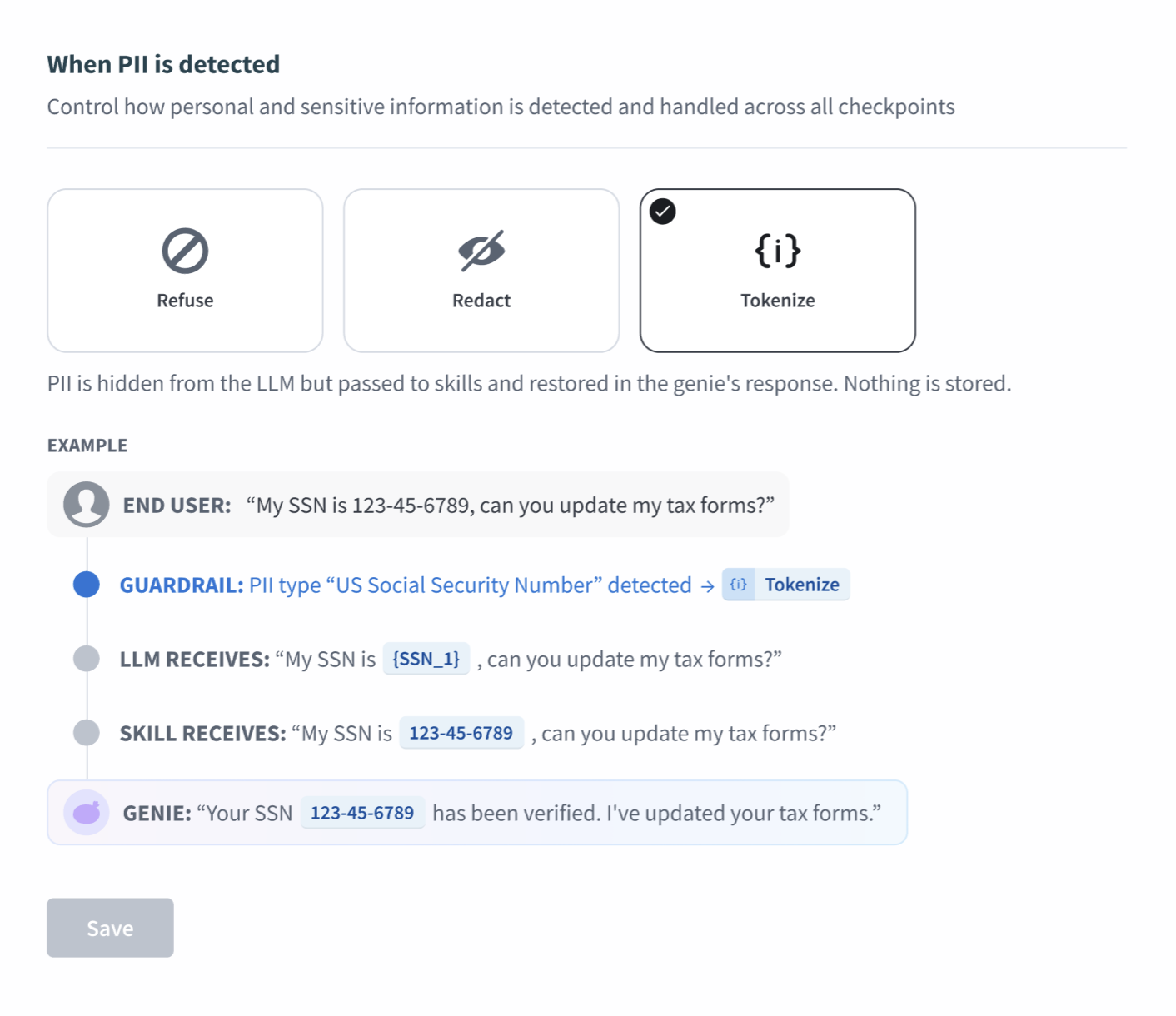 Tokenize
Click Save.
Configure your topics and word filters guardrails.
Click Topics & word filters in the sidebar.
Click + Add a topic to define specific a topic the genie shouldn't discuss. Denied topics use semantic matching.
Enter a name in the Topic name field.
Optional. Enter a topic description in the Description field.
Click + Add a sample phrase to provide example user inputs that help the genie recognize this topic. You can add a maximum of 5 sample phrases.
Click Save.
Go to the Blocked words and phrases section.
Click the Profanity filter toggle to enable your genie to filter for profanity.
Go to the Custom blocked words field and enter or phrases for your genie to block. Words or phrases must be comma separated and are case sensitive. For example: Confidential, internal only, Private
Click Save.
Test guardrails
You can test your guardrails in Test mode. Testing allows you to refine your guardrails to ensure that your genie responds appropriately before moving to production.
Complete the following steps to test your guardrails:
Click the mode toggle to switch from Build to Test.
Enter a phrase or question that aligns with a denied topic you configured.
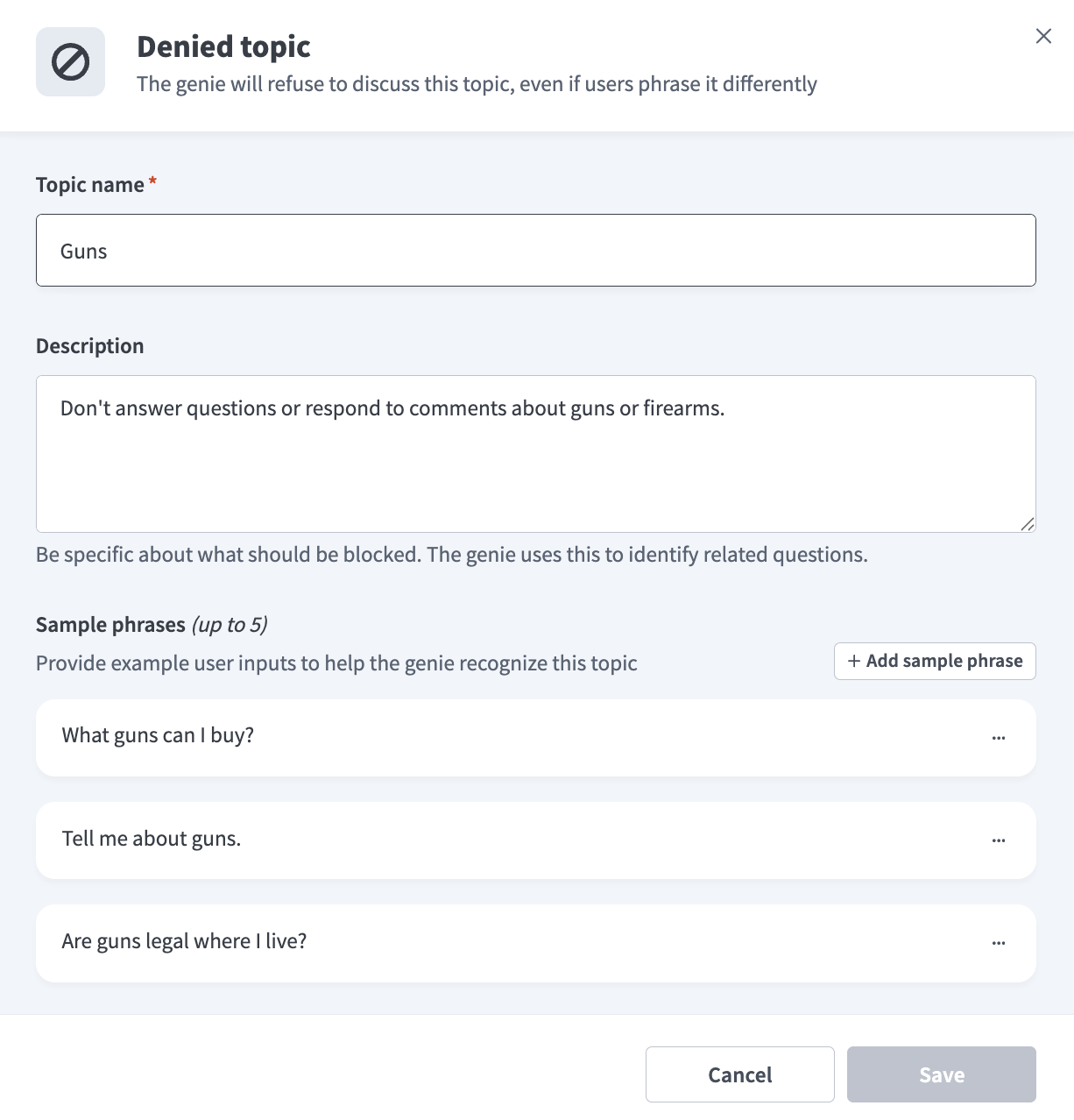 Denied topic guardrail example
Ensure that your genie declines to discuss the topic.
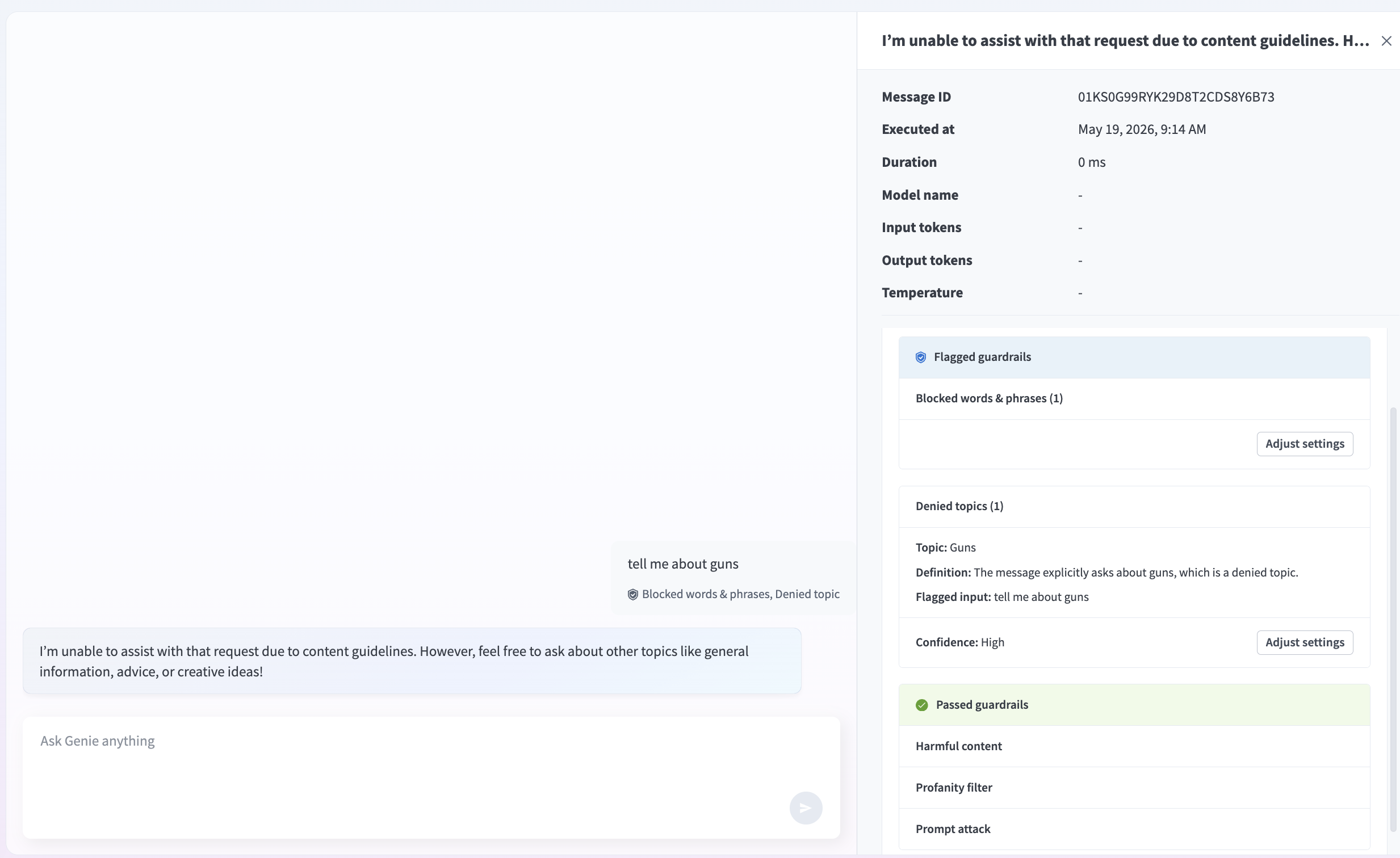 Denied topic in Test mode
Optional. Return to Guardrails > Topic & word filters > Denied topics to refine your sample phrases or add additional sample phrases to improve your genie's responses.
Last updated: