Knowledge base recipes
Knowledge base recipes sync and update information from your connected applications to your knowledge base. The knowledge base recipe ensures that your genie's knowledge base has access to the latest data and stays aligned with your business requirements. Knowledge bases and knowledge base recipes can be assigned to multiple genies, including genies stored in different projects. Refer to Create a genie manually for complete steps on how to create a genie with a job description, AI model, chat interface, knowledge base, knowledge base recipe, and skills.
NEED AN EXAMPLE?
Refer to the Connect your knowledge base to Confluence use case for a step-by-step example on how to create and connect your knowledge base to Confluence with a knowledge recipe.
Getting started with Knowledge base recipes
Complete the following steps to create a knowledge recipe:
Sign in to Workato.
Go to AI Hub > Genies.
Select the genie where you plan to create a knowledge base recipe.
Go to the Knowledge bases section and select the knowledge base where you plan to add your knowledge recipe.
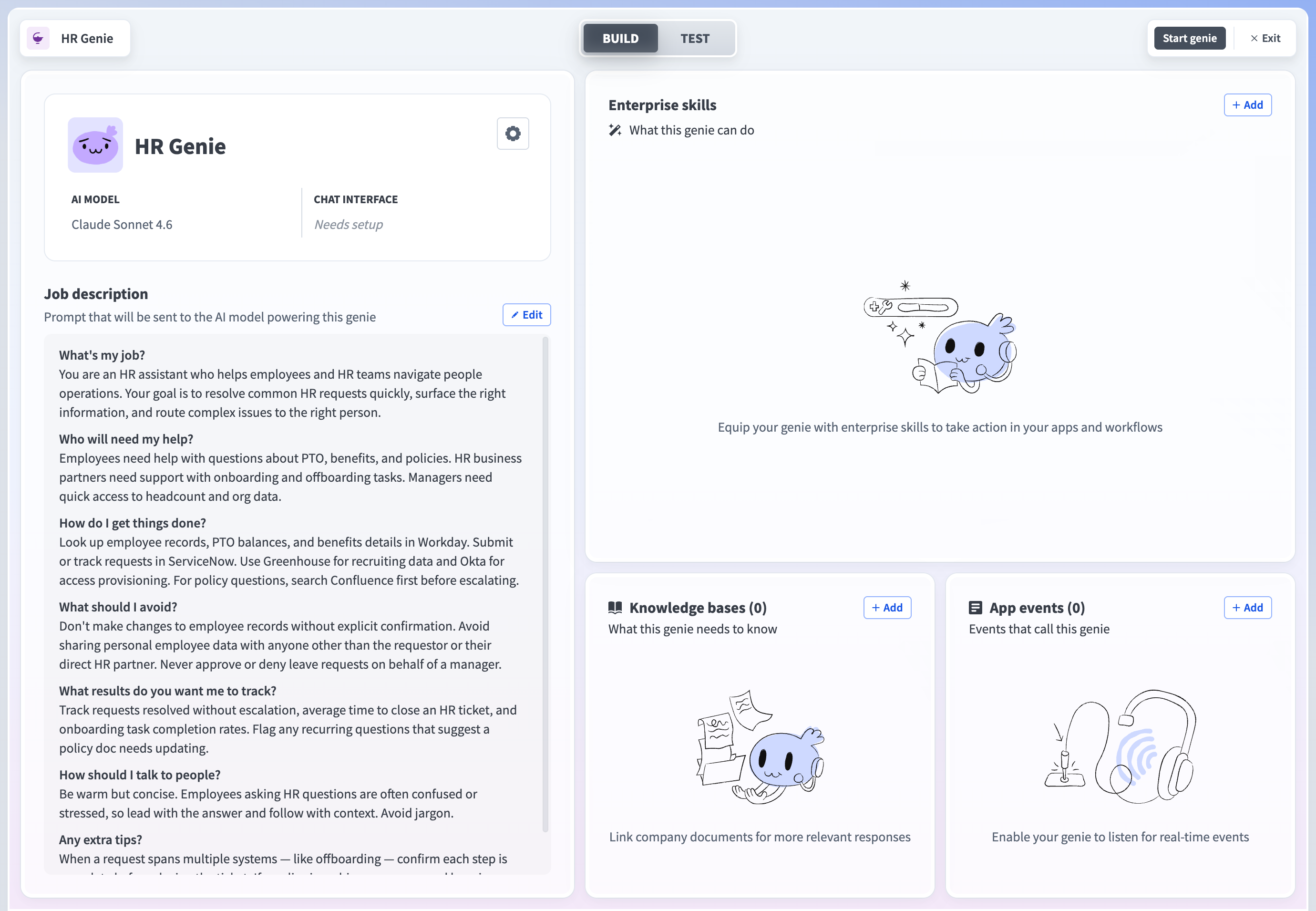 Go to the Knowledge bases section
Click + Add knowledge.
Select New knowledge recipe.
Enter a name for your knowledge recipe in the Recipe name field.
Use the Location drop-down menu to select a location for your knowledge recipe.
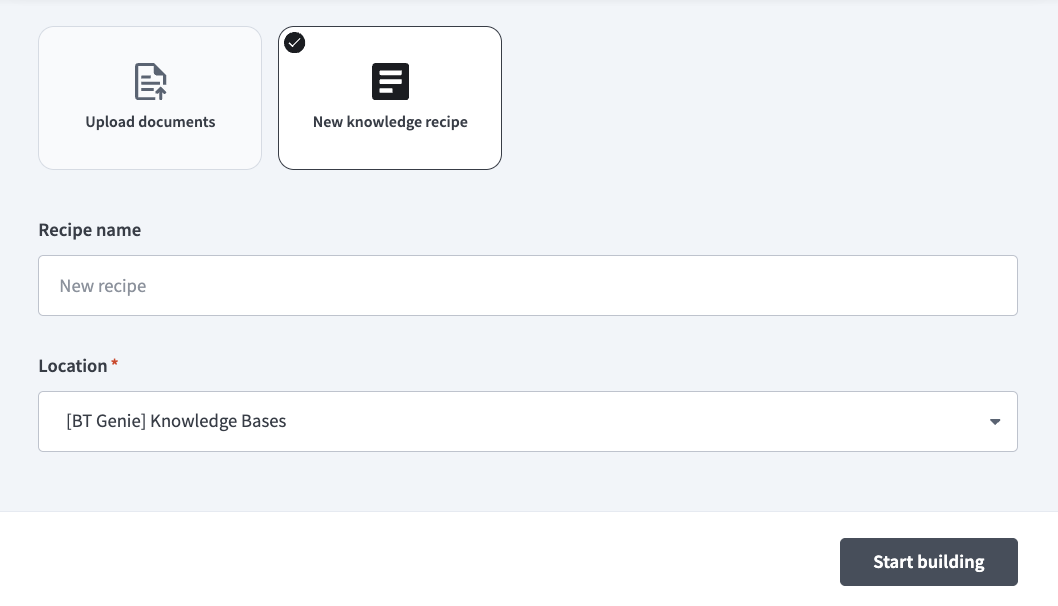 Set up your knowledge recipe
Click Add knowledge base. The recipe editor opens with the Store knowledge action automatically selected.
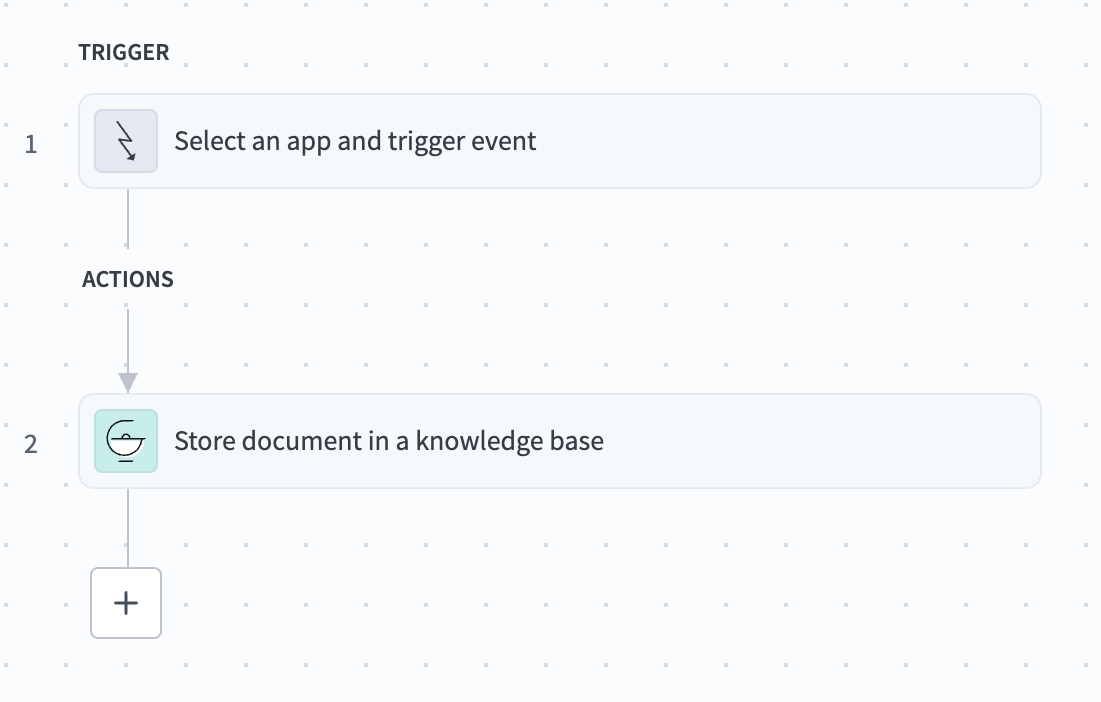 Knowledge recipe with Store knowledge in a knowledge base action automatically selected
Configure your recipe.
Test your recipe to ensure workflow compatibility with your genie.
Click Save.
Last updated: