Add a Gong data source to Workato GO
The Gong data source enables Workato GO to index Gong call transcripts, AI summaries, highlights, topics, interaction stats, and associated permissions. After the initial indexing, Workato GO syncs content and permission updates multiple times every hour. Each data source targets one Gong workspace.
Prerequisites
You must have the following to use the Gong data source connector:
- Gong admin access to create an API integration in the Gong Admin Center.
- A Gong workspace in the tenant that the integration's OAuth user is a member of.
Create a Gong API integration
Complete the following steps to create a Gong API integration on the Gong platform. You need the Client ID and Client Secret from this integration when you create a Gong connection in Workato.
Sign in to Gong as an admin.
Click the Admin Center icon in the Gong UI.
Go to the Ecosystem column and click API.
Click Create Integration and complete the following sub-steps to fill in the required fields:
Enter a name for the integration in the Name field, such as Workato GO.
Enter a description in the Description field.
Enter a short description in the Short description field.
Upload a 64x64px image (SVG, JPG, or PNG) for the Small app logo. A placeholder is acceptable for private OAuth integrations.
Upload a 200x300px image (SVG, JPG, or PNG) for the Large app logo. A placeholder is acceptable for private OAuth integrations.
Select Shared access in the Authorization context section. This integration accesses all company data according to its approved scopes.
AUTHORIZATION CONTEXT
You can't change the authorization context after you create the integration.
Enable the required scopes in the Required authorization scopes section. Refer to the Required OAuth scopes table for the complete list.
Enter https://www.workato.com/oauth/callback in the Redirect URI field.
Optional. Enter a URL in the Link to privacy policy page field.
Enter a URL in the Link to terms & conditions page field.
Enter a URL in the Link to help article field.
Enter a URL in the Link to page where authorization process begins field.
Enter the email for the integration user in the Operations email field.
Enter your organization's domain(s) in the Domains field.
Verify that the iFrame Integration toggle is off in the Advanced Settings section.
Verify that the Link Personalization toggle is off in the Advanced Settings section.
Copy the Client ID and Client secret. You need these values when you create a Gong connection in Workato.
STORE YOUR CREDENTIALS SECURELY
Treat the Client Secret like a password. Store it in a secret manager and do not paste it into chat, tickets, or shared documents.
Required OAuth scopes
Enable the following scopes when you create your Gong API integration:
| Scope | Purpose |
|---|---|
api:users:read | User sync |
api:workspaces:read | Workspace selection in the data source configuration |
api:calls:read:basic | Call listing |
api:calls:read:transcript | Full call transcripts |
api:calls:read:extensive | AI summaries, highlights, topics, and interaction stats |
api:permission-profile:read | Append Gong admins to every call's permission list |
Create a Gong connection
Create a Gong connection in Workato before you add Gong as a data source in Workato GO. You must provide the Client ID and Client Secret from the Gong API integration you created in the preceding steps.
Complete the following steps to create a Gong connection:
Go to Connections > Create > Connection in the Workato platform.
Search for Gong.io and select it as your app.
Enter a descriptive name in the Connection name field.
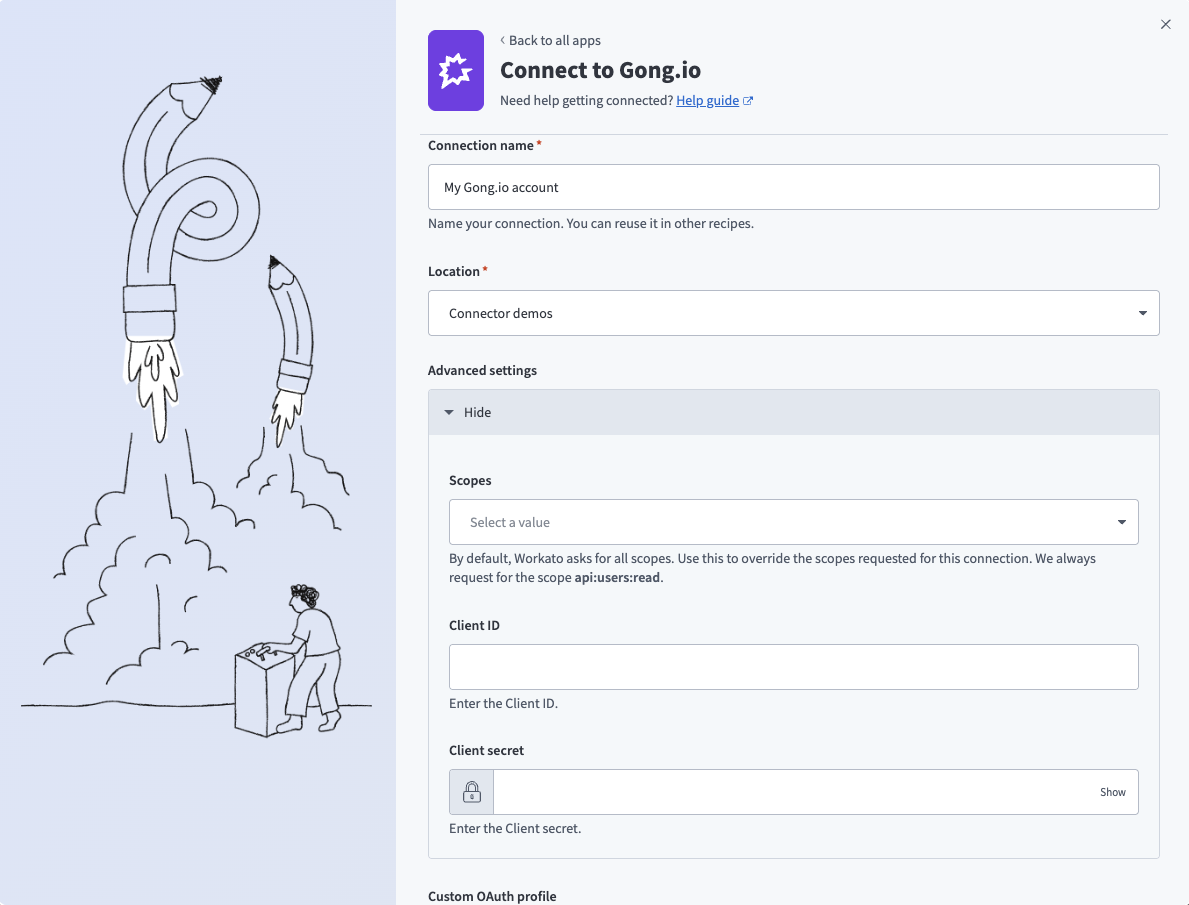 Connect to Gong
Use the Location drop-down menu to select the appropriate project folder.
Click Advanced settings to expand the section. This step is mandatory.
Configure the following fields under Advanced settings:
Use the Scopes drop-down menu to select the same scopes you enabled in the Required OAuth scopes table. The drop-down menu lists all available scopes. Select only the required scopes from the table and don't use Select All.
Paste the value you copied from the Gong API integration in the Client ID field.
Paste the value you copied from the Gong API integration in the Client secret field.
DON'T SKIP ADVANCED SETTINGS
You can connect to Gong without completing the Advanced settings fields, but the data source in Workato GO doesn't work correctly because of missing permissions. Complete these fields before you connect.
Click Connect.
Click Allow to grant Workato access to Gong.
Add Gong as a data source
Complete the following steps to add Gong as a data source in Workato GO:
Sign in to your Workato GO account.
Expand the Admin menu in the sidebar and click Data sources.
Click Add Data Source. The Add Data Source page displays.
Select the Gong app.
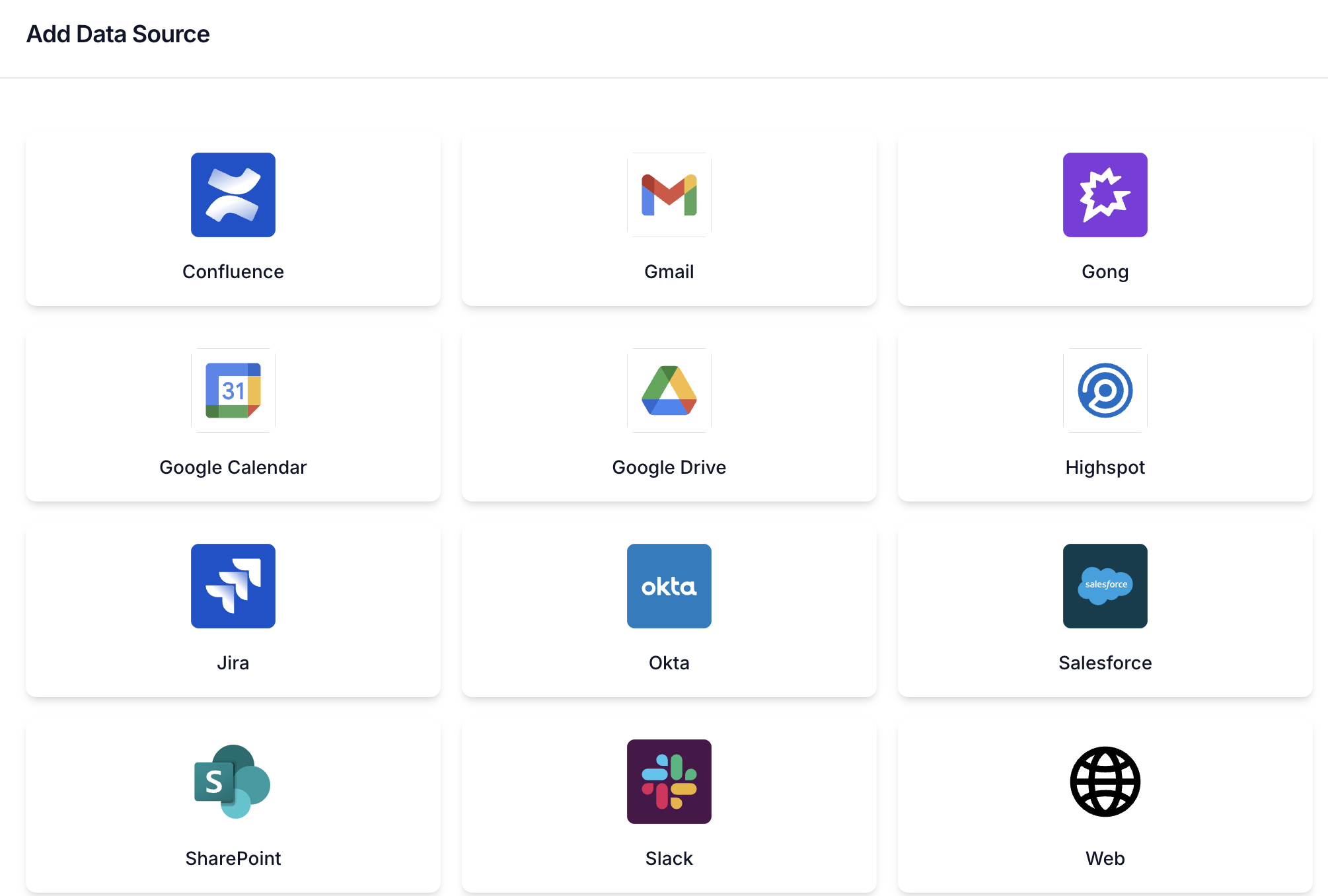 Add data source
Enter a descriptive name in the Name field. This name is how the data source appears to all teammates in Workato GO.
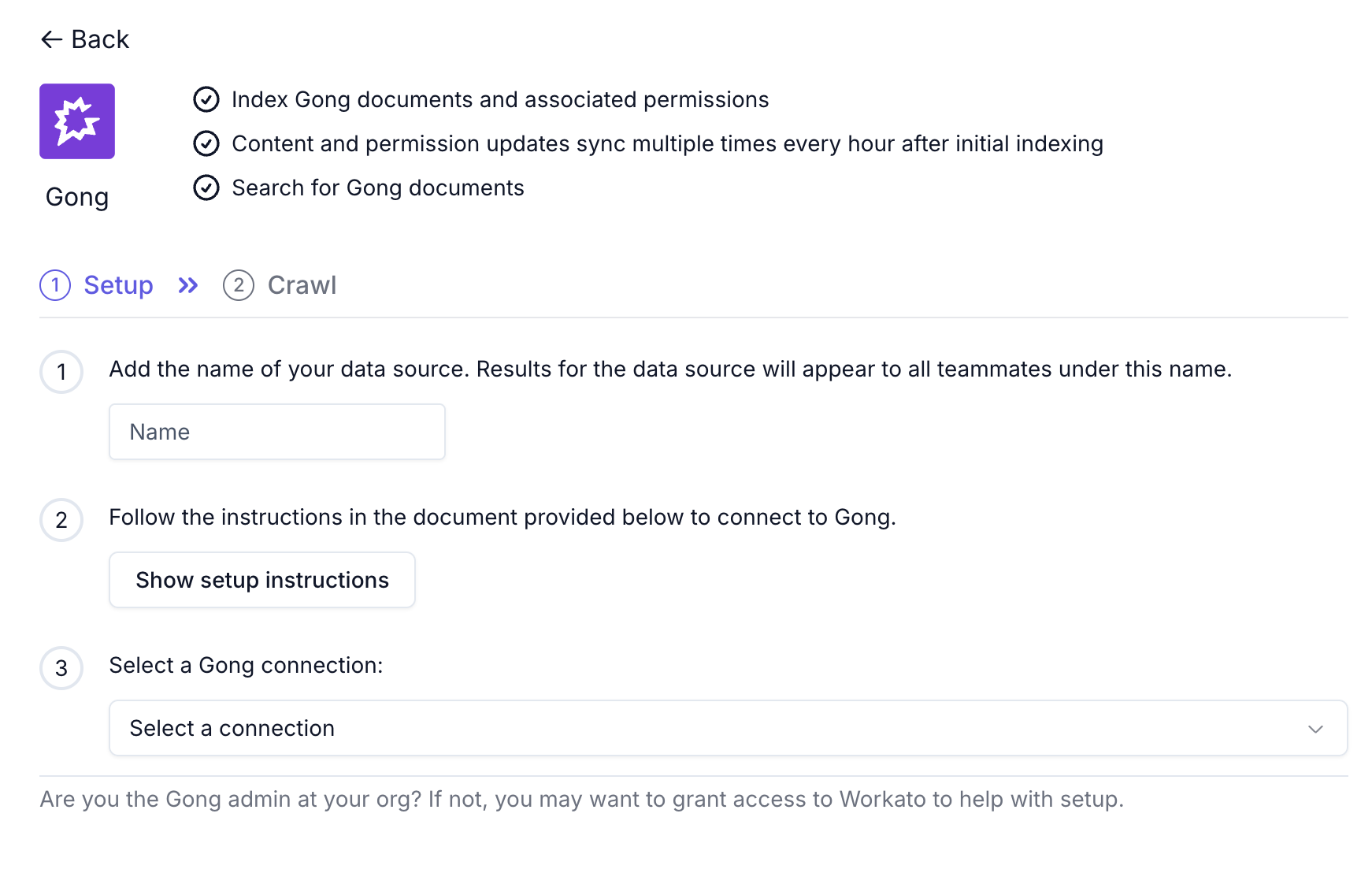 Configure Gong connection
Click Show setup instructions to review the reference for connecting to Gong if needed. Complete the preceding sections of this guide before you proceed.
Use the Select a connection drop-down menu to select the connection you created in the preceding steps. Only connections with a green status indicator are healthy and ready to use. Connections with a pink or red indicator have authentication issues. Revisit the Create a Gong connection section before you select them.
Configure the Gong workspace and crawl settings:
Use the Workspace ID drop-down menu to select the Gong workspace to scope the crawl to. Each data source targets one workspace. If the drop-down menu is empty, the connection is missing the api:workspaces:read scope. Revisit the Required OAuth scopes section.
Enable the Allow call crawl toggle to include Gong calls in the crawl.
Enable the Allow user crawl toggle to include Gong users in the crawl. This is required for permissions on call documents.
Click Next and complete any remaining setup prompts.
Verify the data source
Run the Connection Test on the data source after you save your configuration. All checks must show Success:
| Check | Expected |
|---|---|
| Search Calls API | Success |
| Search Users API | Success |
| Search Call Transcripts API | Success |
| Permission Profiles API | Success |
PERMISSION PROFILES ERROR
If the Permission Profiles API check shows errorCode 422: execution_error, the connection is likely using the default OAuth app or is missing the api:permission-profile:read scope. Disconnect the connection, verify that your Client ID and Client Secret are set, ensure the scope is enabled on the Gong platform, and reconnect.
Last updated: