Canvas
Canvas is a visual workspace layer inside each project where you can map out your integration architecture, document how assets connect, and communicate your work to teammates and stakeholders.
Unlike general diagramming tools, your Workato assets are part of the canvas itself. You can plan your integration, add draft assets, and create them directly from the canvas when you're ready to build.
Every project includes a Canvas tab by default. It opens as the first tab when you navigate to a project.
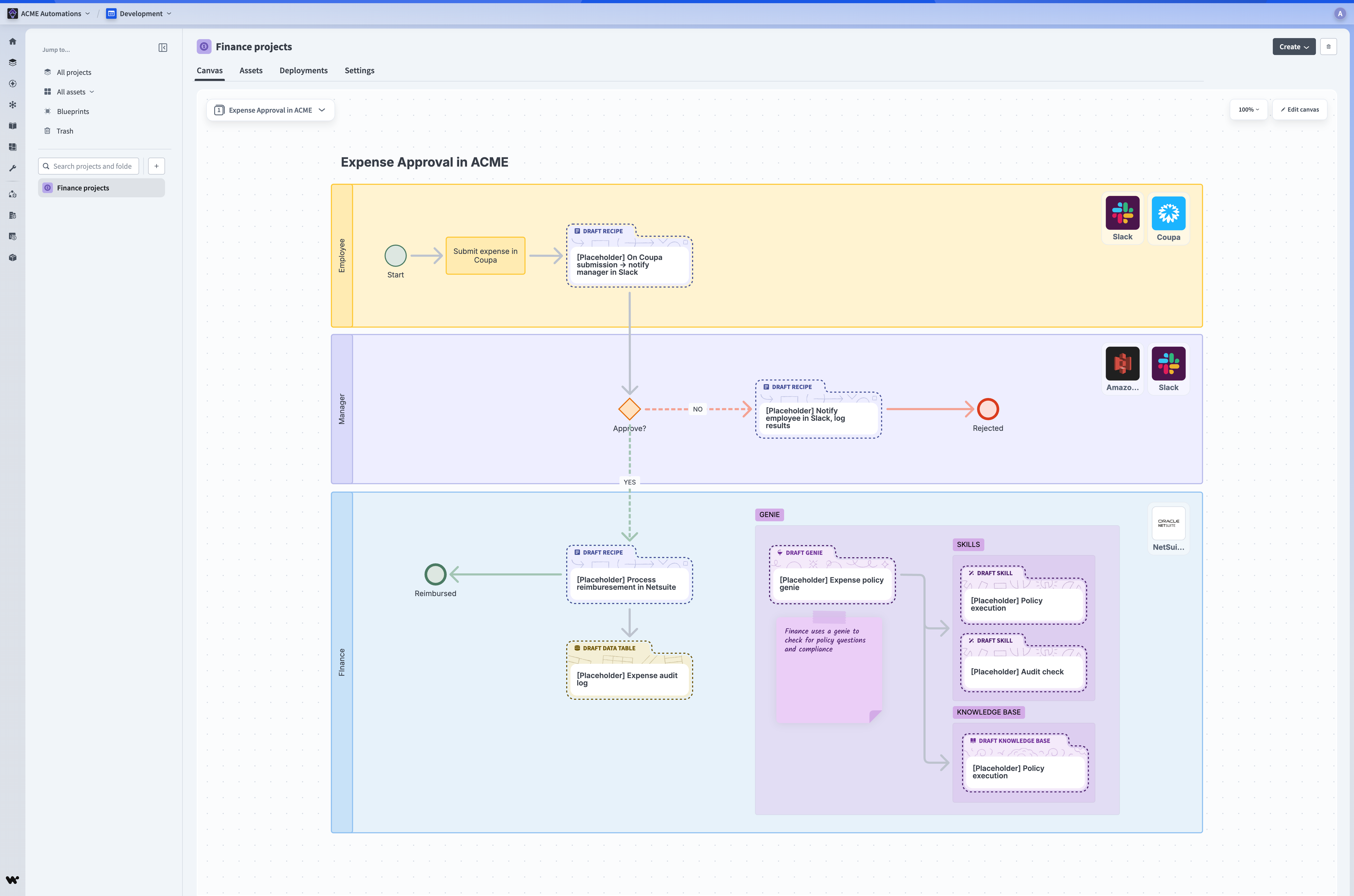 Canvas
When to use Canvas
Canvas is useful at every stage of a project:
- Planning: Before building, use Canvas to map out your business process, lay out the assets you'll need as drafts, and give your team a shared view of what you're building and why.
- Documentation: As your project grows, Canvas becomes a record of how your assets connect and what each part of the system does.
- Handoffs: When onboarding a new builder or transitioning a project to another team, Canvas provides the context they need to get up to speed quickly.
Get started
Canvas has two modes: View and Edit.
View mode is the default — it lets you browse the canvas without risking accidental changes, and lets teammates view the canvas while someone else is editing.
When you're ready to make changes, click Edit canvas to enter Edit mode.
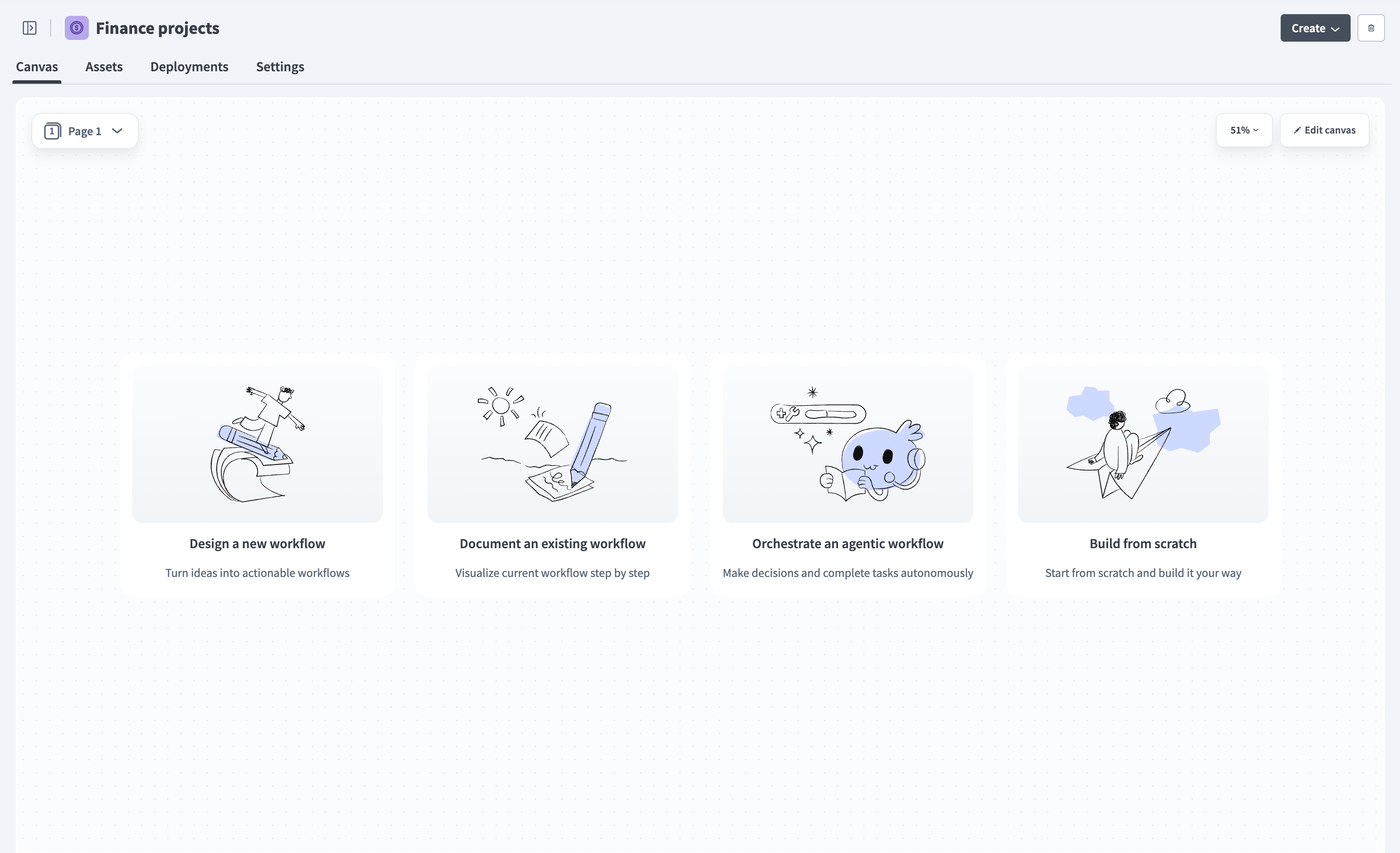 Get started with Canvas
Start from a template
When you open Canvas on a new project for the first time, you'll see four templates to help you get started:
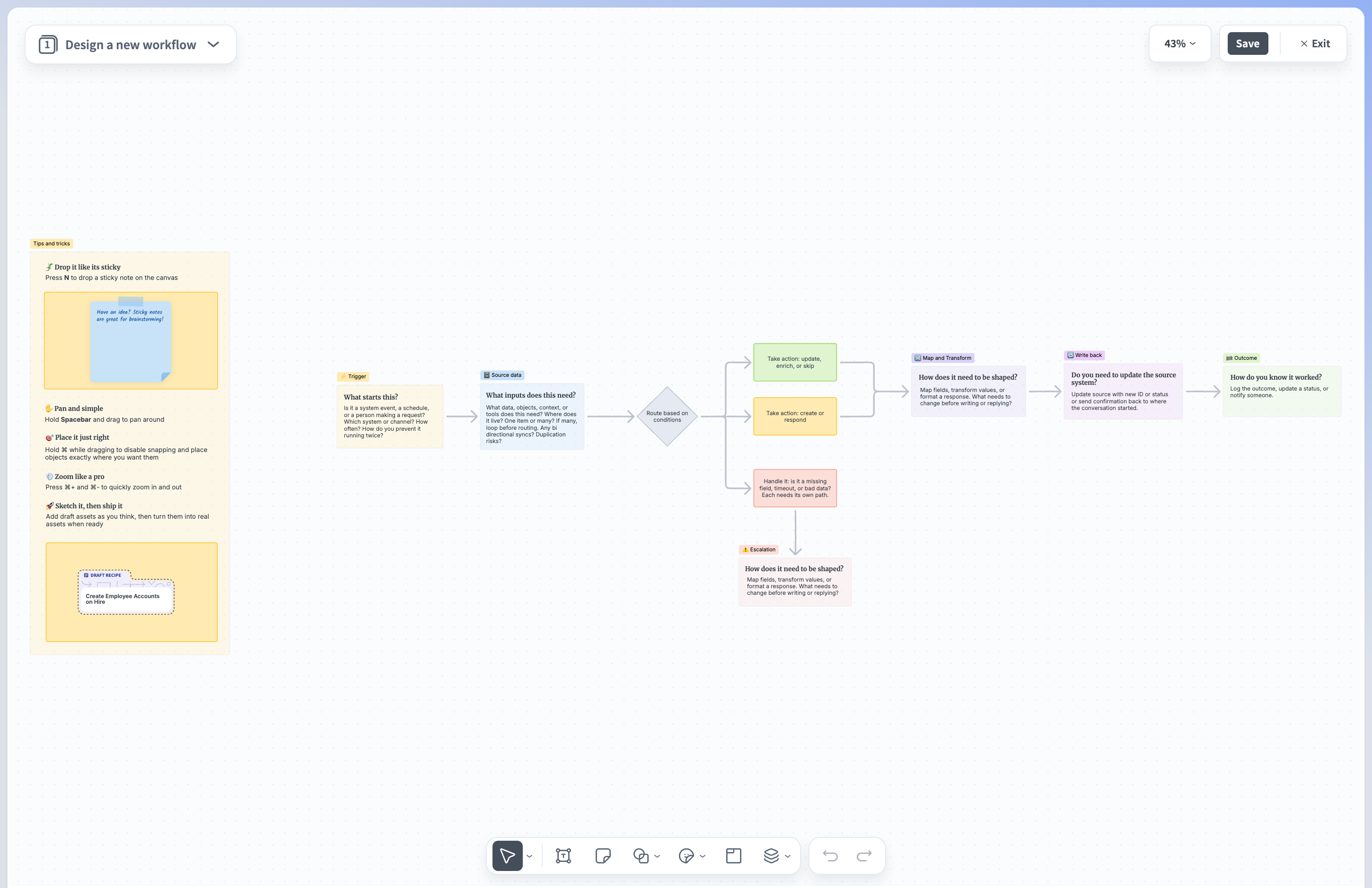 Design a new workflow
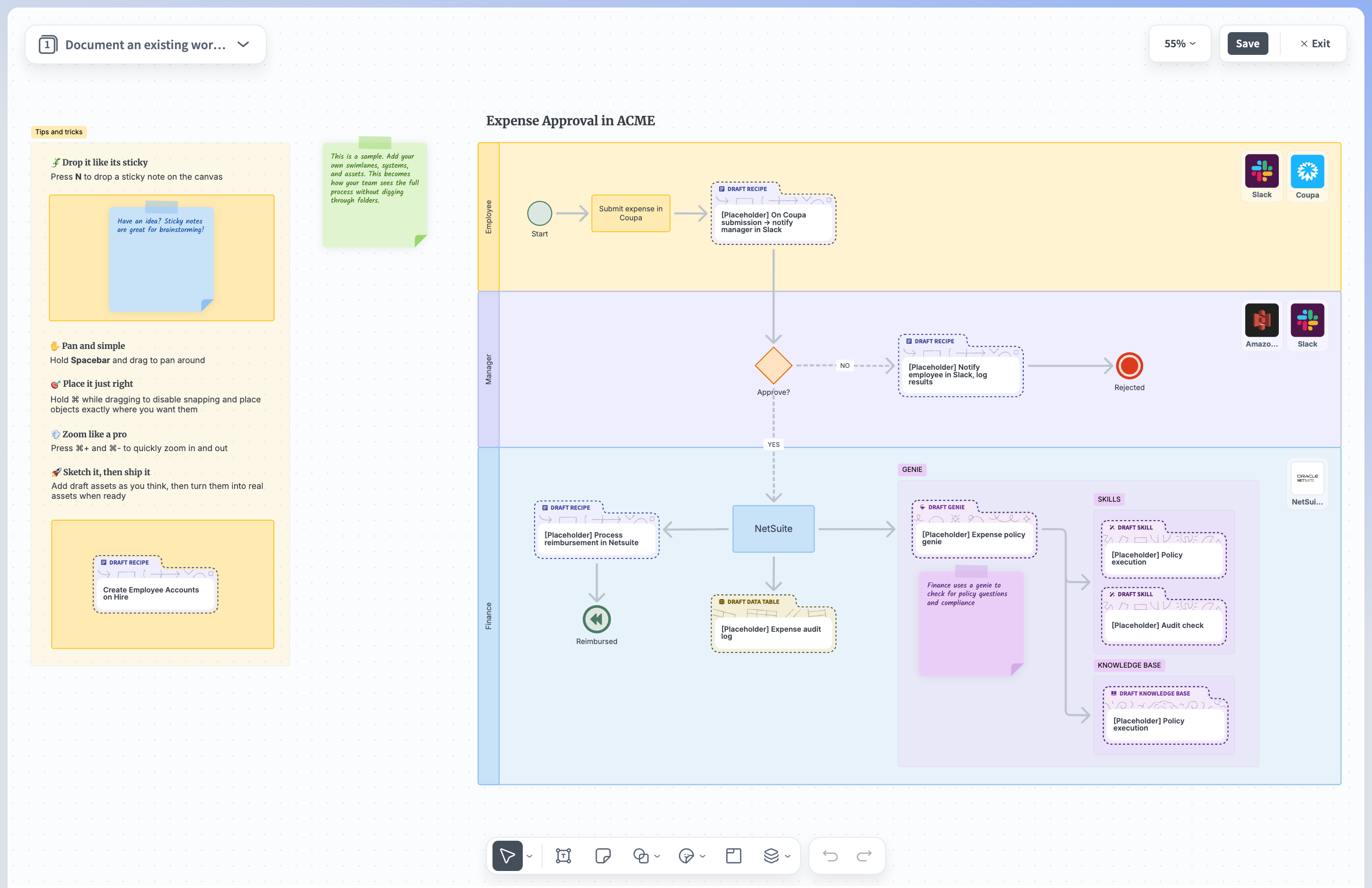 Document an existing workflow
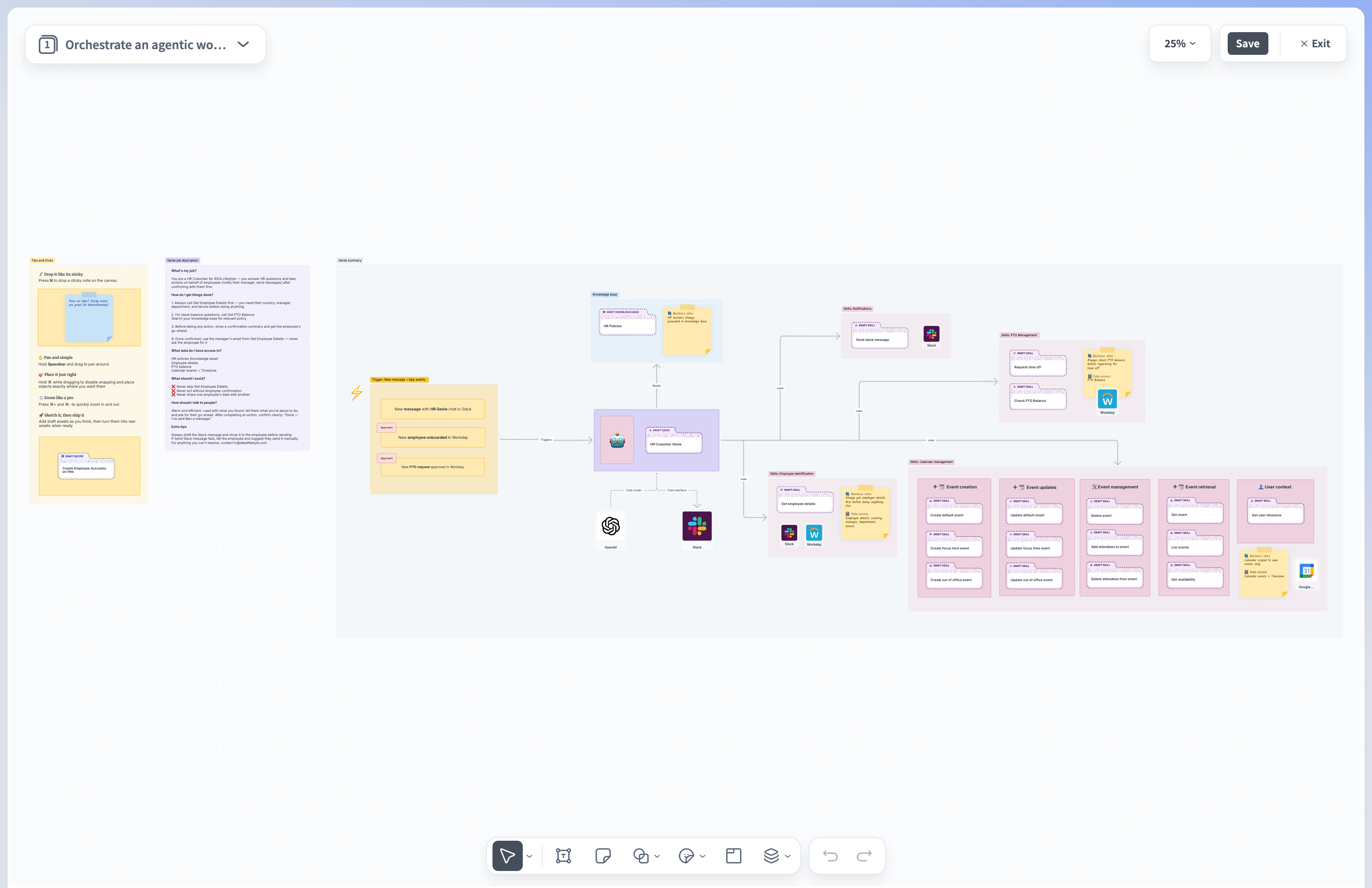 Orchestrate an agentic workflow
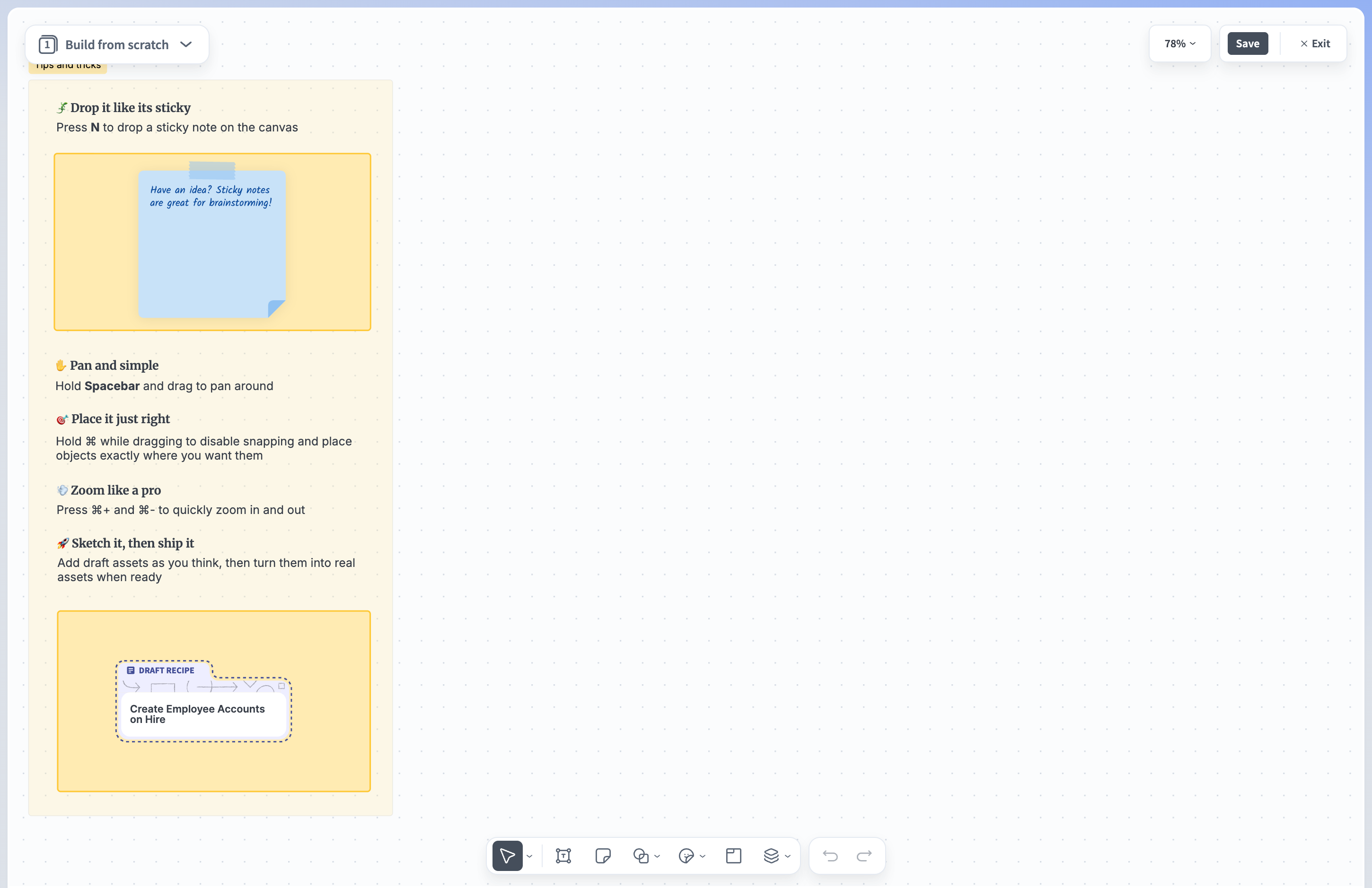 Build from scratch
Select a template to populate the canvas, or choose Build from scratch to start without one.
Add content
Use the toolbar at the bottom of the canvas to add content. The toolbar includes:
- Select and pan: Switch between selecting nodes and panning around the canvas.
- Text: Add a text box.
- Sticky note: Add a sticky note.
- Shapes: Add basic or BPMN shapes to the canvas.
- Stickers: Add app icons as visual markers in your diagrams. Icons are available for standard platform connectors as well as any custom connectors installed in your workspace.
- Section: Add a container that groups nodes together. Anything placed inside a section moves with it.
- Assets: Add Workato assets to the canvas as nodes. Refer to Workato asset nodes for details.
Right-click any element to copy, paste, bring to front, send to back, or delete it.
EMBEDDING YOUTUBE VIDEOS
You can embed a YouTube video directly on the canvas. Copy a YouTube share link and paste it with Command+V or right-click and select Paste. Canvas automatically detects the link and renders the video inline.
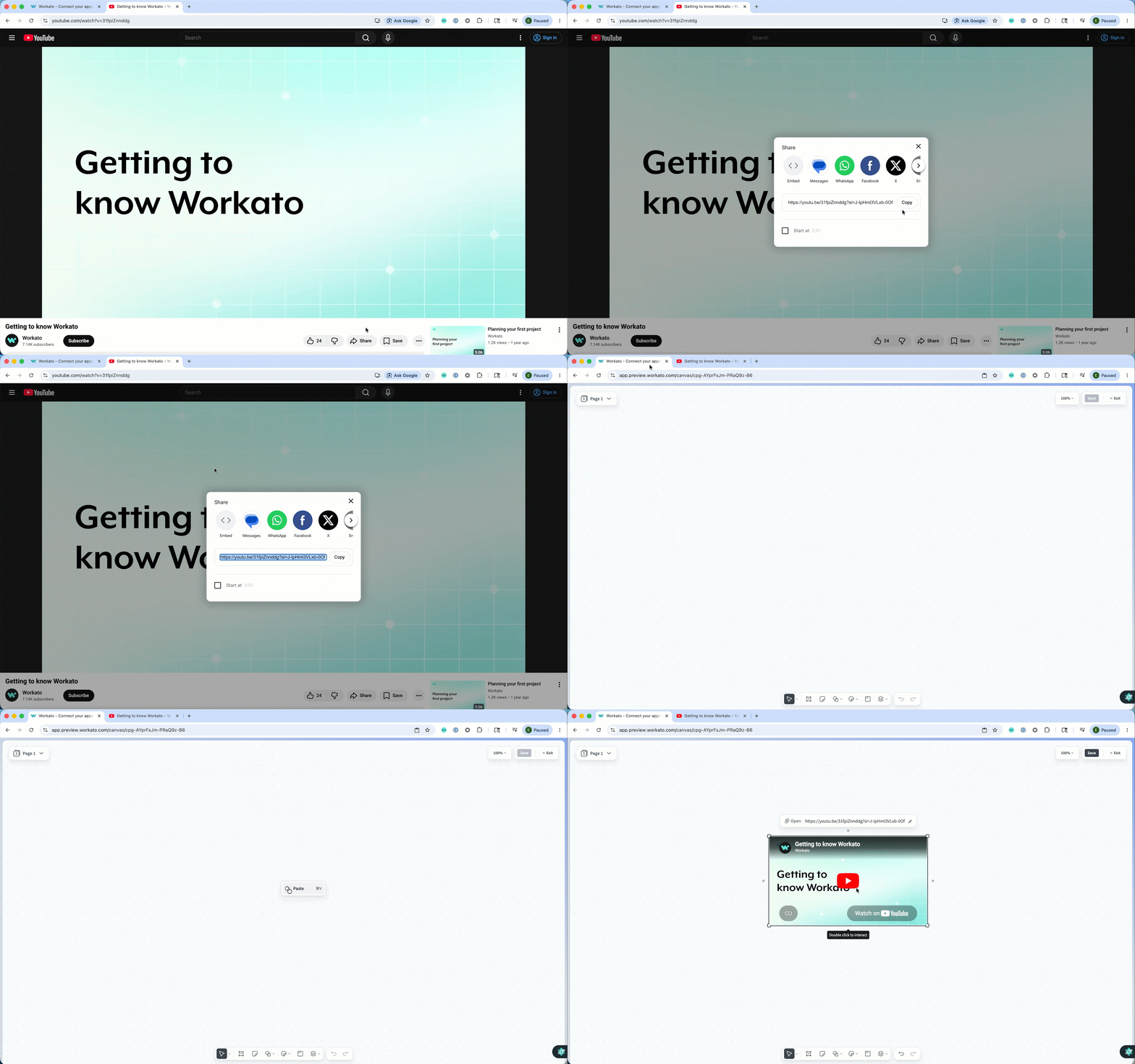 Embed YouTube videos
BPMN modeling
Business Process Model and Notation (BPMN) is a standardized diagramming language for mapping out business processes. It uses a common set of symbols — shapes for tasks, events, and decisions, and arrows for flow — so that anyone reading the diagram can understand the process regardless of their technical background.
In Canvas, you can use BPMN to document how your existing integrations work, or to design a process before building it in Workato. This makes it useful both for communicating your architecture to stakeholders and for planning new automation flows with your team.
Select BPMN from the Shapes tool to access the shape library.
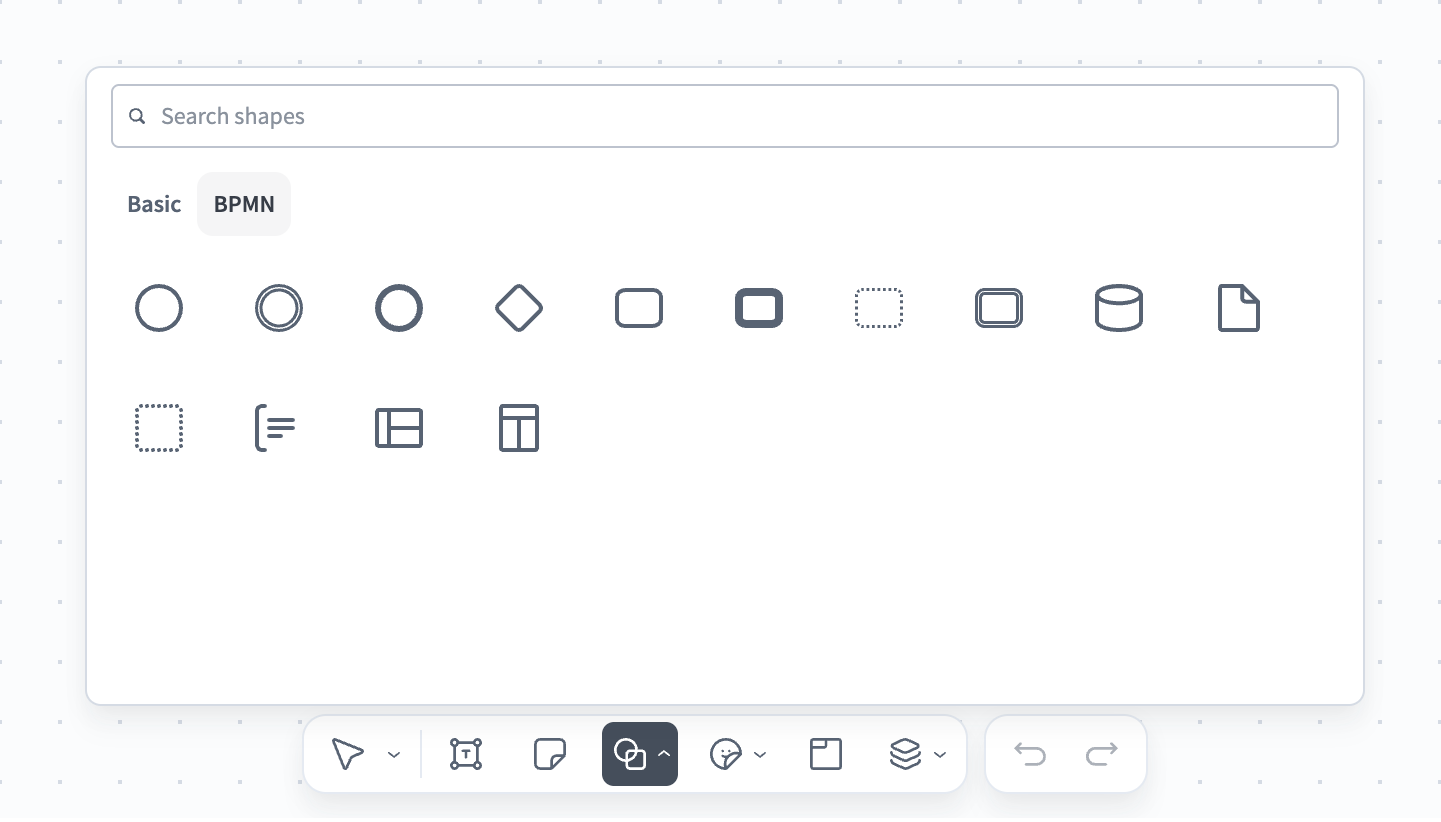 BPMN shape library
The library includes the following shapes:
- Start event
- Intermediate event
- End event
- Gateway
- Task
- Call activity
- Event subprocess
- Transaction
- Data store
- Data object
- Group
- Annotation
- Horizontal pool
- Vertical pool
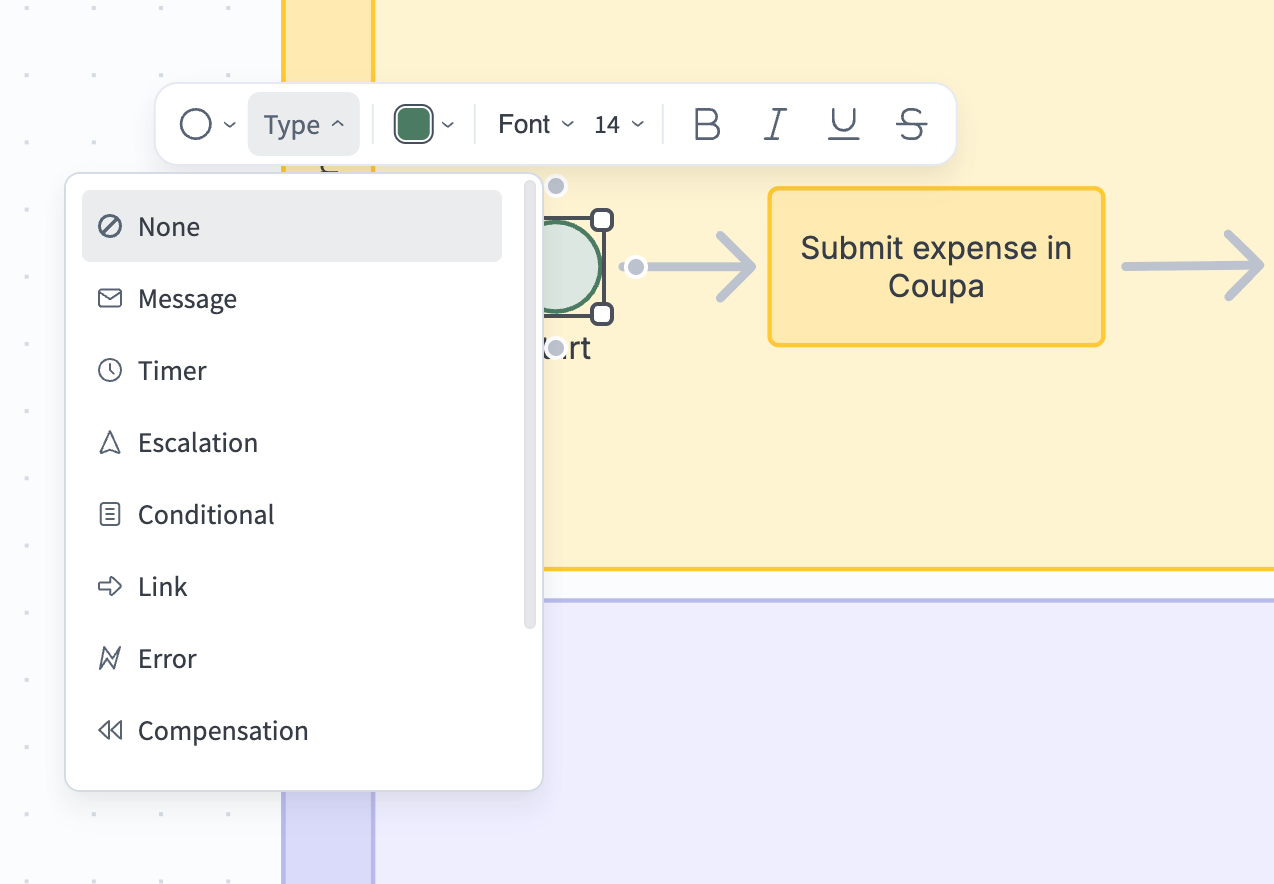
Many shapes support notation types, such as Message, Timer, Escalation, Conditional, Link, Error, and Compensation. Select a shape on the canvas and use the Type drop-down menu to apply one.
 Notation types
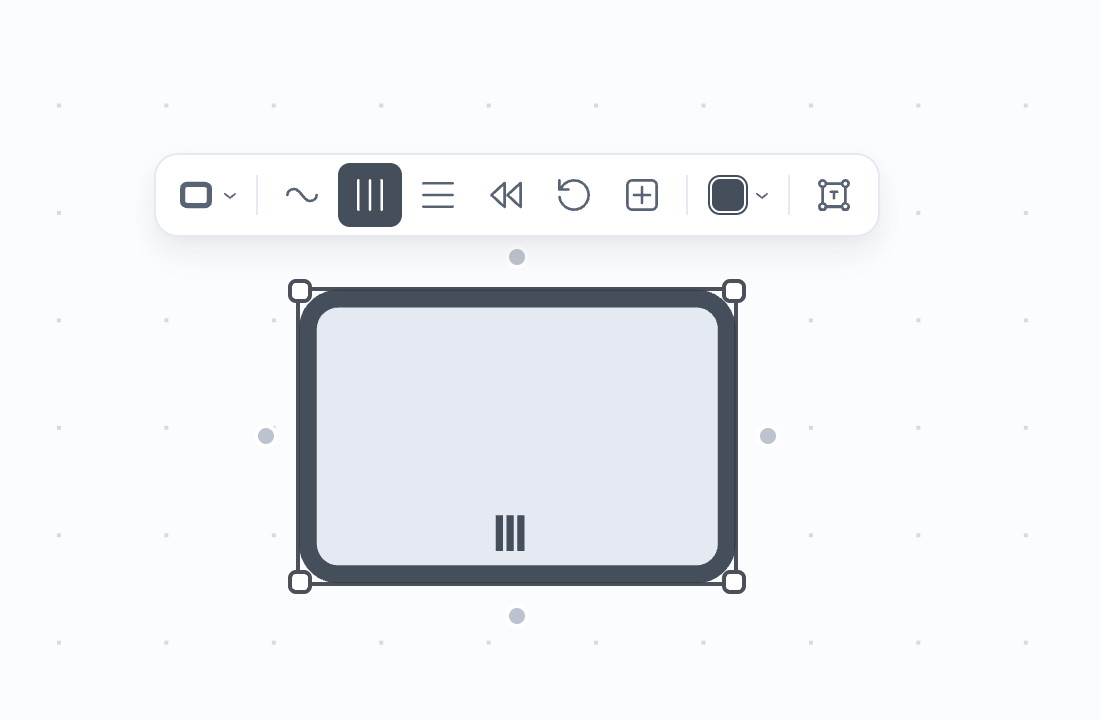
Some shapes also support markers, such as ad hoc, parallel/collection, sequential, compensation, loop, and subprocess. Select a shape on the canvas and choose a marker.
 Markers
Workato asset nodes
Use the Assets tool to add references to Workato assets directly onto the canvas. Canvas supports two types of asset nodes: existing assets and draft assets.
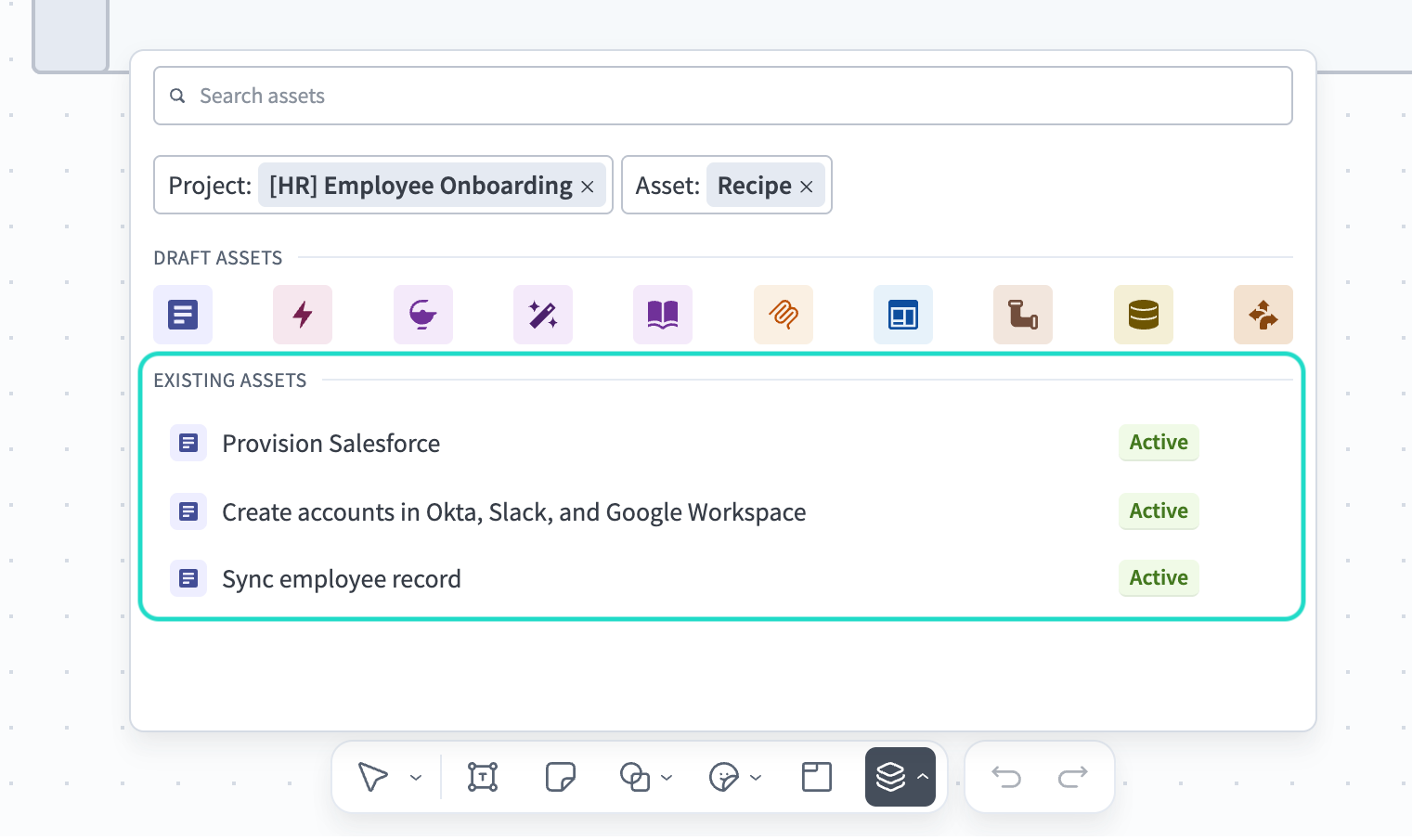 Existing assets
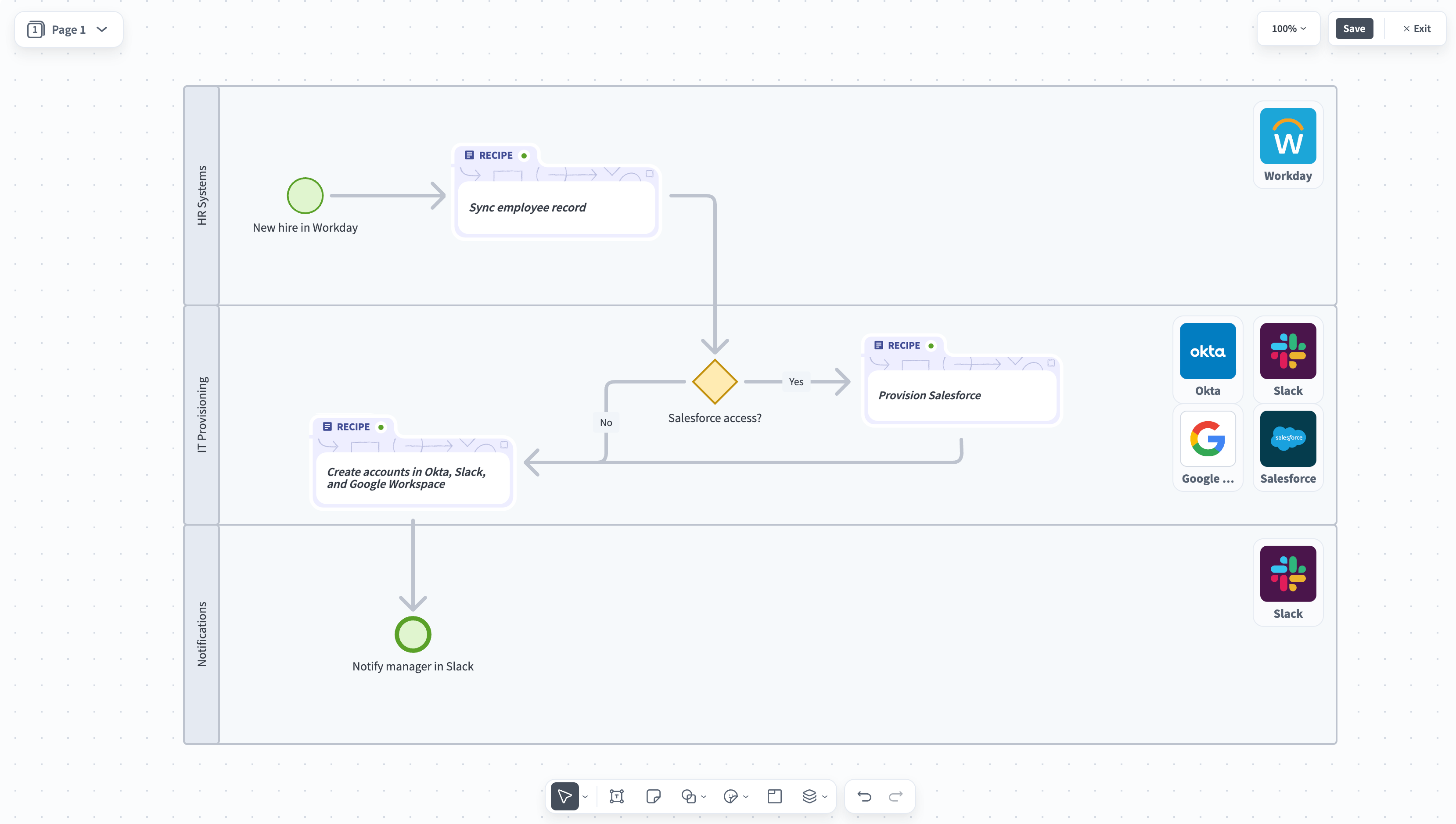 Existing asset nodes on the canvas
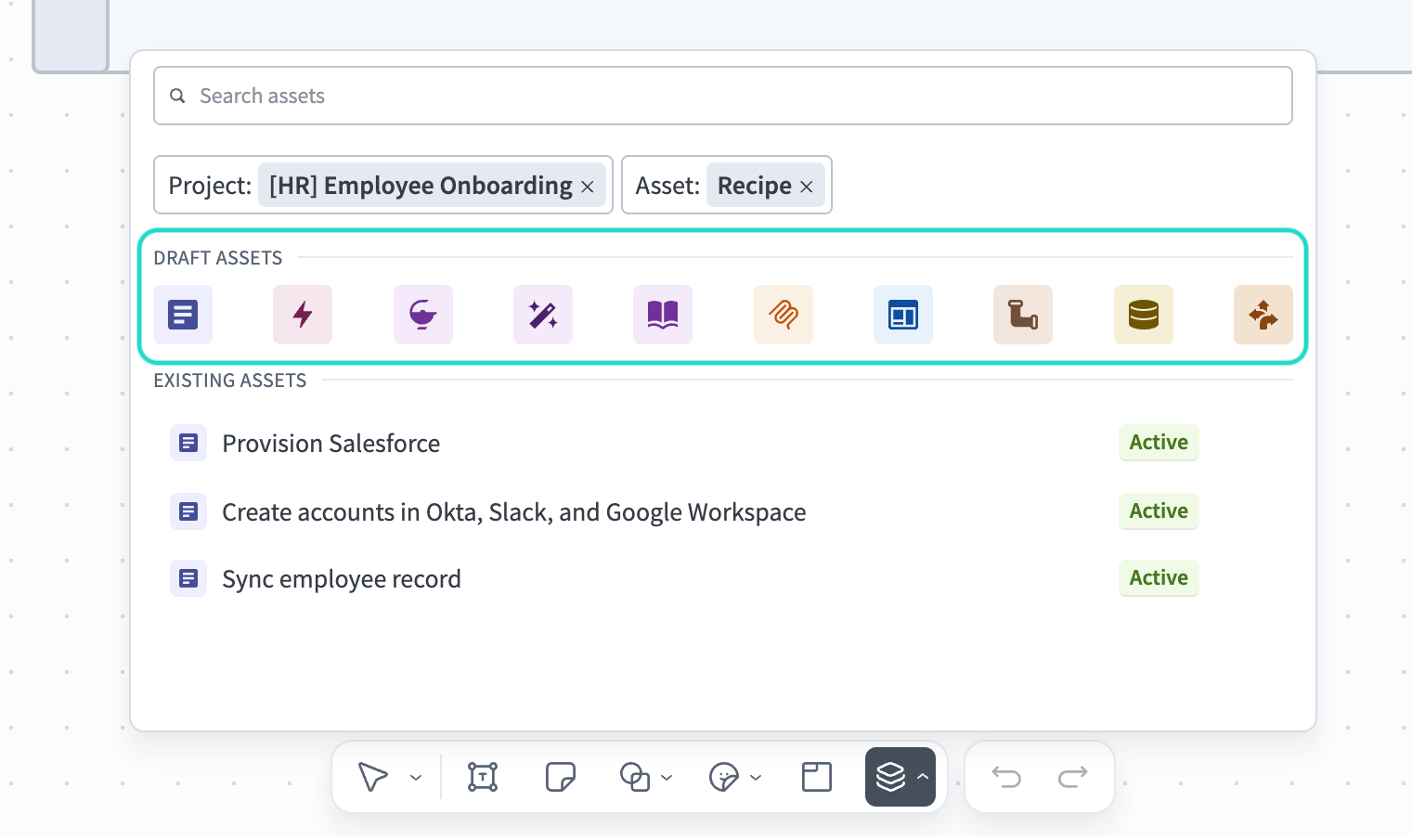 Draft assets
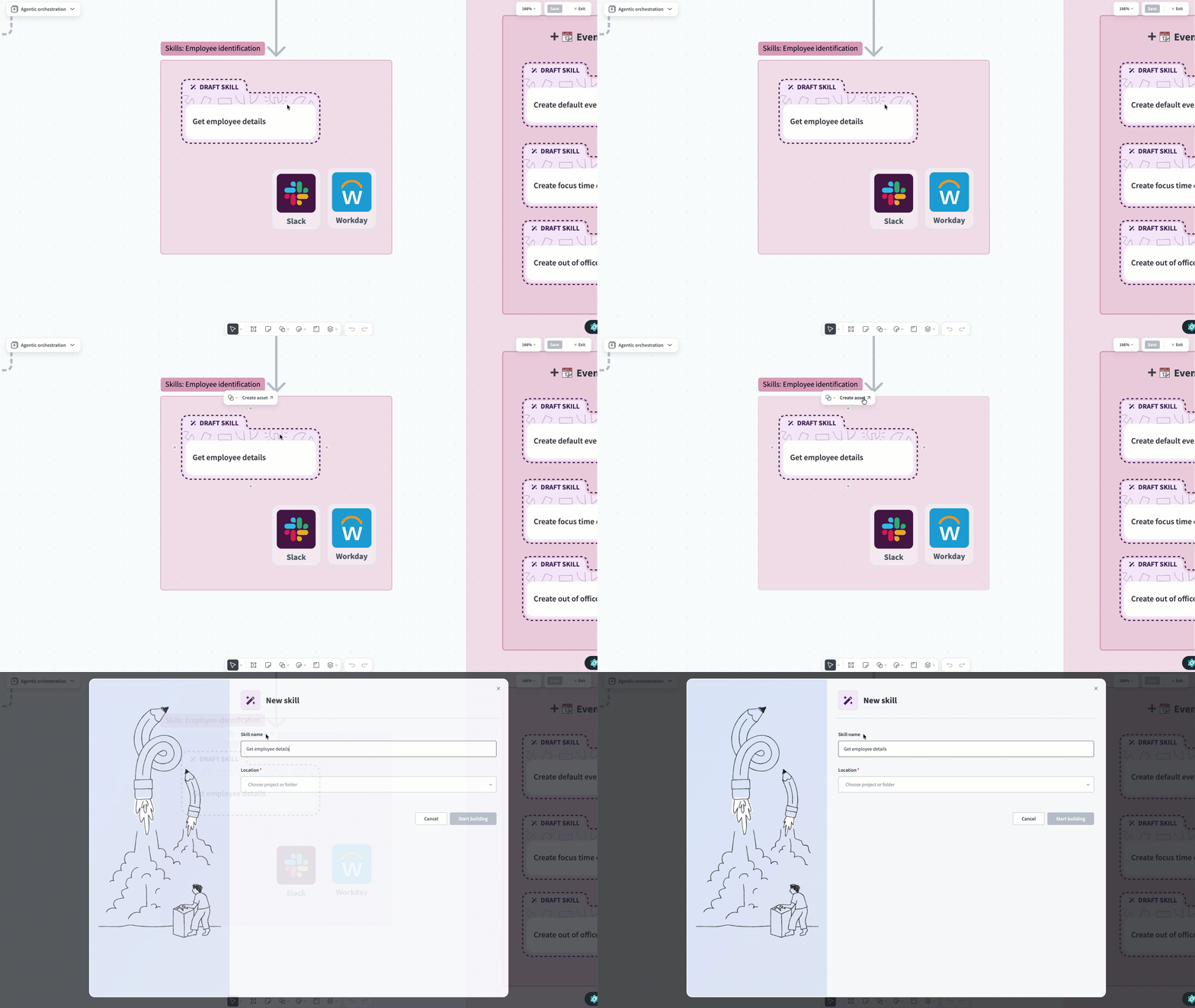 Create an asset from a draft node
If your access to a project is revoked after adding its assets to the canvas, those nodes will appear as hidden assets.
Canvas pages
Each project Canvas can have multiple pages. To manage pages, click Edit canvas to enter Edit mode, then click the page name at the top left to expand the pages panel.
To add a page, click + in the pages panel. New pages appear below the current page with the name "Page X" by default.
To manage an existing page, click the ... menu next to it. You can copy a link, rename, pin, duplicate, or delete the page.
You can also reorder pages by dragging them in the pages panel.
Editing and saving
Canvas uses a single-user edit model, meaning that only one set of changes can be saved at a time. If two people enter Edit mode simultaneously, the first to save wins. The second user is notified that a newer version exists and cannot save their local changes.
Permissions
You can manage canvas permissions under Project assets in your project role settings.
| Role | Canvas permissions |
|---|---|
| Project admin | Full access |
| Advanced builder | Full access |
| Builder | View, Edit, Create |
| Project operator | View only |
Audit log
The workspace audit log records the following Canvas page events:
- Created: A new Canvas page was added to the project.
- Deleted: A Canvas page was removed from the project.
- Renamed: A Canvas page name was changed.
- Edited: Changes were saved to a Canvas page.
Each entry includes the page name, project name, user, and timestamp.
Keyboard shortcuts
| Key | Action |
|---|---|
| V | Select |
| H or Spacebar | Pan |
| T | Text |
| N | Sticky note |
| Command+ / Command- | Zoom in / out |
| Command+0 | Zoom to 100% |
| Shift+1 | Fit to screen |
| Command+C | Copy |
| Command+V | Paste |
| Delete | Delete element |
Last updated: