Airtop
Airtop provides cloud browser sessions for AI agents and automation. This connector enables you to start and manage browser sessions and windows, then use AI-driven actions to load pages, scrape content, query pages with natural language, and interact with elements, all without running your own browser infrastructure.
Install Airtop from the community library
Complete the following steps to install the Airtop connector from the community library:
Open the recipe editor and search for a connector. Alternatively, you can search for a connector in the community library.
 Search for community connectors in the recipe editor
Select the community connector you plan to install.
Click Install to install the connector from the community library.
 Click Install
Select Release connector. Alternatively, select Review code to review and modify the connector code before releasing it to the workspace.
 Release the connector
Summarize any changes you made to the connector, then click Release to allow workspace collaborators to use the connector in recipes.
 The Confirm release dialog
Connection setup
The Airtop connector uses API key authentication.
Airtop setup
Sign in to the Airtop portal.
Go to Settings > API Keys.
Click Create new key.
Enter a name in the Name field for your key.
Click Create and copy the API key for use in Workato.
Connect to Airtop using API key
Complete the following steps to connect to Airtop in Workato:
Click Create > Connection.
Search for Airtop and select it as your app.
Enter a name for your connection in the Connection name field.
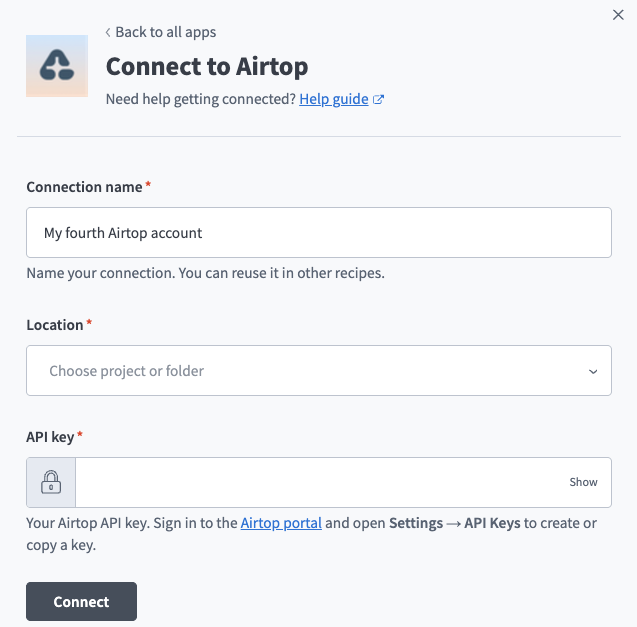 Create an Airtop connection in Workato.
Use the Location drop-down menu to select the project where you plan to store the connection.
Paste the API key you copied earlier into the API key field.
Click Connect.
Last updated: