Apify
Apify is a marketplace of hosted scrapers (Actors) plus dataset storage. The Apify connector lets you find public Actors, start runs, wait for results, and pull structured dataset items into your recipes.
Use the Apify connector to:
- Discover public store Actors, then look up an Actor, build, or run by ID.
- Start an Actor and pull the structured dataset items it produces.
- Wait for a long-running Actor to finish, then map its results into later recipe steps.
- Start a recipe when an Actor run finishes, and fetch its default dataset in a follow-on step.
Install Apify from the community library
Complete the following steps to install the Apify connector from the community library:
Open the recipe editor and search for a connector. Alternatively, you can search for a connector in the community library.
 Search for community connectors in the recipe editor
Select the community connector you plan to install.
Click Install to install the connector from the community library.
 Click Install
Select Release connector. Alternatively, select Review code to review and modify the connector code before releasing it to the workspace.
 Release the connector
Summarize any changes you made to the connector, then click Release to allow workspace collaborators to use the connector in recipes.
 The Confirm release dialog
Connection setup
The Apify connector uses API token authentication.
Apify setup
Complete the following steps to get your Apify API token:
Sign in to the Apify Console.
Go to Settings > API & Integrations.
Click Copy to copy the API token in the Personal API token section for use in Workato.
Connect to Apify using API token authentication
Complete the following steps to connect to Apify in Workato:
Click Create > Connection.
Search for Apify and select it as your app.
Enter a name for your connection in the Connection name field.
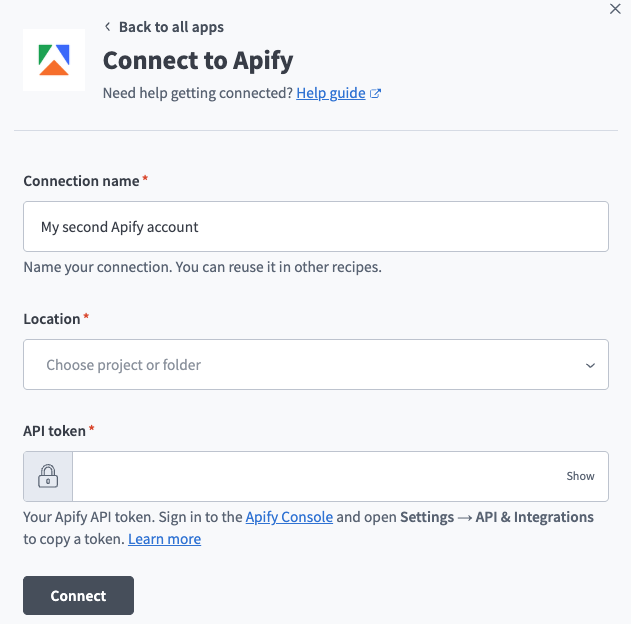 Apify connection setup.
Use the Location drop-down menu to select the project where you plan to store the connection.
Enter your Apify API token in the API token field. Refer to Apify setup for more information.
Click Connect.
Last updated: