Bluesky
Bluesky is a decentralized social network built on the AT Protocol. This connector enables you to look up profiles, create and delete posts and threads, upload images, send direct messages, and monitor notifications, all with a free Bluesky account and an app password. A Bluesky app password is a specific password used to connect Bluesky with other apps. This is not the same password that you use to log into your Bluesky account.
Install Bluesky from the community library
Complete the following steps to install the Bluesky connector from the community library:
Open the recipe editor and search for a connector. Alternatively, you can search for a connector in the community library.
 Search for community connectors in the recipe editor
Select the community connector you plan to install.
Click Install to install the connector from the community library.
 Click Install
Select Release connector. Alternatively, select Review code to review and modify the connector code before releasing it to the workspace.
 Release the connector
Summarize any changes you made to the connector, then click Release to allow workspace collaborators to use the connector in recipes.
 The Confirm release dialog
Connection setup
The Bluesky connector uses app password authentication.
Bluesky setup
Complete the following steps to get a Bluesky app password:
Go to Settings > Privacy and security > App passwords in your Bluesky account.
Click Add app password.
Turn on DM access in the password settings if you plan to use the Send direct message action.
Connect to Bluesky using app password authentication
Complete the following steps to connect to Bluesky in Workato:
Click Create > Connection.
Search for Bluesky and select it as your app.
Enter a name for your connection in the Connection name field.
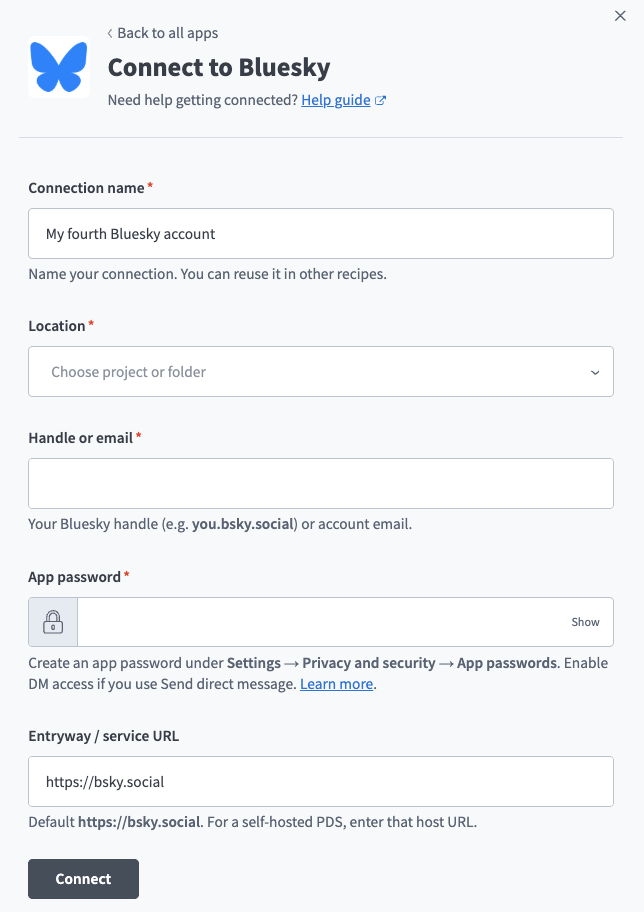 Bluesky connection setup
Use the Location drop-down menu to select the project where you plan to store the connection.
Enter your Bluesky handle or account email in the Handle or email field. For example, you.bsky.social.
Paste the app password you created earlier into the App password field.
Leave Entryway / service URL as the default https://bsky.social, unless you connect to a self-hosted server.
Click Connect.
Last updated: