Conga Composer
Conga Composer is a Salesforce application that allows users to create and deliver pixel-perfect documents, presentations, and reports using data from Salesforce. Conga Composer generates customized documents using templates.
This connector has the following capabilities:
- Merge a document with new leads in a CRM application
- Download a document and save with On-prem location
Install Conga Composer from the community library
Complete the following steps to install the Conga Composer connector from the community library:
Complete the following steps to install the Conga Composer connector from the community library:
Open the recipe editor and search for a connector. Alternatively, you can search for a connector in the community library.
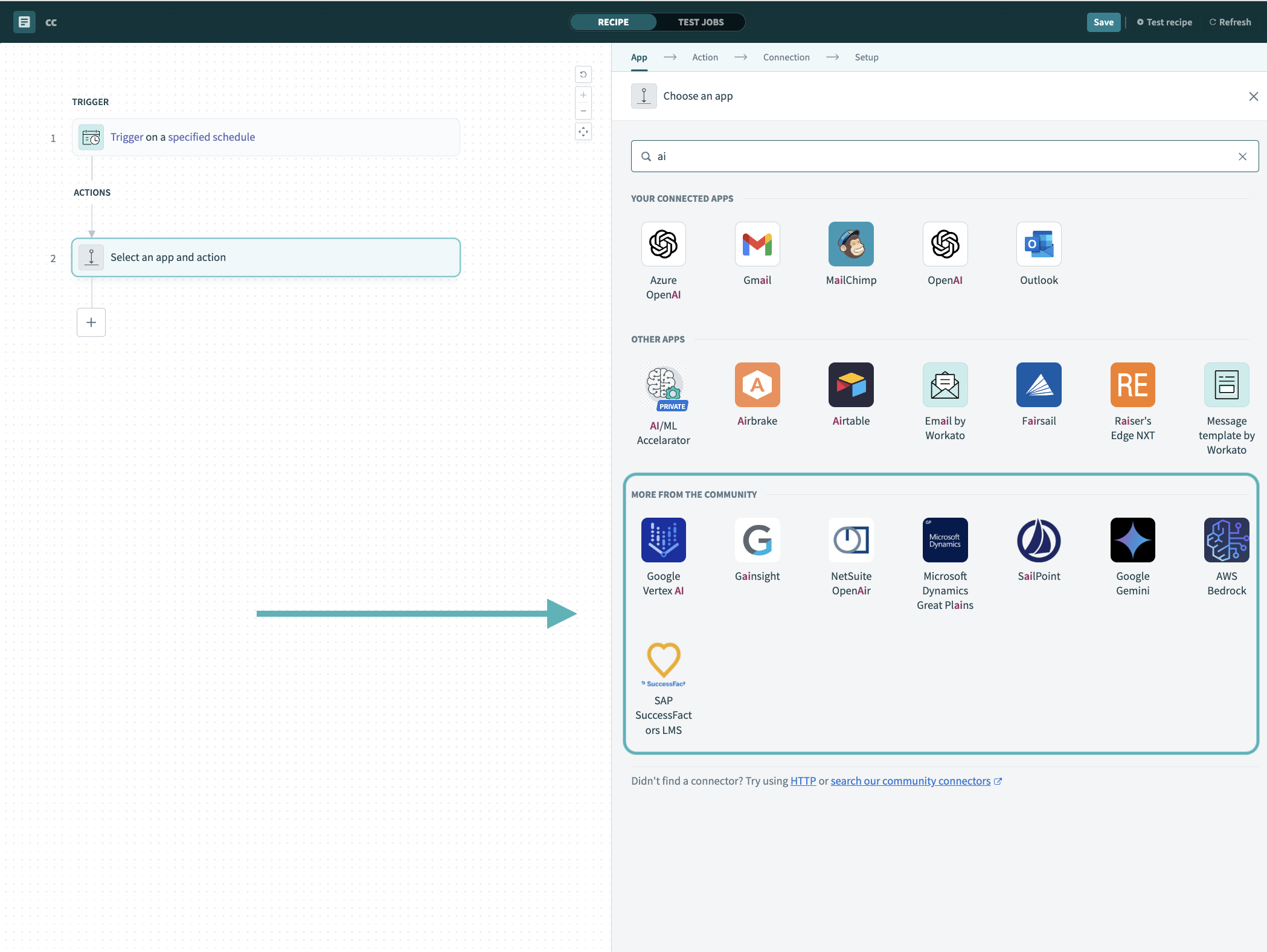 Search for community connectors in the recipe editor
Select the community connector you plan to install.
Click Install to install the connector from the community library.
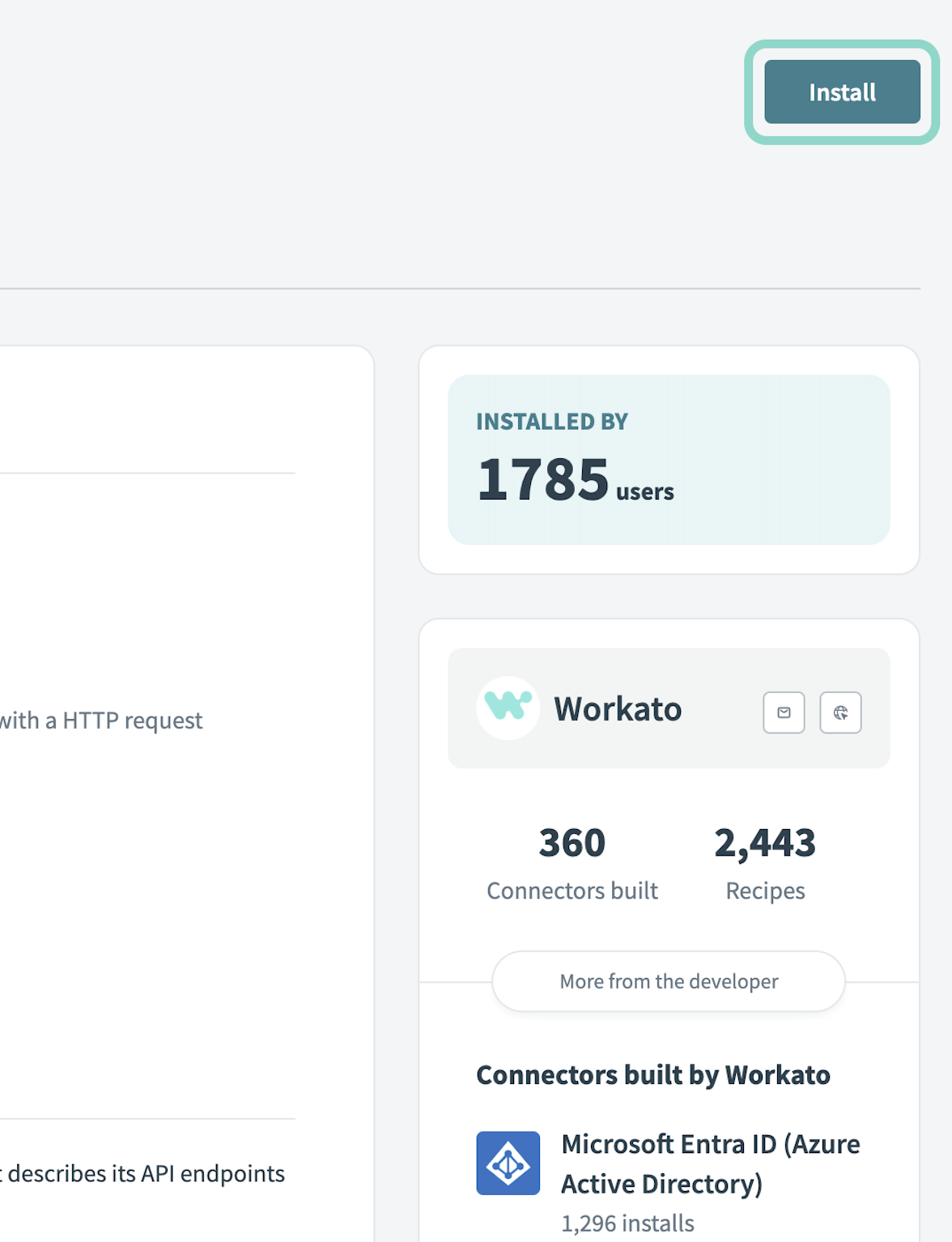 Click Install
Select Release connector. Alternatively, select Review code to review and modify the connector code before releasing it to the workspace.
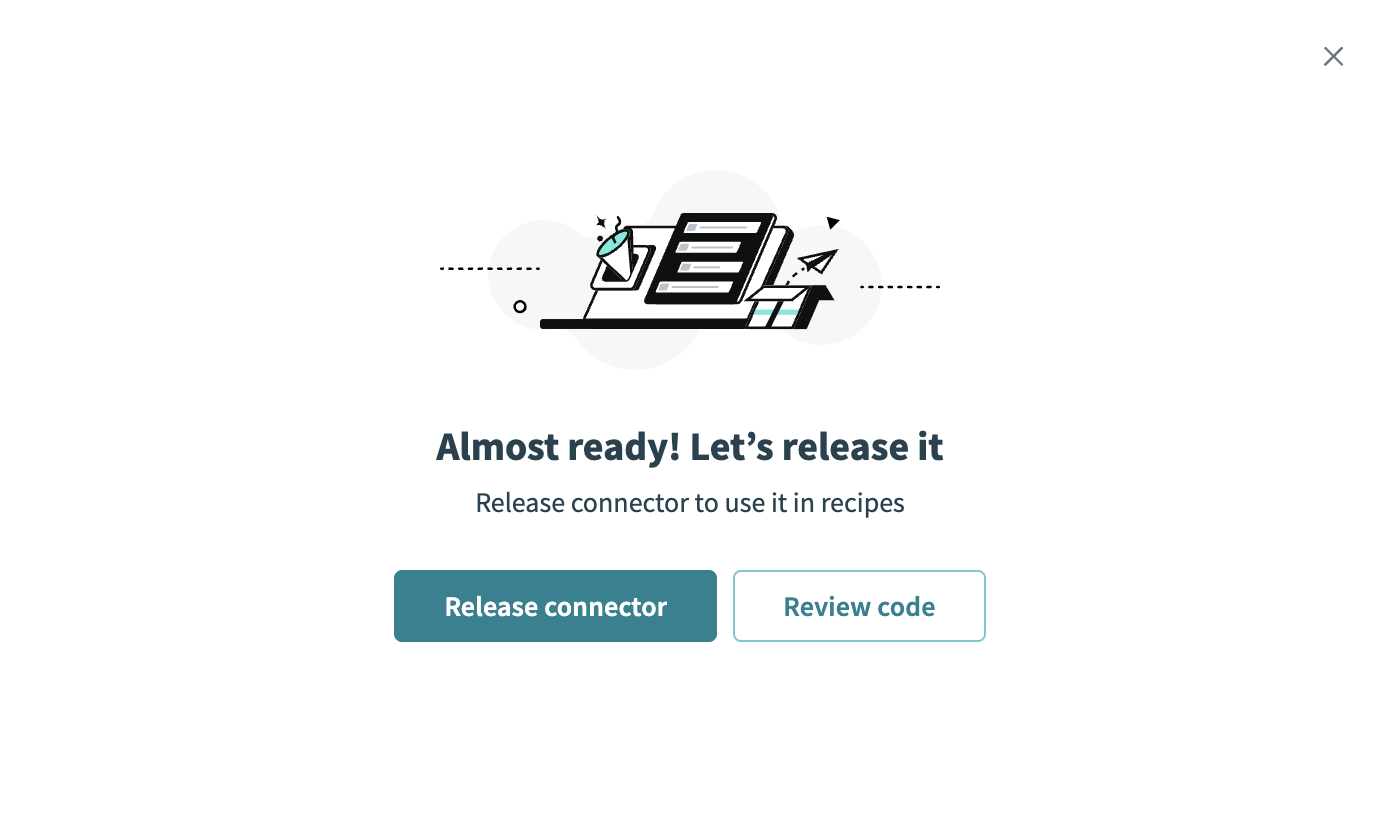 Release the connector
Summarize any changes you made to the connector, then click Release to allow workspace collaborators to use the connector in recipes.
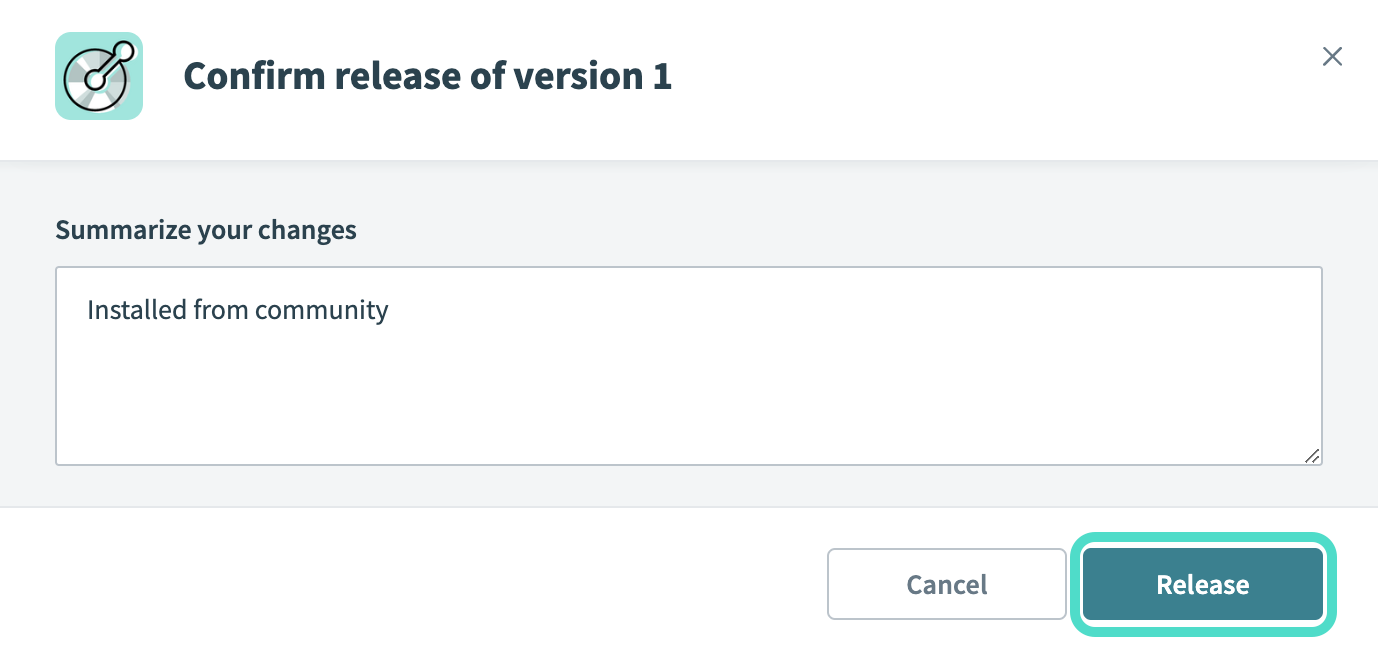 The Confirm release dialog
Connection setup
The Conga Composer connector uses OAuth 2.0 authentication.
Conga Composer setup
Complete the following steps to get a client ID and client secret in Conga Composer:
Sign in to your Conga account.
Go to Org Management > Conga API Connections.
Click Add API to API Connection.
Select External Identifier.
Click Save and Generate Client Secret. You use these values to create a connection in Workato.
Connect to Conga Composer in Workato using {auth-type}
Complete the following steps to connect to Conga Composer in Workato:
Click Create > Connection.
Search for Conga Composer and select it as your app on the New connection page.
Enter a name for your connection in the Connection name field.
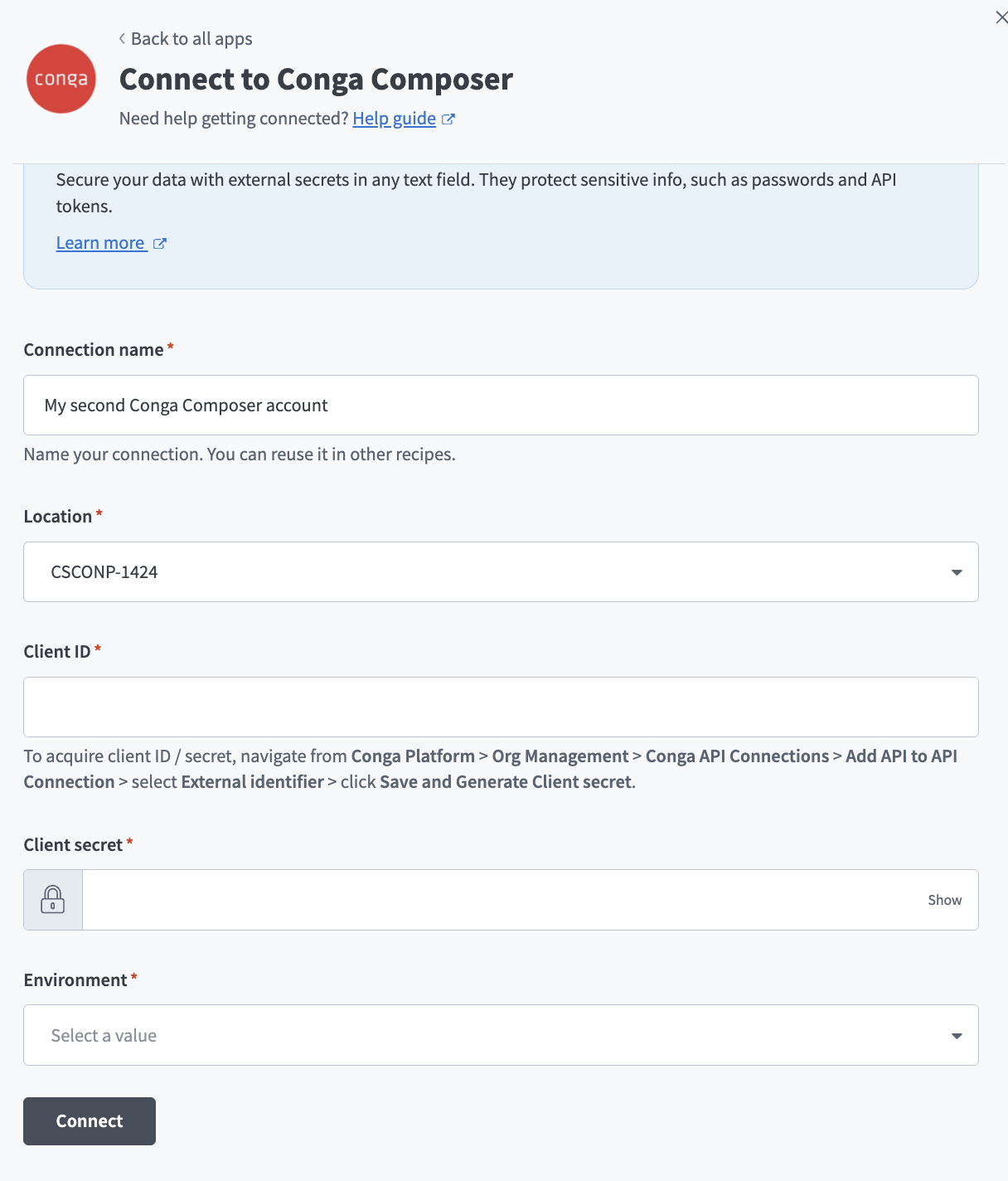 Create a Conga Composer connection.
Use the Location drop-down menu to select the project where you plan to store the connection.
Enter your Client ID.
Enter your Client secret.
Select the Environment to use in your connection.
Click Connect.
Last updated: