Discord
Discord is a real-time communications platform that lets users interact using text, voice calls, video calls, and screen sharing. The Discord connector allows you to automate workflows to create messages and assign roles.
Install Discord from the community library
Complete the following steps to install the Discord connector from the community library:
Open the recipe editor and search for a connector. Alternatively, you can search for a connector in the community library.
 Search for community connectors in the recipe editor
Select the community connector you plan to install.
Click Install to install the connector from the community library.
 Click Install
Select Release connector. Alternatively, select Review code to review and modify the connector code before releasing it to the workspace.
 Release the connector
Summarize any changes you made to the connector, then click Release to allow workspace collaborators to use the connector in recipes.
 The Confirm release dialog
Connection setup
The Discord connector uses OAuth2 authentication.
Minimum and default scopes
These are the minimum required scopes to establish a connection. If you don't select these scopes, they're automatically added to your requested scopes.
BotIdentify
Discord setup for OAuth2 authentication
Complete the following steps to retrieve credentials from Discord:
Go to the Discord Applications page.
Click your application. To create a new application, refer to the Discord Step 1: Creating an app guide.
Click the OAuth2 page under the Overview tab.
Copy and save the Client ID and Client Secret for use in Workato.
SAVE YOUR SECRET
The client secret only displays once. If you lose it, you must reset it.
Click Add Redirect under the Redirect section.
Add the following URI:
https://www.workato.com/oauth/callbackClick Save Changes.
Click the Bot page.
Click Reset Token to generate a new token.
Copy and save the Token for use in Workato.
SAVE YOUR TOKEN
The token only displays once. If you lose it, you must reset it.
Connect to Discord with OAuth2 authentication
Complete the following steps to connect to Discord in Workato:
Click Create > Connection.
Search for Discord and select it as your app.
Enter a name for your connection in the Connection name field.
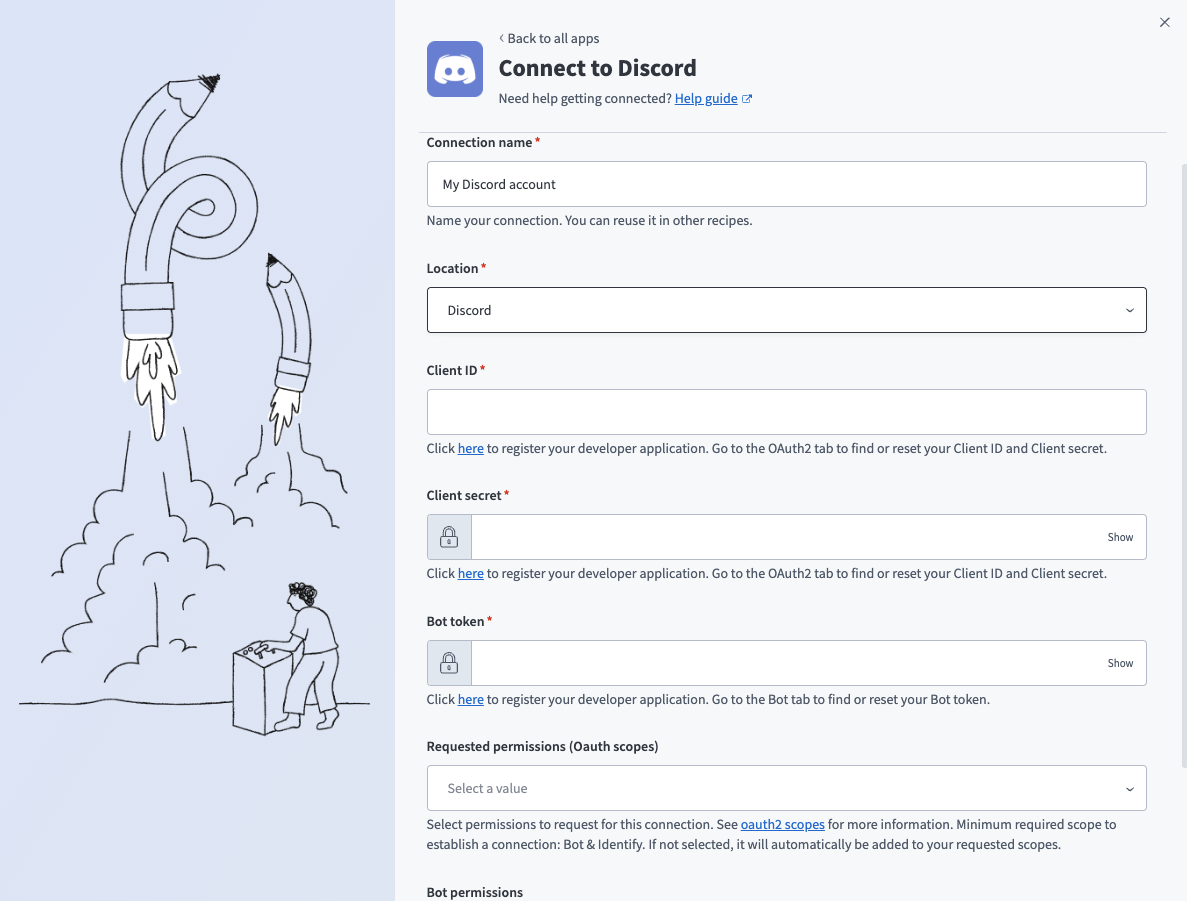 Discord connection setup
Use the Location drop-down menu to select the project where you plan to store the connection.
Enter the Client ID. Refer to Discord setup for OAuth2 authentication for instructions on how to retrieve the Client ID, Client secret, and Bot token.
Enter the Client secret.
Enter the Bot token.
Optional. Use the Requested permissions (Oauth scopes) drop-down menu to select the scopes you plan to add to this connection. Refer to Minimum and default scopes for more information.
Optional. Use the Bot permissions drop-down menu to select the bot permissions you plan to include for this connection. This setting defaults to Administrator if left blank.
Click Connect.
Authorize access to the account.
Last updated: