JAMF
JAMF is a device management platform for Apple devices, including Mac, iPhone, and iPad. The JAMF connector lets you work with computers, account users, computer invitations, departments, Mac applications, and webhook events in Workato.
API version
The connector uses the JAMF Classic API for most operations and the JAMF Pro API for computer inventory operations.
Install JAMF from the community library
Complete the following steps to install the JAMF connector from the community library:
Open the recipe editor and search for a connector. Alternatively, you can search for a connector in the community library.
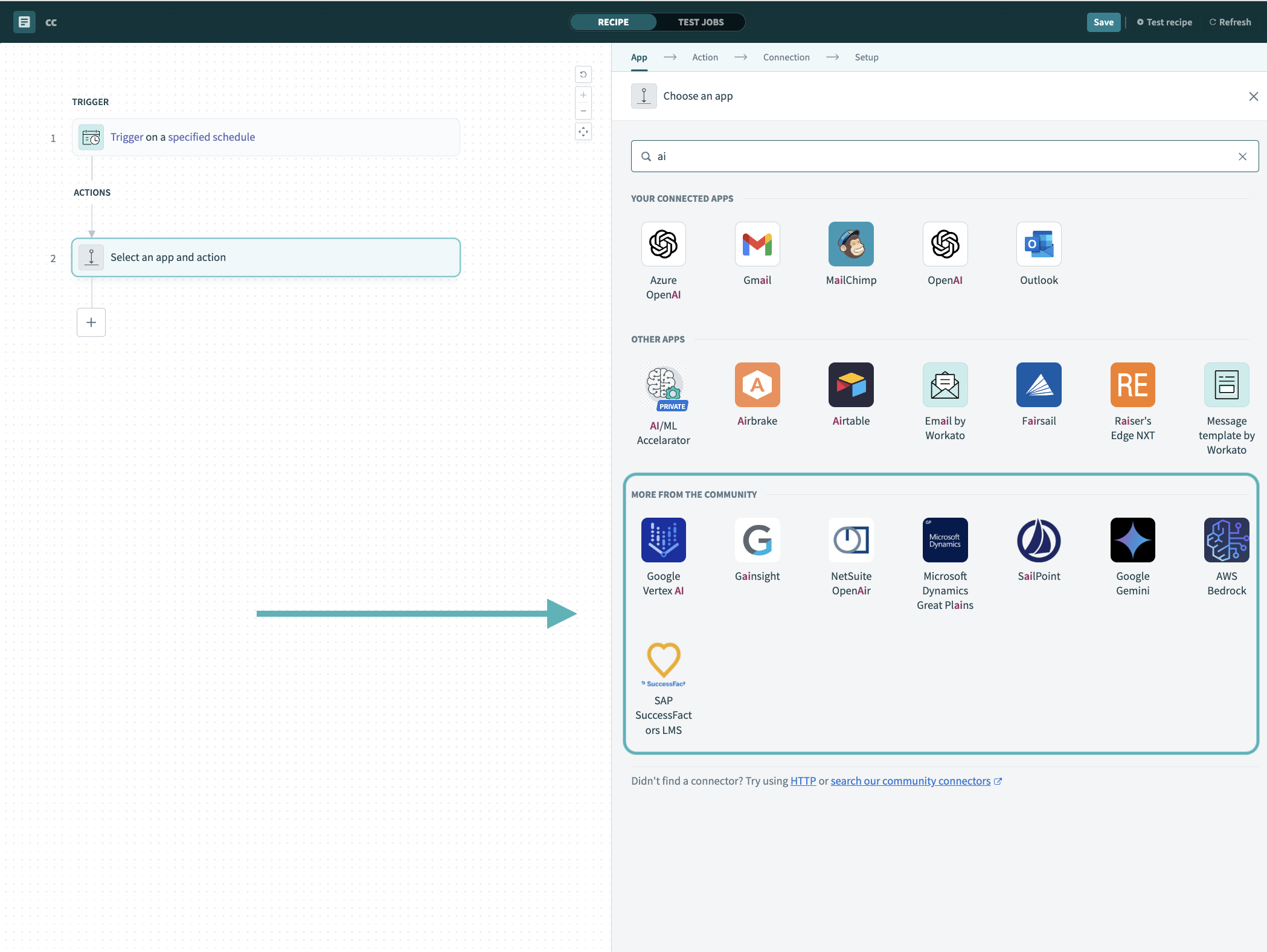 Search for community connectors in the recipe editor
Select the community connector you plan to install.
Click Install to install the connector from the community library.
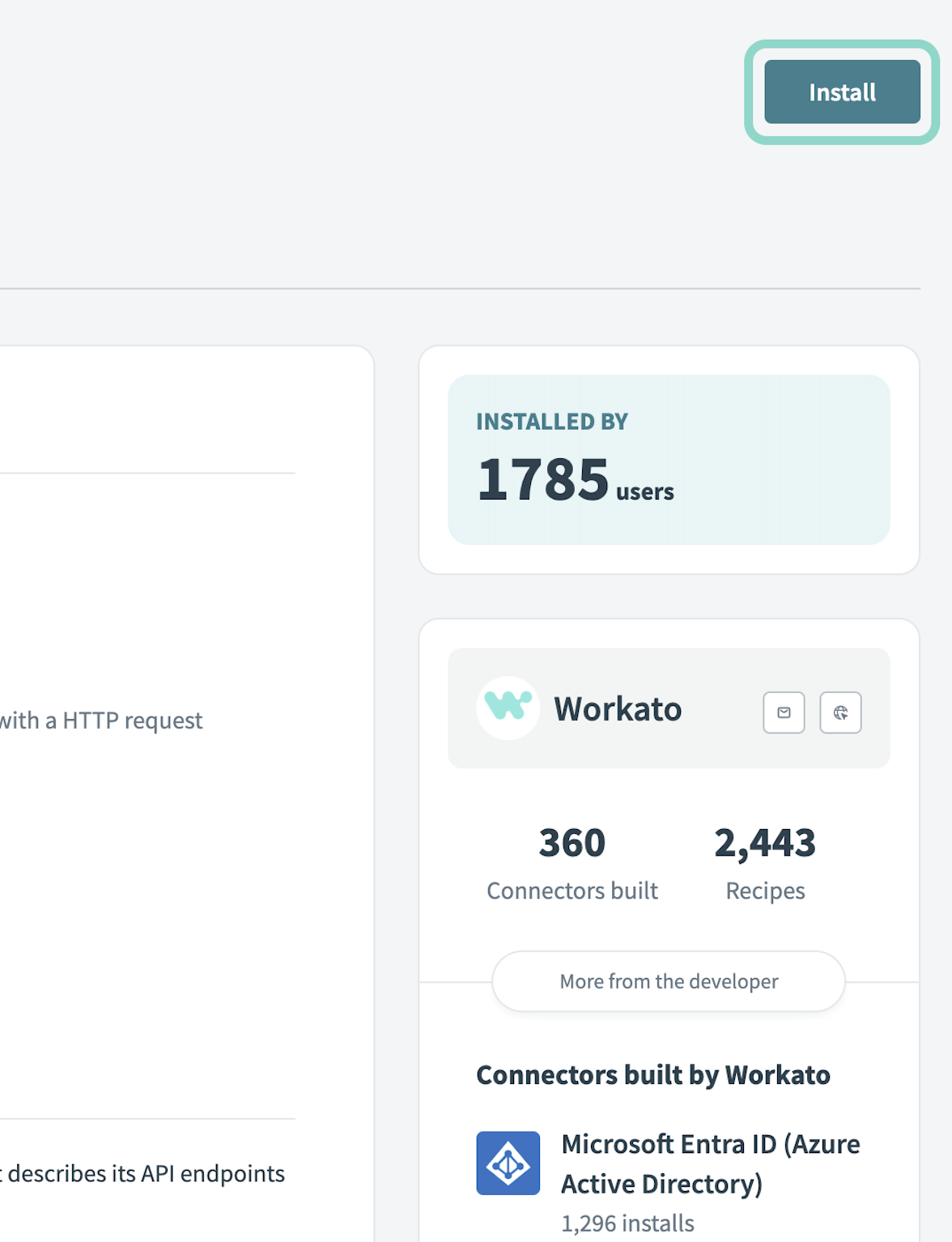 Click Install
Select Release connector. Alternatively, select Review code to review and modify the connector code before releasing it to the workspace.
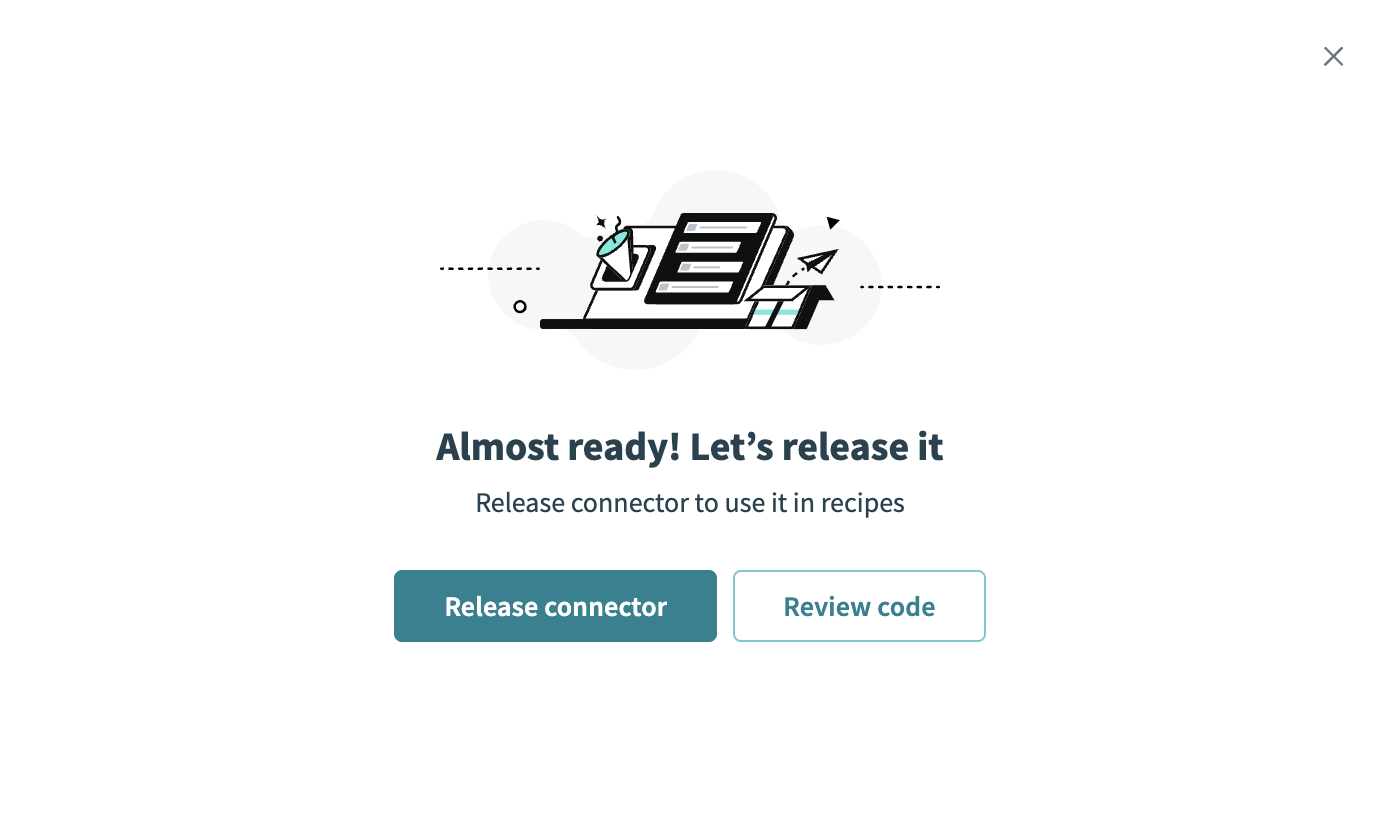 Release the connector
Summarize any changes you made to the connector, then click Release to allow workspace collaborators to use the connector in recipes.
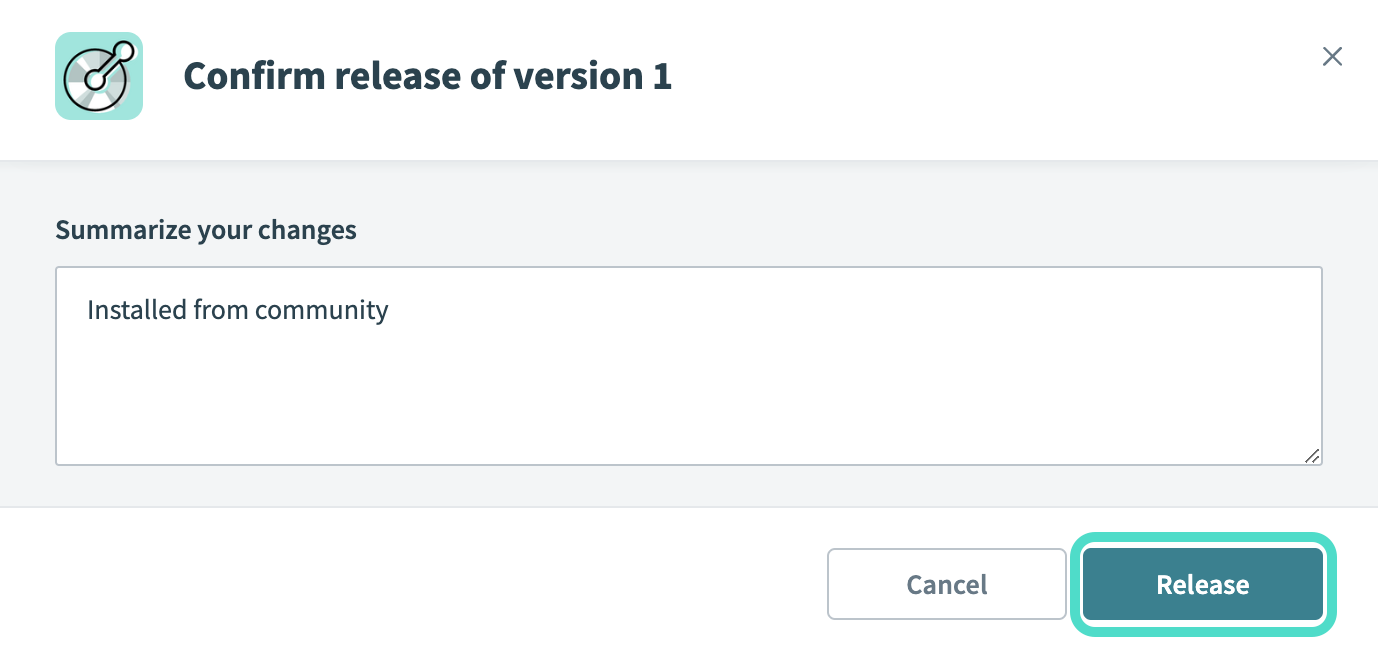 The Confirm release dialog
Connection setup
The JAMF connector supports client credentials authentication.
Client credentials authentication
Use client credentials for JAMF Pro API or the JAMF classic API.
JAMF setup
Complete the following steps to set up JAMF for client credentials authentication:
Sign in to your JAMF Pro instance as an administrator.
In the sidebar, click Settings > System > API Roles and Clients.
Create an API role that grants the privileges required for the objects you plan to use in your recipes. For example, grant Read Computers, Create Computers, and Update Computers if your recipes work with computer records.
Refer to API Roles and Clients in the JAMF documentation for the full list of privileges.
Create an API client and assign the API role you created. JAMF Pro generates a client ID for the new client.
Select the API client and click Generate client secret. Copy and save the client secret for use in Workato. JAMF Pro displays the secret only once.
Connect to JAMF with client credentials authentication
Complete the following steps to set up a client credentials connection to JAMF in Workato:
Click Create > Connection.
Search for JAMF and select it as your app.
Provide a unique name for the connection in the Connection name field.
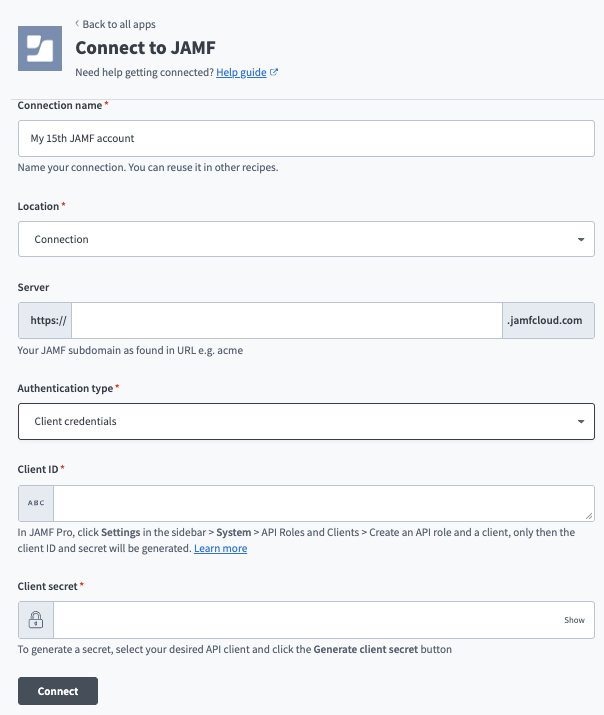 JAMF client credentials authentication setup
Use the Location drop-down menu to select the project where you plan to store the connection.
Use the Authentication type drop-down menu to select Client credentials.
Enter the Client ID generated when you created the API client in JAMF Pro.
Enter the Client secret you generated for the API client.
Click Connect.
Last updated: