Kickflow
Kickflow is a cloud-based workflow system that helps companies manage approval processes and improve business efficiency. The Kickflow connector lets you create, retrieve, update, delete, and search Kickflow records, and run additional ticket operations, from a Workato recipe.
Install Kickflow from the community library
Complete the following steps to install the Kickflow connector from the community library:
Open the recipe editor and search for a connector. Alternatively, you can search for a connector in the community library.
 Search for community connectors in the recipe editor
Select the community connector you plan to install.
Click Install to install the connector from the community library.
 Click Install
Select Release connector. Alternatively, select Review code to review and modify the connector code before releasing it to the workspace.
 Release the connector
Summarize any changes you made to the connector, then click Release to allow workspace collaborators to use the connector in recipes.
 The Confirm release dialog
Connection setup
The Kickflow connector supports the following authentication types:
Personal access token authentication
Use personal access token authentication for standard administrative or data integration tasks.
Kickflow setup
Complete the following steps to create a personal access token in Kickflow:
Sign in to Kickflow.
Click the settings menu and select Access token settings.
Click Create access token.
Connect to Kickflow using a personal access token
Complete the following steps to connect to Kickflow in Workato:
Click Create > Connection.
Search for Kickflow and select it as your app.
Enter a name for your connection in the Connection name field.
 Create a Kickflow connection.
Use the Location drop-down menu to select the project where you plan to store the connection.
Use the Auth type drop-down menu to select Personal access token.
Enter the token you created in the Token field.
Click Connect.
Service account token authentication
Use service account token authentication when you need to act on behalf of users in automated workflow.
Kickflow setup
Complete the following steps to set up Kickflow for service account token authentication:
Sign in to Kickflow.
Click the grid menu and select Admin center.
Click Integrations > Service account.
Click New access token.
Connect to Kickflow using an access token
Complete the following steps to connect to Kickflow in Workato:
Click Create > Connection.
Search for Kickflow and select it as your app.
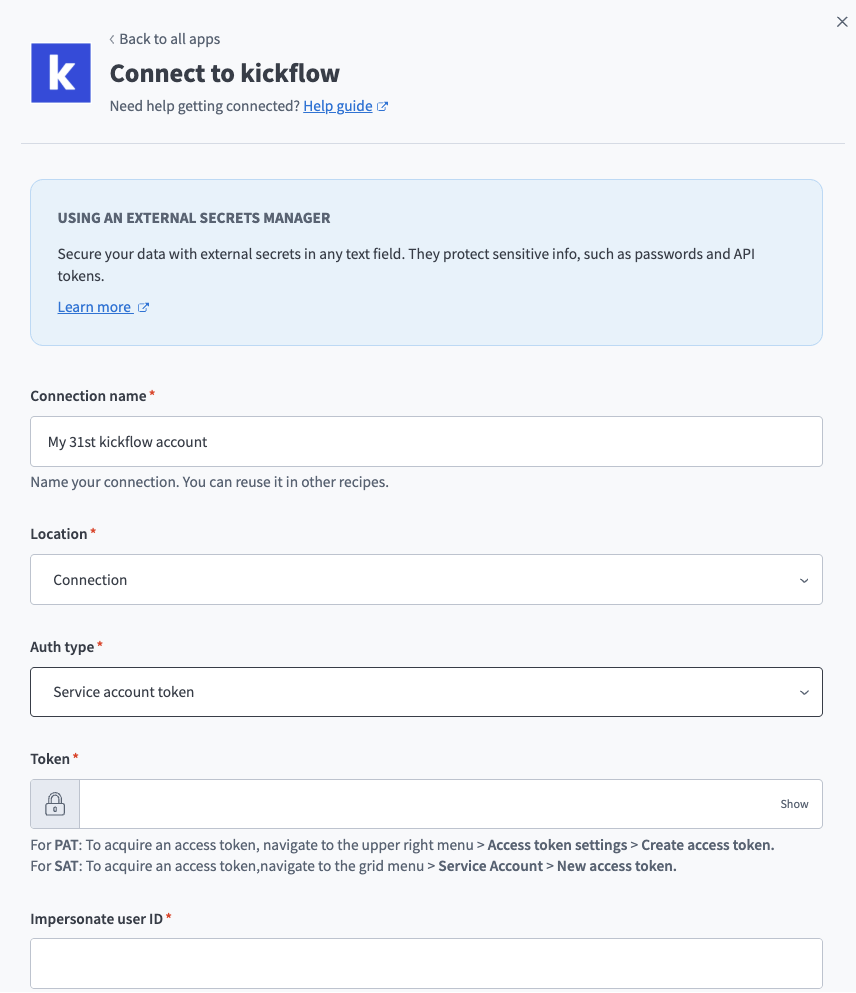
Enter a name for your connection in the Connection name field.
Create a Kickflow connection.
Use the Location drop-down menu to select the project where you plan to store the connection.
Use the Auth type drop-down menu to select Service account token.
Enter the token you created in the Token field.
Enter the ID of the user to impersonate in the Impersonate user ID field.
Click Connect.
Last updated: