NocoDB
NocoDB is an open-source no-code platform that presents tables from databases such as Postgres and MySQL as editable grids, forms, and views. The NocoDB connector enables you to read and write table rows in NocoDB Cloud or a self-hosted instance, and trigger recipes when records change.
Install NocoDB from the community library
Complete the following steps to install the NocoDB connector from the community library:
Open the recipe editor and search for a connector. Alternatively, you can search for a connector in the community library.
 Search for community connectors in the recipe editor
Select the community connector you plan to install.
Click Install to install the connector from the community library.
 Click Install
Select Release connector. Alternatively, select Review code to review and modify the connector code before releasing it to the workspace.
 Release the connector
Summarize any changes you made to the connector, then click Release to allow workspace collaborators to use the connector in recipes.
 The Confirm release dialog
Connection setup
The NocoDB connector uses API token authentication.
NocoDB setup
Complete the following steps to set up API token authentication in NocoDB:
Log in to your NocoDB instance. For NocoDB Cloud, go to the NocoDB sign-in page.
Copy your NocoDB instance URL from the browser address bar.
Use one of the following formats:
- NocoDB Cloud:
https://app.nocodb.com - Self-hosted instance with a public URL: your public URL. For example,
https://nocodb.example.com. - Self-hosted instance on a private network or localhost: your in-network URL. For example,
http://localhost:8080. This connection type requires an on-prem agent.localhostrefers to the host where the agent runs.
Create a NocoDB API token:
Go to Account Settings > API Tokens.
Enter a name for your API token in the Name field.
Configure access to the API token in the Resource scope field.
Configure permissions for the API token in the Scopes field.
Click Create new token.
Connect to NocoDB using an API token
Complete the following steps to connect to NocoDB in Workato:
Click Create > Connection.
Search for NocoDB and select it as your app.
Enter a name for your connection in the Connection name field.
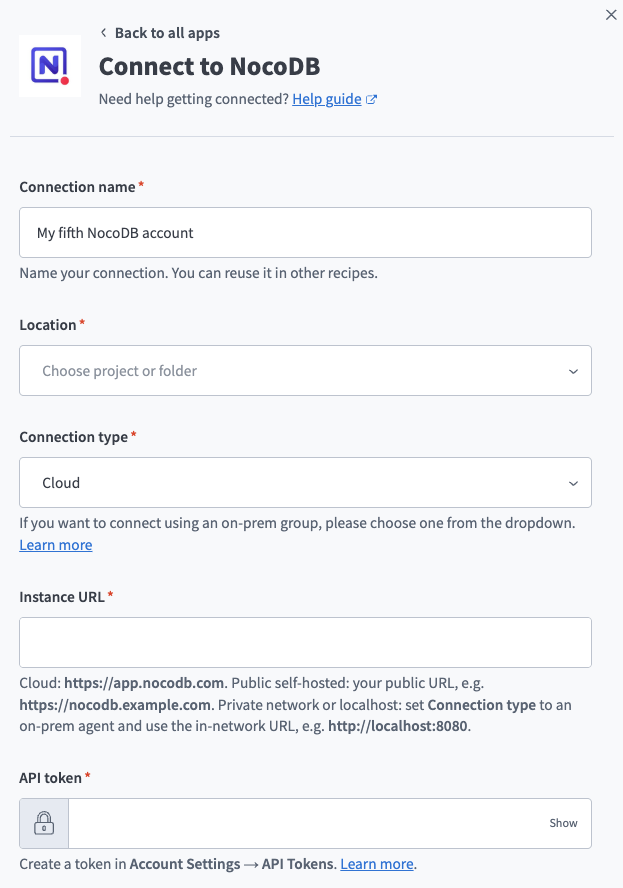 NocoDB connection setup
Use the Location drop-down menu to select the project where you plan to store the connection.
Use the Connection type drop-down menu to select Cloud, or select an on-prem group to connect to a self-hosted instance on a private network or localhost.
Enter the URL of your NocoDB instance in the Instance URL field.
Enter your NocoDB API token in the API token field.
Enter your workspace ID in the Workspace ID field. The workspace ID is in your NocoDB URL. For example, wxxxx.
Click Connect.
Last updated: