OneTrust
OneTrust is a privacy, risk, and compliance management platform. The OneTrust connector lets you create, retrieve, search, update, and reassign assessments, and retrieve users, in Workato.
Install OneTrust from the community library
Complete the following steps to install the OneTrust connector from the community library:
Open the recipe editor and search for a connector. Alternatively, you can search for a connector in the community library.
 Search for community connectors in the recipe editor
Select the community connector you plan to install.
Click Install to install the connector from the community library.
 Click Install
Select Release connector. Alternatively, select Review code to review and modify the connector code before releasing it to the workspace.
 Release the connector
Summarize any changes you made to the connector, then click Release to allow workspace collaborators to use the connector in recipes.
 The Confirm release dialog
Connection setup
The OneTrust connector supports the following authentication types:
Both authentication types send a bearer token to OneTrust. The connection test reads assessments, so the credential must have read access to the Assessment Automation module.
Client credentials authentication
Use client credentials to connect with a client ID and client secret. Workato exchanges them for an access token and refreshes the token when it expires.
Minimum and default scopes
Client credentials are scope-based, and the scopes required differ by endpoint. Select the scopes for the APIs you plan to use when creating your credentials. The connector uses the OneTrust Assessment APIs and the SCIM User APIs. Refer to the OneTrust API documentation for the scopes required by each endpoint.
OneTrust setup
Complete the following steps to set up OneTrust for client credentials authentication:
Click Global settings > Access management > Client credentials in OneTrust.
Click Add to create the credential.
Enter a name for your client credential. Optionally, configure Restrict IP addresses.
Configure Scopes for your client credential. Enable access to the OneTrust Assessment APIs and the SCIM User APIs. Refer to Minimum and default scopes for more information about minimum scopes.
Copy the Client ID and Client secret.
Connect to OneTrust using client credentials
Complete the following steps to set up a client credentials connection to OneTrust in Workato:
Click Create > Connection.
Search for OneTrust and select it as your app.
Enter a name for your connection in the Connection name field.
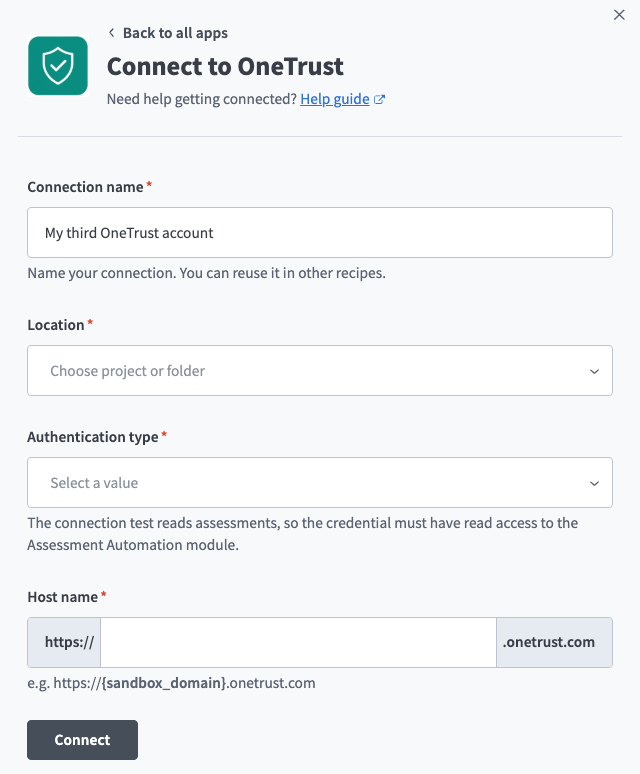 OneTrust connection setup.
Use the Location drop-down menu to select the project where you plan to store the connection.
Use the Authentication type drop-down menu to select Client credentials.
Enter your OneTrust subdomain in the Host name field. For example, if your OneTrust URL is https://example.my.onetrust.com, enter example.my.
Enter your OneTrust client ID in the Client ID field.
Enter your OneTrust client secret in the Client secret field.
Click Connect.
API key authentication
Use an API key to connect with a single OneTrust-generated key.
OneTrust setup
Complete the following steps to set up OneTrust for API key authentication:
Open OneTrust and go to Global settings > Access management > Client credentials > API keys.
Click Add and create the key.
Copy the API key.
Refer to the OneTrust documentation for more information.
Connect to OneTrust using an API key
Complete the following steps to set up an API key connection to OneTrust in Workato:
Click Create > Connection.
Search for OneTrust and select it as your app.
Enter a name for your connection in the Connection name field.
Use the Location drop-down menu to select the project where you plan to store the connection.
Use the Authentication type drop-down menu to select API key.
Enter your OneTrust subdomain in the Host name field. For example, if your OneTrust URL is https://example.my.onetrust.com, enter example.my.
Enter your OneTrust API key in the API key field.
Click Connect.
Last updated: