Salesforce Account Engagement (Pardot)
Salesforce Account Engagement (Pardot) is a marketing automation platform by Salesforce that provides email automation, targeted email campaigns, and lead management for B2B sales and marketing teams.
Install Salesforce Account Engagement (Pardot) from the community library
Complete the following steps to install the Salesforce Account Engagement (Pardot) connector from the community library:
Open the recipe editor and search for a connector. Alternatively, you can search for a connector in the community library.
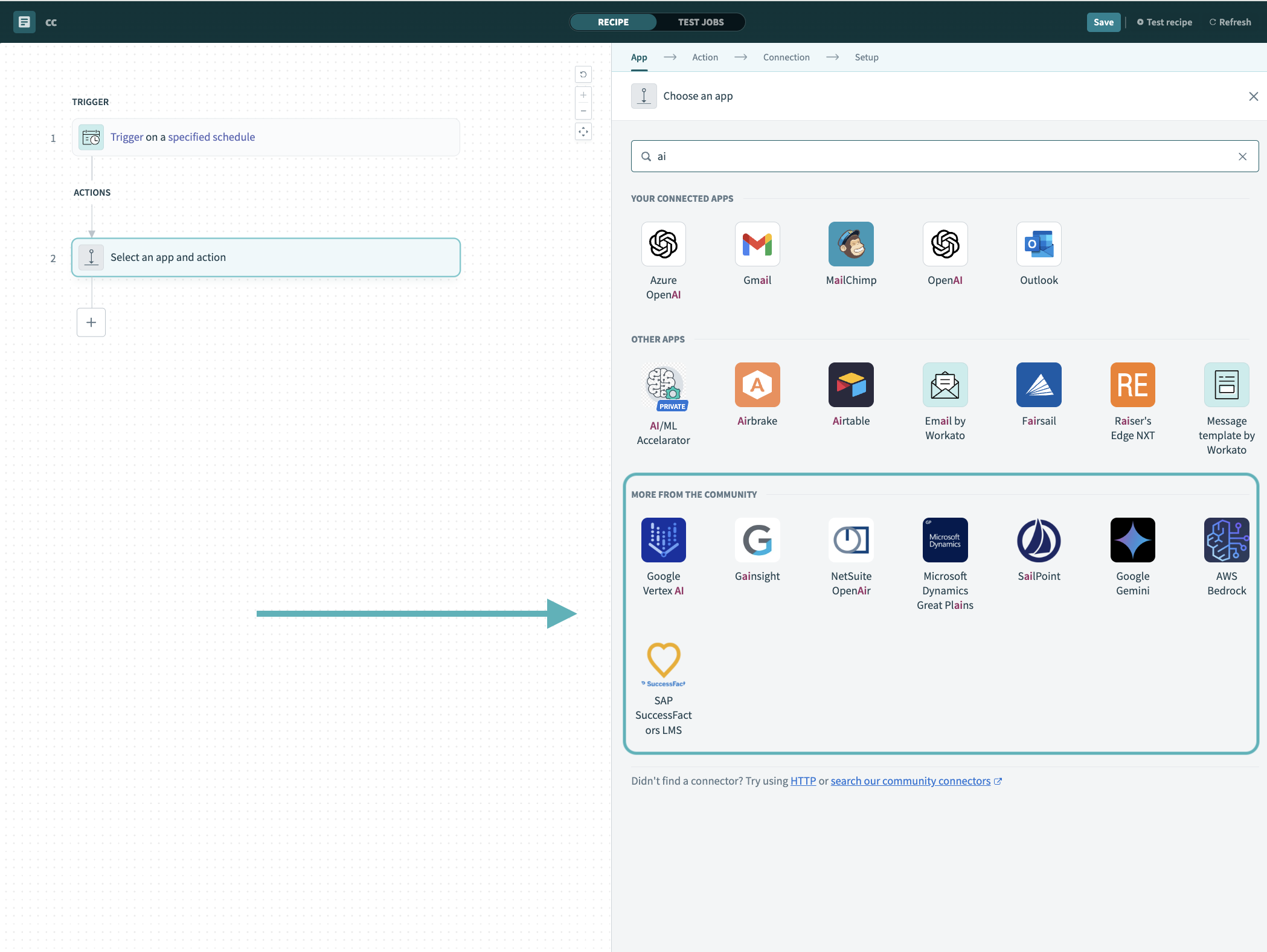 Search for community connectors in the recipe editor
Select the community connector you plan to install.
Click Install to install the connector from the community library.
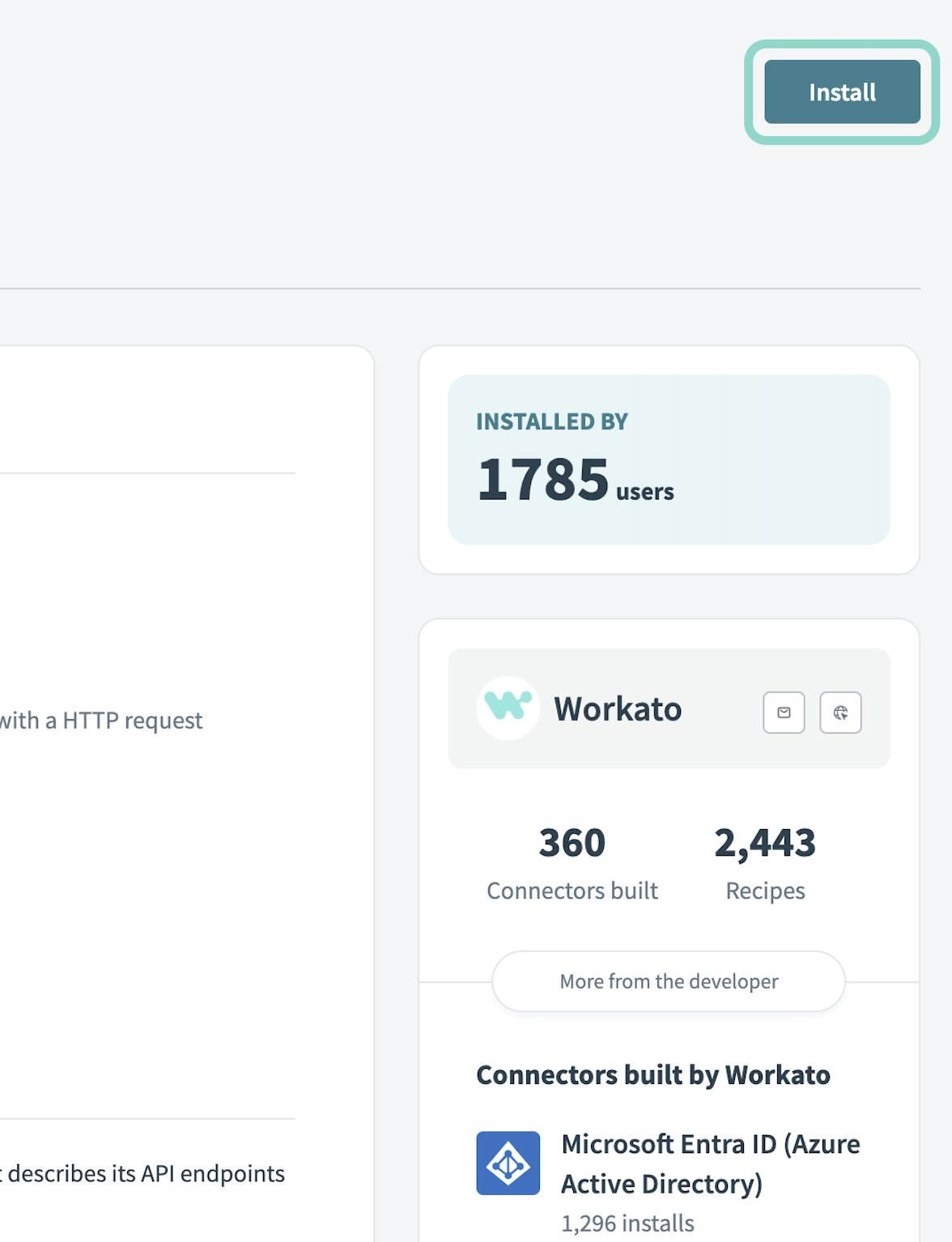 Click Install
Select Release connector. Alternatively, select Review code to review and modify the connector code before releasing it to the workspace.
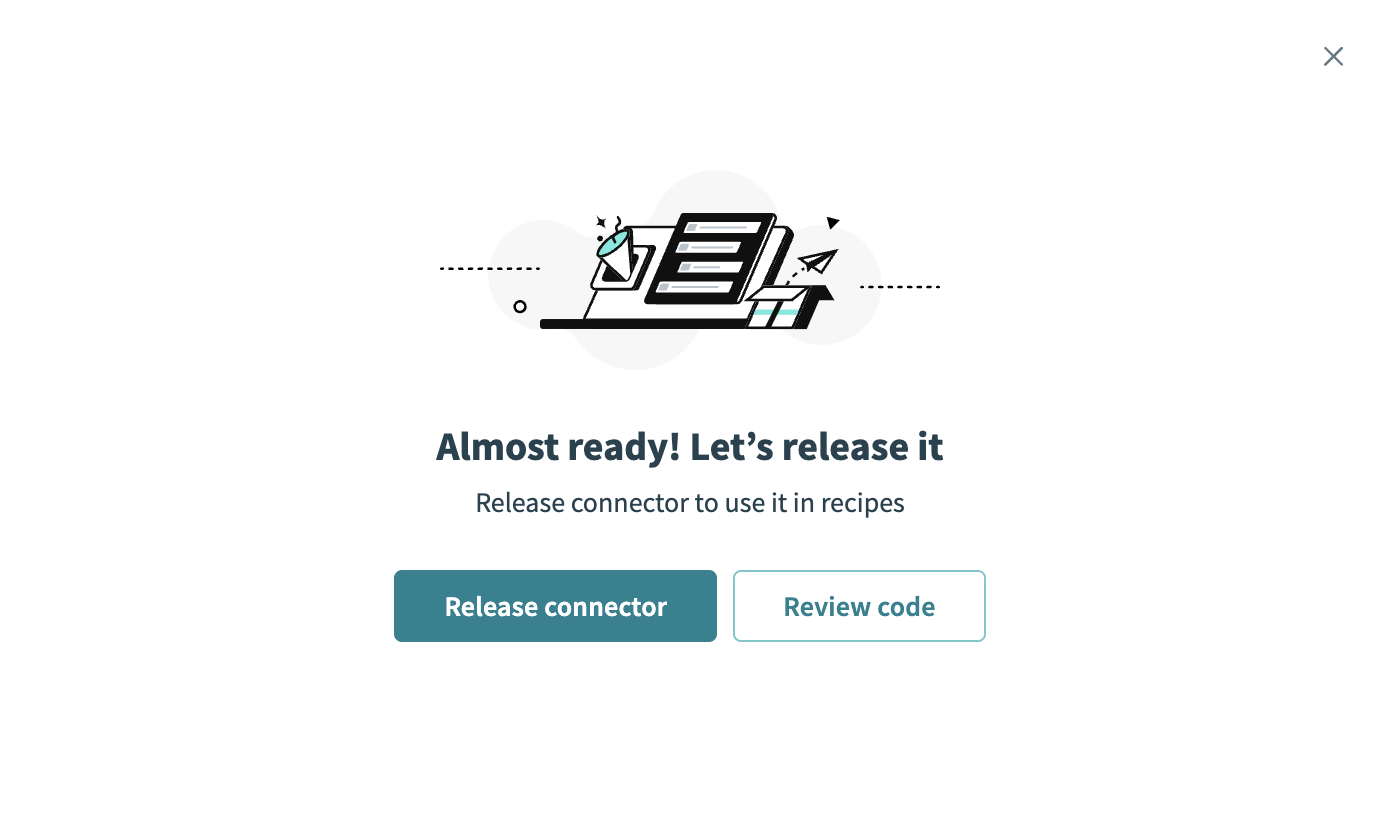 Release the connector
Summarize any changes you made to the connector, then click Release to allow workspace collaborators to use the connector in recipes.
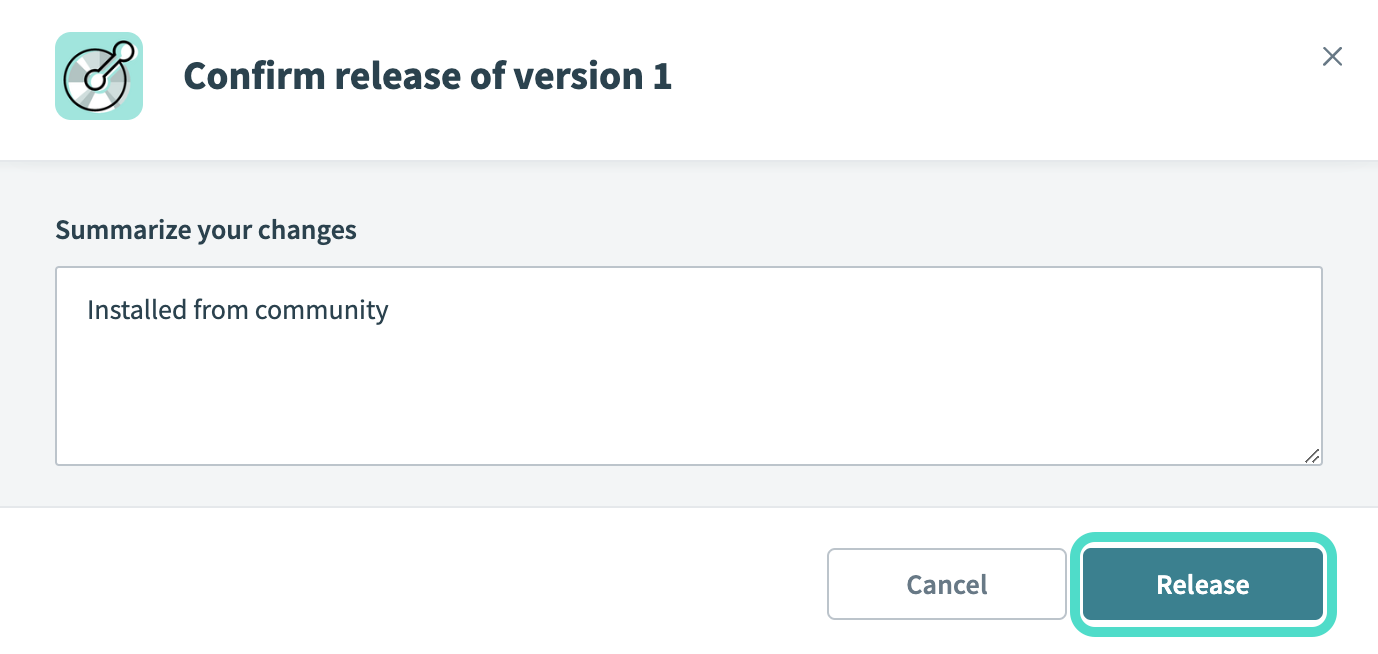 The Confirm release dialog
Connection setup
The Salesforce Account Engagement (Pardot) connector supports the following authentication types:
- OAuth 2.0 (Password)
- OAuth 2.0 (Authorization Code)
- OAuth 2.0 (Authorization Code with PKCE)
- OAuth 2.0 (Client Credentials)
All authentication types require the following:
- A Salesforce admin to create a connected app.
- A Salesforce user account linked to an Account Engagement user.
- Your Account Engagement business unit ID.
Retrieve your business unit ID
Complete the following steps to retrieve your business unit ID:
Log in to your Account Engagement account.
Go to Pardot > Settings > Users.
Verify that the CRM username of the selected user is synced with a Salesforce user.
Log in to your Salesforce account as an admin.
Go to Setup.
Enter Pardot Account Setup in the Quick Find box and select it.
Copy the Business unit ID for your business unit. The ID begins with 0Uv and has 18 characters.
Minimum and default scopes
The Salesforce Account Engagement (Pardot) connector requires the following scopes in your Salesforce connected app:
| Scope | Description | Required for |
|---|---|---|
Access Pardot Services (pardot_api) | Allows the app to access Account Engagement APIs. | All authentication types. |
Perform requests on your behalf at any time (refresh_token, offline_access) | Allows the app to obtain a refresh token so the connection stays valid after the access token expires. | OAuth 2.0 (Password), OAuth 2.0 (Authorization Code), and OAuth 2.0 (Authorization Code with PKCE). |
OAuth 2.0 (Password) authentication
Use OAuth 2.0 (Password) authentication to connect with the username and password of a Salesforce user account linked to an Account Engagement user.
Salesforce setup
Complete the following steps to set up Salesforce for OAuth 2.0 (Password) authentication:
Go to Home > App Manager > New Connected App to create a connected app.
Enter basic details such as application name, API name, and contact email.
Select Enable OAuth settings.
Enter https://www.workato.com/oauth/callback in the Callback URL field.
Add the OAuth scopes. Refer to Minimum and default scopes for more information.
Save the connected app.
Copy the Consumer Key and Consumer Secret for use in Workato. Refer to the Salesforce Authentication documentation for more information.
Connect to Salesforce Account Engagement (Pardot) using OAuth 2.0 (Password)
Complete the following steps to set up an OAuth 2.0 (Password) connection to Salesforce Account Engagement (Pardot) in Workato:
Click Create > Connection.
Search for Salesforce Account Engagement (Pardot) and select it as your app.
Provide a unique name for the connection in the Connection name field.
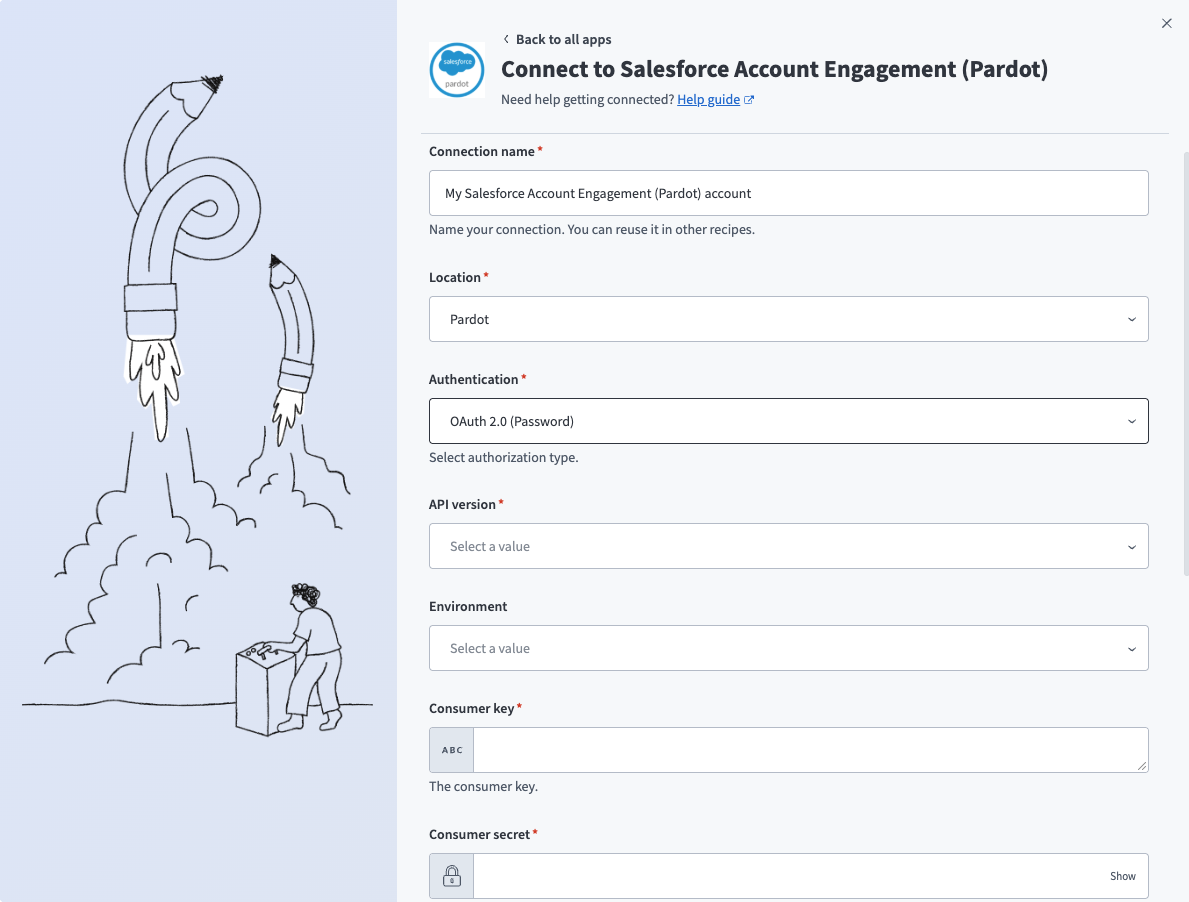 Salesforce Account Engagement (Pardot) OAuth 2.0 (Password) connection
Use the Location drop-down menu to select the project where you plan to store the connection.
Use the Authentication drop-down menu to select OAuth 2.0 (Password).
Use the API version drop-down menu to select the Account Engagement API version.
Use the Environment drop-down menu to select Production, Developer Org, or Sandbox. You must select an environment to connect.
Enter the Consumer key and Consumer secret from your Salesforce connected app. Refer to Salesforce setup for more information.
Enter the Email and Password of your Salesforce user account linked to an Account Engagement user.
Use the Salesforce domain drop-down menu to select Production Account or Pardot Developer or Sandbox.
Enter the Business unit ID that you copied from your Account Engagement account. Refer to Retrieve your business unit ID for more information.
Click Connect.
OAuth 2.0 (Authorization Code) authentication
Use OAuth 2.0 (Authorization Code) authentication to authorize Workato to access Account Engagement on behalf of a user, without sharing the user's password with Workato.
Salesforce setup
Complete the following steps to set up Salesforce for OAuth 2.0 (Authorization Code) authentication:
Go to Home > App Manager > New Connected App to create a connected app.
Enter basic details such as application name, API name, and contact email.
Select Enable OAuth settings.
Enter https://www.workato.com/oauth/callback in the Callback URL field.
Add the OAuth scopes. Refer to Minimum and default scopes for more information.
Save the connected app.
Copy the Consumer Key and Consumer Secret for use in Workato. Refer to the Salesforce Authentication documentation for more information.
Connect to Salesforce Account Engagement (Pardot) using OAuth 2.0 (Authorization Code)
Complete the following steps to set up an OAuth 2.0 (Authorization Code) connection to Salesforce Account Engagement (Pardot) in Workato:
Click Create > Connection.
Search for Salesforce Account Engagement (Pardot) and select it as your app.
Provide a unique name for the connection in the Connection name field.
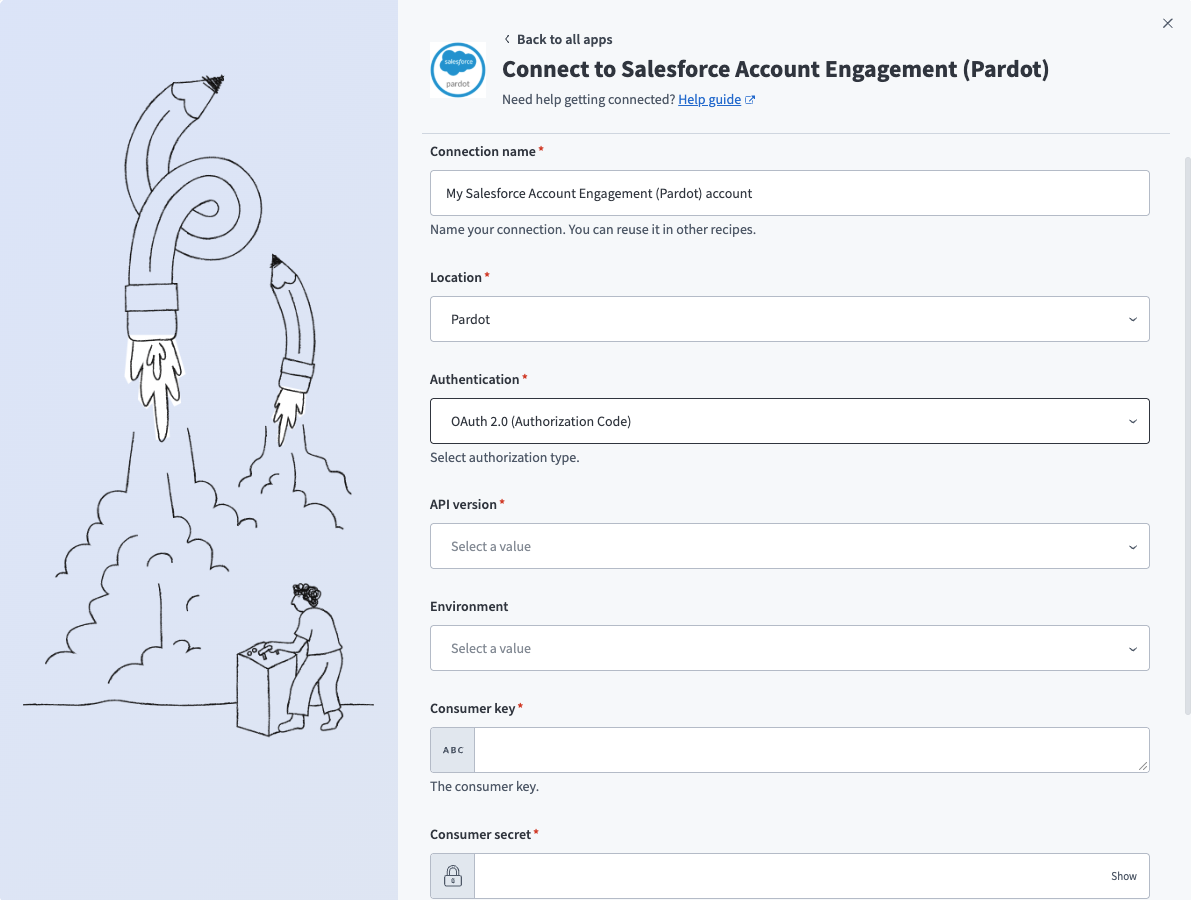 Salesforce Account Engagement (Pardot) OAuth 2.0 (Authorization Code) connection
Use the Location drop-down menu to select the project where you plan to store the connection.
Use the Authentication drop-down menu to select OAuth 2.0 (Authorization Code).
Use the API version drop-down menu to select the Account Engagement API version.
Use the Environment drop-down menu to select Production, Developer Org, or Sandbox. You must select an environment to connect.
Enter the Consumer key and Consumer secret from your Salesforce connected app. Refer to Salesforce setup for more information.
Enter the Account Engagement business unit ID that you copied from your Account Engagement account. Refer to Retrieve your business unit ID for more information.
Click Connect.
Sign in to Salesforce when prompted, and click Allow to grant access.
OAuth 2.0 (Authorization Code with PKCE) authentication
Use OAuth 2.0 (Authorization Code with PKCE) authentication if your Salesforce connected app requires Proof Key for Code Exchange (PKCE).
Salesforce setup
Complete the following steps to set up Salesforce for OAuth 2.0 (Authorization Code with PKCE) authentication:
Go to Home > App Manager > New Connected App to create a connected app.
Enter basic details such as application name, API name, and contact email.
Select Enable OAuth settings.
Enter https://www.workato.com/oauth/callback in the Callback URL field.
Add the OAuth scopes. Refer to Minimum and default scopes for more information.
Select Require Proof Key for Code Exchange (PKCE) Extension for Supported Authorization Flows.
Save the connected app.
Copy the Consumer Key and Consumer Secret for use in Workato. Refer to the Salesforce Authentication documentation for more information.
Connect to Salesforce Account Engagement (Pardot) using OAuth 2.0 (Authorization Code with PKCE)
Complete the following steps to set up an OAuth 2.0 (Authorization Code with PKCE) connection to Salesforce Account Engagement (Pardot) in Workato:
Click Create > Connection.
Search for Salesforce Account Engagement (Pardot) and select it as your app.
Provide a unique name for the connection in the Connection name field.
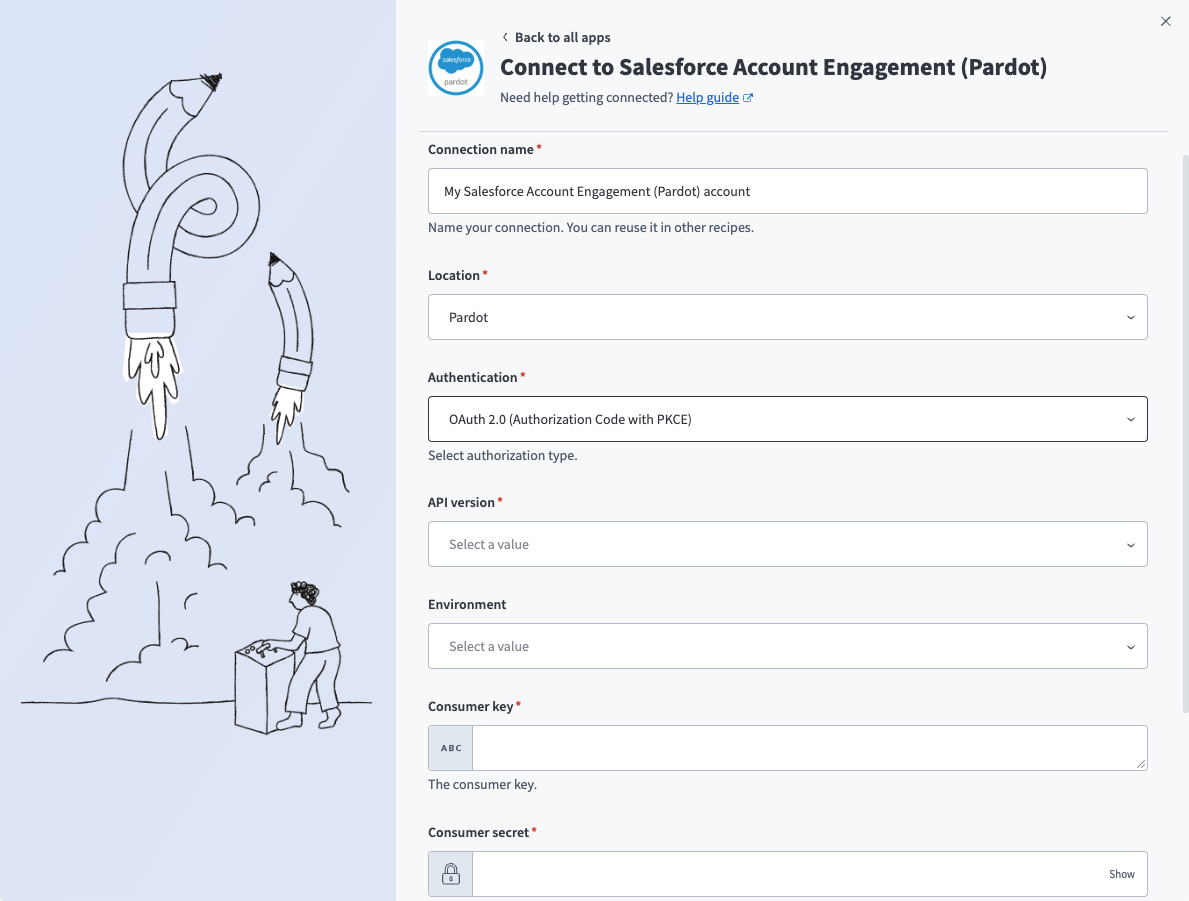 Salesforce Account Engagement (Pardot) OAuth 2.0 (Authorization Code with PKCE) connection
Use the Location drop-down menu to select the project where you plan to store the connection.
Use the Authentication drop-down menu to select OAuth 2.0 (Authorization Code with PKCE).
Use the API version drop-down menu to select the Account Engagement API version.
Use the Environment drop-down menu to select Production, Developer Org, or Sandbox. You must select an environment to connect.
Enter the Consumer key and Consumer secret from your Salesforce connected app. Refer to Salesforce setup for more information.
Enter the Account Engagement business unit ID that you copied from your Account Engagement account. Refer to Retrieve your business unit ID for more information.
Click Connect.
Sign in to Salesforce when prompted, and click Allow to grant access.
OAuth 2.0 (Client Credentials) authentication
Use OAuth 2.0 (Client Credentials) authentication for server-to-server connections that don't require a user to sign in. Workato requests a new access token with your client credentials when the previous token expires. This flow doesn't issue a refresh token.
Salesforce setup
Complete the following steps to set up Salesforce for OAuth 2.0 (Client Credentials) authentication:
Go to Home > App Manager > New Connected App to create a connected app.
Enter basic details such as application name, API name, and contact email.
Select Enable OAuth settings.
Enter https://www.workato.com/oauth/callback in the Callback URL field.
Add the pardot_api scope. Refer to Minimum and default scopes for more information.
Select Enable Client Credentials Flow.
Save the connected app.
Open the connected app's policies and set Run As to an integration user that has Account Engagement access.
Copy the Consumer Key and Consumer Secret for use in Workato.
Go to Setup.
Enter My Domain in the Quick Find box, and copy your My Domain hostname. For example, acme.my.salesforce.com.
Connect to Salesforce Account Engagement (Pardot) using OAuth 2.0 (Client Credentials)
Complete the following steps to set up an OAuth 2.0 (Client Credentials) connection to Salesforce Account Engagement (Pardot) in Workato:
Click Create > Connection.
Search for Salesforce Account Engagement (Pardot) and select it as your app.
Provide a unique name for the connection in the Connection name field.
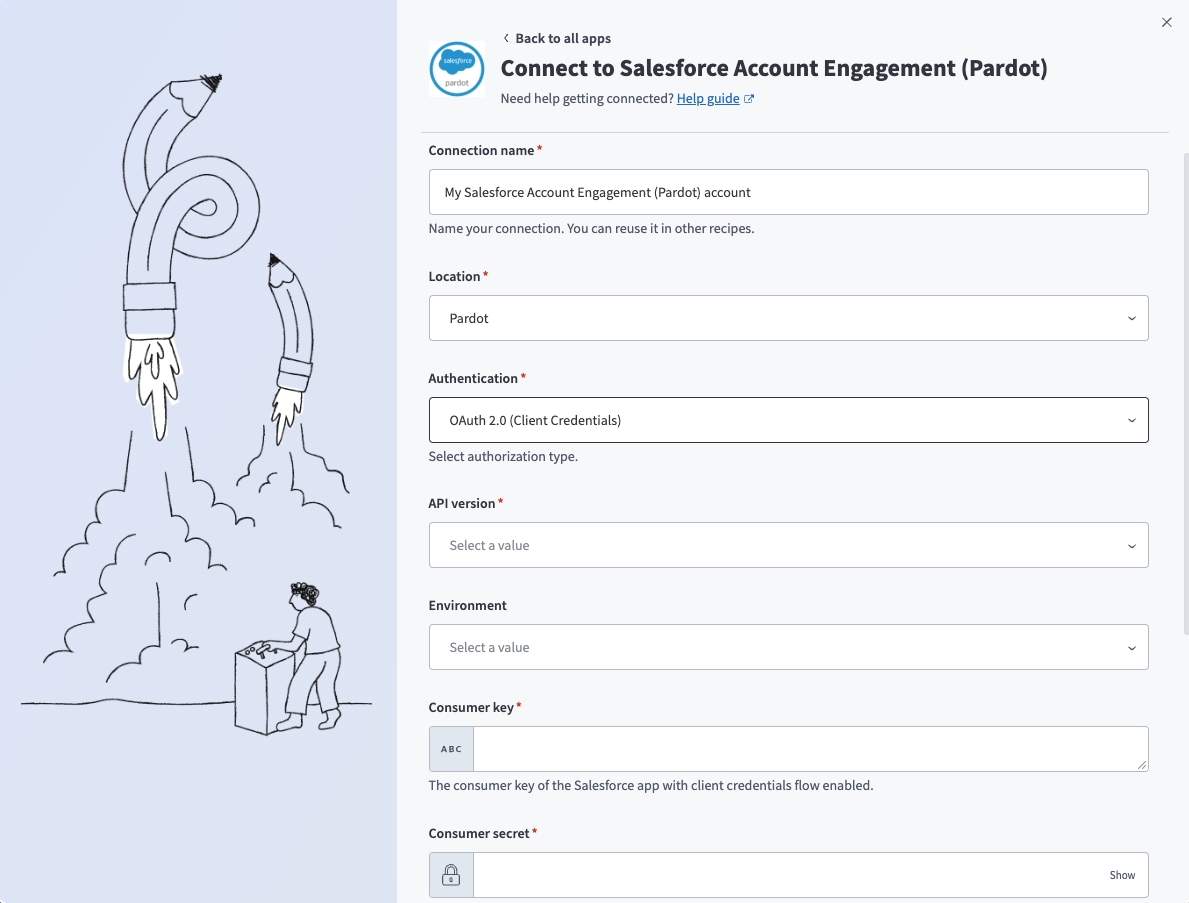 Salesforce Account Engagement (Pardot) OAuth 2.0 (Client Credentials) connection
Use the Location drop-down menu to select the project where you plan to store the connection.
Use the Authentication drop-down menu to select OAuth 2.0 (Client Credentials).
Use the API version drop-down menu to select the Account Engagement API version.
Use the Environment drop-down menu to select Production, Developer Org, or Sandbox. You must select an environment to connect.
Enter the Consumer key and Consumer secret from your Salesforce connected app. Refer to Salesforce setup for more information.
Enter your Salesforce My Domain hostname without https:// or a trailing slash. For example, acme.my.salesforce.com, acme-dev-ed.develop.my.salesforce.com, or acme--sandbox.sandbox.my.salesforce.com.
Enter the Account Engagement business unit ID that you copied from your Account Engagement account. Refer to Retrieve your business unit ID for more information.
Click Connect.
Last updated: