Zscaler Digital Experience (ZDX)
Zscaler Digital Experience (ZDX) is a cloud-native service that monitors application, device, and network performance. Use the Zscaler Digital Experience (ZDX) connector to retrieve and search application, user, device, software inventory, department, and location records.
Install Zscaler Digital Experience (ZDX) from the community library
Complete the following steps to install the Zscaler Digital Experience (ZDX) connector from the community library:
Open the recipe editor and search for a connector. Alternatively, you can search for a connector in the community library.
 Search for community connectors in the recipe editor
Select the community connector you plan to install.
Click Install to install the connector from the community library.
 Click Install
Select Release connector. Alternatively, select Review code to review and modify the connector code before releasing it to the workspace.
 Release the connector
Summarize any changes you made to the connector, then click Release to allow workspace collaborators to use the connector in recipes.
 The Confirm release dialog
Connection setup
The Zscaler Digital Experience (ZDX) connector supports the following authentication types:
OneAPI authentication
Use OneAPI if your Zscaler tenant issues Zidentity client credentials.
Obtain OneAPI credentials
Complete the following steps to obtain OneAPI credentials in Zscaler Digital Experience (ZDX):
Sign in to the Zidentity Admin Portal.
Go to Administration > API Configuration > OneAPI > API Clients.
Click Add API client.
Enter a Name, Description, Status, and ZDX API resource/role scope to configure the API client.
Copy the Client ID and Client Secret.
Copy your Zidentity vanity domain. The vanity domain is the subdomain of your login URL. For example, if your login URL is https://acme.zslogin.net, your vanity domain is acme.
Connect to Zscaler Digital Experience using OneAPI
Complete the following steps to set up a OneAPI connection to Zscaler Digital Experience (ZDX) in Workato:
Click Create > Connection.
Search for and select Zscaler Digital Experience (ZDX) as your connection.
Provide a unique name for the connection in the Connection name field.
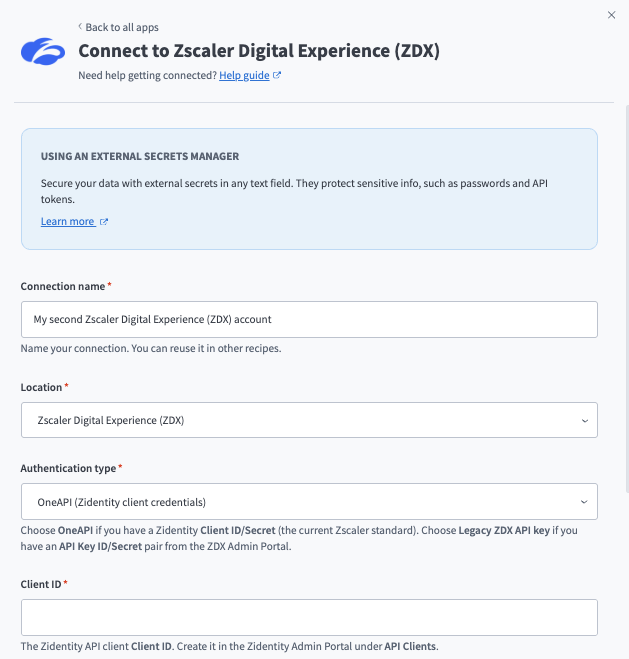 Set up a ZDX connection.
Use the Location drop-down menu to select the project where you plan to store the connection.
Use the Authentication type drop-down menu to select OneAPI (Zidentity client credentials).
Enter your Client ID and Client secret.
Enter your Vanity domain.
Optionally, enter your Zidentity cloud if your tenant uses a non-production Zidentity environment, such as beta, or a FedRAMP cloud (gov or govus). Leave this field blank for production.
Click Connect.
Legacy ZDX API key authentication
Use legacy API key authentication if your tenant has an API Key ID and Secret pair generated from the ZDX Admin Portal.
Obtain a legacy API key
Complete the following steps to obtain a legacy API key:
Sign in to the Zidentity Admin Portal.
Go to Administration > Authentication > API Keys and generate an API key pair.
Click Create new API key.
Enter a Name and select a Role to configure the API key.
Click Create key.
Copy the Key ID and Key Secret. The key secret is shown only once. Learn more.
Connect to Zscaler Digital Experience using a legacy API key
Complete the following steps to set up a legacy API key connection to Zscaler Digital Experience (ZDX) in Workato:
Click Create > Connection.
Search for and select Zscaler Digital Experience (ZDX) as your connection.
Provide a unique name for the connection in the Connection name field.
Set up a ZDX connection.
Use the Location drop-down menu to select the project where you plan to store the connection.
Use the Authentication type drop-down menu to select Legacy ZDX API key.
Enter your API key ID and API key secret.
Optionally, enter your ZDX cloud name if your tenant is on a different cloud than the default zdxcloud.
Optionally, enter your tenant's API version. Defaults to v1.
Click Connect.
Last updated: