Configure BambooHR as a data pipeline source
Set up BambooHR as a data pipeline source to extract employee records, job and compensation history, time off, time tracking, and custom table data into your destination. Use this guide to review the features supported, complete prerequisites, connect BambooHR to Workato, configure the pipeline, and understand sync behavior and known limitations.
Features supported
The following features are supported when you use BambooHR as a pipeline source:
- Cloud connectivity: BambooHR is a cloud-only SaaS. Workato connects over
https://api.bamboohr.com/using your company subdomain, and no on-prem agent is required. - API token and OAuth 2.0 authentication: Connect with a BambooHR API key or by signing in to BambooHR. Refer to Connection setup for setup steps.
- Full sync and incremental sync: Incremental sync is supported for the
employeesobject, all employee table objects, andtime_off_requests. Refer to Sync modes for details. - Delete tracking: Detect deletions and mark deleted records in your destination. Refer to Delete tracking for details.
- Custom field and custom table discovery: Discover and sync custom employee fields and custom employee tables defined in your BambooHR account.
- Schema drift detection and handling: Detect and apply schema changes automatically with Auto-sync new fields, or keep the schema fixed with Block new fields.
- Field-level data protection: Hash or replicate sensitive fields as is before the data reaches your destination.
- Configurable sync frequency: Schedule syncs on a time-based interval or with a cron expression. The minimum supported interval is 15 minutes.
Prerequisites
Obtain the following before you connect BambooHR as a data pipeline source:
- A BambooHR account.
- Your BambooHR subdomain. For example, if you sign in at
https://acme.bamboohr.com, your subdomain isacme. - Credentials for your chosen authentication method:
- API token: An API key generated in BambooHR. Refer to Generate an API key in BambooHR for setup steps.
- OAuth 2.0: A BambooHR user account. You sign in to BambooHR and authorize access when you create the connection.
REQUIRED PERMISSIONS
BambooHR applies the access level of the connecting user to all API responses. Generate the API key from an account with read access to all fields and tables you plan to sync, including compensation data. Refer to Permission-restricted data is omitted for more information.
Connection setup
The BambooHR connector supports the following authentication types:
Configure the pipeline
Complete the following steps to configure BambooHR as your data pipeline source:
Select Create > Data pipeline or press C+I.
Enter a name for the data pipeline in the Data pipeline name field.
 Data pipeline setup
Use the Location drop-down menu to select the project where you plan to store the data pipeline.
Click Start building.
Click the Extract new/updated records from source app trigger. This trigger defines how the pipeline retrieves data from BambooHR.
 Configure the Extract new/updated records from source app trigger
Use the Your Connected Source Apps drop-down menu to select BambooHR.
Choose the BambooHR connection you plan to use for this pipeline. Alternatively, click + New connection to create a new connection.
Click Add object to open the Add new objects panel.
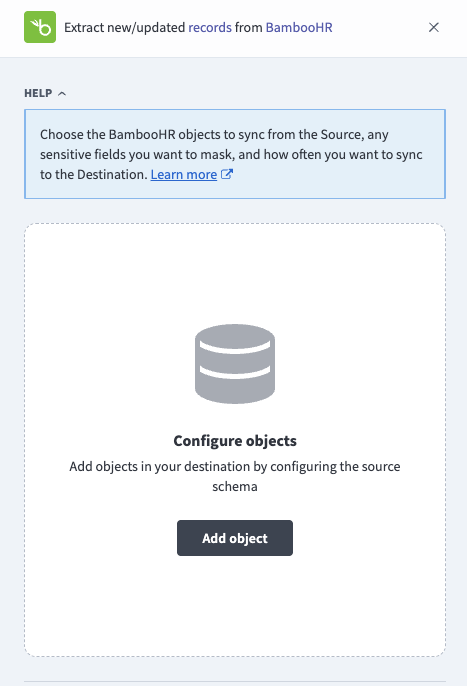 Add objects
Search or browse the list of available BambooHR objects, select the objects you plan to sync, and click Add.
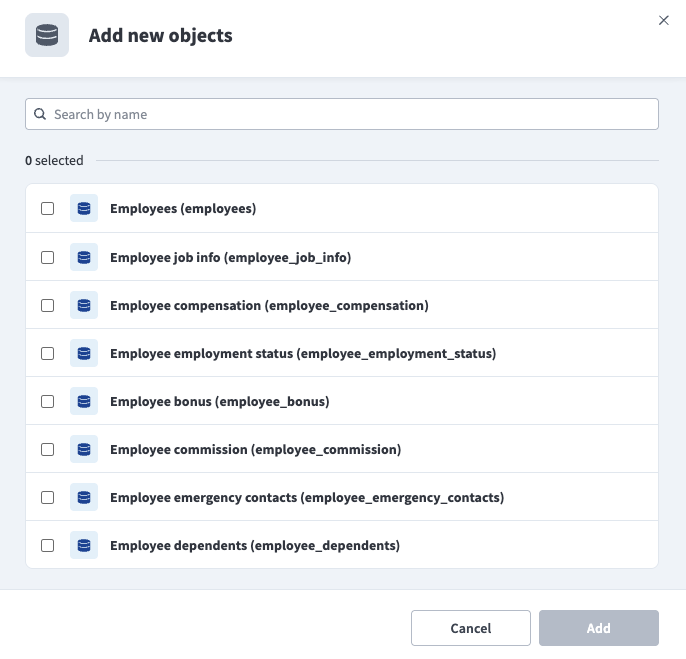 Add new objects
SYNC MODES
Objects that don't support incremental sync run a full sync on every run. Refer to Supported objects for the sync modes each object supports.
Review and customize the schema for each selected object. The pipeline automatically fetches an object's schema when you select it. This ensures the destination matches the source.
Expand an object to view associated fields. Keep all fields selected to extract all available data, or deselect specific fields to exclude them from data extraction and schema replication.
Optional. Configure field-level data protection by expanding an object and choosing how to handle each field:
- Replicate as is: Data values at the source replicate identically to the destination.
- Hash: Hash sensitive data values in the field before syncing to your destination.
Workato recommends hashing personally identifiable information (PII) and other sensitive fields. Refer to Sensitive data handling for a list of fields that commonly contain PII.
Click Add object again to add more objects. Repeat this step to include additional BambooHR objects in your pipeline.
Use the Choose how to handle schema changes drop-down menu to select a schema drift handling option:
- Auto-sync new fields: Automatically detects and syncs new fields added in the source.
- Block new fields: Keeps the schema fixed after the pipeline starts. You must add new fields manually. This option may cause the destination to fall out of sync if the source schema updates.
Refer to Schema replication and schema drift management for more information.
Workato recommends Auto-sync new fields because BambooHR accounts commonly add custom fields and custom tables.
Choose either a standard time-based schedule or define a custom cron expression in the Frequency field. This determines how often the pipeline syncs data from BambooHR to the destination.
Supported objects
BambooHR data pipelines sync data from the BambooHR REST API. The following tables list the supported objects, grouped by category. Each object syncs as a separate table in your destination. Some objects require specific BambooHR modules. Refer to Module-gated objects for details.
Employee data
| Object | Sync modes | Delete tracking |
|---|---|---|
employees | Full sync, incremental | Yes (soft) |
employees_directory | Full sync | Yes |
Employee tables
Employee table objects contain per-employee history records, such as job information and compensation. Each row belongs to a parent employee.
| Object | Sync modes | Delete tracking |
|---|---|---|
employee_job_info | Full sync, incremental | No |
employee_compensation | Full sync, incremental | No |
employee_employment_status | Full sync, incremental | No |
employee_bonus | Full sync, incremental | No |
employee_commission | Full sync, incremental | No |
employee_earnings | Full sync, incremental | No |
employee_emergency_contacts | Full sync, incremental | No |
employee_dependents | Full sync, incremental | No |
employee_education | Full sync, incremental | No |
employee_certifications | Full sync, incremental | No |
employee_assets | Full sync, incremental | No |
employee_equity_grants | Full sync, incremental | No |
employee_stock_options | Full sync, incremental | No |
employee_passports | Full sync, incremental | No |
employee_visas | Full sync, incremental | No |
| Custom employee tables (dynamic) | Full sync, incremental | No |
Custom table sections defined in your BambooHR account are discovered automatically and appear as additional selectable objects.
Time off and time tracking
| Object | Sync modes | Delete tracking |
|---|---|---|
time_off_requests | Full sync, incremental | No |
time_off_types | Full sync | Yes |
time_off_policies | Full sync | Yes |
whos_out | Full sync | Yes |
timesheet_entries | Full sync | Yes |
Benefits, training, and performance
| Object | Sync modes | Delete tracking |
|---|---|---|
employee_benefits | Full sync | Yes |
employee_training | Full sync | Yes |
training_types | Full sync | Yes |
goals | Full sync | Yes |
Applicant tracking
| Object | Sync modes | Delete tracking |
|---|---|---|
ats_applications | Full sync | Yes |
ats_job_openings | Full sync | Yes |
Reference data
Reference objects provide lookup data, such as field definitions and drop-down list options.
| Object | Sync modes | Delete tracking |
|---|---|---|
meta_fields | Full sync | Yes |
meta_lists | Full sync | Yes |
| BambooHR datasets (dynamic) | Full sync | Yes |
| Custom reports (dynamic) | Full sync | Yes |
BambooHR datasets and custom reports available to your account are discovered automatically and appear as additional selectable objects.
Sync modes
BambooHR data pipelines support full sync and incremental sync. The sync mode is configured per object when you add it to your pipeline.
Full sync
A full sync reads all available records from BambooHR for the selected object and overwrites the destination table. Deletions in BambooHR are reflected in the destination because each run replaces the table contents. Objects that don't support incremental sync run a full sync.
Incremental sync
An incremental sync extracts only records that changed after the last successful run. BambooHR incremental sync uses the following mechanisms, depending on the object:
employees: Workato uses the BambooHR Changed Employees data to identify employees that were created, updated, or deleted after the last sync, then extracts full records for the changed employees only. Deleted employees produce delete marker rows. Refer to Delete tracking for details.- Employee table objects, including custom employee tables: Workato uses the BambooHR changed table data to identify employees whose table rows changed after the last sync, then re-extracts all rows in that table for the changed employees.
time_off_requests: Workato advances a date window based on the dates of each request's time-off period and re-reads a rolling recent window on each run to capture requests that were created or updated after their window synced.
Refer to the Supported objects tables to see which objects support incremental sync.
Delete tracking
Workato tracks deletions through two mechanisms, depending on the object's sync mode.
For the employees object, Workato uses source-driven soft-delete tracking. Workato detects employee deletions through the BambooHR Changed Employees data and writes a delete marker row with the _workato_is_deleted column set to true instead of removing the row from the destination.
For objects that support full sync only, deletions in the source are reflected in the destination because each run replaces the object's records entirely. Deletions are reflected on the next full sync rather than at the time they occur in BambooHR.
Schema and data type handling
The following considerations apply to schema and data types when you sync data from BambooHR.
Custom fields and custom tables
BambooHR supports customer-defined custom fields on the employee profile and entirely custom table sections. Workato discovers both automatically:
- Custom employee fields sync as additional columns on the
employeesobject. - Custom employee tables appear as separate selectable objects and sync with the same behavior as standard employee table objects.
Select Auto-sync new fields during pipeline configuration to sync custom fields added after the pipeline starts. Refer to Configure the pipeline for more information.
Data types
Currency and money fields sync as strings because BambooHR can return structured values for these fields. Nested values on time off and time tracking objects, such as time off request approval details, sync as JSON.
Workato syncs JSON fields to the destination's native JSON type, such as VARIANT in Snowflake. Workato serializes JSON fields as strings if the destination doesn't support a native JSON type.
Synthetic columns
Workato adds the following synthetic columns to destination tables for specific objects:
| Column | Applies to | Purpose |
|---|---|---|
_workato_is_deleted | employees | Set to true for employees deleted in BambooHR. Refer to Delete tracking for more information. |
_workato_id | BambooHR dataset objects | A generated surrogate key that uniquely identifies each dataset row in the destination. |
Custom report schema
BambooHR doesn't provide a schema endpoint for custom reports. Workato samples a record from each custom report and constructs the schema from that sample, so all custom report fields sync as strings in your destination.
Sensitive data handling
BambooHR is an HR information system, and nearly every object contains employee PII. The following objects commonly contain sensitive fields:
| Object | Sensitive fields |
|---|---|
employees | ssn, dateOfBirth, gender, ethnicity, maritalStatus, address1, city, state, zipCode, workEmail, workPhone, mobilePhone, payRate, payType |
employee_compensation | rate, type, reason |
employee_bonus, employee_commission | amount |
employee_benefits | Benefit plan enrollment details |
employee_dependents | fullName, relationship, dateOfBirth |
employee_emergency_contacts | Names, phone numbers, and addresses of non-employees |
goals | Performance evaluation data |
ats_applications | Applicant names and contact information |
Use the Hash option in field-level data protection during pipeline configuration to protect PII before it reaches your destination. Refer to the Configure the pipeline steps for more information.
Limitations
The following limitations apply when you use BambooHR as a data pipeline source.
Permission-restricted data is omitted
BambooHR applies the connecting user's access level to API responses. Tables, rows, and fields that the connecting user can't access are omitted from schema discovery and sync results. Connect with an account that has read access to all data you plan to sync, including compensation fields if you plan to sync the employee_compensation object.
Module-gated objects
The timesheet_entries, goals, ats_applications, and ats_job_openings objects require the corresponding BambooHR module, such as time tracking or applicant tracking. You can't sync these objects if your BambooHR account doesn't include the corresponding module.
Timesheet entries history is limited to one year
The first sync for the timesheet_entries object extracts records from the last 365 days, even if you set an earlier historical sync start date.
Time off requests sync by time-off dates
BambooHR returns time off requests based on the dates of the time-off period, not the request creation date.
High-volume initial syncs
Initial syncs of employee table objects and the employee_benefits, employee_training, and goals objects can take a long time on accounts with many employees. Consider scheduling the initial sync during off-peak hours.
Dataset and custom report syncs fail on source errors
Dataset and custom report objects can fail to sync if the BambooHR API returns a 5xx error for the requested fields. This is typically caused by corrupt data or a mapping bug on the BambooHR side. To resolve this, remove one or more columns from the object's schema and retry the sync, or contact Workato support.
Minimum sync frequency
The minimum supported sync interval is 15 minutes.
Last updated: