Configure Braintree as a data pipeline source
Set up Braintree as a data pipeline source to extract transaction, subscription, dispute, and customer records into your destination.
Use this guide to review the features and prerequisites, connect Braintree as a data pipeline source, configure the pipeline, and understand the supported objects, sync modes, schema handling, and limitations.
Features supported
The following features are supported when you use Braintree as a pipeline source:
- Cloud connectivity: Connects to Braintree over HTTPS through fixed global endpoints. An on-prem agent isn't required.
- Production and sandbox environments: Connect to either your production or sandbox environment from a single connection by selecting an environment when you set up the connection.
- Full sync and incremental sync: Supports full sync and incremental sync modes. Incremental sync uses creation and event timestamps as cursors, because Braintree doesn't provide a change-events feed. Refer to Sync modes for more information.
- Object-level selection: Select the Braintree objects you plan to sync as separate tables in your destination. Refer to Supported objects for the full list.
- Multiple merchant accounts: Syncs transactional data across every merchant account your credentials can access, not only the default merchant account. Transaction and dispute records include a
merchantAccountIdfield so you can attribute records to a specific merchant account in your destination. - Delete tracking: Detect deletions for objects that sync in full by comparing each sync against the previous run. Refer to Delete tracking for more information.
- Schema drift detection and handling: Detect and apply schema changes automatically with Auto-sync new fields, or keep the schema fixed with Block new fields.
- Field-level data protection: Hash or replicate sensitive fields as is before the data reaches your destination.
- Configurable sync frequency: Schedule syncs on a time-based interval or with a cron expression. The minimum supported interval is 15 minutes.
Prerequisites
Connecting Braintree as a data pipeline source requires:
- A Braintree account in the production or sandbox environment you plan to sync
- Your Merchant ID, Public key, and Private key. Refer to Generate a Braintree API key for setup steps.
REQUIRED PERMISSIONS
Braintree ties API keys to a Control Panel user. Workato recommends generating the connection's key from a Braintree user scoped to read-only access if your Braintree plan supports restricted users.
Generate a Braintree API key
Locate your Merchant ID and generate a Public key and Private key pair in your Braintree Control Panel before you create the connection in Workato.
Complete the following steps to generate a Braintree API key:
Sign in to your Braintree Control Panel.
Click the gear icon and select Business to find your Merchant ID.
Click the gear icon and select API, then locate the API Keys section for your Public Key and Private Key.
Click Generate New API Key if you don't already have a key pair, or click View in the Private Key column to reveal an existing key. Refer to Braintree's gateway credentials documentation for more information.
Copy each value and store it in a secure location. You need these values to create the Workato connection.
Supported connection types
Braintree data pipelines support one authentication method:
- API key: Provide the Merchant ID, Public key, and Private key generated in your Braintree Control Panel.
Connect to Braintree
Complete the following steps to connect Braintree as a data pipeline source:
Connect to Braintree
Select Create > Connection or press C twice.
Search for Braintree and select it as your app.
Enter a name in the Connection name field.
Use the Location drop-down menu to select the project where you plan to store the connection.
Enter your Braintree Merchant ID in the Merchant ID field.
Enter your Braintree public key in the Public key field.
Enter your Braintree private key in the Private key field. Workato masks this value after you save the connection.
Use the Environment drop-down menu to select Production or Sandbox, matching the credentials you entered.
Select Connect to verify and save the connection. Workato displays a success message when the connection is established.
Configure the pipeline
Complete the following steps to configure Braintree as your data pipeline source:
Select Create > Data pipeline or press C+I.
Enter a name for the data pipeline in the Data pipeline name field.
 Data pipeline setup
Use the Location drop-down menu to select the project where you plan to store the data pipeline.
Click Start building.
Click the Extract new/updated records from source app trigger. This trigger defines how the pipeline retrieves data from Braintree.
 Configure the Extract new/updated records from source app trigger
Use the Your Connected Source Apps drop-down menu to select Braintree.
Choose the Braintree connection you plan to use for this pipeline. Alternatively, click + New connection to create a new connection.
Click Add object to open the Add new objects panel.
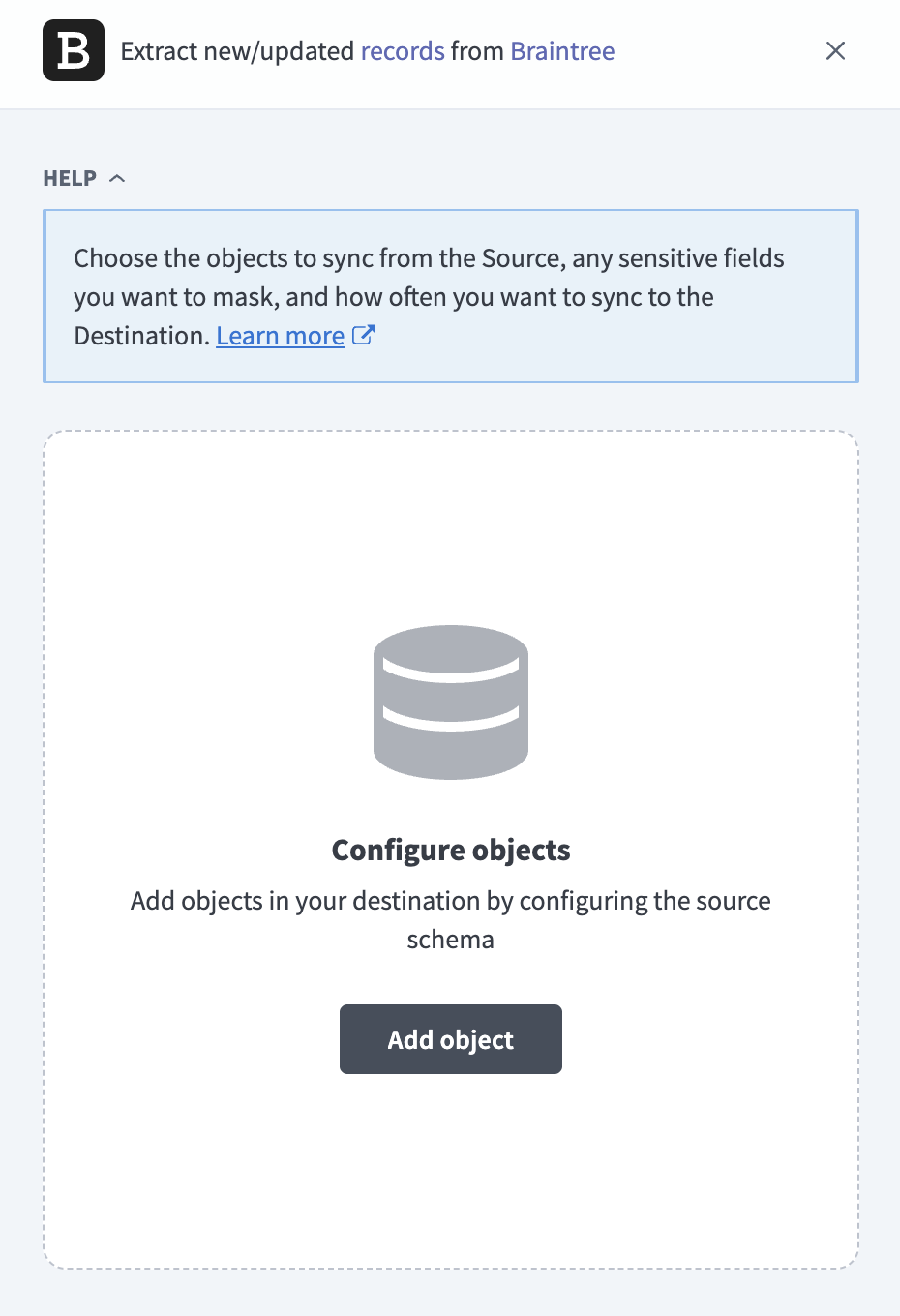 Add objects
Search or browse the list of available Braintree objects, select the objects you plan to sync, and click Add.
OBJECTS WITHOUT AN INCREMENTAL CURSOR SYNC IN FULL
Braintree doesn't expose a reliable changed-since filter for every object. Objects without an incremental cursor use full sync. Refer to Supported objects for the sync modes each object supports.
Optional. Click the gear icon next to an object to open its settings panel, then use the Sync mode drop-down menu to select Full sync or Incremental for that object. The sync mode defaults to Full sync if Braintree doesn't expose a timestamp for the object.
Review and customize the schema for each selected object. The pipeline automatically fetches an object's schema when you select it. This ensures the destination matches the source.
Expand an object to view associated fields. Keep all fields selected to extract all available data, or deselect specific fields to exclude them from data extraction and schema replication.
Optional. Configure field-level data protection by expanding an object and choosing how to handle each field:
- Replicate as is: Data values at the source replicate identically to the destination.
- Hash: Hash sensitive data values in the field before syncing to your destination.
Workato recommends hashing personally identifiable information (PII) and other sensitive fields. Refer to Sensitive data handling for a list of fields that commonly contain PII.
Click Add object again to add more objects.
Use the Choose how to handle schema changes drop-down menu to select a schema drift handling option:
- Auto-sync new fields: Automatically detects and syncs new fields added in the source.
- Block new fields: Keeps the schema fixed after the pipeline starts. You must add new fields manually. This option may cause the destination to fall out of sync if the source schema updates.
Refer to Schema replication and schema drift management for more information.
Optional. Enter a value in the Concurrency limit field to cap the number of concurrent operations. Leave the field blank to use the default quota set by Workato. The maximum value is 4.
Choose either a standard time-based schedule or define a custom cron expression in the Frequency field. This determines how often the pipeline syncs data from Braintree to the destination.
The historical start date applies only to objects with an incremental cursor. Objects without an incremental cursor sync their complete current data set regardless of this field.
Supported objects
Braintree data pipelines sync data from the Braintree GraphQL API and the legacy Braintree gateway API. The following tables list the supported objects, grouped by category. Each object syncs as a separate table in your destination.
Transactions
| Object | Sync modes | Delete tracking |
|---|---|---|
Transactions | Full sync, incremental | No |
Transaction Line Items | Full sync, incremental | No |
Transaction Status History | Full sync | N/A (append-only) |
Transaction Local Payment | Full sync, incremental | No |
Transaction Add-Ons | Full sync, incremental | No |
Transaction Discounts | Full sync, incremental | No |
Transactions is the primary object and contains significant PII and financial data. Refer to Sensitive data handling for more information.
Transaction Line Items and Transaction Local Payment populate only for Level 3 data and local or alternative payment methods, respectively. Transaction Add-Ons and Transaction Discounts populate only for transactions generated from a subscription charge.
Subscriptions
| Object | Sync modes | Delete tracking |
|---|---|---|
Subscriptions | Full sync, incremental | No |
Subscription Status History | Full sync | N/A (append-only) |
Subscription Add-Ons | Full sync | Yes |
Subscription Discounts | Full sync | Yes |
Subscription Status History contains one row per subscription status change. Subscription Add-Ons and Subscription Discounts contain the add-ons and discounts currently applied to a subscription, distinct from the catalog-level Add-Ons and Discounts objects.
Customers and payment methods
| Object | Sync modes | Delete tracking |
|---|---|---|
Customers | Full sync | Yes |
Payment Methods | Full sync | Yes |
Customers contains significant PII and syncs in full, because Braintree's customer search doesn't support filtering by update time. Every sync re-extracts your complete customer list regardless of whether any customer changed, so set a longer sync frequency for accounts with a large customer base. Payment Methods contains the vaulted payment methods attached to each customer.
Disputes
| Object | Sync modes | Delete tracking |
|---|---|---|
Disputes | Full sync, incremental | No |
Dispute Status History | Full sync, incremental | No |
Dispute Status History contains one row per dispute status change.
Refunds and verifications
| Object | Sync modes | Delete tracking |
|---|---|---|
Refunds | Full sync, incremental | No |
Credit Card Verifications | Full sync, incremental | No |
Credit Card Verifications contains records of each card verification attempt.
Billing configuration
| Object | Sync modes | Delete tracking |
|---|---|---|
Plans | Full sync | Yes |
Add-Ons | Full sync | Yes |
Discounts | Full sync | Yes |
Merchant Accounts | Full sync | Yes |
Plans, Add-Ons, and Discounts are read-only catalog definitions that you create and update in your Braintree Control Panel. Merchant Accounts contains every sub-merchant account your credentials can access, not only the default account.
Sync modes
Braintree data pipelines support full sync and incremental sync. The sync mode is configured per object when you add it to your pipeline. Objects without an incremental cursor use full sync.
Full sync
A full sync reads all available records from Braintree for the selected object and overwrites the destination table. Use full sync for objects where you need a complete current snapshot on each run.
Incremental sync
An incremental sync extracts records created or changed since the previous run. Braintree doesn't provide a change-events feed, so Workato uses each object's creation timestamp, or an equivalent event timestamp, as the incremental cursor.
A record's creation timestamp doesn't change when its status later changes, for example when a transaction moves from authorized to settled. Workato re-reads records from a trailing 3-day window on every incremental run to catch these status changes. As a result, incremental runs typically extract more records than are genuinely new. This window isn't configurable.
Objects that process along with a parent object, such as Transaction Line Items, only refresh for the parent records included in that run's sync window.
Refer to the Supported objects tables to see the sync modes each object supports.
Delete tracking
Braintree doesn't expose a deletion signal for any object, so the pipeline detects deletions by comparing each full sync against the previous run and marking removed records with the _workato_is_deleted column in your destination.
Objects that sync incrementally don't support delete tracking, because an incremental run doesn't revisit the full record set. Transaction Status History and Subscription Status History are append-only logs and don't support delete tracking, because Braintree doesn't remove past status events.
Schema and data type handling
The following considerations apply to schema and data types when you sync data from Braintree:
Monetary amounts
Braintree returns monetary amounts as decimal strings, for example "10.00", rather than integers in the smallest currency unit. Workato stores these values with decimal precision in the destination and doesn't perform currency conversion. Multi-currency merchants have a currencyIsoCode field that syncs alongside each amount field.
Custom fields
Transactions, Customers, and Refunds can carry custom fields that you configure in your Braintree Control Panel. Workato stores these as a custom_fields JSON column rather than as individual columns, because the set of custom fields varies by merchant.
Workato syncs JSON fields to the destination's native JSON type, such as VARIANT in Snowflake. Workato serializes JSON fields as strings if the destination doesn't support a native JSON type.
Nested and child data
Braintree data that represents a one-to-many relationship, such as a transaction's status history, line items, add-ons, and discounts, syncs as a separate child table. Nested data that doesn't repeat, such as a transaction's payment method details, risk data, or billing and shipping addresses, syncs as a JSON column on the parent object's table.
Sensitive data handling
Braintree objects can contain significant PII and financial data. The following objects commonly contain sensitive fields:
| Object | Sensitive fields |
|---|---|
Customers | firstName, lastName, email, phone, company, billing and shipping addresses |
Transactions | Billing and shipping name and address, customer name, email, and phone, creditCard.cardholderName, creditCard.last4, creditCard.bin |
Credit Card Verifications | creditCard.cardholderName, creditCard.last4, billing address |
Subscriptions | paymentMethodToken (a vault reference, not raw card data) |
Disputes | Transaction customer details, merchantAccountId |
Braintree doesn't return raw card numbers or CVV values through its API for any object. Only a card fingerprint, the last 4 digits, and card metadata, such as brand, expiration, and BIN, are available.
Use the Hash option in field-level data protection during pipeline configuration to protect PII before it reaches your destination. Refer to the Configure the pipeline steps for more information.
Workato recommends hashing email addresses, phone numbers, and billing and shipping address fields for pipelines operating under PCI-DSS, GDPR, or CCPA.
Limitations
The following limitations apply when you use Braintree as a data pipeline source:
Recent records re-sync to capture status changes
Workato re-reads incrementally-synced records from a trailing 3-day window on every run to capture status changes on records created in that window, because Braintree doesn't provide a change-events feed. Refer to Incremental sync for more information.
Disbursement fields can lag after settlement
The disbursement fields on a settled Transactions record, such as the disbursement date and settlement currency, can take up to 2 days to populate after settlement. A null value in these fields on a recently settled transaction doesn't indicate an error.
Minimum sync frequency
The minimum supported sync interval is 15 minutes.
Last updated: