Configure Intercom as a data pipeline source
Set up Intercom as a data pipeline source to extract and sync customer engagement, conversation, and help center records into your destination. Use this guide to set up a connection, configure your pipeline, add objects, review sync behavior, and understand known limitations.
The connector targets Intercom REST API version 2.15 and uses OAuth 2.0 for authentication.
Features supported
The following features are supported when you use Intercom as a pipeline source:
- Cloud connectivity: Connect to Intercom over HTTPS using the API base URL you specify when you create the connection. On-prem agents aren't required.
- OAuth 2.0 authentication: Authorize the connection through Intercom's OAuth 2.0 flow. Refer to Supported connection types for more information.
- Multiple sync modes: Supports incremental sync and full refresh. Refer to Sync modes for more information.
- Object-level selection: Select Intercom objects to sync as separate tables in your destination. Refer to Supported objects for the full list.
- Schema drift detection and handling: Detect and apply schema changes automatically with Auto-sync new fields, or keep the schema fixed with Block new fields.
- Field-level data protection: Replicate sensitive fields as is or hash them before they reach your destination.
- Configurable concurrency: Cap the number of concurrent API operations the pipeline performs against Intercom.
- Configurable sync frequency: Schedule syncs on a time-based interval or with a cron expression. The minimum supported interval is 15 minutes.
Prerequisites
Complete the following prerequisites before you connect Intercom as a data pipeline source:
- You must have an active Intercom workspace.
- You must have permission to authorize apps in your Intercom workspace.
- You must have a Workato workspace with the Data pipelines feature enabled.
Required OAuth permissions
The connector requests the following read permissions in Intercom's Developer Hub for OAuth 2.0 connections. Grant all permissions that apply to the objects you plan to sync:
| OAuth permission | Objects this permission covers |
|---|---|
| Read and list users and companies | contacts, contact_company, contact_tag, companies, company_tag, segments, tags, subscription_types |
| Read conversations | conversations, conversation_parts, conversation_tag, email_address_header |
| Read tickets | tickets, ticket_types |
| Read admins | admins, teams, team_admin |
| Read admin activity logs | activity_logs |
| Read and list articles | articles, collections, help_centers |
data_attributes doesn't require a separate scope. To sync the full data_attributes content, grant both Read and list users and companies, which covers the contact and company models, and Read conversations, which covers the conversation model.
Supported connection types
The Intercom source connector uses OAuth 2.0 (Authorization Code Grant) for authentication. Workato redirects you to Intercom to authorize the connection, and Intercom returns a long-lived bearer token. Intercom OAuth tokens don't expire and don't refresh. If the token becomes invalid because the app is uninstalled or its permissions change, you must re-authorize the connection.
Connect to Intercom
Complete the following steps to connect to Intercom as a data pipeline source. This connection allows the pipeline to extract and sync records from your Intercom instance:
Connect to Intercom
Select Create > Connection or press C twice.
Search for Intercom on the New connection page and select it as your app.
Enter a name for your connection in the Connection name field.
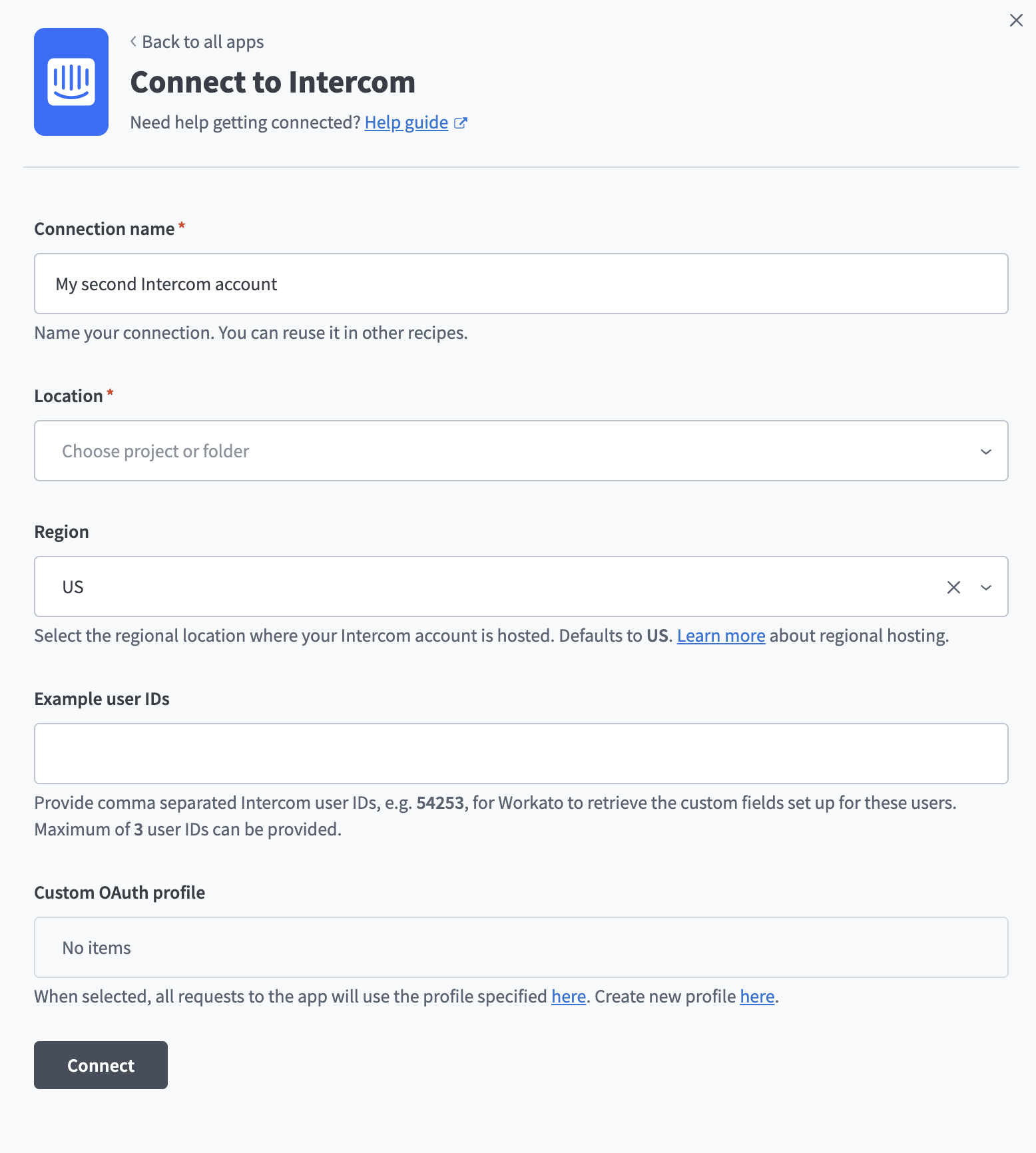 Configure your Intercom connection
Use the Location drop-down menu to select the project where you plan to store the connection.
Use the Region drop-down menu to select the regional location where your Intercom workspace is hosted. Choose US, EU, or AU. The connector defaults to US.
Optional. Use the Custom OAuth profile drop-down menu to select a custom OAuth profile for your connection.
Click Connect to authorize the connection between Workato and your Intercom account. Intercom prompts you to sign in and approve the requested scopes.
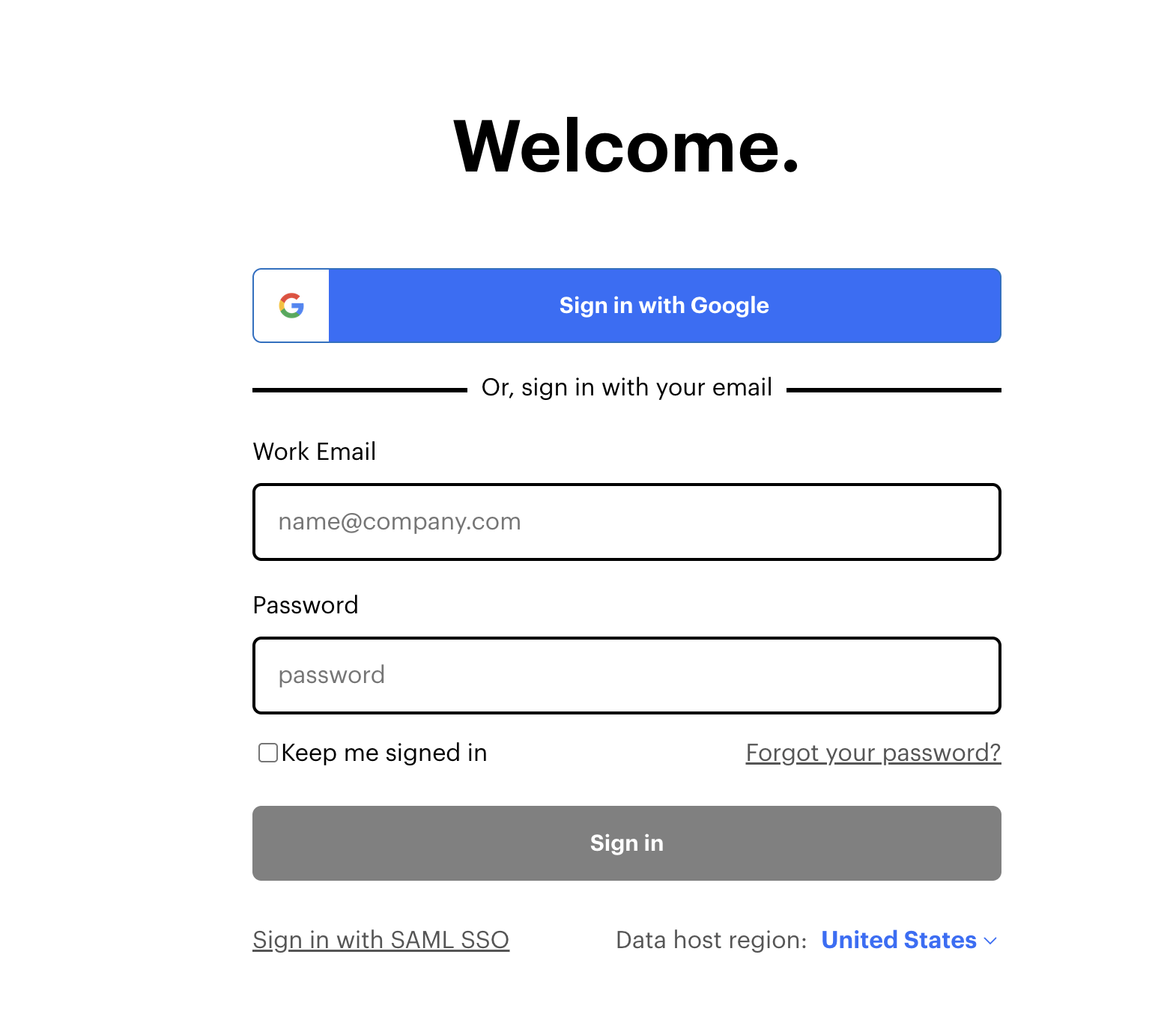 Authorize your Intercom connection
Configure the pipeline
Complete the following steps to configure Intercom as your data pipeline source:
Select Create > Data pipeline or press C+I.
Enter a name for the data pipeline in the Data pipeline name field.
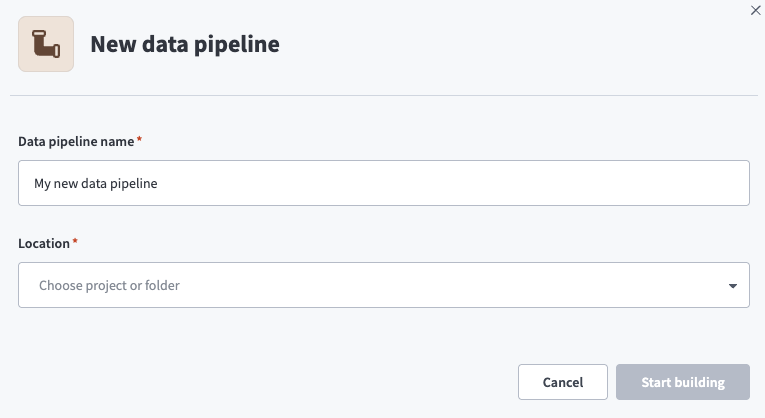 Data pipeline setup
Use the Location drop-down menu to select the project where you plan to store the data pipeline.
Click Start building.
Click the Extract new/updated records from source app trigger. This trigger defines how the pipeline retrieves data from Intercom.
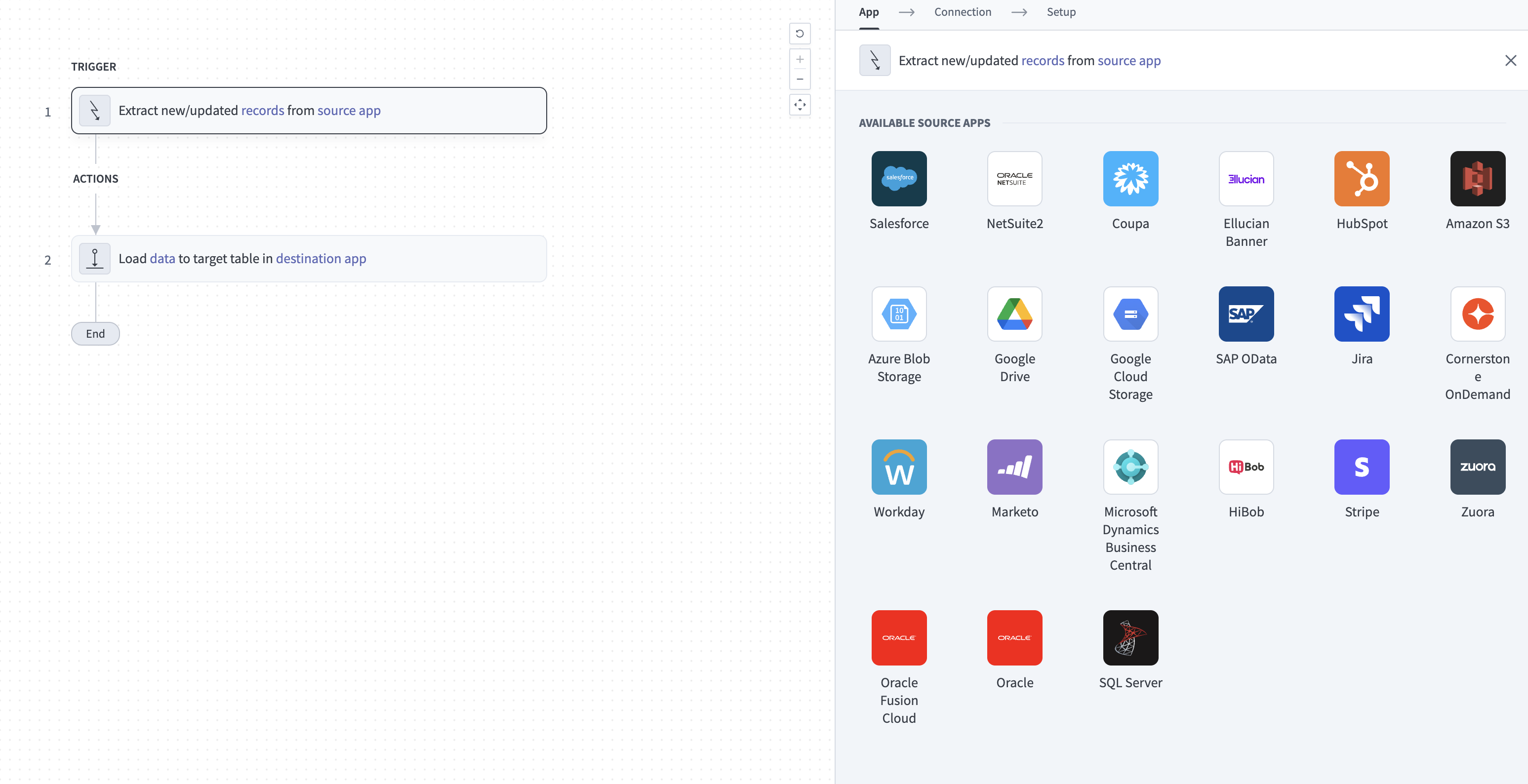 Configure the Extract new/updated records from source app trigger
Use the Your Connected Source Apps drop-down menu to select Intercom.
Choose the Intercom connection you plan to use for this pipeline. Alternatively, click + New connection to create a new connection.
Click Add object to open the Add new objects panel.
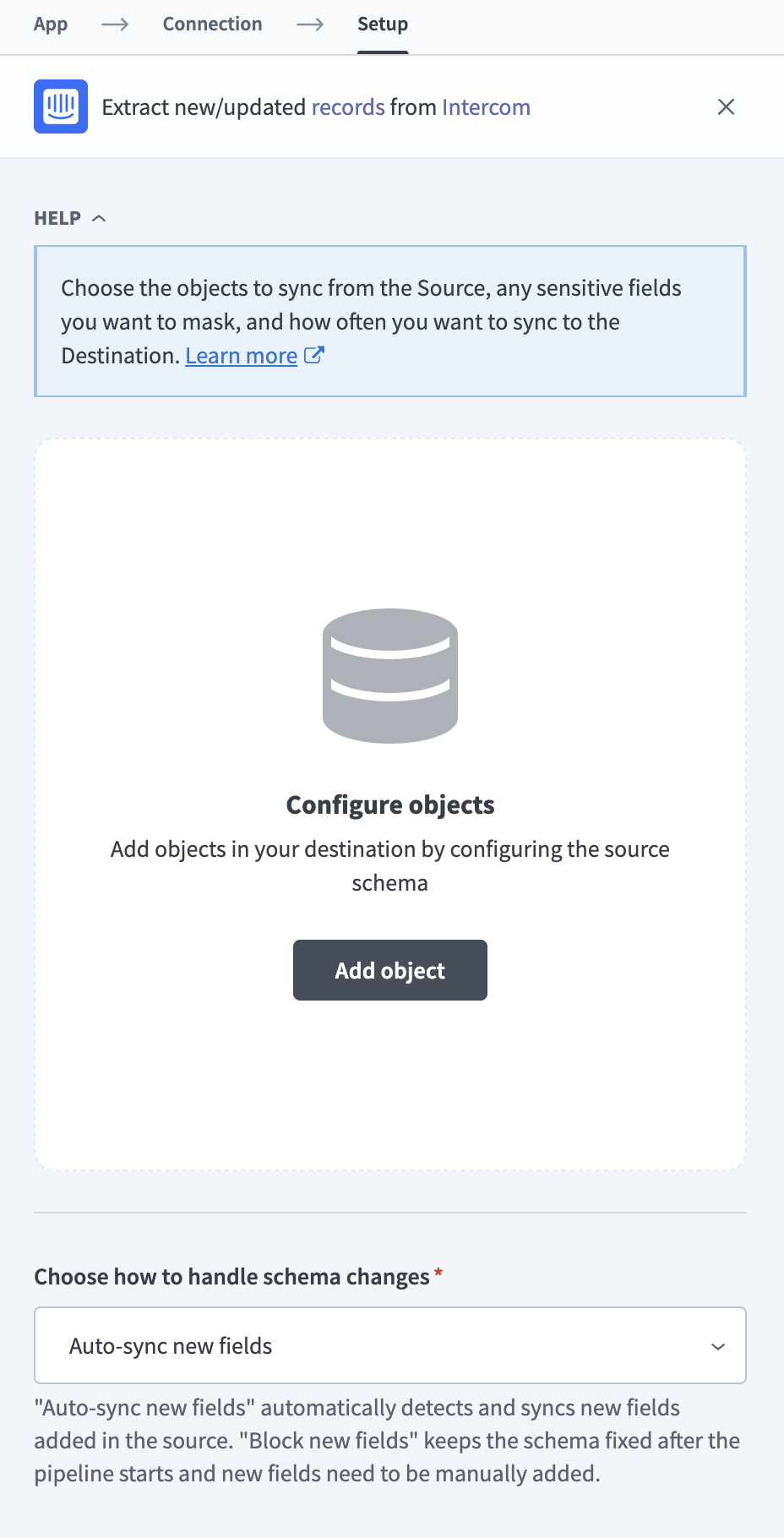 Add objects
Search or browse the list of available Intercom objects, select the objects you plan to sync, and click Add.
Review and customize the schema for each selected object. When you select an object, the pipeline automatically fetches its schema to ensure the destination matches the source.
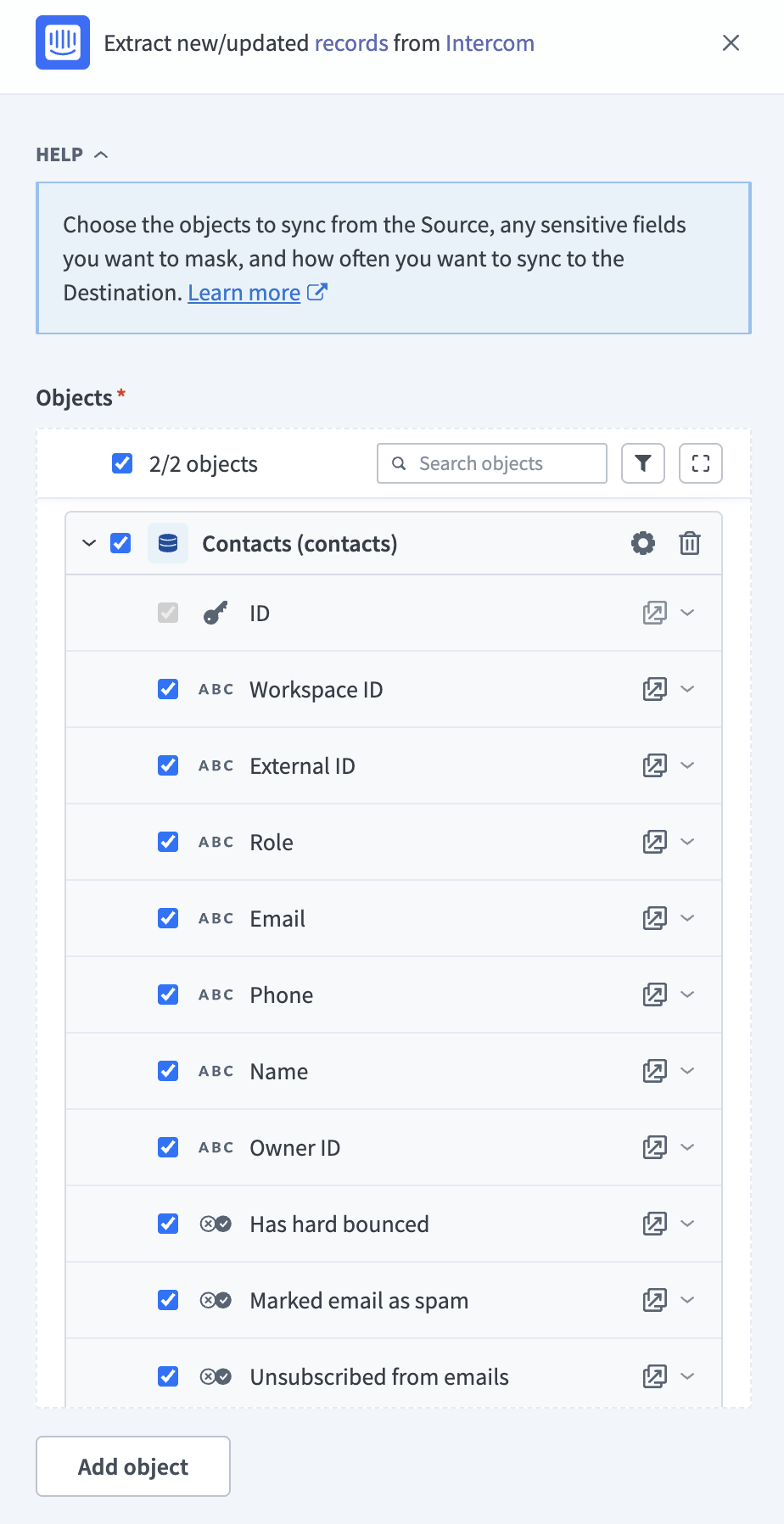 Review schema
Expand any object to view its fields. Keep all fields selected to extract all available data, or deselect specific fields to exclude them from data extraction and schema replication.
Optional. Configure field-level data protection by expanding an object and choosing how to handle each field:
- Replicate as is: Data values at the source replicate identically to the destination.
- Hash: Hash sensitive data values in the field before syncing to your destination.
HASH SENSITIVE MESSAGE FIELDS
Message body fields on Conversations and Conversation Parts may contain personally identifiable information that customers share in support conversations. Apply the Hash option to these fields if you don't need the message content in plaintext at the destination.
Click Add object again to add more objects. Repeat this step to include additional Intercom objects in your pipeline.
Use the Choose how to handle schema changes drop-down menu to select a schema drift handling option:
- Auto-sync new fields: Automatically detects and syncs new fields added in the source.
- Block new fields: Keeps the schema fixed after the pipeline starts. You must add new fields manually. This option may cause the destination to fall out of sync if the source schema updates.
Refer to Schema replication and schema drift management for more information.
Optional. Enter a value in the Concurrency limit field to cap the number of concurrent operations the pipeline performs against Intercom. Leave the field blank for no limit.
Configure how often the pipeline syncs data from the source to the destination in the Frequency field. Choose either a standard time-based schedule or define a custom cron expression.
Supported objects
The Intercom source connector supports the following objects. The sync mode for each object depends on whether the Intercom API exposes an incremental update mechanism. The When first started, this pipeline should pick up records from field applies only to objects that support an API-level filter.
Core objects
| Object | Sync mode | Historical start date | Notes |
|---|---|---|---|
contacts | Incremental | Supported | Includes both user and lead roles. Use contact_company and contact_tag for full relationships. |
companies | Full refresh | Not applicable | — |
conversations | Incremental | Supported | Parts fetched separately. Outbound messages without end-user replies are excluded. |
conversation_parts | Incremental | Inherited from parent | Maximum 500 parts per conversation. |
admins | Full refresh | Not applicable | — |
tags | Full refresh | Not applicable | — |
teams | Full refresh | Not applicable | — |
segments | Full refresh | Not applicable | Includes user and company segments. Filter by the type field. |
data_attributes | Full refresh | Not applicable | Metadata for the contact, company, and conversation models. |
Extended scope objects
| Object | Sync mode | Historical start date | Notes |
|---|---|---|---|
tickets | Incremental | Supported | Distinct from Conversations. Custom fields in ticket_attributes. |
ticket_types | Full refresh | Not applicable | Workspace ticket type configuration. |
articles | Full refresh | Not applicable | Help Center articles. |
collections | Full refresh | Not applicable | Help Center collections. |
help_centers | Full refresh | Not applicable | Help Center configuration. |
subscription_types | Full refresh | Not applicable | Email subscription preferences. |
activity_logs | Incremental | Supported | Append-only audit log of admin actions. |
Junction and child tables
The following tables are derived from arrays or nested objects on a parent record. They don't have independent Intercom API endpoints and they sync as part of their parent's extraction.
| Object | Parent object | Notes |
|---|---|---|
contact_company | contacts | Intercom caps the embedded company list at 10 items per contact. |
contact_tag | contacts | Intercom caps the embedded tag list at 10 items per contact. |
company_tag | companies | Derived from each company's tag list. |
conversation_tag | conversations | Derived from each conversation's tag list. |
team_admin | teams | Derived from the admin_ids array on each team. |
email_address_header | conversation_parts | Keyed by conversation_id + conversation_part_id + header index. |
Sync modes
The Intercom source connector supports incremental sync for some objects and full refresh for others. The sync mode for each object depends on whether Intercom's API exposes a way to fetch only records that changed since the last run.
Incremental sync
For supported objects, the connector fetches only records that have been created or updated since the last successful run. Workato deduplicates records at the destination by the object's primary key. The When first started, this pipeline should pick up records from field sets the starting point for the first run.
Refer to Supported objects for the list of objects that support incremental sync.
Full refresh
For objects that don't support incremental sync, the connector re-syncs all records on every run. The When first started, this pipeline should pick up records from field doesn't apply to full refresh objects.
Delete tracking
The connector doesn't track deletes. Records deleted in Intercom remain at the destination until the next full refresh for objects on a full refresh schedule. Records deleted from incremental-sync objects persist at the destination indefinitely.
Schema and data type handling
This section describes how the connector represents Intercom data types, custom fields, and nested objects at the destination. Use it to plan your destination schema and understand which fields the connector preserves, serializes as JSON, or omits.
Timestamps
Intercom returns timestamps as Unix epoch integers (seconds since 1970-01-01). The connector preserves these as integers at the destination.
Custom attributes
Contacts, Companies, and Conversations support user-defined custom attributes. Intercom stores these in a custom_attributes key-value map on each object. The connector stores custom_attributes as a single JSON column at the destination. The connector doesn't expand individual custom attribute keys into named columns, because each new attribute added in Intercom would cause schema drift.
Custom fields are stored in ticket_attributes as a JSON column on the same principle for Tickets.
Workato syncs JSON fields to the destination's native JSON type, such as VARIANT in Snowflake. Workato serializes JSON fields as strings if the destination doesn't support a native JSON type.
Use the data_attributes object to discover the full custom attribute schema configured for your workspace. The connector fetches data_attributes for the contact, company, and conversation models.
Nested objects
Some nested relationships are emitted as separate junction or child tables. Refer to the Junction and child tables section for the list.
Other nested objects on a parent record are stored as JSON columns. For example:
- Contact:
location,social_profiles,avatar - Conversation:
source,first_contact_reply,sla_applied,statistics,conversation_rating,ai_agent,linked_objects - Company:
plan
Subscription type translations
Each subscription_types record has a default_translation object that describes the subscription's default-language name and description. The connector stores default_translation as a JSON column and also exposes the name and description values as separate top-level columns for direct querying.
Attachments
Conversation parts and messages may contain file attachments. Attachments aren't supported. The connector doesn't sync attachment binary data or attachment URLs.
Schema drift
If you select Auto-sync new fields in the schema drift handling option, the connector captures new standard fields added by Intercom in API version upgrades automatically. If you select Block new fields, the schema is fixed after the pipeline starts and you must add new fields manually.
Personally identifiable information
Several Intercom objects contain personally identifiable information. Apply the Hash field-level data protection option to fields you don't need in plaintext at the destination. The following table lists the sensitive fields by object.
| Object | Sensitive fields |
|---|---|
contacts | name, email, phone, external_id, location (city, country, region, postal code), last_seen_ip, avatar.image_url, custom_attributes |
companies | name, company_id, custom_attributes |
conversations | source.body (message content), source.author, conversation_rating.remark |
conversation_parts | body (message content), author |
admins | name, email, avatar |
tickets | ticket_attributes |
activity_logs | performed_by, metadata |
GDPR AND DATA RESIDENCY
Customers operating under GDPR or the Australian Privacy Act should host their Intercom workspace in the EU or AU region and select the matching Region when they create the connection. Apply the Hash option to Contact and message body fields if you don't need them in plaintext at the destination.
Last updated: