Configure Jira as a data pipeline source
Set up Jira as a data pipeline source to extract issues, projects, users, and related records into your destination. Use this guide to set up a connection, configure your pipeline, add objects, and understand sync behavior and known limitations.
Features supported
The following features are supported when you use Jira as a pipeline source:
- Cloud and on-premise connectivity: Connect to Jira Cloud through HTTPS, or to Jira Server and Jira Data Center through an on-prem group. Refer to Supported connection types for the connection options available for each deployment.
- Full refresh and incremental sync: Supports full refresh and incremental sync modes. Refer to Sync modes for more information.
- Object-level selection: Select Jira objects to sync as separate tables in your destination.
- Field-level selection: Choose which fields to include or exclude from each object during extraction and schema replication.
- Schema drift detection and handling: Detect and apply schema changes automatically with Auto-sync new fields, or keep the schema fixed with Block new fields.
- Field-level data protection: Hash or replicate sensitive fields as is before the data reaches your destination.
- Configurable sync frequency: Schedule syncs on a time-based interval or with a cron expression. The minimum supported interval is 15 minutes.
Prerequisites
Complete the following requirements before you connect Jira as a data pipeline source.
- A Jira Cloud, Jira Server, or Jira Data Center instance with API access enabled.
- The hostname for your Jira instance. For example,
workato.atlassian.net. - Read access to the objects you plan to sync.
- Credentials for your chosen authentication method. Refer to Supported connection types for details.
Required permissions
The connected Jira account must have permission to read the data you plan to sync. Jira enforces permissions at multiple levels, and missing permissions cause the pipeline to receive a 403 - Forbidden response and skip the affected records.
The connected account must satisfy each of the following:
- Project permissions: The account must have the Browse Projects permission for every Jira project that contains data you plan to sync. Permissions are granted through permission schemes assigned to each project. Refer to the Atlassian permissions guide for more information.
- Issue security levels: If a project uses an issue security scheme, the account must be a member of the security levels assigned to the issues you plan to sync. Issues at security levels the account can't access are excluded from extraction.
- Application access: The account must have application access to the Jira product that contains the data. For example, reading the
Boardsobject requires Jira Software application access.
Supported connection types
Jira data pipelines support the following authentication methods. Select the corresponding value in the Auth type field when you create the connection.
- API token: Authenticate with an Atlassian API token. Select API token for a personal Atlassian account, or Service account (API token) for an Atlassian service account. Both options use the same setup procedure and the same fields. This method doesn't support on-premise Jira connections.
- OAuth 2.0: Authorize Workato access from your Jira account. Select OAuth 2.0 (Cloud - Atlassian-hosted Jira) for Jira Cloud, or OAuth 2.0 (Data Center) for on-premise Jira. The Data Center option additionally requires you to generate a client ID and client secret in Jira and provide them in Workato.
- Personal access token: Authenticate with a personal access token (PAT) generated in your Jira account. This method supports on-premise Jira connections.
- Basic authentication with password: Authenticate with a username and password. Atlassian deprecated this method for cloud connections in December 2018.
AUTHENTICATION LIMITATIONS
The Jira authentication methods have the following limitations:
- API token authentication doesn't support on-premise Jira connections.
- Basic authentication with password is deprecated for Jira Cloud and supports on-premise Jira only.
Connect to Jira
There are six ways to connect to Jira:
- API token
- Service account (API token)
- OAuth 2.0 (Cloud - Atlassian-hosted Jira)
- OAuth 2.0 (Data Center)
- Personal access tokens
- Basic authentication (password)
We strongly recommend using API tokens, service account API tokens, OAuth 2.0, or personal access tokens to connect to Jira instead of basic authentication with a password.
LIMITATIONS
Authentication methods for the Jira connector have the following limitations:
- Real-time triggers aren't supported with OAuth 2.0 (Cloud - Atlassian-hosted Jira) or OAuth 2.0 (Data Center).
- On-prem Jira connections aren't supported with API token or service account (API token) authentication.
- Atlassian deprecated basic authentication for cloud connections in December 2018. On-premise Jira is not affected.
API token
View API token steps
API tokens authenticate your Atlassian account without using a username and password. API token authentication doesn't support connections to on-premise Jira.
Prerequisites
You must generate an Atlassian API token for this authentication method. Refer to the Atlassian Manage API tokens guide for more information.
Connect to Jira using an API token
Complete the following steps to connect to Jira in Workato using an API token:
Click Create > Connection or press C twice.
Search for and select Jira as your connection on the New connection page.
Provide a name for your connection in the Connection name field.
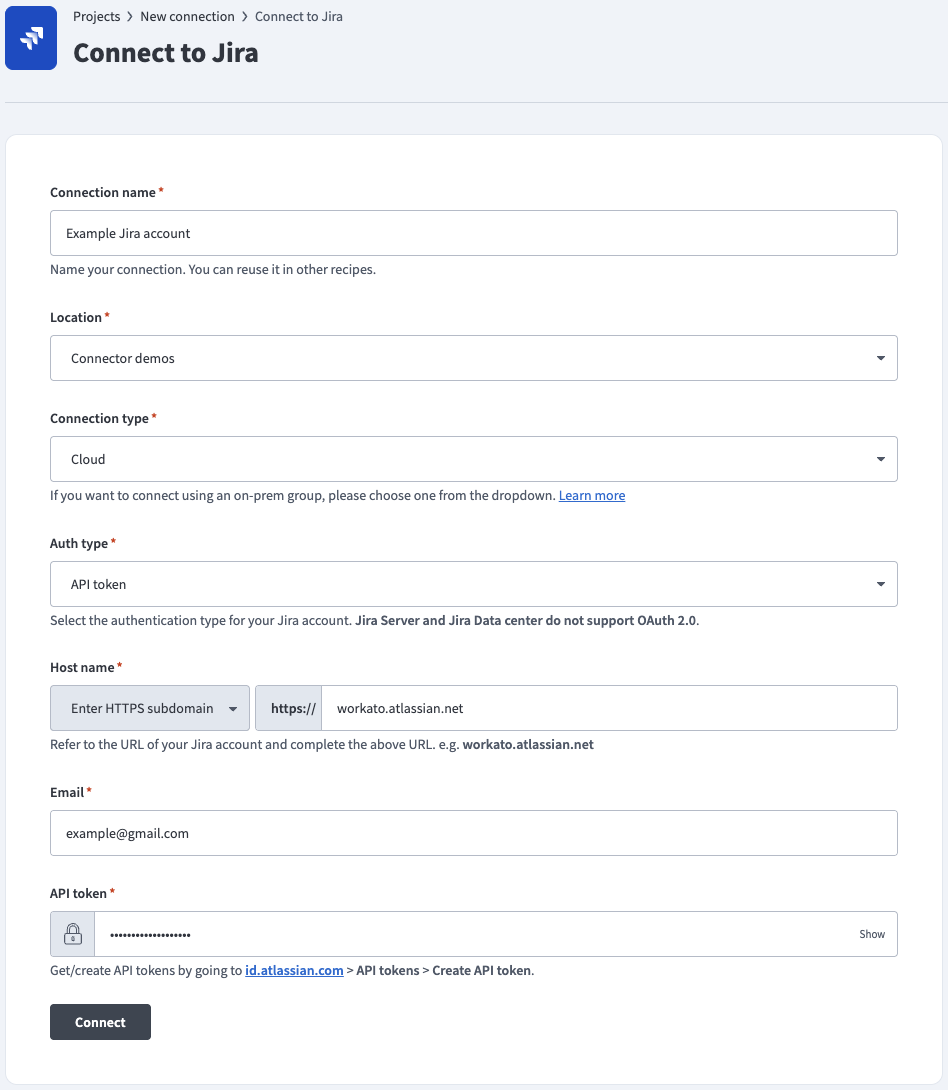 API token auth
Use the Location drop-down menu to select the project where you plan to store the connection.
Use the Connection type drop-down menu to select your connection type.
Use the Auth type drop-down menu to select API token.
Enter the URL subdomain for your Jira instance in the Host name field. For example: workato.atlassian.net
Enter the Email of the Jira account to link to Workato.
Enter the API token for your Atlassian account. Refer to the Atlassian Manage API tokens guide to generate this value.
Optional. Use the Custom OAuth profile drop-down menu to select a custom OAuth profile for your connection.
Click Connect.
Service account (API token)
View Service account (API token) steps
Use this authentication method to connect Workato to Jira using an Atlassian Cloud service account. A service account is a dedicated, non-personal Atlassian account used for integrations. Service accounts aren't tied to individual users, so connections remain stable when team members leave or change roles.
Service account (API token) authentication supports Jira Cloud connections only.
Prerequisites
Complete the following tasks before you connect:
Set up the service account
Go to Atlassian Administration.
Select your organization.
Select Directory > Service accounts and click Create a service account.
Enter a name and description for the service account, then click Create a service account.
Select the apps and roles for the service account on the Select app role for service account page.
Add the service account to groups to grant access to specific projects or spaces.
Click Create.
Click Create credentials.
Select API token on the Choose authentication type screen.
Enter a Name and Expires on date on the Name API token page.
Select the scopes for your connection. At minimum, you must select read:jira-user to establish the connection. Select additional scopes based on the triggers and actions your recipes use. Refer to Manage API tokens for service accounts for the full list of available scopes.
Click Next.
Review the scopes assigned to your token on the Review your API token screen.
Click Create.
Click Copy to copy your API token. Save this value for use in Workato.
Click Done.
Connect to Jira using a service account API token
Complete the following steps to connect to Jira in Workato using a service account API token:
Click Create > Connection or press C twice.
Search for and select Jira as your connection on the New connection page.
Provide a name for your connection in the Connection name field.
Use the Location drop-down menu to select the project where you plan to store the connection.
Use the Connection type drop-down menu to select your connection type.
Use the Auth type drop-down menu to select Service account (API token).
Enter the URL subdomain for your Jira instance in the Host name field. For example: workato.atlassian.net
Enter the email address associated with the service account in the Email field.
Enter the API token for the service account. Refer to the Atlassian Manage API tokens guide to generate this value.
Optional. Use the Custom OAuth profile drop-down menu to select a custom OAuth profile for your connection.
Click Connect.
OAuth 2.0 (Cloud - Atlassian-hosted Jira)
View OAuth 2.0 (Cloud - Atlassian-hosted Jira) steps
OAuth 2.0 enables you to share specific data with an application while keeping your username, password, and other information private. OAuth 2.0 (Cloud - Atlassian-hosted Jira) supports Jira Cloud connections.
REAL-TIME TRIGGERS NOT SUPPORTED
OAuth 2.0 doesn't support real-time triggers because it's incompatible with webhooks. As an alternative, you can register the Webhooks connector in Jira to use Jira's static webhook functionality. Refer to the Cloud Jira webhook documentation for registration steps.
Connect to Jira using OAuth 2.0 (Cloud - Atlassian-hosted Jira)
Complete the following steps to connect to Jira in Workato using OAuth 2.0 (Cloud - Atlassian-hosted Jira):
Click Create > Connection or press C twice.
Search for and select Jira as your connection on the New connection page.
Provide a name for your connection in the Connection name field.
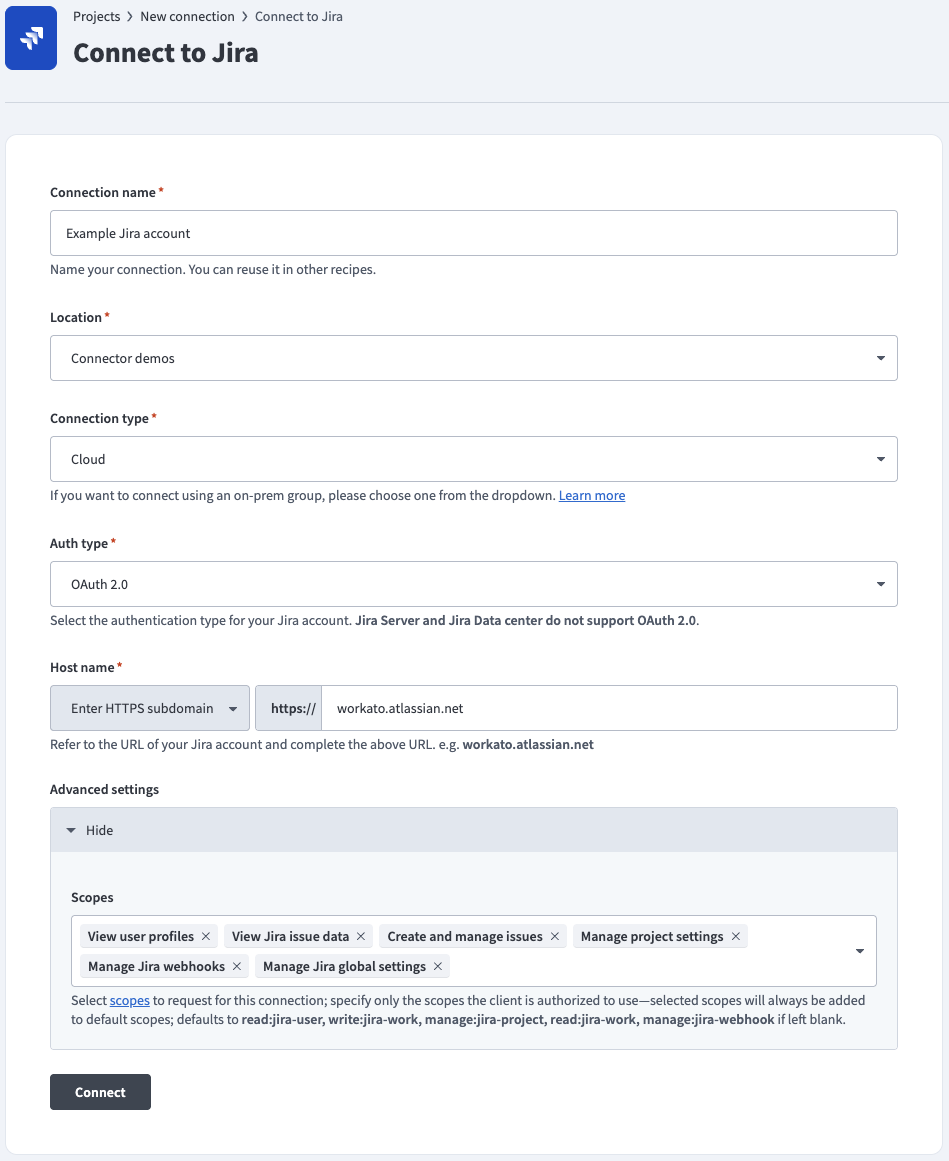 OAuth 2.0 auth
Use the Location drop-down menu to select the project where you plan to store the connection.
Use the Connection type drop-down menu to select your connection type.
Use the Auth type drop-down menu to select OAuth 2.0 (Cloud - Atlassian-hosted Jira).
Enter the URL subdomain for your Jira instance in the Host name field. For example: workato.atlassian.net
Optional. Use the Scopes drop-down menu to select the authorization scopes to request. Workato requests the following scopes by default:
read:jira-userwrite:jira-workmanage:jira-projectread:jira-workmanage:jira-webhook
Optional. Use the Custom OAuth profile drop-down menu to select a custom OAuth profile for your connection.
Click Connect and sign in to your Jira instance.
Authorize Workato's request to access your Jira instance.
OAuth 2.0 (Data Center)
View OAuth 2.0 (Data Center) steps
OAuth 2.0 (Data Center) enables you to connect to an on-premise Jira Data Center instance using OAuth 2.0.
REAL-TIME TRIGGERS NOT SUPPORTED
OAuth 2.0 doesn't support real-time triggers because it's incompatible with webhooks. As an alternative, you can register the Webhooks connector in Jira to use Jira's static webhook functionality. Refer to the Jira Datacenter webhook documentation for registration steps.
Prerequisites
You must generate an Atlassian client ID and client secret if you plan to connect to Jira Data Center using OAuth 2.0. Refer to the Atlassian Configure an incoming link guide to generate these values using https://www.workato.com/oauth/callback as the redirect URI.
Connect to Jira using OAuth 2.0 (Data Center)
Complete the following steps to connect to Jira in Workato using OAuth 2.0 (Data Center):
Click Create > Connection or press C twice.
Search for and select Jira as your connection on the New connection page.
Provide a name for your connection in the Connection name field.
Use the Location drop-down menu to select the project where you plan to store the connection.
Use the Connection type drop-down menu to select your connection type.
Use the Auth type drop-down menu to select OAuth 2.0 (Data Center).
Enter the hostname of your Jira Data Center instance in the Host name field. For example: jira.yourcompany.com
Expand the Advanced settings section.
Enter the Client ID and Client secret from your Jira Data Center application link configuration. Refer to the Prerequisites section to generate these values.
Optional. Use the Scopes drop-down menu to select the authorization scopes to request. Defaults to READ and WRITE.
Optional. Use the Custom OAuth profile drop-down menu to select a custom OAuth profile for your connection.
Click Connect and sign in to your Jira instance.
Authorize Workato's request to access your Jira instance.
Personal access tokens
View Personal access tokens steps
Personal access tokens (PATs) authenticate your Atlassian account without using a username and password. PAT authentication supports on-premise Jira connections.
Prerequisites
You must generate an Atlassian personal access token for this authentication method. Refer to the Atlassian Using Personal Access Tokens guide for more information.
Connect to Jira using a personal access token
Complete the following steps to connect to Jira in Workato using a personal access token:
Click Create > Connection or press C twice.
Search for and select Jira as your connection on the New connection page.
Provide a name for your connection in the Connection name field.
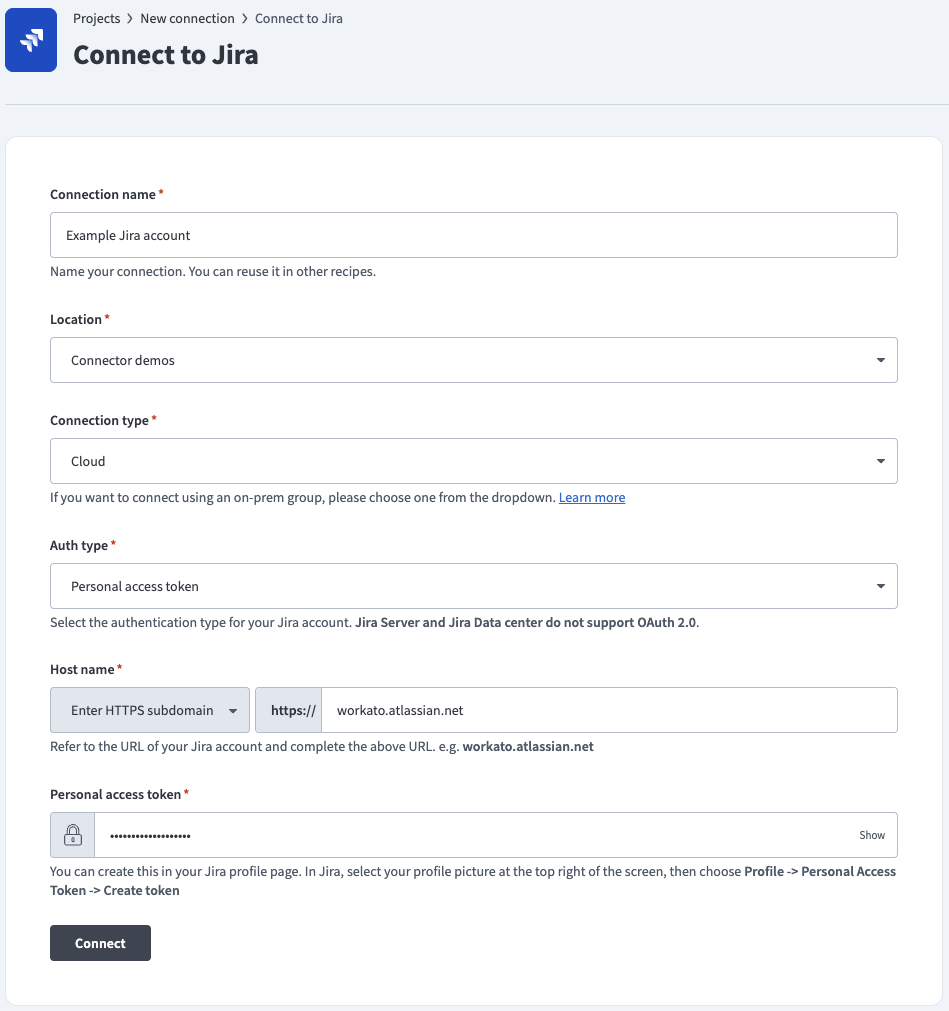 Personal access token auth
Use the Location drop-down menu to select the project where you plan to store the connection.
Use the Connection type drop-down menu to select your connection type.
Use the Auth type drop-down menu to select Personal access token.
Enter the URL subdomain for your Jira instance in the Host name field. For example: workato.atlassian.net
Enter the Personal access token of the Jira account to link to Workato. Refer to the Atlassian Using Personal Access Tokens guide to generate this value.
Optional. Use the Custom OAuth profile drop-down menu to select a custom OAuth profile for your connection.
Click Connect.
Basic authentication with password
View Basic authentication with password steps
Basic authentication connects to your Atlassian account using a username and password. Basic authentication supports on-premise Jira connections.
DEPRECATED PASSWORD AUTHENTICATION
Atlassian deprecated basic authentication for cloud connections in December 2018. On-premise Jira is not affected.
Connect to Jira using basic authentication
Complete the following steps to connect to Jira in Workato using basic authentication:
Click Create > Connection or press C twice.
Search for and select Jira as your connection on the New connection page.
Provide a name for your connection in the Connection name field.
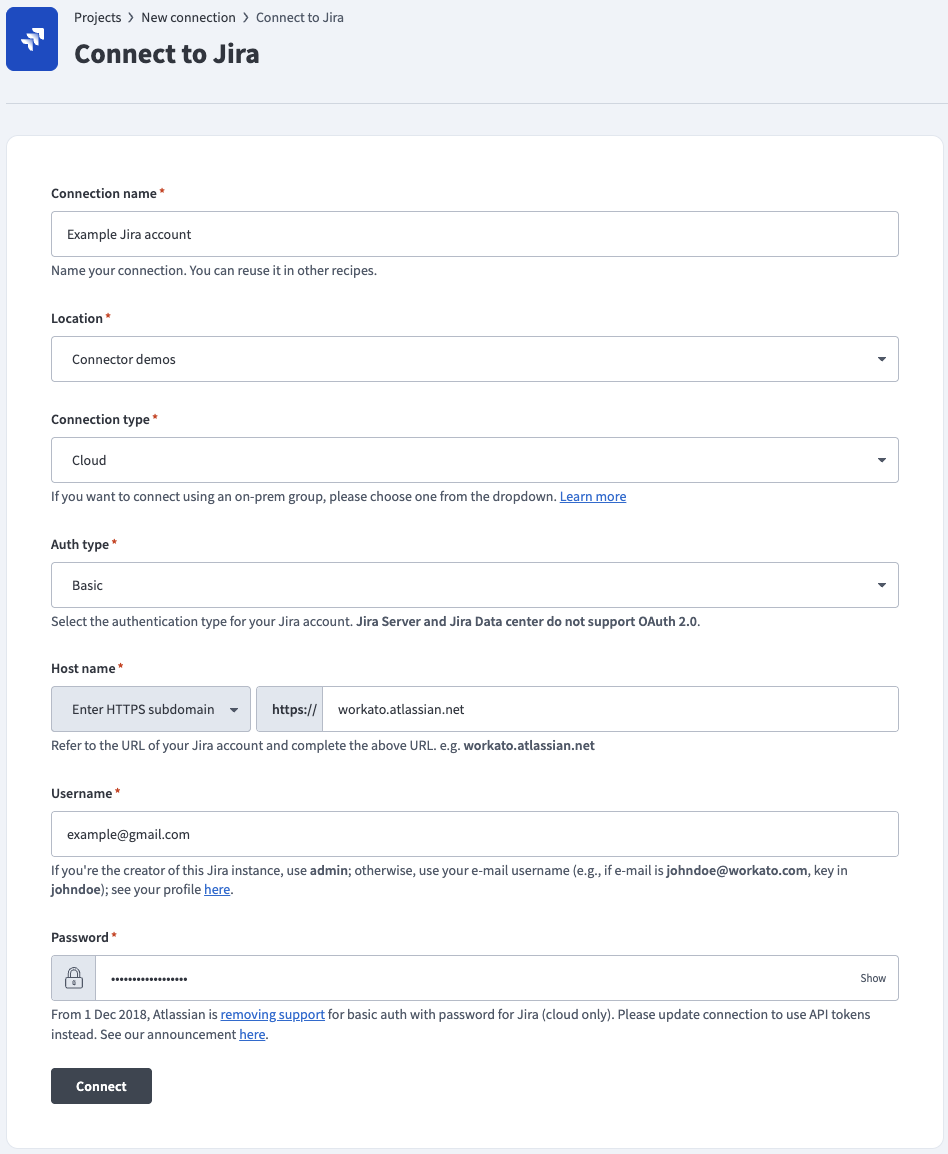 Basic password auth
Use the Location drop-down menu to select the project where you plan to store the connection.
Use the Connection type drop-down menu to select your connection type.
Use the Auth type drop-down menu to select Basic.
Enter the URL subdomain for your Jira instance in the Host name field. For example: workato.atlassian.net
Enter your Jira Username and Password.
Optional. Use the Custom OAuth profile drop-down menu to select a custom OAuth profile for your connection.
Click Connect.
Configure the pipeline
Complete the following steps to configure Jira as your data pipeline source.
Select Create > Data pipeline or press C+I.
Enter a name for the data pipeline in the Data pipeline name field.
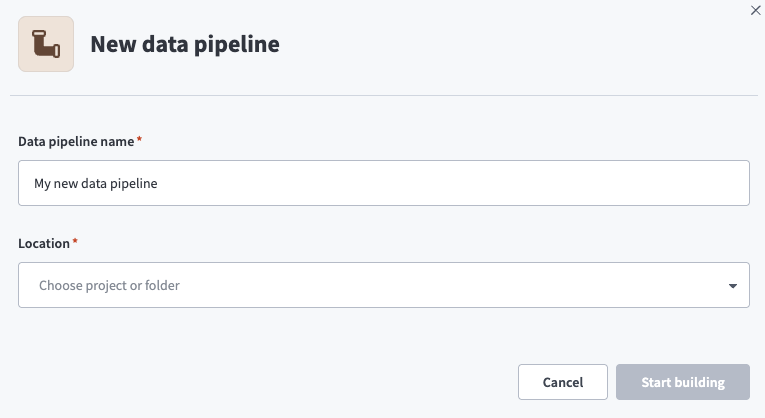 Data pipeline setup
Use the Location drop-down menu to select the project where you plan to store the data pipeline.
Click Start building.
Click the Extract new/updated records from source app trigger. This trigger defines how the pipeline retrieves data from Jira.
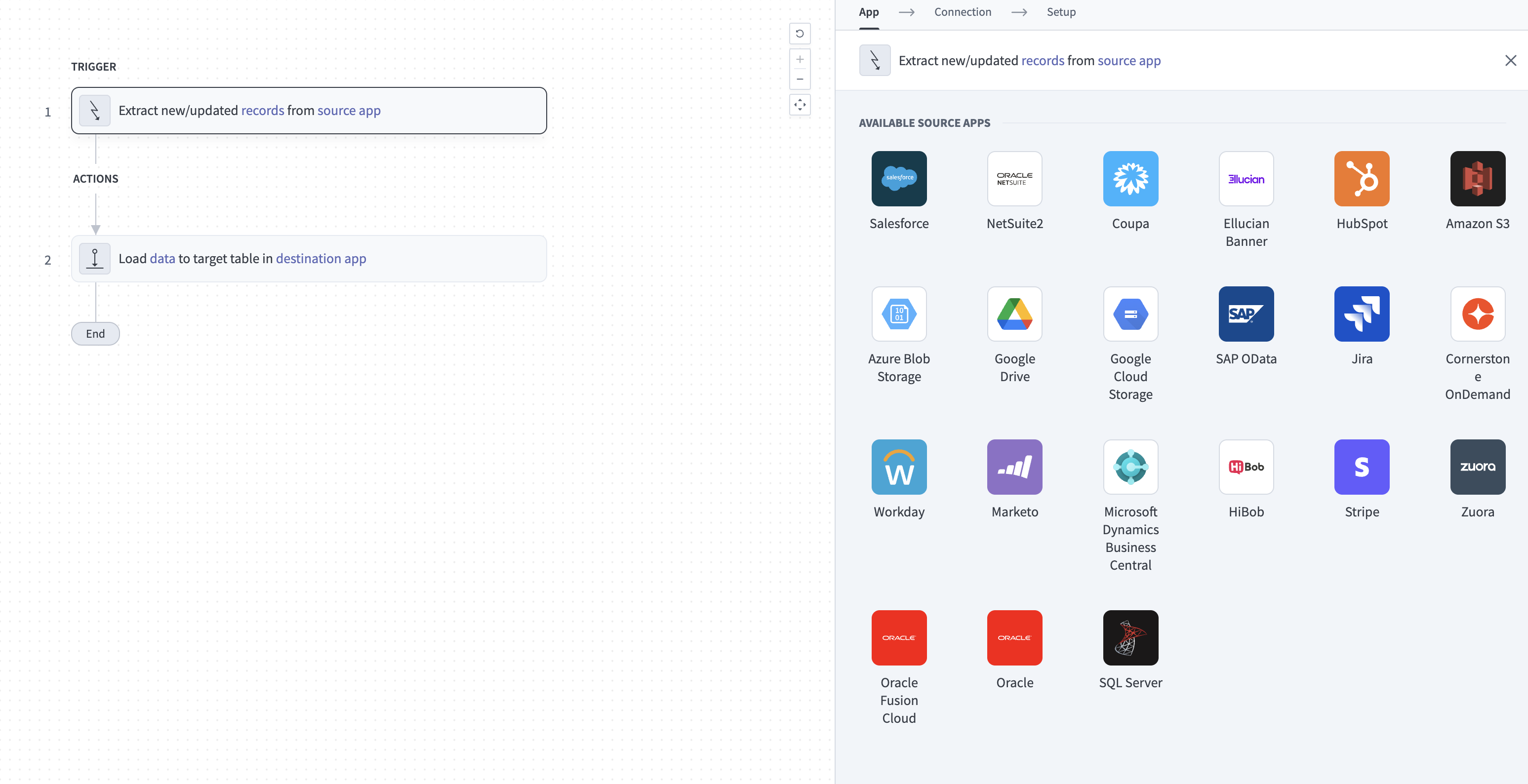 Configure the Extract new/updated records from source app trigger
Use the Your Connected Source Apps drop-down menu to select Jira.
Choose the Jira connection you plan to use for this pipeline. Alternatively, click + New connection to create a new connection.
Click Add object to open the Add new objects panel.
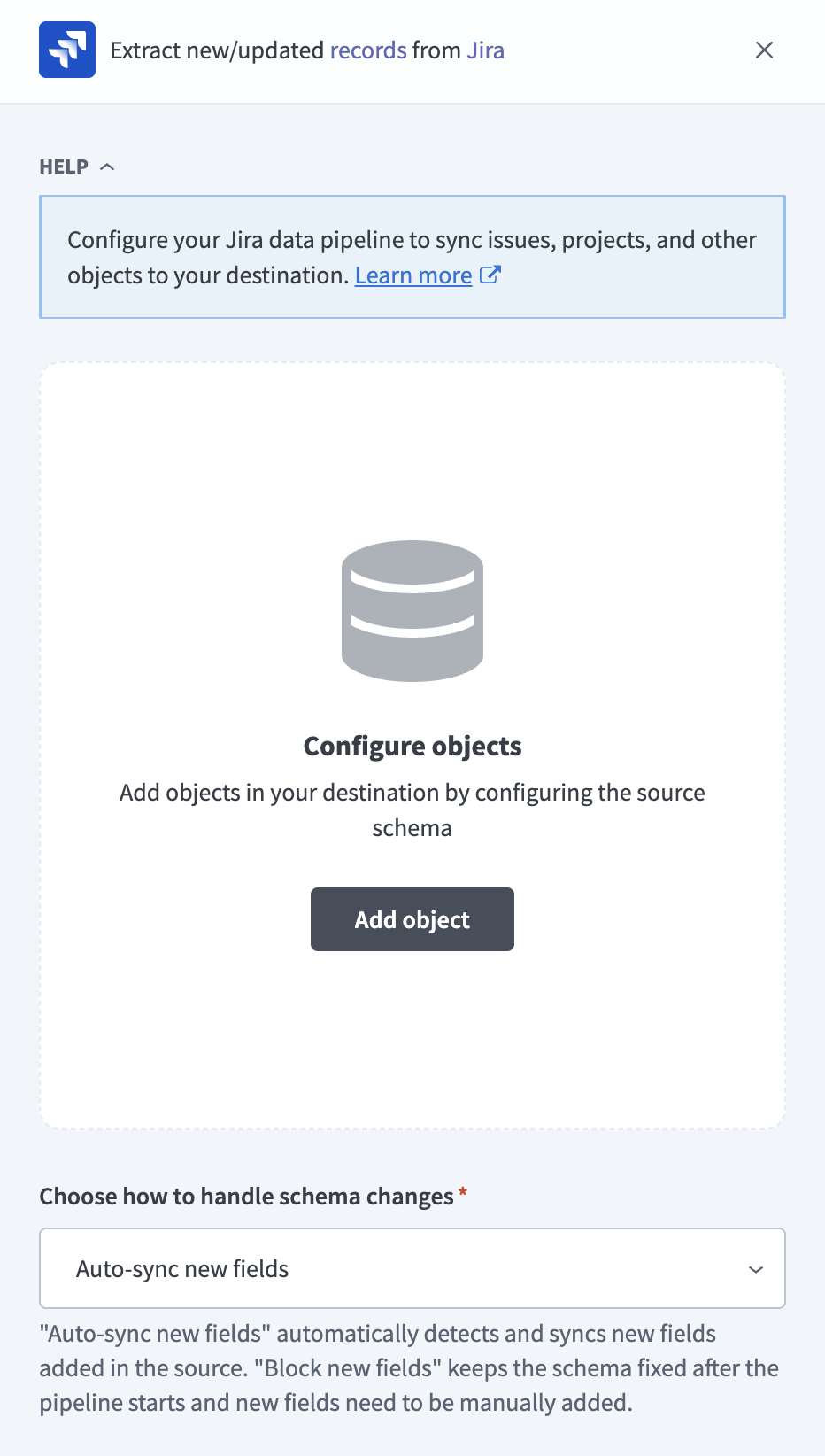 Add objects
Search or browse the list of available Jira objects, select the objects you plan to sync, and click Add. Refer to Supported objects for more information.
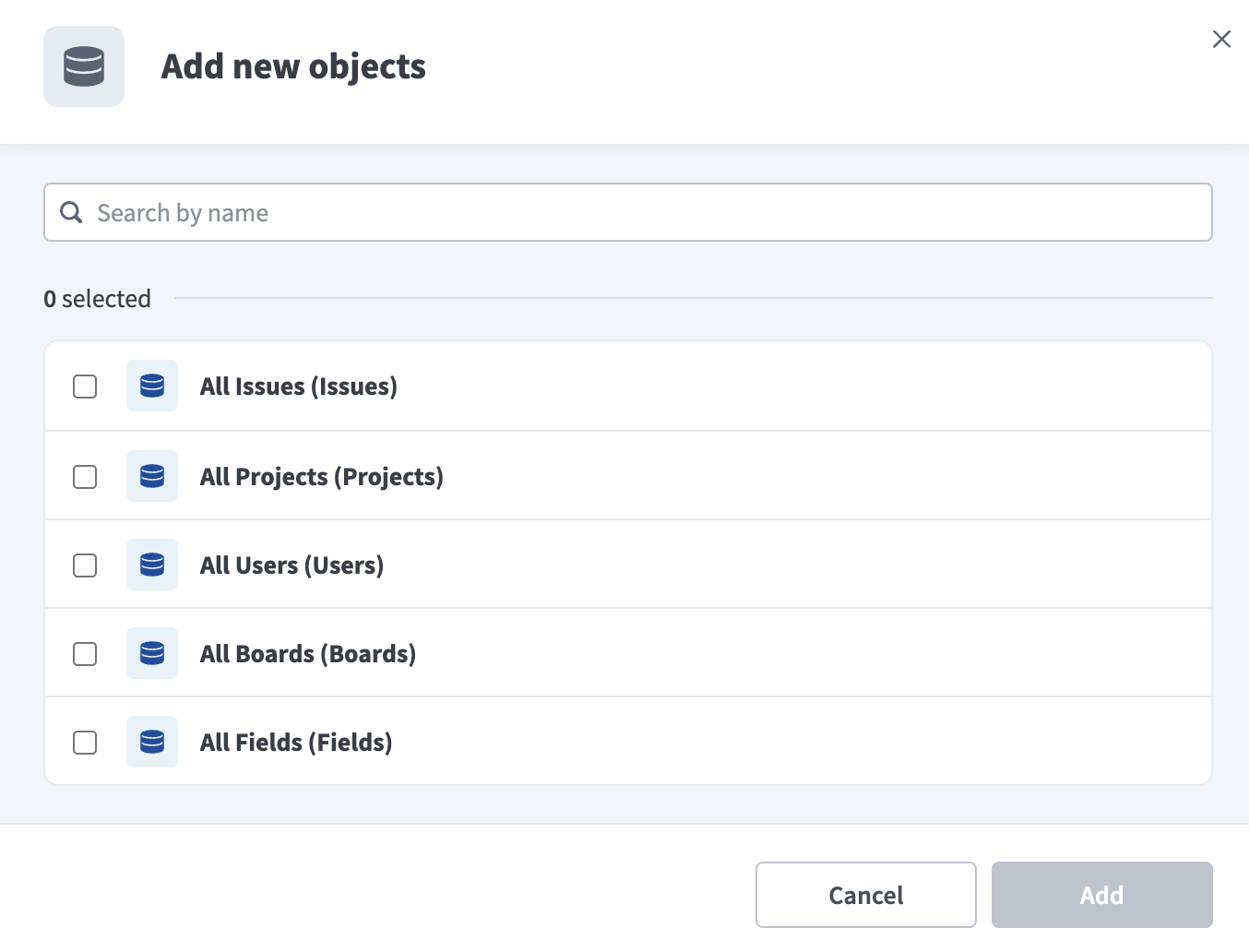 Select objects
Review and customize the schema for each selected object. When you select an object, the pipeline automatically fetches its schema, including standard fields and custom fields configured in your Jira instance, to ensure the destination matches the source.
Expand any object to view its fields. Keep all fields selected to extract all available data, or deselect specific fields to exclude them from data extraction and schema replication. Primary key fields, such as id, can't be deselected.
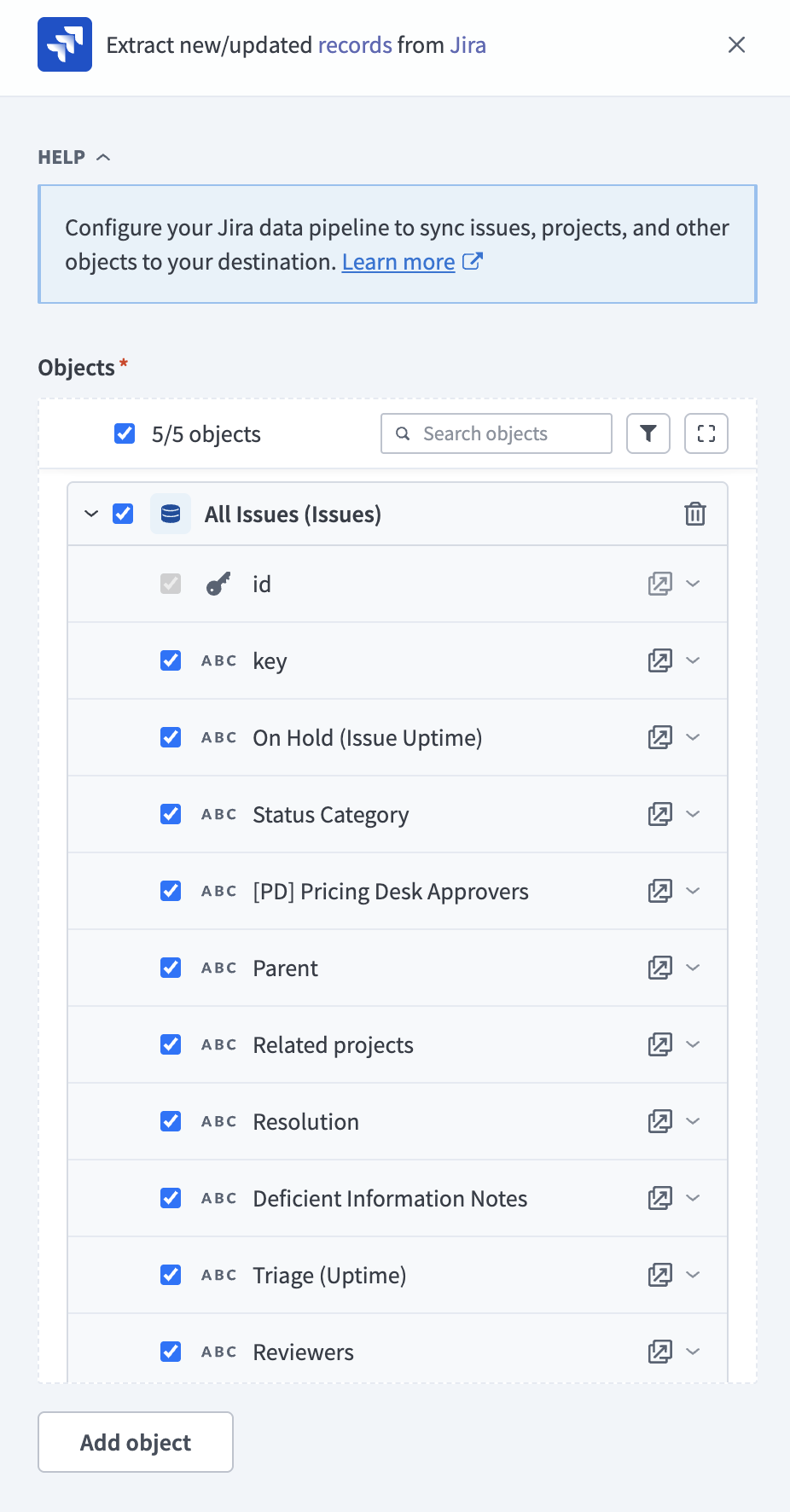 Expand object
Optional. Configure field-level data masking by selecting the icon next to each field and choosing how to handle the field:
- Replicate as is: Data values at the source replicate identically to the destination.
- Hash: Hash sensitive data values in the field before syncing to your destination.
Workato recommends hashing personally identifiable information (PII) and other sensitive fields.
Click Add object again to add more objects. Repeat this step to include additional Jira objects in your pipeline.
Use the Choose how to handle schema changes drop-down menu to select a schema drift handling option:
- Auto-sync new fields: Automatically detects and syncs new fields added in the source.
- Block new fields: Keeps the schema fixed after the pipeline starts. You must add new fields manually. This option may cause the destination to fall out of sync if the source schema updates.
Refer to Schema replication and schema drift management for more information.
Choose either a standard time-based schedule or define a custom cron expression in the Frequency field. This determines how often the pipeline syncs data from Jira to the destination.
Supported objects
Jira data pipelines sync data from Jira REST API resources. Each object you select syncs as a separate table in your destination. The objects available for selection depend on your Jira instance configuration. For example, Jira Software products expose additional objects such as boards.
Available objects include the following:
Issues: Issue records, including standard fields and any custom fields configured in your Jira instance.Projects: Jira project records.Users: Jira user records.Boards: Boards from Jira Software products.Fields: Field metadata, including custom field definitions.
Sync modes
Jira data pipelines support full refresh and incremental sync.
Full refresh
A full refresh sync reads all available records from Jira for the selected object and overwrites the destination table. Use full refresh for objects where you need a complete snapshot on each run.
Incremental sync
An incremental sync extracts only records that have changed since the last successful run.
Schema and data type handling
The following considerations apply to schema and data types when you sync data from Jira.
Custom fields
The pipeline automatically discovers custom fields configured on Jira objects and includes them in the schema alongside standard fields. For example, the Issues object includes standard fields such as id, key, and Resolution together with any custom fields configured on issues in your Jira instance. Deselect individual custom fields to exclude them from extraction and schema replication.
Primary keys
Each object has a primary key field that can't be deselected. For example, id is the primary key for the Issues object.
Limitations
The following limitations apply when you use Jira as a data pipeline source.
Authentication method limitations
The following authentication limitations apply:
- API token authentication doesn't support on-premise Jira connections.
- Basic authentication with password is deprecated for Jira Cloud and supports on-premise Jira only.
Minimum sync frequency
The minimum supported sync interval is 15 minutes.
Last updated: