Configure LinkedIn as a data pipeline source
Set up LinkedIn as a data pipeline source to extract ad account, campaign, creative, and analytics data from the LinkedIn Marketing API and sync it to your destination.
Use this guide to prepare your LinkedIn credentials, connect LinkedIn to Workato, configure the pipeline, and understand the supported objects, sync modes, and limitations.
Features supported
The following features are supported when you use LinkedIn as a pipeline source:
- LinkedIn Marketing API connectivity: Connects to the LinkedIn Marketing API over https.
- Multi-account sync: The Sync all ad accounts field controls whether the pipeline automatically discovers and syncs every LinkedIn advertising account the connection has access to.
- Full sync and incremental sync: Account, campaign, and creative structure objects use a full sync on every run. Ad Analytics objects support incremental sync based on a rolling date window. Refer to Sync modes for more information.
- Object-level selection: Choose which LinkedIn objects to include in your pipeline.
- Delete tracking: Account, Campaign Group, Campaign, and Creative records that are archived or canceled in LinkedIn are marked as deleted in your destination. Refer to Delete tracking for more information.
- Schema drift handling: Choose to auto-sync or block newly added fields in the source.
- Field-level data protection: Mask sensitive fields before they sync to your destination.
- Configurable sync frequency: Schedule syncs on a time-based or cron-based schedule. The minimum interval is 15 minutes.
Prerequisites
Complete the following requirements before you configure LinkedIn as a data pipeline source:
- A LinkedIn Campaign Manager account with access to the advertising accounts you plan to sync.
- OAuth 2.0 credentials. LinkedIn's Marketing API supports only the OAuth 2.0 authorization code grant. Client credentials aren't supported. Refer to Connect to LinkedIn for setup steps.
LINKEDIN REFRESH TOKEN LIMITS
If you already have a LinkedIn connection for workflow automation using the same LinkedIn credentials, review LinkedIn refresh token limits before you create a data pipeline connection. LinkedIn limits the number of refresh tokens per account, and authorizing a new connection with the same credentials can disconnect existing ones.
Recommended permissions
The pipeline only performs read operations against LinkedIn. Select the following scopes in the Scopes field when you connect to LinkedIn, rather than leaving the field blank. Refer to Connect to LinkedIn for more information.
| LinkedIn permission | Workato objects |
|---|---|
| Manage your advertising accounts | Account, Account User, Campaign Group, Campaign, Creative, Conversion. Also used to validate the connection by listing accessible ad accounts. |
| Retrieve reporting for your advertising accounts | All Ad Analytics objects |
| Access your Lead Gen forms and retrieve leads | Lead Gen Form, Lead Gen Form Response |
Manage your advertising accounts also grants write access to your LinkedIn ad accounts. The pipeline itself only performs read operations.
Connect to LinkedIn
Complete the following steps to connect to LinkedIn:
Connect to LinkedIn
Select Create > Connection or press C twice.
Search for and select LinkedIn on the New connection page.
Enter a name in the Connection name field.
Use the Location drop-down menu to select the project where you plan to store the connection.
Optional. Expand Advanced settings to select the LinkedIn Scopes this connection can access. If you leave this field blank, Workato requests LinkedIn's default scope set, which includes broader access than the pipeline needs. Workato always requests Read your basic profile at minimum, in addition to any scopes you select.
RECOMMENDED SCOPES
The pipeline only reads data from LinkedIn. Select only the scopes listed in Recommended permissions rather than leaving this field blank.
Select Connect to authorize the connection. Workato redirects you to LinkedIn to sign in and grant access, then returns you to Workato. Workato displays a success message when the connection is established.
Configure the pipeline
Complete the following steps to configure LinkedIn as your data pipeline source.
Select Create > Data pipeline or press C+I.
Enter a name for the data pipeline in the Data pipeline name field.
 Data pipeline setup
Use the Location drop-down menu to select the project where you plan to store the data pipeline.
Click Start building.
Click the Extract new/updated records from source app trigger. This trigger defines how the pipeline retrieves data from LinkedIn.
 Configure the Extract new/updated records from source app trigger
Use the Your Connected Source Apps drop-down menu to select LinkedIn.
Choose the LinkedIn connection you plan to use for this pipeline. Alternatively, click + New connection to create a new connection.
Use the Sync all ad accounts drop-down menu to choose the ad accounts to sync:
- Yes. The pipeline discovers and syncs data from every ad account reachable by the authorized LinkedIn user.
- No. Enter one or more ad account IDs, separated by commas, in the Ad account IDs field. The pipeline validates these IDs before it extracts data.
The pipeline saves the resolved account list for the duration of a run. If a run resumes after hitting a time or row quota, it continues with the same account list.
Click Add object to open the Add new objects panel.
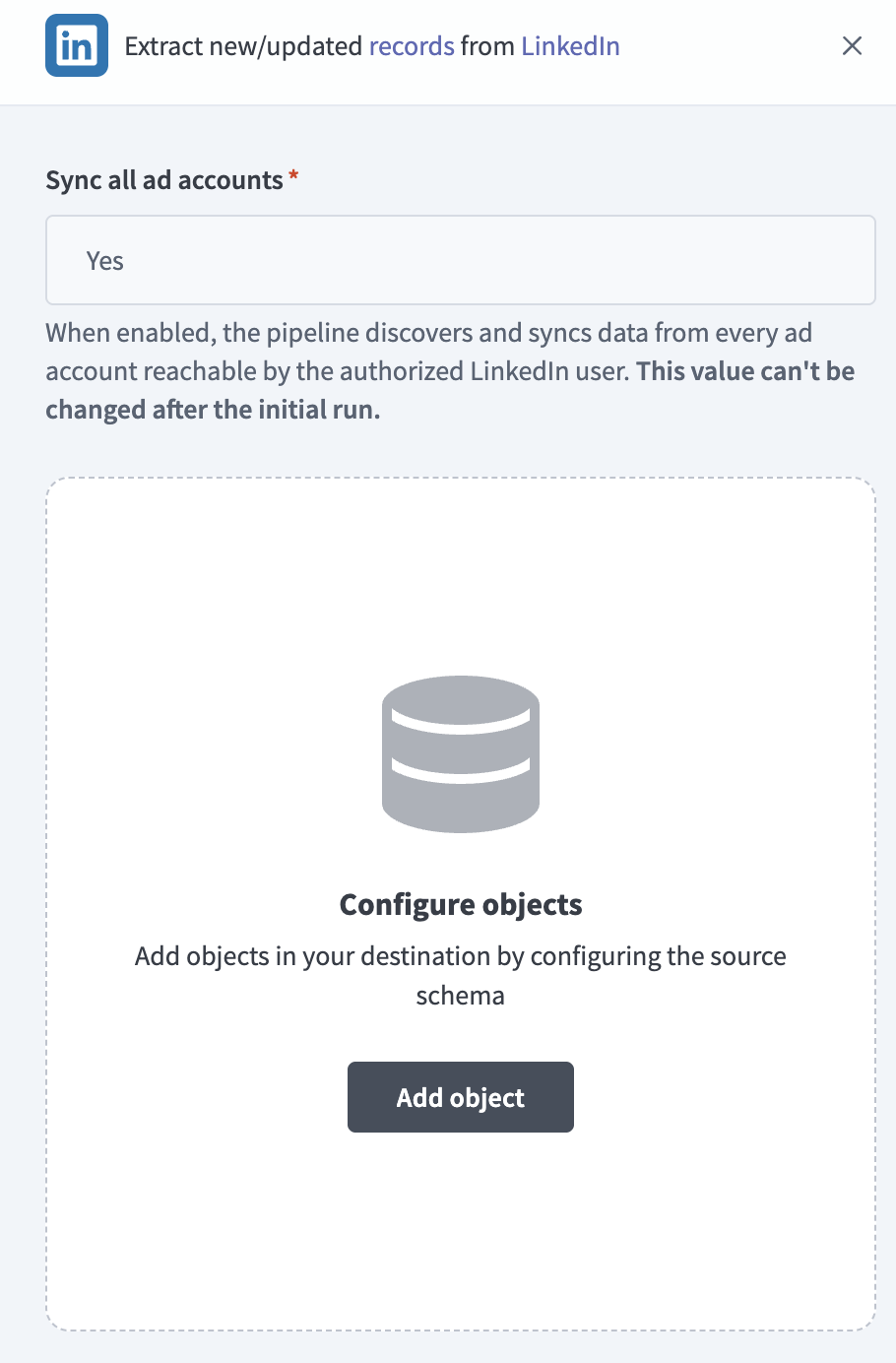 Add objects
Search or browse the list of available LinkedIn objects, select the objects to sync, and click Add.
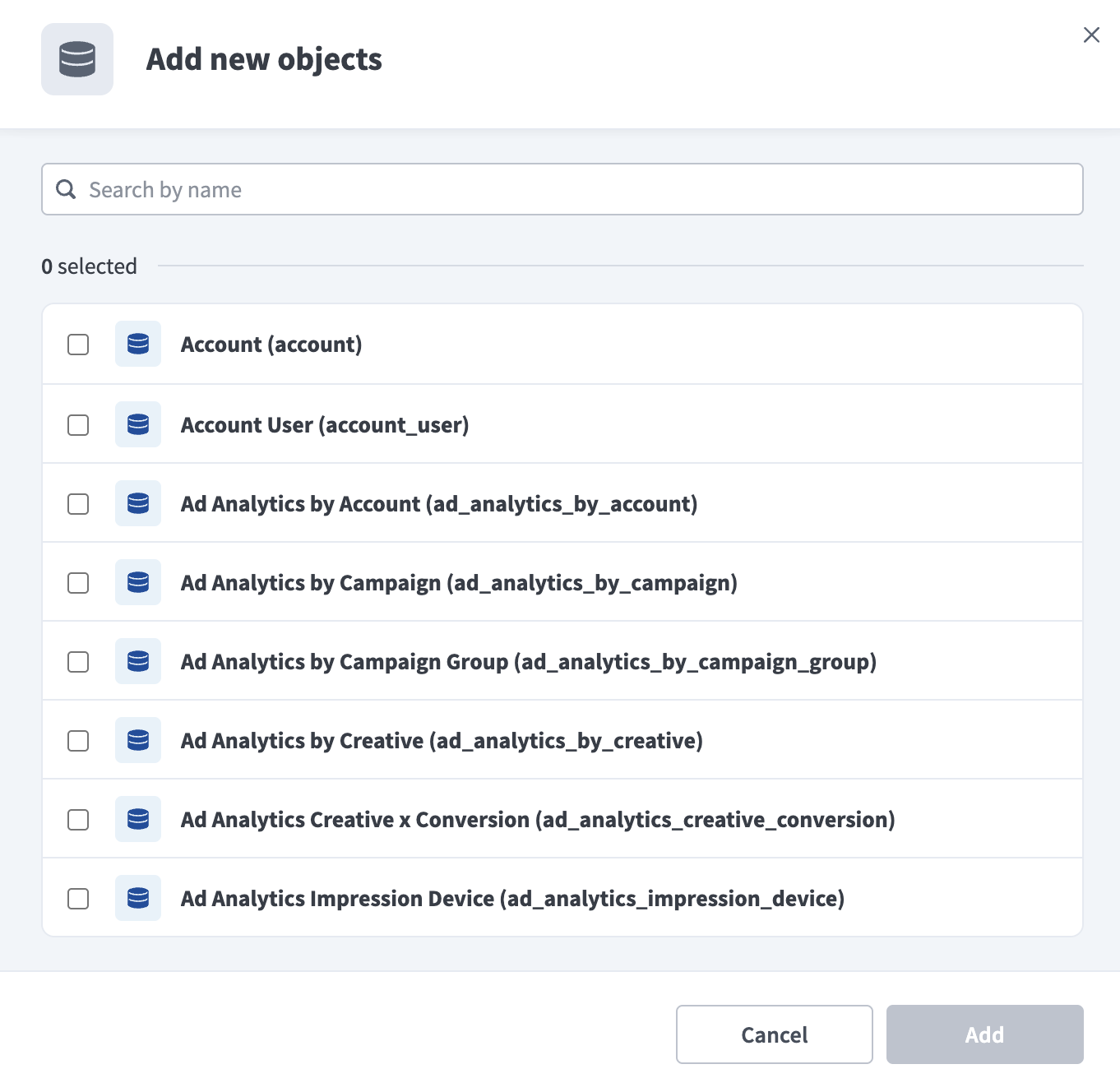 Select LinkedIn objects
SYNC MODE DEFAULTS
Account, Account User, Campaign Group, Campaign, Creative, Creative Serving Status History, Conversion, Lead Gen Form, and Lead Gen Form Response sync in Full sync mode only. All Ad Analytics objects sync in Incremental mode. Refer to Sync modes for more information.
Review and customize the schema for each selected object. The pipeline automatically fetches an object's schema when you select it. This ensures the destination matches the source.
Expand an object to view associated fields. Keep all fields selected to extract all available data, or deselect specific fields to exclude them from data extraction and schema replication.
Optional. Configure field-level data protection by expanding an object and choosing how to handle each field.
- Replicate as is: Data values at the source replicate identically to the destination.
- Hash: Hash sensitive data values in the field before syncing to your destination.
Workato recommends hashing personally identifiable information (PII). Refer to Sensitive data handling for a list of fields that commonly contain PII.
Click Add object again to add more objects. Repeat this step to include additional LinkedIn objects in your pipeline.
Use the Choose how to handle schema changes drop-down menu to select a schema drift handling option:
- Auto-sync new fields: Automatically detects and syncs new fields added in the source.
- Block new fields: Keeps the schema fixed after the pipeline starts. You must add new fields manually. This option may cause the destination to fall out of sync if the source schema updates.
Refer to Schema replication and schema drift management for more information.
Choose either a standard time-based schedule or define a custom cron expression in the Frequency field. This determines how often the pipeline syncs data from LinkedIn to the destination.
This field doesn't apply to Ad Analytics objects, which always backfill from a fixed start date instead. Refer to Incremental sync for details.
Supported objects
LinkedIn data pipelines sync data from the LinkedIn Marketing API. The following tables list the supported objects, grouped by category. Each object syncs as a separate table in your destination.
Account and campaign structure
These objects define the account, campaign, and creative structure in LinkedIn Campaign Manager:
| Object | Sync mode | Delete tracking |
|---|---|---|
Account | Full sync | Yes (soft) |
Account User | Full sync | Yes (destination-inferred) |
Campaign Group | Full sync | Yes (soft) |
Campaign | Full sync | Yes (soft) |
Creative | Full sync | Yes (soft) |
Creative Serving Status History | Full sync | N/A |
Conversion | Full sync | Yes (destination-inferred) |
Creative Serving Status History is a separately selectable object. It derives rows from each creative's serving-status fields when the object is extracted.
Lead generation
These objects sync lead capture forms and their submitted responses:
| Object | Sync mode | Delete tracking |
|---|---|---|
Lead Gen Form | Full sync | N/A |
Lead Gen Form Response | Full sync | Yes (destination-inferred) |
Lead Gen Form currently always returns 0 records.
Ad analytics (daily performance)
These objects report ad performance metrics at a daily grain:
| Object | Sync mode | Delete tracking |
|---|---|---|
Ad Analytics by Campaign | Incremental | N/A |
Ad Analytics by Creative | Incremental | N/A |
Ad Analytics by Campaign Group | Incremental | N/A |
Ad Analytics by Account | Incremental | N/A |
Ad Analytics Creative x Conversion | Incremental | N/A |
Ad Analytics Creative x Conversion reports creative-level performance broken down by conversion.
Ad analytics (monthly demographics)
These objects report ad performance broken down by audience demographic or device at a monthly grain:
| Object | Sync mode | Delete tracking |
|---|---|---|
Ad Analytics by Member Country | Incremental | N/A |
Ad Analytics by Member Region | Incremental | N/A |
Ad Analytics by Member Company Size | Incremental | N/A |
Ad Analytics by Member Industry | Incremental | N/A |
Ad Analytics by Member Job Function | Incremental | N/A |
Ad Analytics by Member Job Title | Incremental | N/A |
Ad Analytics by Member Seniority | Incremental | N/A |
Ad Analytics by Member Company | Incremental | N/A |
Ad Analytics by Impression Device | Incremental | N/A |
Refer to Demographic analytics data delay and Low-volume demographic breakdowns may be sparse for behavior specific to this category.
Sync modes
LinkedIn data pipelines support full sync and incremental sync. The sync mode is fixed per object. You can't change it when you add the object to your pipeline.
Full sync
A full sync reads the selected object's available records from LinkedIn and overwrites the destination table. If the When first started, this pipeline should pick up records from field is set, applicable metadata objects exclude records whose native modification timestamp is not later than that date, on the initial run only.
Account, Account User, Campaign Group, Campaign, Creative, Creative Serving Status History, Conversion, Lead Gen Form, and Lead Gen Form Response always use a full sync, because LinkedIn's Marketing API doesn't expose a working modified-time filter for these objects. Refer to All account and campaign structure objects sync as full sync only for the effect on large accounts.
Incremental sync
An incremental sync extracts only records for the date range that changed since the last successful run. All Ad Analytics objects use a rolling date-window cursor. Each run advances the window forward from the last synced date.
- Daily objects. The objects in Ad analytics (daily performance) re-query the most recent 7 days on every run to capture late attribution. This lookback window is fixed and isn't user-configurable.
- Monthly objects. The objects in Ad analytics (monthly demographics) advance one month at a time with no lookback re-query.
- Historical backfill. Ad Analytics objects backfill from a fixed connector-side start date rather than the date you enter in the When first started, this pipeline should pick up records from field. Daily objects and
Ad Analytics by Impression Devicebackfill 1 year of history. The remaining monthly Member objects backfill 2 years, matching LinkedIn's retention limit for these breakdowns.
Refer to the Supported objects tables to see the sync mode for each object.
Delete tracking
Account, Campaign Group, Campaign, and Creative use the synthetic _workato_is_archived column to track deletes, because their native LinkedIn status field can't drive delete tracking directly. Refer to Synthetic columns for more information.
Account User, Conversion, and Lead Gen Form Response have no native soft-delete field. A record is treated as deleted when it no longer appears in a full sync response, following the standard destination-diff behavior common to every full-sync object on this connector.
Ad Analytics objects don't track deletes. Analytics rows represent recomputed metrics for a date or month, not individual records that LinkedIn deletes.
Schema and data type handling
The following schema behaviors apply when you sync LinkedIn data:
Timestamps
Most account and campaign structure timestamp fields use epoch-millisecond integers. Lead Gen Form has no timestamp field, while Lead Gen Form Response uses the epoch-millisecond submittedAt field. Ad Analytics objects use a date range instead of a single timestamp. Daily objects carry a date column, and monthly objects carry a month column set to the first day of the reporting month.
Composite keys for Ad Analytics objects
Ad Analytics objects use a composite upsert key instead of a single record ID. The key combines the campaign, creative, or account identifier with the date or month column. Ad Analytics Creative x Conversion uses a 3-part key that combines the creative identifier, the conversion identifier, and date.
Synthetic columns
Workato adds the following synthetic column to destination tables for specific objects:
| Column | Type | Purpose |
|---|---|---|
_workato_is_archived | Boolean | Marks records whose native LinkedIn status transitioned to ARCHIVED or CANCELED. Applies to Account, Campaign Group, Campaign, and Creative. |
Sensitive data handling
LinkedIn objects can contain personally identifiable information (PII). The following objects commonly contain sensitive fields:
| Object | Sensitive fields |
|---|---|
Lead Gen Form Response | answers (may include name, email address, and phone number) |
Account User | user (a reference to a LinkedIn member profile) |
Creative | createdBy, lastModifiedBy (references to a LinkedIn member profile) |
Campaign | createdBy, lastModifiedBy (references to a LinkedIn member profile) |
Use the Hash option in field-level data protection during pipeline configuration to protect PII before it reaches your destination. Refer to the Configure the pipeline steps for more information.
Limitations
The following limitations apply when you use LinkedIn as a data pipeline source:
All account and campaign structure objects sync as full sync only
Every sync re-fetches the complete object list for Account, Account User, Campaign Group, Campaign, Creative, Creative Serving Status History, and Conversion. Refer to Full sync for more information. For accounts with a large number of campaigns or creatives, consider a longer sync interval to reduce API load.
Demographic analytics data delay
The Member breakdown and Ad Analytics by Impression Device objects reflect data through 2 days before the current date, to account for LinkedIn's processing delay for these breakdowns. The remaining Ad Analytics objects reflect data through 1 day before the current date.
Low-volume demographic breakdowns may be sparse
LinkedIn applies a privacy threshold to Ad Analytics by Member Job Title, returning results only for the top 100 job titles with at least 3 events in the reporting window. Job titles below this threshold don't appear in the results.
Reconnect when the access token expires
The connector treats an expired or invalid LinkedIn access token as an authorization error. LinkedIn access tokens expire after 60 days. Reconnect the LinkedIn connection to obtain a fresh token.
Minimum sync frequency
The minimum supported sync interval is 15 minutes. You can't trigger syncs more frequently than this.
Last updated: